ReportCardPS - Create Custom HTML Reports with VMware’s Clarity UI Styling
This chapter focuses on how to use the ReportCardPS PowerShell module to create customized HTML reports that leverage VMware’s Clarity UI project. It covers the structure of creating a report manifest and custom functions used by the report manifest file.
PowerShell has been used to create HTML reports for years. System administrators have written hundreds and hundreds of lines of custom code that create visually pleasing reports in an HTML format. Many of those lines exist solely to format data in a pleasing HTML format. Utilizing an external library for HTML styling allows for a much simpler approach to creating these customized reports.
This chapter assumes you are already at a moderate skill level with PowerShell and have a basic knowledge of HTML elements, PowerShell function structure, and JSON objects.
To follow along with the commands in this chapter, Windows PowerShell 5.1 is required.
No other versions of PowerShell were tested with the code referenced in this chapter.
The ReportCardPS PowerShell module version used for this chapter is 0.0.14.
How ReportCardPS Works
The Basics
The purpose of the ReportCardPS module is to turn output from multiple PowerShell functions into a consumable HTML document. Each function should be represented by an area on the page that’s distinct. The HTML document should be able to support multiple screen sizes and a random number of functions or cards.
The New-ReportCard function iterates through the PowerShell functions provided in the report manifest file.
First, a new HTML document is created.
Second, each function is executed and the output of the function is transformed into HTML elements.
As each function is executed the HTML elements are added to the HTML document.
Finally, after all functions have been executed, the HTML document is returned to the PowerShell pipeline.
This function also inserts all the required HTML header information to use the VMware Clarity HTML and Cascading Style Sheets (CSS) elements.
VMware’s Project Clarity
The HTML/CSS framework that supports ReportCardPS is VMware’s Clarity Design System. Clarity is an active open source project and is licensed under the MIT License. This design system provides rich features and an exceptional experience to end users. ReportCardPS consumes the HTML elements of Project Clarity through ClarityPS, a PowerShell module specifically aimed at exposing all Clarity HTML elements. This allows for the ReportCardPS module to focus solely on providing the functionality to generate reports. ReportCardPS also takes advantage of having built-in support for Light and Dark themes.
Understanding HTML Cards
HTML cards are a user interface object that organizes data clearly and concisely. When a HTML document utilizes multiple cards on the same webpage the cards are placed on a balanced grid to allow for auto scaling.
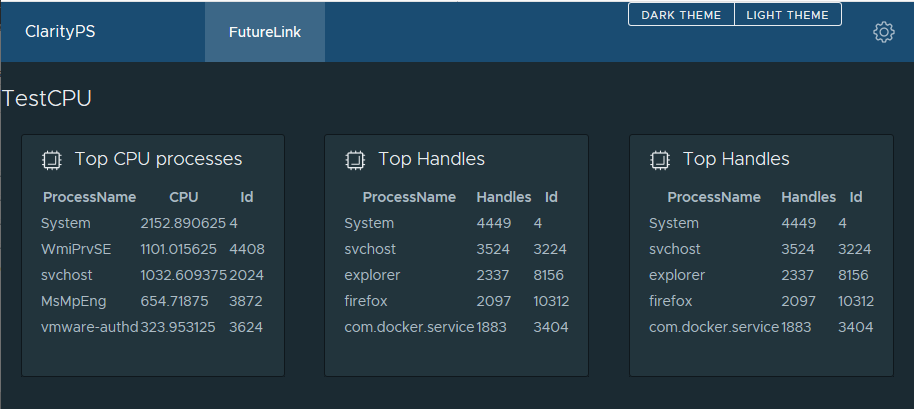
ReportCardPS utilizes a flex-container element which allows for the grid of cards to be generated dynamically based on the card width and the page width.
See the image below where the browser window has been dragged to the left and the result is a card being bumped to a second row.
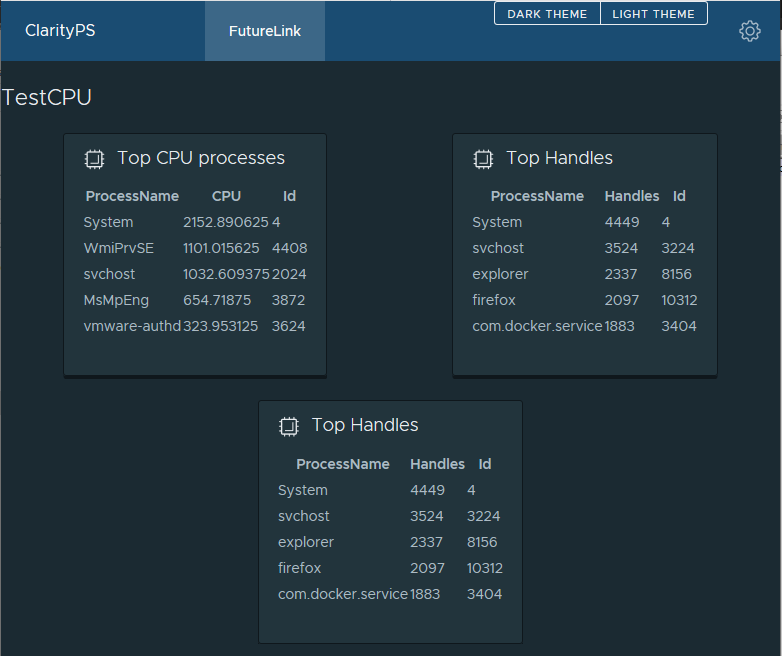
The two images used above were rendered with the same exact HTML—only the browser window’s width was changed.
Getting Started
Configuring Your Environment for This Chapter
Creating a clean environment is important when running any script or application.
1 # Determine the current script execution policy.
2 Get-ExecutionPolicy
Output:
1 Restricted
1 # Execute the following command to change the PowerShell execution policy.
2 Set-ExecutionPolicy -ExecutionPolicy RemoteSigned
1 # Verify the command updated the script execution policy.
2 Get-ExecutionPolicy
Output:
1 RemoteSigned
Install ReportCardPS
First, ensure you can find the module in the PowerShell Gallery. This will require the computer have a connection to the internet.
1 Find-Module -Name ReportCardPS -Repository PSGallery
1 Version    Name                              Repository           Description
2 -------    ----                              ----------           -----------
3 0.0.12     ReportCardPS                      PSGallery            PowerShe...
4 0.0.14     ReportCardPS                      PSGallery            PowerShe...
Next, install the ReportCardPS PowerShell module:
 1 $InstallParams = @{
 2   Name = 'ReportCardPS'
 3   RequiredVersion = '0.0.14'
 4   Repository = 'PSGallery'
 5   Scope = 'AllUsers'
 6   Force = $true
 7 }
 8 Install-Module @InstallParams
 9 # Import the ReportCardPS module
10 Import-Module –Name ReportCardPS
Then, verify the ReportCardPS module is installed by utilizing Get-Module:
1 Get-Module -Name ReportCardPS -ListAvailable
Output:
1     Directory: C:\Program Files\WindowsPowerShell\Modules
2
3 ModuleType Version    Name                              ExportedCommands
4 ---------- -------    ----                              ----------------
5 Script     0.0.14     ReportCardPS                      {Get-ReportCardTemp...
Finally, verify the ClarityPS module is installed by utilizing Get-Module:
1 Get-Module -Name ClarityPS -ListAvailable
Output:
1     Directory: C:\Program Files\WindowsPowerShell\Modules
2
3 ModuleType Version    Name                               ExportedCommands
4 ---------- -------    ----                               ----------------
5 Script     0.3.0     ClarityPS                           {Add-Branding, Add...
Inspect the ReportCardPS Module
You can use the Get-Command function to review the available commands that are provided in the ReportCardPS module.
1 Get-Command -Module ReportCardPS
Output:
1 CommandType     Name                           Version    Source
2 -----------     ----                           -------    ------
3 Function        Get-ReportCardTemplateSet      0.0.14     ReportCardPS
4 Function        New-ReportCard                 0.0.14     ReportCardPS
The ReportCardPS Manifest File
The report manifest file is a JavaScript Object Notation (JSON) document which details the order of and information about the cards that will be in the HTML report document. Each card is described with the following information:
-
CardTitle: Brief description of the card -
CardFunction: PowerShell function to be used to generate the card HTML -
CardArguments: Parameters to be used when executing the PowerShell function -
Order: Order of the cards on the HTML document.
Here is an example of a basic report manifest file:
 1 [
 2   {
 3     "CardTile": "CPU",
 4     "CardFunction": "Get-LocalProcUsage",
 5     "CardArguments": "-Count 5",
 6     "Order": "1"
 7   },
 8   {
 9     "CardTile": "Handles",
10     "CardFunction": "Get-LocalHandleCount",
11     "CardArguments": "-Count 5",
12     "Order": "2"
13   }
14 ]
Locate ReportCardPS Manifest Files
ReportCardPS includes example report manifest files in the module’s lib folder.
You can locate the example files with the included function Get-ReportCardTemplateSet:
1 Get-ReportCardTemplateSet
Output:
1 # Full paths are not displayed.
2 FullName
3 C:\...\Modules\ReportCardPS\0.0.14\lib\Generic\LocalCPUReport.json
4 C:\...\Modules\ReportCardPS\0.0.14\lib\VMware\vCenterHomeReport.json
This chapter will utilize LocalCPUReport.json as the example report manifest file.
Creating a Basic Report
ReportCardPS includes the functions and report Manifest file to create a basic report on CPU usage and performance for your local machine.
To create a report execute the New-ReportCard command with the following parameters:
-
Title: Name of the report that will be displayed on the HTML Document -
JsonFilePath: Full Path to the report manifest file
By default, ReportCardPS returns the HTML document back to the PowerShell pipeline.
In the example below the HTML file is output to a file in the C:\temp directory.
 1 $NewReportParams = @{
 2   Title = 'ExampleReport'
 3   # Full path is not displayed.
 4   # Use the full path returned from Get-ReportCardTemplateSet.
 5   JsonFilePath = 'C:\...\ReportCardPS\0.0.14\lib\Generic\LocalCPUReport.json'
 6 }
 7 $OutputParams = @{
 8   FilePath = 'C:\temp\exampleReport.html'
 9   Encoding = 'ascii'
10 }
11 New-ReportCard @NewReportParams | Out-File @OutputParams
You can open the newly created file C:\temp\exampleReport.html in a web browser.
Creating Custom Functions
The key to ReportCardPS is the custom PowerShell functions.
These functions are used to gather the data and create the HTML used to render the cards.
Each of these custom functions must be imported into the PowerShell session running the New-ReportCard function.
The main steps that each function needs are:
- Accept parameters.
- Gather raw data.
- Convert the raw data to HTML.
- Assemble card HTML.
- Return the html to the pipeline.
Below is a snippet from an example function similar to one found in the ReportCardPS module.
 1 # Gather the raw data.
 2 $rawData = Get-Process | Sort-Object -Property CPU –Descending
 3
 4 # Convert the raw data to HTML
 5 $DataHTML = $rawData | ConvertTo-Html -Fragment
 6
 7 # Build the HTML Card, with a Title and Icon
 8 $Card = New-ClarityCard -Title "Top CPU processes" -Icon cpu -IconSize 24
 9 $CardBody = Add-ClarityCardBody -CardText "$DataHTML"
10 $CardBody += Close-ClarityCardBody
11 $Card += $CardBody
12 $Card += Close-ClarityCard -Title "Close CPU Card"
13
14 # Return the HTML to the pipeline
15 $Card
The example provides the basics for gathering data and creating a simple card. It’s recommended to explore the Clarity Documentation to learn about additional HTML elements you can add to the cards. You may also want to review the latest functions from ClarityPS.
Summary
The ReportCardPS PowerShell module was created to give system administrators another tool to create custom reports utilizing VMware’s Clarity HTML elements. The functions included in ReportCardPS and ClarityPS can be used to create elaborate and customized reports to display a variety of data points. Contributions, bug reports, and suggestions are welcome to both PowerShell modules as they’re open source projects.