57 Add OIDC Provider to KeyCloak
Keycloak recipeHaving an authentication provider is not much use until you start authenticating things against it! In order to authenticate against KeyCloak using OpenID Connect (OIDC), which is required for Traefik Forward Auth, we’ll setup a client in KeyCloak…
57.1 Ingredients
KeyCloak
Traefik Forward Auth
57.2 Preparation
Create Client
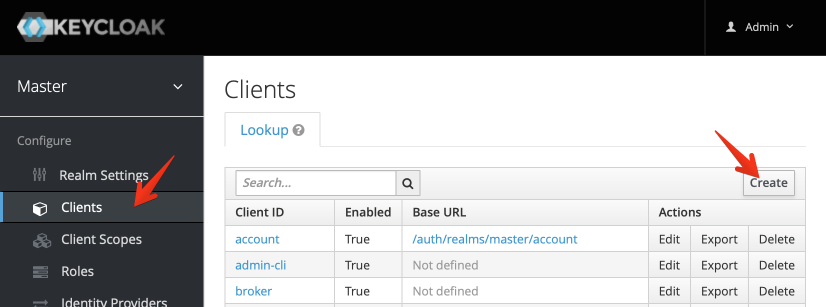
Within the “Master” realm (no need for more realms yet), navigate to Clients, and then click Create at the top right:
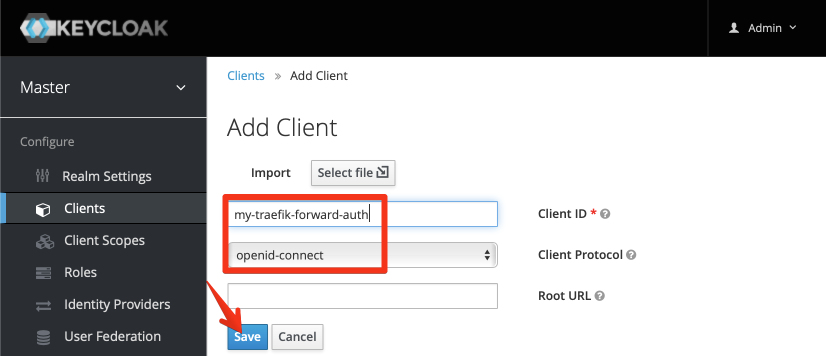
Enter a name for your client (remember, we’re authenticating applications now, not users, so use an application-specific name):
Configure Client
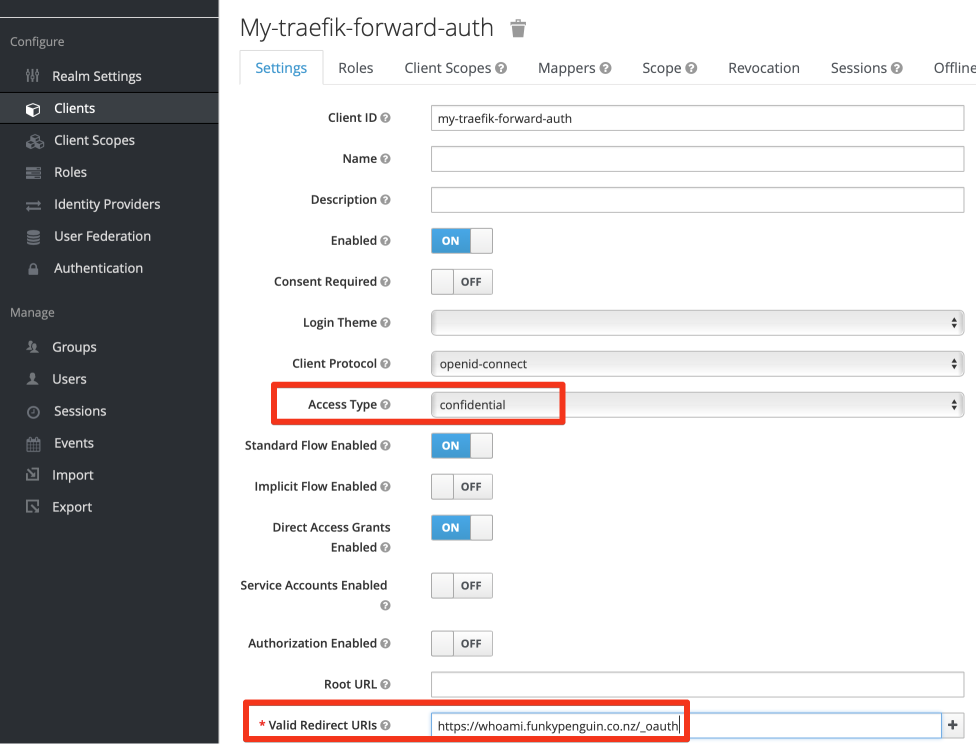
Once your client is created, set at least the following, and click Save
- Access Type : Confidential
- Valid Redirect URIs : <The URIs you want to protect>
Retrieve Client Secret
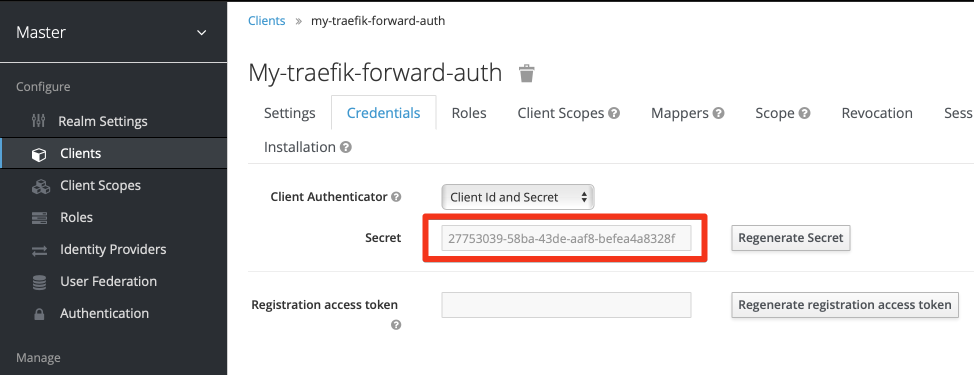
Now that you’ve changed the access type, and clicked Save, an additional Credentials tab appears at the top of the window. Click on the tab, and capture the KeyCloak-generated secret. This secret, plus your client name, is required to authenticate against KeyCloak via OIDC.
57.3 Summary
We’ve setup an OIDC client in KeyCloak, which we can now use to protect vulnerable services using Traefik Forward Auth. The OIDC URL provided by KeyCloak in the master realm, is https://<your-keycloak-url>/realms/master/.well-known/openid-configuration