Chapter 2—Row–Column grid layout
In this chapter, we explore the basic row-column grid layout by using float.
- Row–column based layout
- Floating grid system
Row-columns-based layout
Before building our Flexbox layout, we revisit the traditional float-based grid layout. One of the easiest approach to implement grid is using the row-columns approach.
Time for Action—Build our own minimal float-based grid layout
I assumed we have a basic norimalization or CSS reset applied to the page.
- At first, we define the following rules that prevents our layout broken by box-model or extra-large images.
grid.css 1/* Border box */2*{box-sizing:border-box;}34/* Prevent image breaking our layout */5img{max-width:100%;} - Then we define the basic row-column properties that construct the foundation.
<<grid.css
- Mobile first design means that we work on the smallest layout first. To make the code simpler, I’m using 4-columns in the code example. In production, we may want to use a 12 or 16 columns. Actually we will switch to 12-columns In next step when using Scss to generate our CSS code.
<<grid.css
- After the small layout, we define the medium which overrides the smaller layout configure if presented in the HTML.
<<grid.css
Mobile first design
Mobile first means that during our website planning, we plan the content and layout for the mobile first. Planning for mobile first ensures us to consider the most important thing of our website. The screen is so tiny that we have to think clearly what’s important enough to earn a place there. And what is the most important thing that we put it on top of this tiny screen.
In grid system, mobile first means we use the small-N layout modifiers by default. When we need to build a wider layout, we start using the medium-N, large-N and even xlarge-N. Each one overrides the smaller one. (N ranges from 1 to 12 in the default configuration)
Using our grid system
The following HTML is an example showing our grid system.
The HTML code only shows the grid structure. You may need to include the proper HTML structure with <head> and includes the CSS styles.
 1 <div class="row">
 2   <div class="small-12 col">Float based layout</div>
 3 </div>
 4 <nav class="row">
 5   <div class="small-12 col">
 6     <ul>
 7       <li><a href="#">Home</a></li>
 8       <li><a href="#">About</a></li>
 9       <li><a href="#">Clients</a></li>
10       <li><a href="#">Contact Us</a></li>
11     </ul>
12   </div>
13 </nav>
14 <div class="row">
15   <main class="small-4 medium-3 col">
16     <h1>Headnig of main content</h1>
17     <p>Main content goes here.</p>
18     <p>Main content goes here.</p>
19     <p>Main content goes here.</p>
20     <p>Main content goes here.</p>
21   </main>
22   <aside class="small-4 medium-1 col">
23     <p>Aside content goes here.</p>
24     <img src="http://placehold.it/500x300" alt="placeholder">
25     <img src="http://placehold.it/500x300" alt="placeholder">
26   </aside>
27 </div>
28 <footer>
29   <div class="row">
30     <div class="small-12 col">
31       <p>This is a demo in <a href="http://flexbox.website">Web layout with Flex\
32 box</a> workshop by <a href="http://makzan.net">makzan</a>.</p>
33     </div>
34   </div>
35 </footer>
When running the page in browser, we will see the following screens.
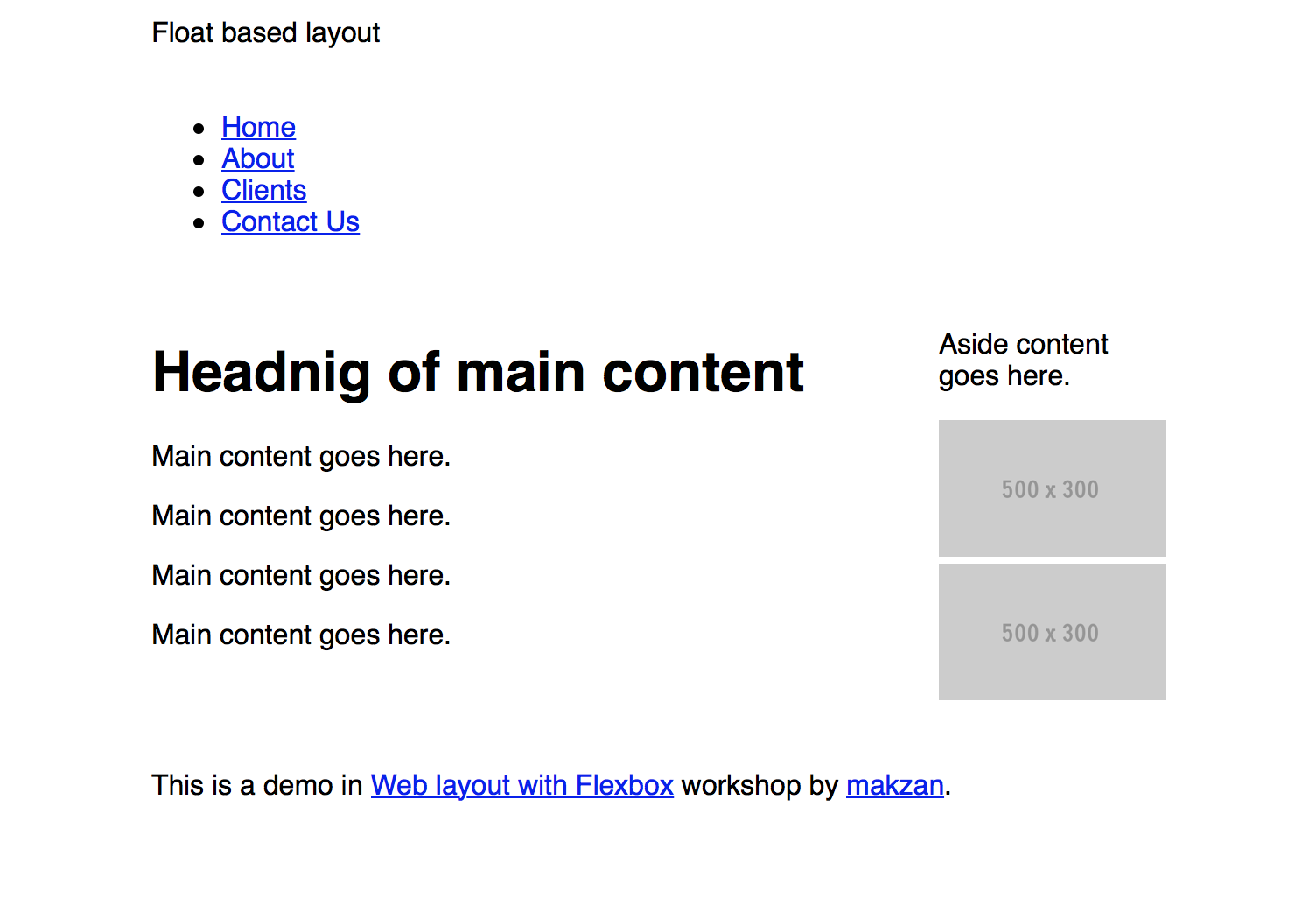
Floating grid with Scss
We have built a very basic grid system. There are many pattern-repeating code when defining the columns. We can use preprocessor to keep the code shorter for easier maintenance.
 1 $columns-count: 4;
 2 $breakpoint: 800px;
 3 @media screen {
 4   @for $i from 1 through $columns-count {
 5     .small-#{$i} {
 6       width: 100%/$columns-count * $i;
 7     }
 8   }
 9 }
10 @media screen and (min-width: $breakpoint) {
11   @for $i from 1 through $columns-count {
12     .medium-#{$i} {
13       width: 100%/$columns-count * $i;
14     }
15   }
16 }
Just in case you use pure-CSS, here is the CSS version of the code.
 1 @media screen {
 2   .small-1 {
 3     width: 25%;
 4   }
 5
 6   .small-2 {
 7     width: 50%;
 8   }
 9
10   .small-3 {
11     width: 75%;
12   }
13
14   .small-4 {
15     width: 100%;
16   }
17 }
18 @media screen and (min-width: 800px) {
19   .medium-1 {
20     width: 25%;
21   }
22
23   .medium-2 {
24     width: 50%;
25   }
26
27   .medium-3 {
28     width: 75%;
29   }
30
31   .medium-4 {
32     width: 100%;
33   }
34 }
Using runtime calc
Preprocessor calculate the column’s width for us. Alternatively, we can use the calc to define formula and let browser calculates the value at runtime. The following is a variant of our code that uses calc and performs the same behaviors in browser.
1 $columns-count: 4;
2 @media screen {
3   @for $i from 1 through $columns-count {
4     .small-#{$i} {
5       width: calc( 100% / #{$columns-count} * #{$i} );
6     }
7   }
8 }
The CSS version:
 1 @media screen {
 2   .small-1 {
 3     width: calc( 100% / 4 * 1 );
 4   }
 5
 6   .small-2 {
 7     width: calc( 100% / 4 * 2 );
 8   }
 9
10   .small-3 {
11     width: calc( 100% / 4 * 3 );
12   }
13
14   .small-4 {
15     width: calc( 100% / 4 * 4 );
16   }
17 }