Chapter 1—Introducing Flexbox
In this chapter, we explore basic Flexbox usages.
- Flex direction
- Center alignment
- Container and items
- Flex grow and shrink
- Inputs
flex-direction
In Flexbox, we control how items are placed within the container. A container is a box with X and Y axis. The Flexbox’s property name doesn’t use X, Y, Left, Top wordings. It’s because we can set flex-direction to control the Main Axis. The other axis is called Cross Axis.
1 .container{
2   flex-direction: row; /* Align from left to right. */
3 }
4 .container{
5   flex-direction: column; /* Align from top to bottom. */
6 }
align and justify
We can now better understand the align and justify after we learn the direction concept. align-items aligns items on the cross axis and justify-content aligns items on the main axis.
Think about justifying a text in word processor. Normally we write the text for left to right. Let’s assume this is as same as having a row direction for our text content. When we click the left, center, right or justify alignment buttons on the toolbar, we can move the content in the row direction. This is what justify-content means—How the content itself aligns in the main axis.
Once we know justify-content is for the main axis, we know align-items is for the other one.
Center align
Center alignment is one of the most discussed topic in CSS. Flexbox provides a easy and elegant way to solve this layout issue.
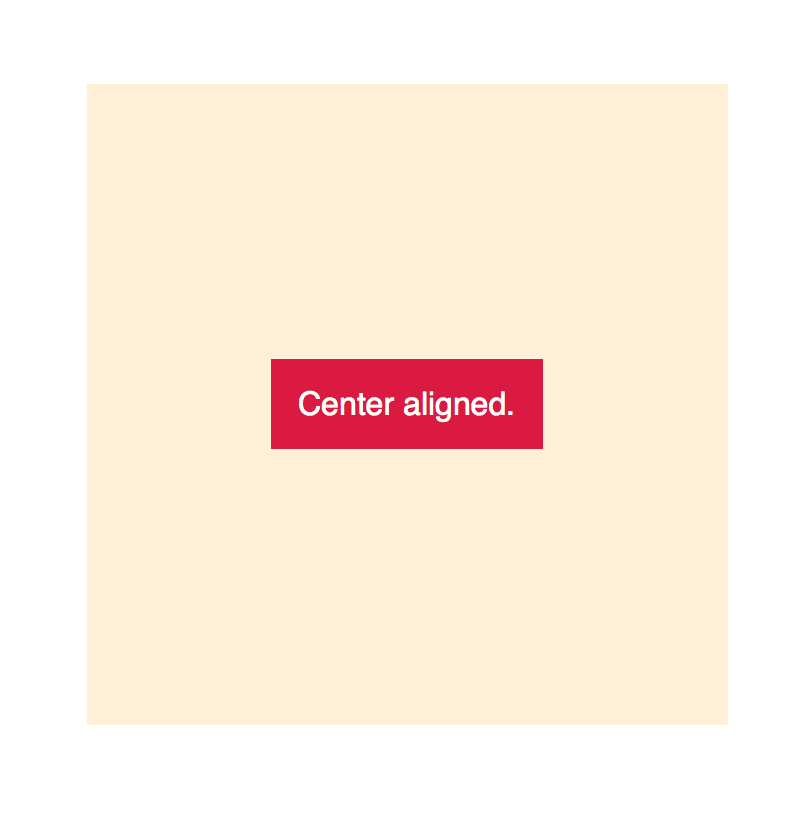
Example—Center aligning one item
HTML:
1 <div class="container">
2   <div class="item">Center aligned.</div>
3 </div>
CSS:
1 .container {
2   display: flex;
3 }
4 .item {
5   margin: auto;
6 }
The beautify of margin: auto on the child items is that it automatically spread the items across the space with equivalent margins.
Example—Distribute multiple items in container
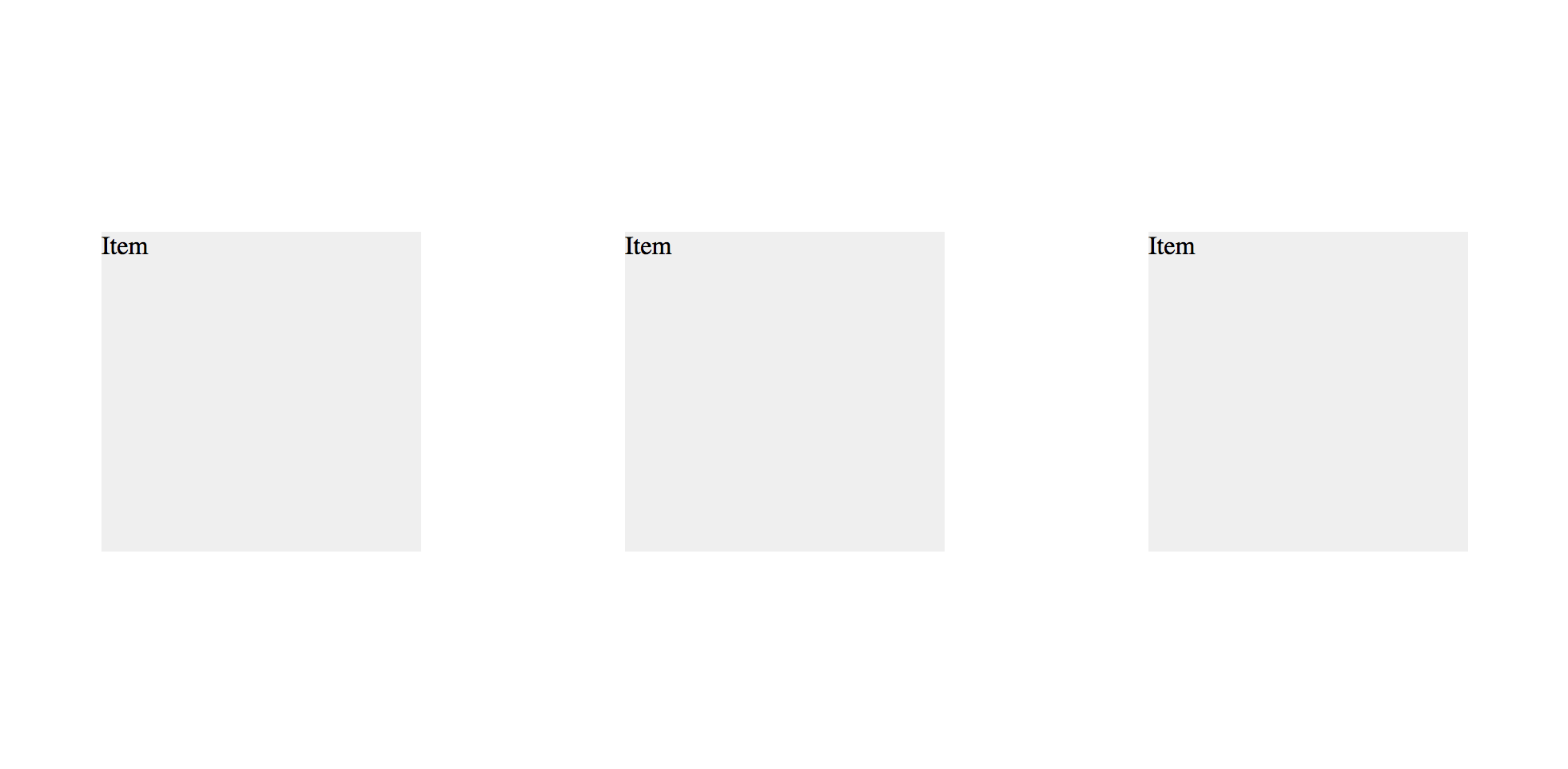
Thanks to the margin: auto, the browser automatically distribute all the items inside the flexbox container equally.
1 <div class="container">
2   <div class="item">Item.</div>
3   <div class="item">Item.</div>
4   <div class="item">Item.</div>
5 </div>
Using align-items and justify-content
Alternatively, we can configure the alignment in the container by using the align-items and justify-content properties.
1 .container {
2   display: flex;
3   align-items: center;
4   justify-content: center;
5 }
6 .item {
7   /* No need to specify the alignment in children */
8 }
Example—Center aligning multiple items

By using the container’s alignment options, we can center align multiple items together.
 1 html, body {
 2   height: 100%
 3 }
 4 .container {
 5   display: flex;
 6   height: 100%;
 7
 8   align-items: center;
 9   justify-content: center;
10
11   flex-direction: column;
12 }
13 .box {
14   height: 50px;
15   width: 300px;
16   margin: 0.2em;
17 }
You can find the live demo in the following link:
http://codepen.io/makzan/pen/dopZxX
Container and items
We only think of 1 container and it’s direct children at any given moment. We should only focus on one container and its direct child items. Flexbox is all about the container and how items inside it take the spaces. When dealing with the container-items pair, we don’t care if the item is a container of another set of elements. We just think of 1 container and it’s direct children.
Flex grow and shrink
When we’re building the grid layout, we need to master another concept of Flexbox—grow and shrink.
flex-grow
Grow defines how the items expand to takes the extra spaces. Grow affects the items when there are empty spaces in the container. Grow defines the ratio each item should expand. Given value 1 on all items mean each one of them should take equal width, or height, depends on the flex-direction.
1 flex: 1;
flex-shrink
Shrink is how each item should squeeze when the container is smaller. Having value 1 on all items means all items shrinks equally.
1 flex: 0 1 auto;
Applying grow and shrink
Given the following HTML structure:
 1 <div class="container">
 2   <header>
 3     Header goes here.
 4   </header>
 5   <main>
 6     <p>Main content.</p>
 7     <p>Main content.</p>
 8     <p>Main content.</p>
 9     <p>Main content.</p>
10     ...
11   </main>
12   <footer>
13     Footer goes here.
14   </footer>
15 </div>
We can make the header and footer shrink to its content height. Then we make the main content auto expand to take up all the spaces.
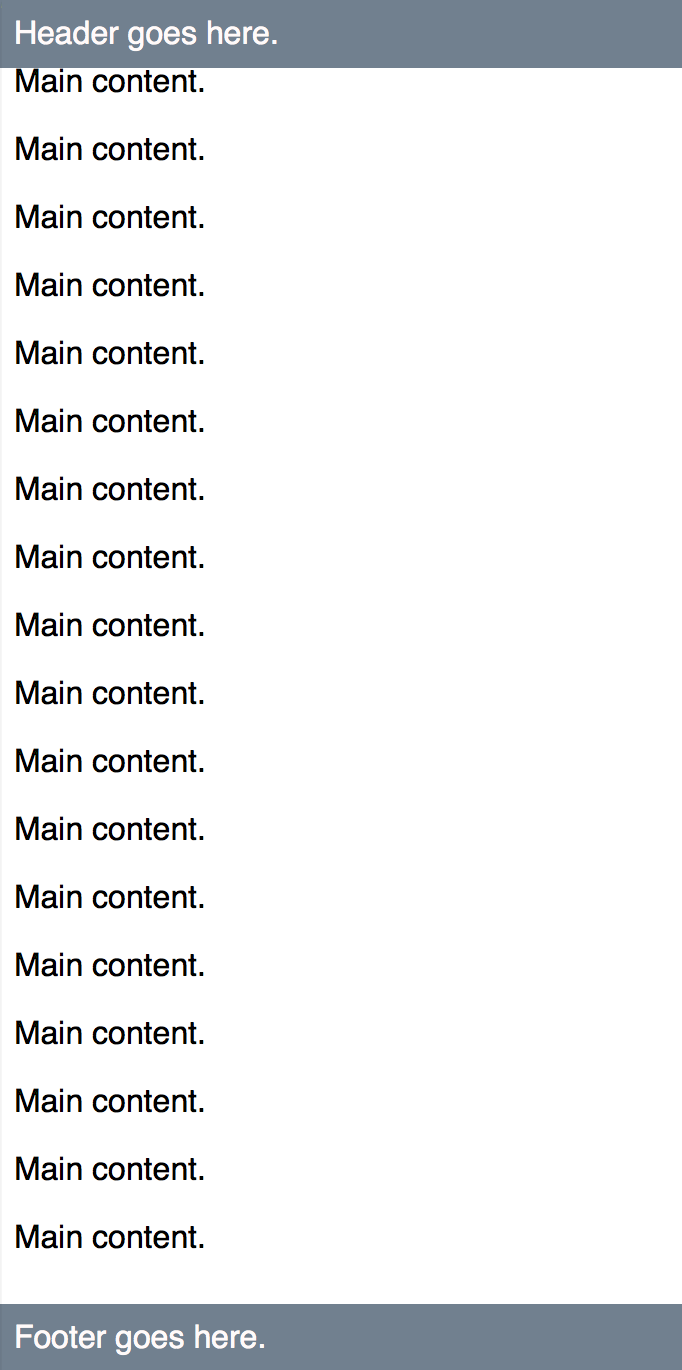
 1 html, body {
 2   height: 100%;
 3 }
 4 .container {
 5   display: flex;
 6   flex-direction: column;
 7   height: 100%;
 8 }
 9 header, footer {
10   flex: 0 1 auto;
11 }
12 main {
13   flex: 1;
14   overflow: scroll;
15   -webkit-overflow-scrolling:touch;
16 }
You may also find the live code in the following codepen demo.
http://codepen.io/makzan/pen/mJrqzO
Inputs
With the grow and shrink feature, we can define items that shrinks to its content’s width, and the main input will take all the rest of the space.
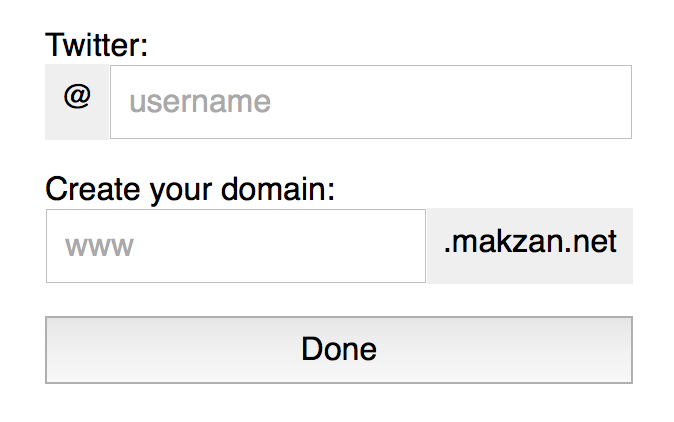
Time for Action—Creating an input form with prefix and postfix
Follow the steps to create an input form with flexbox.
- First, we create the following HTML markup.
index.html 1<divclass="container">2<form>3<fieldset>4<labelfor="twitter-handle">Twitter:</label>5<divclass="input">6<span>@</span>7<inputtype="text"id="twitter-handle"placeholder="username"autofocus>8</div>9</fieldset>10<fieldset>11<labelfor="twitter-handle">Create your domain:</label>12<divclass="input">13<inputtype="text"id="twitter-handle"placeholder="www">14<span>.makzan.net</span>15</div>16</fieldset>17<inputtype="submit"value="Done">18</form>19</div> - Then we just need few lines of flex code to make it works. Display flex, grow, shrink, and Done.
input.css 1.input{2display:flex;3}4.input>span{5flex:01auto;6}7.input>input{8flex:1;9} - Well, I actually applied more styles to make the input looks nice. I added the following code to archive the screenshot we show at the beginning. They are not our focus, but I include it so you see how we can make our inputs more easily to use by using padding.
input.css 10/* Container flexbox */11.container{12display:flex;13align-items:center;14justify-content:center;15height:100vh;16}1718/* Not our focus */19fieldset{20border:none;21padding:0;22margin:1em0;23}2425.input>span{26display:block;27background:#efefef;28padding:0.5em;29}30.input>input{31padding:0.5em;32}3334input[type="submit"]{35width:100%;36padding:0.5em;37}
Live Demo
You may find the live demo of the code in the following codepen entry.