Training Phase
In this section we cover how to train Dragon so that it does an excellent job of converting your speech into text. As far as Dragon is concerned, there is technically no distinction between training and production. Dragon will still be producing text to its best ability in the training phase. You should think of the training phase as your behavior where you pay more attention to how Dragon produces text and slow down to make corrections to Dragon’s interpretation of your speech. In the training phase, you fix mistakes using a specific approach that allows Dragon to learn from its mistakes.
The User’s Vocabulary
Dragon ships with a general vocabulary for English speakers. By training Dragon, you customize this vocabulary to reflect your particular speech patterns. Your customized vocabulary is saved in your User Profile.
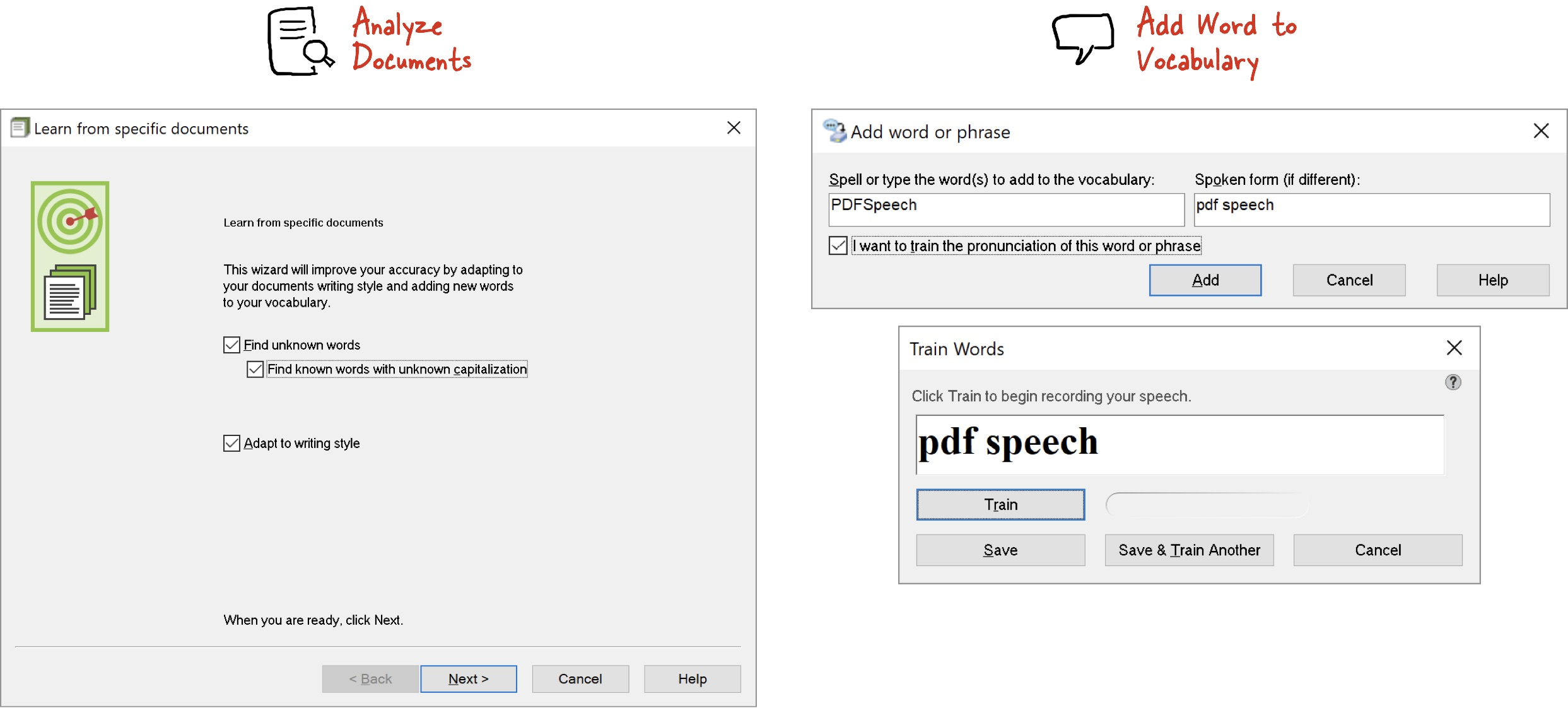
As is commonly understood, your Vocabulary should contain the specific words you use, for example, the technical terms in your subject. You can feed documents into Dragon for text analysis, which not picks up new words for the vocabulary but also helps fine tune the language model in your User Profile based on your writing style.
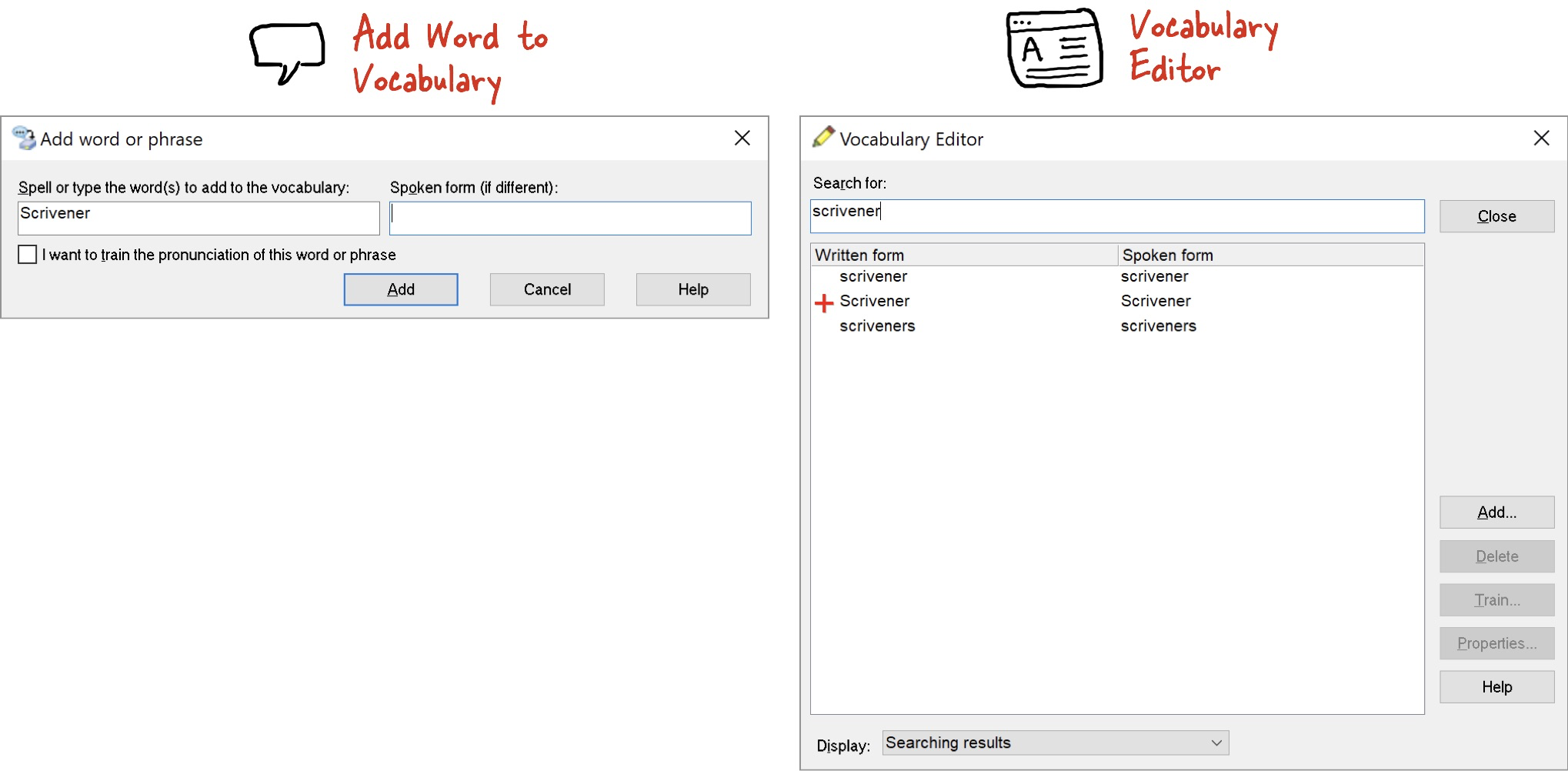
You can also add words (or phrases) one-at-a-time to the Vocabulary. You may do this to ensure that Dragon understands how a phrase must be spelled, capitalized, spaced or otherwise punctuated. For complex words and phrases, you can provide an approximate spoken form equivalent that Dragon should listen for, or hand-hold Dragon all the way by providing a voice sample of you saying the phrase. In this manner, you can ensure that Dragon is fully aware of the terms you’re likely to use in production.
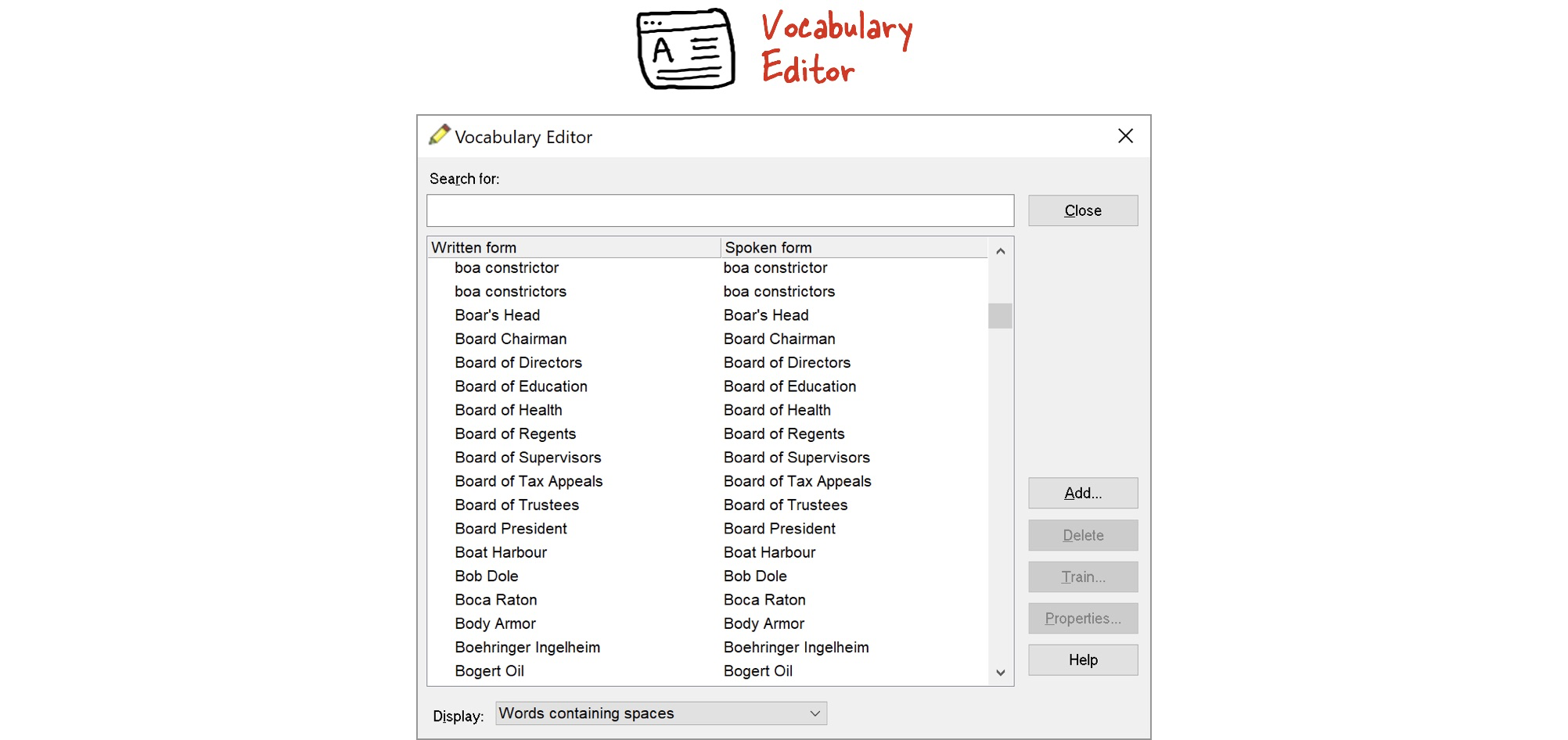
You can see all the words and phrases that Dragon understands in the Vocabulary Editor. This is also where you can train Dragon to recognize specific phrases. For example, if Dragon misunderstands how you say a word, then train your voice for that particular word. Or, if Dragon keeps confusing a built-in word with your custom word, delete the built-in word from the Vocabulary Editor. While micro-management of how Dragon recognizes words & phrases sounds very tedious, it is the guaranteed way to fix recognition errors. Think of the Vocabulary Editor as the override mechanism for Dragon’s speech recognition engine.
Though the Vocabulary Editor is powerful, it is also quite tedious. The recommended way to train Dragon is using voice training, where you use Dragon as you naturally would for real-time dictation but with an emphasis on correcting Dragon when it makes mistakes. And then, you only have to tap the Vocabulary Editor for fixing persistent mistakes.
Next, we look at how to conduct real-time voice training.
Before You Begin Real-time Voice Training
The first decision is to choose a topic on which you will speak, to train Dragon. Ideally, choose a topic broadly related to your real work. For example, you could speak about the resources to consult and what you expect to learn. You could talk about what is important in the topic and what is not. The idea is to talk about the topic generally, and thus use the specific vocabulary and phrases that you’re likely to use in producing real work.
The most important guideline for voice training is to minimize use of the keyboard to fix mistakes. Instead, you should correct the Dragon Assistant using specific voice commands. You may use the mouse to select text quickly but must use voice commands to make edits. We will call up a Corrections Panel to make edits on the selected text, and within this panel, we can use the keyboard to correct the text where required.
To get started with voice training, we will be using the DragonPad tool, which is a simple text editor available from the DragonBar. This text editor (among others) is fully compatible with the Dragon Assistant. We will use this text editor to issue voice commands to edit the text content, and Dragon will be able to follow along.
Here are the important options to configure in Dragon preferences (DragonBar → Tools → Options) to gear up for the training phase:
- First, in the Appearance tab, make sure the DragonBar is NOT set to auto-collapse to a minimal state. We will be using many of the menu commands and they are easier to access from the expanded DragonBar.
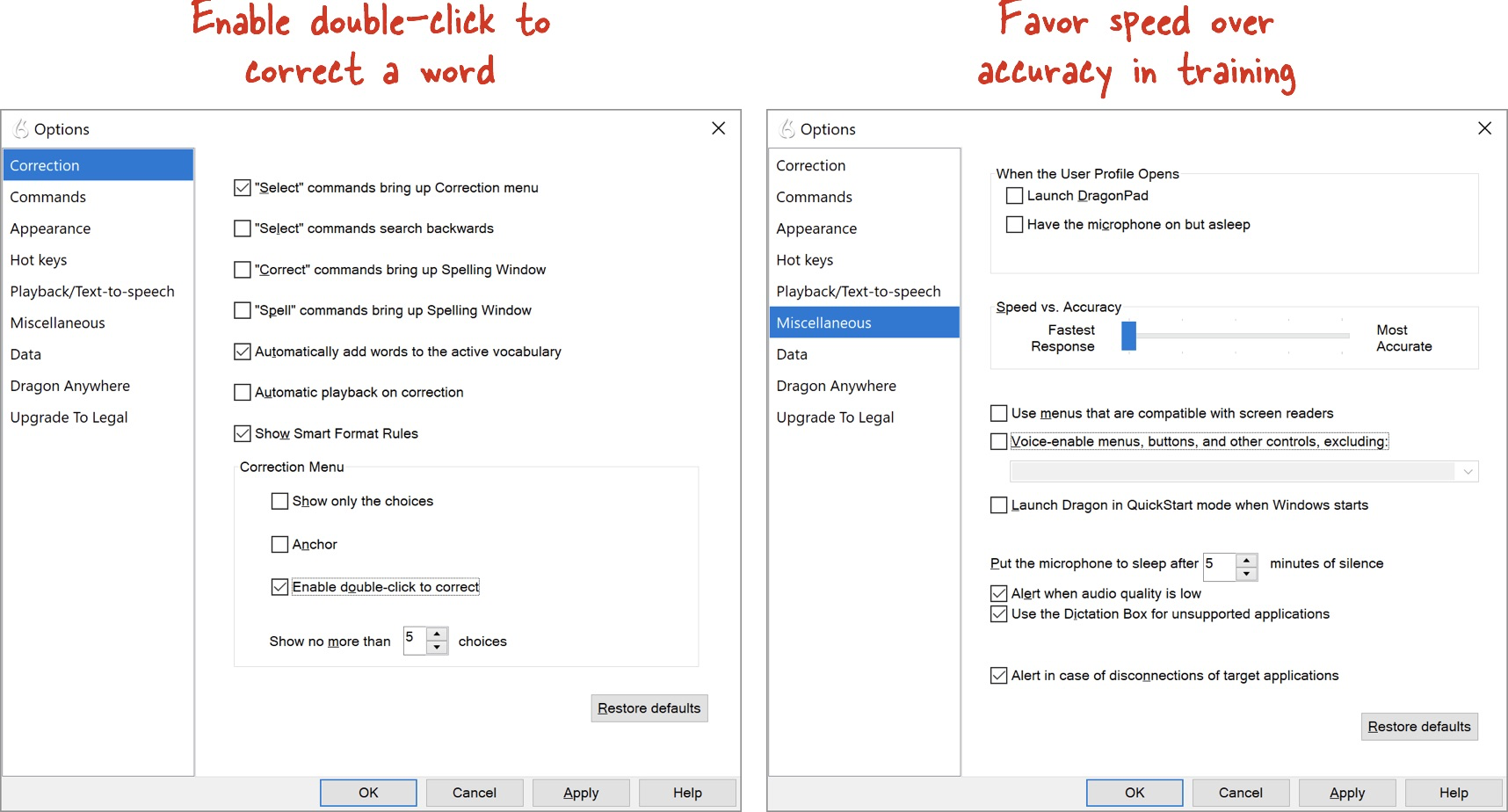
- Second, in the Correction tab, ensure that when you double-click on a word, the Correction Panel will automatically pop-up, ready for you to edit the word. This will allow you to fix any mistakes that Dragon makes by double-clicking on the incorrect word, one word at a time.
- Third, in the Miscellaneous tab, change the Speed vs. Accuracy slider to favor speed. This may make Dragon less accurate in how it interprets what you said, which is ok because this is training – you do want an interpretation mistake to reveal itself, so you can fix it in training.
At this point, before we begin training, let’s recap the rules: we won’t use the keyboard much, and we will use the mouse to select phrases and words that need to be corrected. Further, we have a handy shortcut where if a single word is interpreted incorrectly, then we can double-click on that word and provide the correct interpretation in the Corrections Panel that pops up.
While You Do Voice Training
To start voice training, create a new document in the DragonPad application and turn on the microphone in the DragonBar. While you dictate, you will be using a few essential commands. You will see the interpretation as it happens. However, don’t stop as soon as you see a mistake. Instead finish the phrase, even the whole sentence and then go back to fix the mistakes. Keep your focus on speaking smoothly and continuously. The way we speak, including the pauses we take, should match how we are likely to dictate in the real world. This will allow Dragon to build up an accurate model for when it has to perform in production.
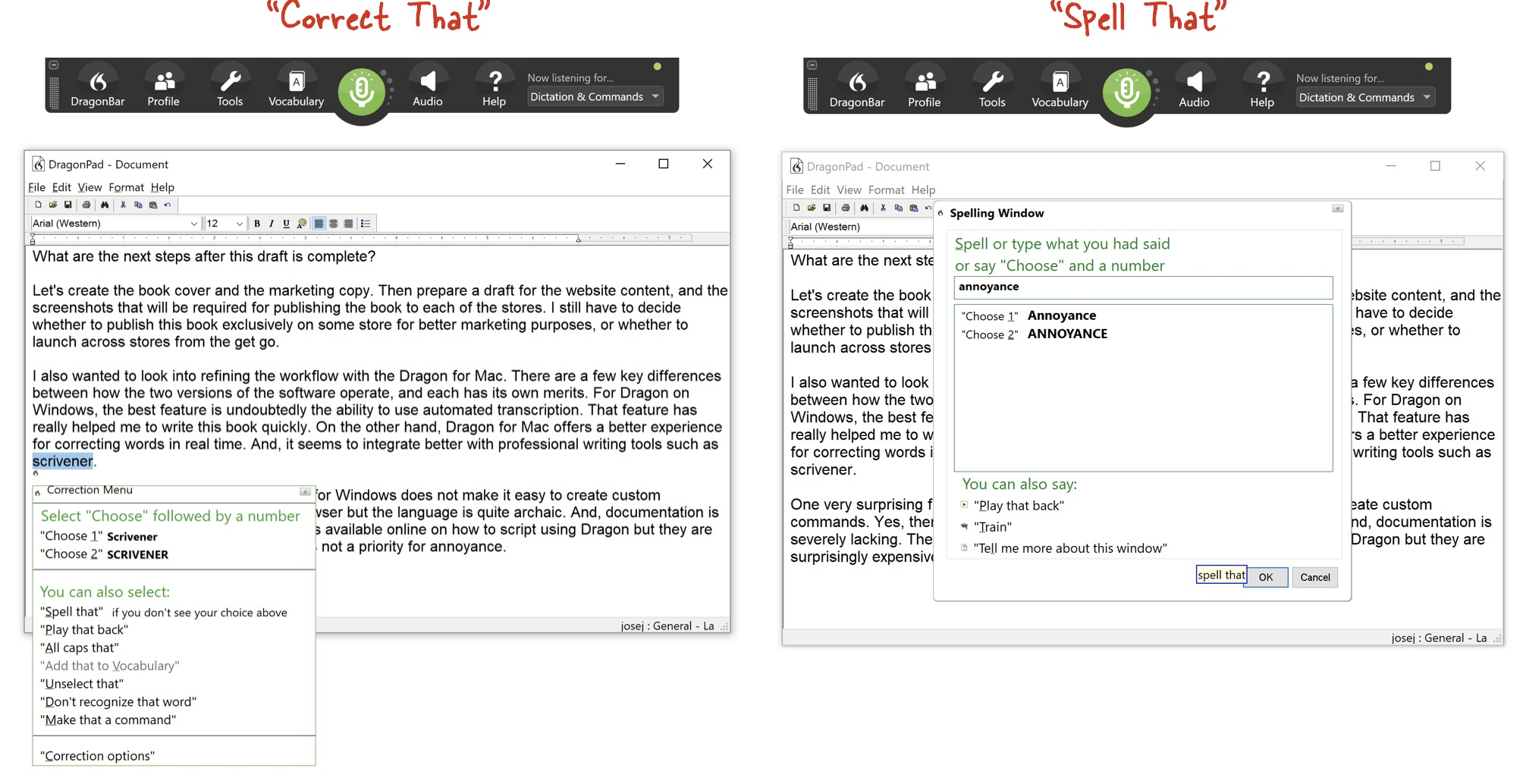
After you have finished a sentence or a paragraph, use the mouse to select the words or phrases that were interpreted incorrectly. Then say the command “Correct That” to bring up either the Correction Panel or say “Play That Back” to listen to what you uttered that Dragon misinterpreted. Use the “Play That Back” command for an immediate play back of what you said which you can then compare to how Dragon interpreted it. Since you have a playback facility on call, you don’t need to stop immediately when Dragon makes a mistake for fear that you may forget exactly how you had chosen to phrase it.
When you open the Corrections Panel with the “Correct That” command, you have two options: either select the correct interpretation from the list provided (say “Choose 3”) or provide the correct interpretation by typing it out using the keyboard (say “Spell That”). The important point to remember is to type the correction within the Corrections Panel, not directly into the DragonPad text editor.
In this way, word by word and phrase by phrase, in a realistic dictation scenario, you teach the Dragon Assistant how to correctly interpret what you said.
You will surely be impressed with the overall accuracy of the Dragon Assistant out-of-the-box. In prior versions of Dragon, you were expected to spend a few minutes reading out pre-defined texts to set up your profile. Now that’s not necessary thanks to the “deep learning engine”. However, out-of-the-box Dragon doesn’t know the many specific words that you use in your speech, and further, there will be differences in how you speak compared to what Dragon expects. Therefore, training is extremely important. It doesn’t take very long to train Dragon. Moreover, you can do this in bursts of 5 to 10 minutes a day, where you can opt to talk about topics that are interesting and important for you. Let Dragon Assistant learn by taking the time to make the corrections in the Corrections Panel. The purpose of training then is for Dragon Assistant to learn the idiosyncrasies of your speech.
Furthermore, when you come across new terms in your vocabulary that Dragon is not able to understand, as reflected in the phrases not being present as one of the choices provided in the Correction Panel, you should take the time to add that term to Dragon’s Vocabulary. This is done through the DragonBar menu. Do this incrementally, and you won’t have to wait to do it in bulk. Furthermore, if the next time you use that phrase, Dragon is not able to understand it, then you should go back to the Vocabulary Editor, locate the phrase and provide a voice training sample, so that Dragon is better able to understand how you speak the phrase. Indeed, even the first time you add a new vocabulary word, it may be helpful to provide a spoken form for the word or a voice sample. In this way, you build up Dragon’s vocabulary to include your phrases.
Post the Voice Training
What should you do after 10 minutes of training? First, save your document in DragonPad as an RTF (rich text) file. Then, go to DragonBar → Profile and save your User Profile so that all the corrections that you made will be saved into the profile. Next go back through the content and see if there are any more phrases you want to add to the vocabulary saved within your profile. For each new term, you may want to include a spoken form equivalent or provide a voice sample. With an updated vocabulary, your training session qualifies as a success.
The license for Dragon Professional Individual allows you to install the software on two PCs. If you have another PC which you also intend to use for dictation, then you may want to export the vocabulary from this PC to the other PC. Additionally, the rich text document that you saved from DragonPad can be fed for training into the other PC’s copy of Dragon so that it can learn the way you order your words while you speak.
In general, Dragon allows you to feed it any document from which it can learn either your vocabulary, or your writing style, or both. However, most of our final documents are already heavily edited, and thus are not ideal for feeding into Dragon because such documents don’t reflect the way we speak. Instead, the training documents that you create using the above approach in DragonPad are a great fit for feeding into Dragon on another PC because they do accurately reflect the way you spoke. That’s also the reason to avoid making edits using the keyboard while training - to ensure the training text is identical to the way you speak.
Note that the voice corrections you made during training i.e. the changes in interpretation that you specified that allow Dragon to re-map your spoken audio to the correct text phrase, are part of the User Profile. However, when you export the vocabulary for import into another PC, these corrections to the speech model are not transferred over. Instead, you can export and copy over the entire User Profile from one PC to another. Thus, you can designate one PC as the master on which you perform training, and then when needed, copy over the User Profile to your other PC for use.
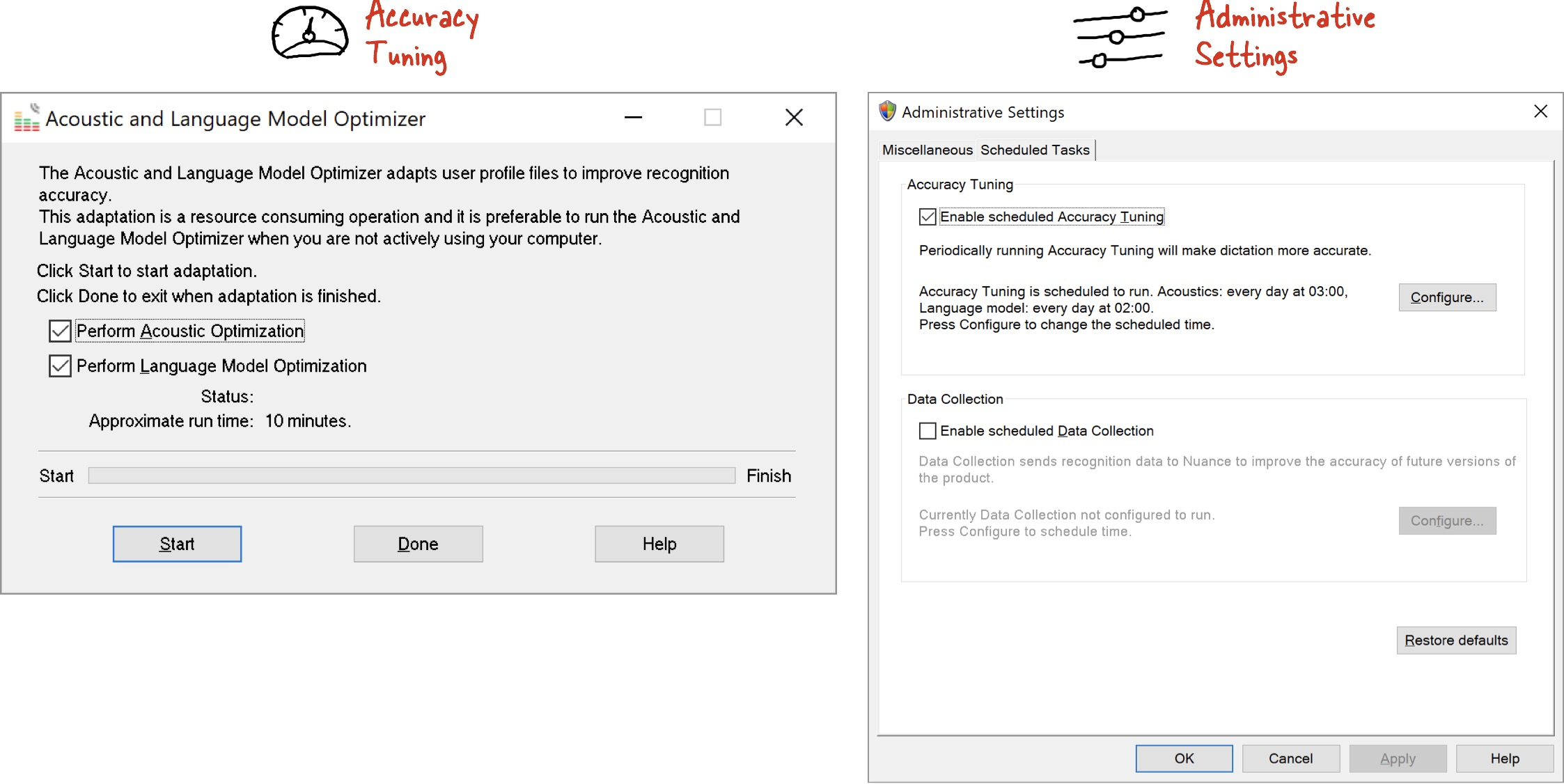
After sufficient training data has been accumulated, Dragon will offer to run Accuracy Tuning. This tool analyzes the training data to improve the acoustic and language models and updates your User Profile accordingly. You can also schedule this tuning to run automatically in Administrative Settings, at a time when you’re not likely to use the PC. You can also turn off sending automatic collection and upload of your data to Dragon in Administrative Settings.
Recall that the training should ideally be related to the topic of your writing project. Use the training to jumpstart your thinking on a problem you’re trying to solve. Use it to plan your week ahead. Use it to capture notes on what transpired in meetings over the last week. The effort that you put into training Dragon doesn’t have to be wasted. As long as you think about the topic, it’s not a waste. In my view, training Dragon is similar to the free writing technique used by writers to help them get going on any topic. Free writing is an exercise where you write continuously for say 5 to 15 minutes on any topic that pops in your head. It allows you to get your creative juices flowing by pursuing any train of thought. Training Dragon should similarly be a low pressure activity. Don’t worry too much about it. Speak about what is important to you, and make sure to direct Dragon to fix any mistakes in interpreting your words.