Key Concepts
This book is about using Dragon Professional Individual version 15 for Windows in an effective manner in order to become a prolific writer. To do so, we need to understand a few key concepts about the Dragon software.
Boost Performance
Dragon is a sophisticated application that requires significant computing resources. You should get the fastest PC that you can with lots of RAM, a speedy hard disk, and close out any other non-essential applications. Also, tweak Windows to minimize the OS memory and computing usage. Let the Dragon application have the full power of the system available to it. You don’t need to do this for very long, since you will be writing and dictating for only short periods of time anyway. However, for the best response while you dictate, it is important to provide as much computing power as you can to the Dragon application.
Train Correctly
Think of the Dragon application as an Assistant, which needs to be trained to your specific way of speech and writing. Out-of-the-box, the latest version of Dragon dictation does an impressive job in terms of understanding your speech and makes only a few mistakes. However, that is not enough because you don’t want the application to repeat the mistakes frequently. Indeed, it will be as annoying as having a real-world Assistant who doesn’t learn from his mistakes. Therefore, we should invest the time required to train the application properly.
What does training mean? We have to teach the Dragon Assistant how we like to speak and write. That means we have to teach it the vocabulary that we use and give examples of how we tend to speak and write so it can figure out what we’re likely to say and the words and phrases we’re likely to use. Without this training, the Dragon Assistant is interpreting our voice based on a generic model of the English language that it ships with. The more it knows about you, the better will be the performance. Therefore, you should budget to spend 5 to 10 minutes regularly training Dragon, doing the dictation with care and helping Dragon to correct mistakes as it makes them. It’s not a big investment in terms of time but it is essential for training the Assistant to work your way. And, an excellent Assistant will help you get your work done effectively.
Produce Steadily
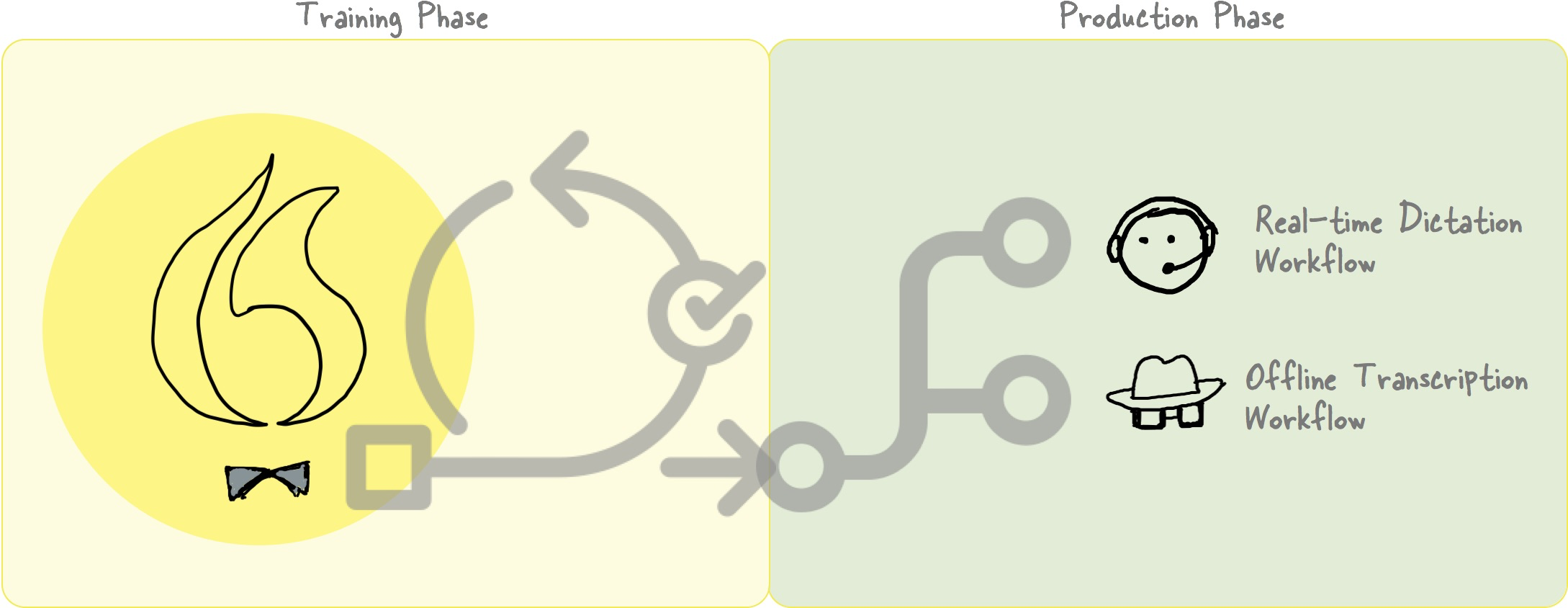
Once we have the Dragon Assistant trained to work with our voice and speech patterns, we will be in a good position to use Dragon to produce text. We can do this through both dictation in real time, and transcription of a previously recorded audio memo. Both approaches have their merits and unique strengths. We will cover both in this book.
In addition to generating text, Dragon can help you automate your workflow, in that you can use voice commands to do batch operations. For example, you may want an image in a Microsoft Word document to be resized, centered, have a border, and a caption. Or you may like to have periodic backup and versioning of your documents. Or you may want to set up an export workflow where you generate a PDF and upload it to a shared folder. Any such sets of actions can be executed with a simple voice command to prompt Dragon to take control of Microsoft Word and Windows OS, as required.
These are minor improvements to the workflow, essentially automating repetitive tasks. While Dragon can do these tasks, in the broader pursuit of becoming a prolific writer, this functionality is not that important, to the extent that other automation utilities may do a better job anyway. Because what the Dragon Assistant does really well and uniquely is the ability to convert speech into text. And we need to get that part working great before we venture into Dragon’s role in the broader writing workflow.
Identical Environment
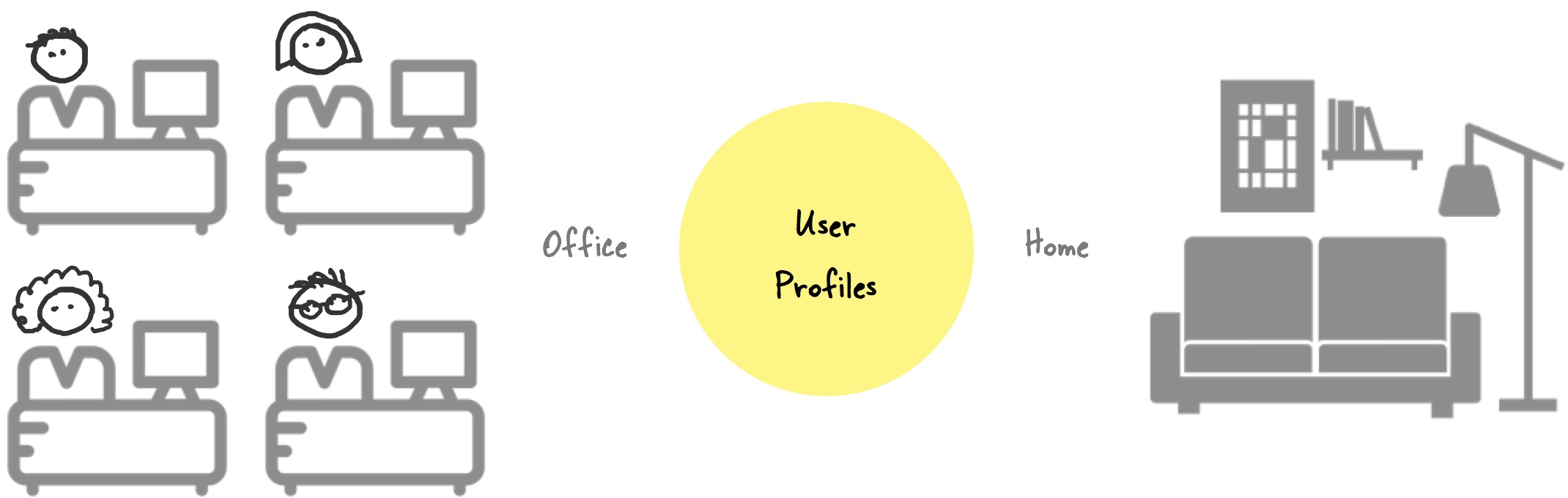
Dragon’s speech to text engine is designed to replicate what it has been trained to do in a real production scenario. What this means is that the Assistant will perform only as well as it has been trained to perform. And if you ask it to perform in a new scenario, it will do so on a best effort basis, which may not yield a good performance. In practical terms, you should train Dragon in an identical environment to the one where you’ll be using it for real. For instance, you may want to train Dragon to recognize your speech in an office environment with its ambient sounds if you intend to dictate primarily at the office. Alternatively, if you intend to use Dragon late at night, dictating in your favorite armchair, then that is the environment in which you should train it. Ensuring the training environment is identical to the production environment will make it easier for the Assistant to follow its training.
What if you intend to dictate in more than one location? If the audio environments are significantly different, then you should isolate the training for each location into its own User Profile. And you will have to duplicate part of the training, since the training applies to one User Profile at a time. Thankfully, Dragon does provide tools to export some parts of a trained User Profile and import it into another User Profile.
The User Profile
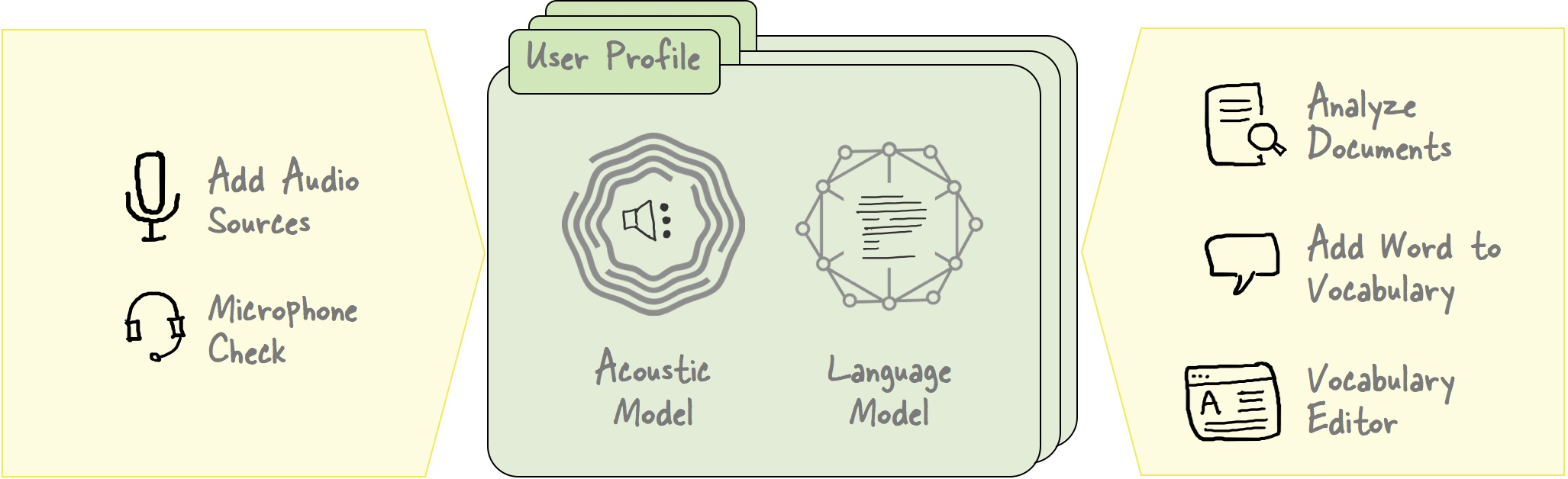
The User Profile represents the entirety of what Dragon knows about you. It is the “document” that Dragon reads and writes on the disk as it interacts with you, formulating an understanding of how you speak and what your voice sounds like. In order to do this, internally Dragon uses an acoustic model and a language model, and these are processed together to understand what you said.
The acoustic model captures what you sound like and is dependent on the source of the audio because microphones differ in audio characteristics. Accordingly, the acoustic model allows you to add additional sources of audio, and it will build an understanding of your voice specific to the source that you use. That is why a headset microphone for dictation is treated as a separate source from an audio recording made on a smartphone mic intended for use as a transcription source. By building a model of what you sound like and knowing the differences in how your voice sounds across the sources, Dragon can interpret your speech better.
The language model is about what you say, i.e. the content. It has to capture both your vocabulary as well as your speaking style, where style is the sequence of phrases that you are likely to use. In this way it builds a text-based representation of how you speak.
In sum, the acoustic model and the language model are used together to understand what you say, and thus to transcribe your speech into words.
In an ideal situation, you needn’t be aware of your User Profile other than when you set up a new profile in the Dragon application. The official documents usually recommend starting with a new profile for each new audio environment. For every new profile, you have to train Dragon again to build up the acoustic model and language model.
In practice however, you may have other situations, such as data corruption, where you need to manage your user profiles. Thankfully, Dragon automatically backs up your User Profile, by default every fifth time that you save your User Profile. Therefore, you do have a backup that you can revert to, if dictation accuracy goes completely off. However, you may also want to export your User Profile to a folder on disk if you need to troubleshoot by tinkering with the individual files that comprise the profile. Editing the User Profile is an advanced topic, and you would not bother with it unless absolutely necessary for troubleshooting.
One scenario where you may want to manage your user profiles is when you want to branch it. For example, you may have developed a User Profile with high accuracy through extensive training. Then, you may want to use the same profile for transcription. You can do it by duplicating the dictation profile and add a transcription source to the duplicate profile. This way you have two distinct profiles, one for dictation and the other for transcription. I recommend doing this because of a bug in Dragon 15.3 where my primary User Profile got locked into the transcription source. I was unable to revert to the dictation source included in the same User Profile. There is a fix, which involves editing the settings inside the User Profile folder manually. However, it is inconvenient enough that I prefer to avoid the situation again, and thus use a separate User Profile for transcription.
Dragon Toolkit
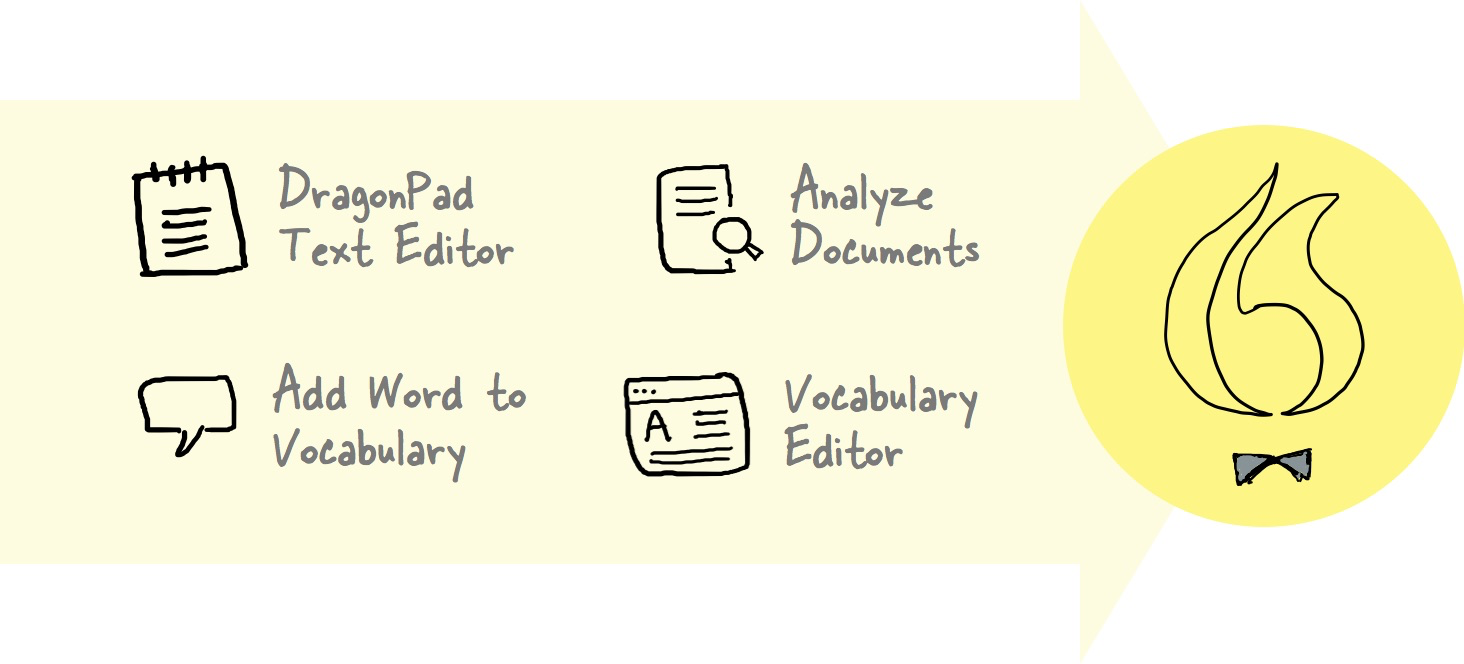
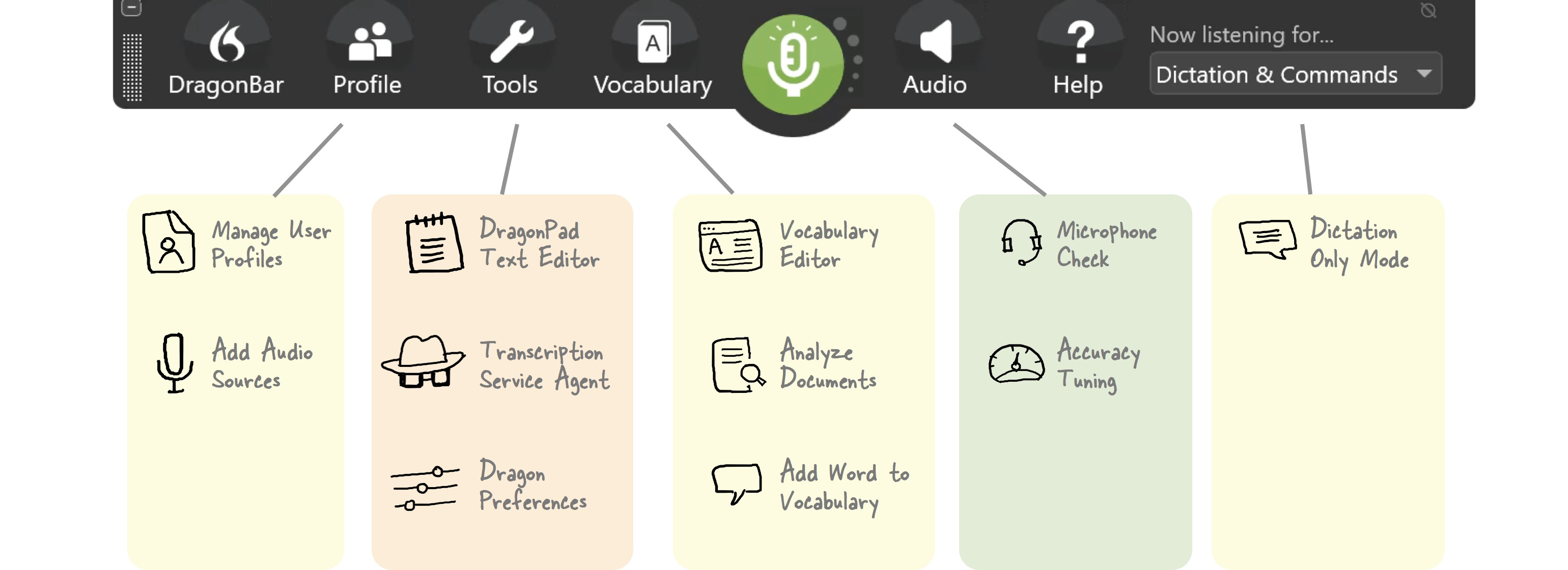
Dragon provides several tools to train and work with your Dragon Assistant. These tools can be accessed from the DragonBar, which is the primary visual interface for the Dragon Professional Individual software on your PC. You can also invoke many of these tools using a voice command.
The Training Phase and the Production Phase
This book presents the training and the production use of the Dragon software separately. The objective of the training phase is to make the Dragon Assistant capable, to accurately interpret your speech. Then, you can leverage the Assistant to set up two parallel workflows to boost your writing output: a real-time dictation workflow, and an offline transcription workflow.