Getting Started

We will be referring to Chamilo’s Free Campus portal (or website) to show you the interface and introduce the key vocabulary used in Chamilo. Your first step should therefore be to go to the Chamilo Campus and register an account. The Chamilo Campus is a public portal hosted by the Chamilo Association specifically in order to to allow people to try out Chamilo. Your business or institution (e.g. a school) can set up its own Chamilo portal, which will essentially work the same way. Here’s how:
Open your web browser and go to https://campus.chamilo.org. You will see a page similar to the following…
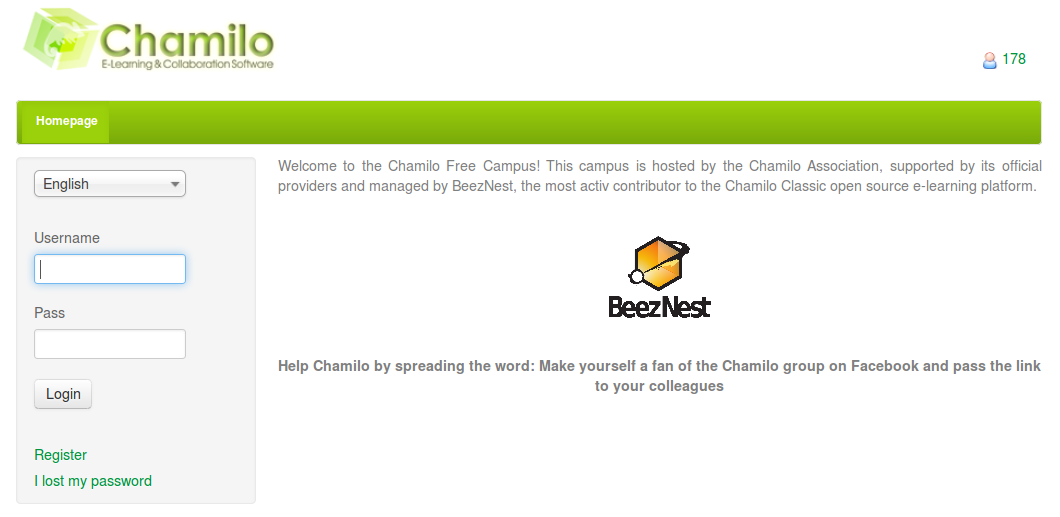
This is the main portal homepage, the “front door” of Chamilo. The welcome display, to the right, may differ according to settings decided by the portal administrator. The color of the top bar might also change. You will, however, find the same menu on the left hand side of the homepage, allowing you to select a language, log in, register as a new user, request a new password, or seek help on the main Chamilo forum.
It’s important, before registering, to understand that there are different “levels” of users registered on any Chamilo portal. A student or learner has relatively restricted access. A teacher or trainer (the terms are used interchangeably), although seeing what the student sees, can also access a range of tools (invisible to students) which control content and interactions. Administrators have access to the complete (and extensive) range of settings which control the behaviour of the Chamilo portal. In this guide, we will assume you are a trainer.