Create your first course
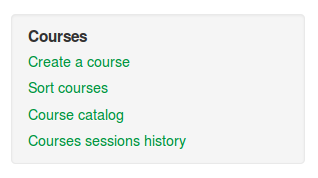
To access the initial “course creation” page, either simply click the Create a course button illustrated in the previous chapter, or the Create a course link in the My account box shown on the side of your homepage once you have logged in:
The course creation page details the information required in order to create your course.
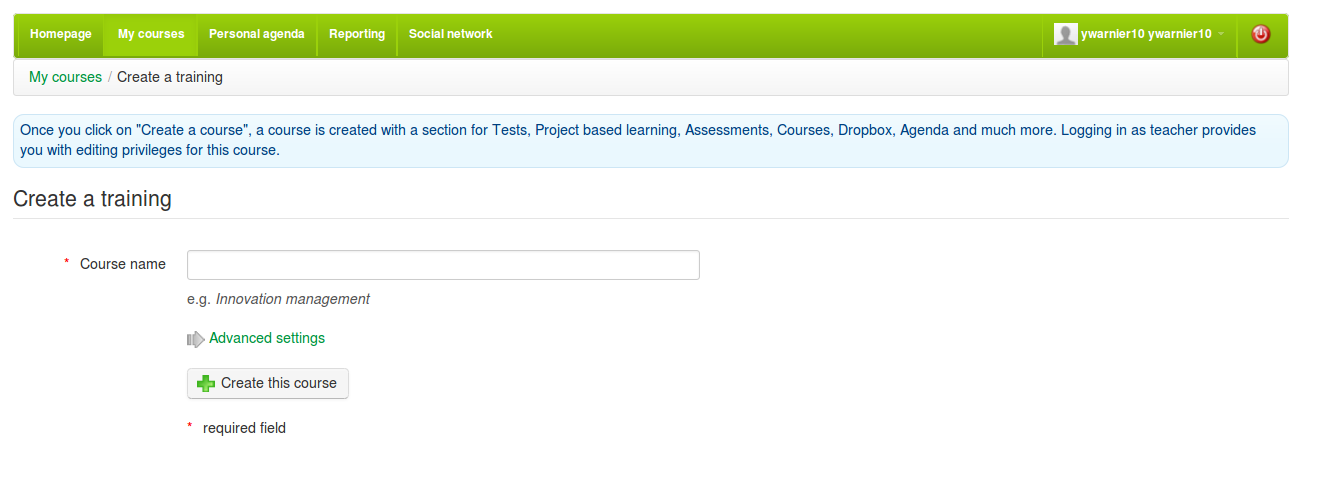
Let’s say you want to create a course entitled Spanish to English Translation. Just enter this title in the Course name box and click the Create this course button (there are some advanced options including language selection and course categories you can use if you wish by clicking the “Advanced settings” link). Within a few seconds you will see a screen like the following1:
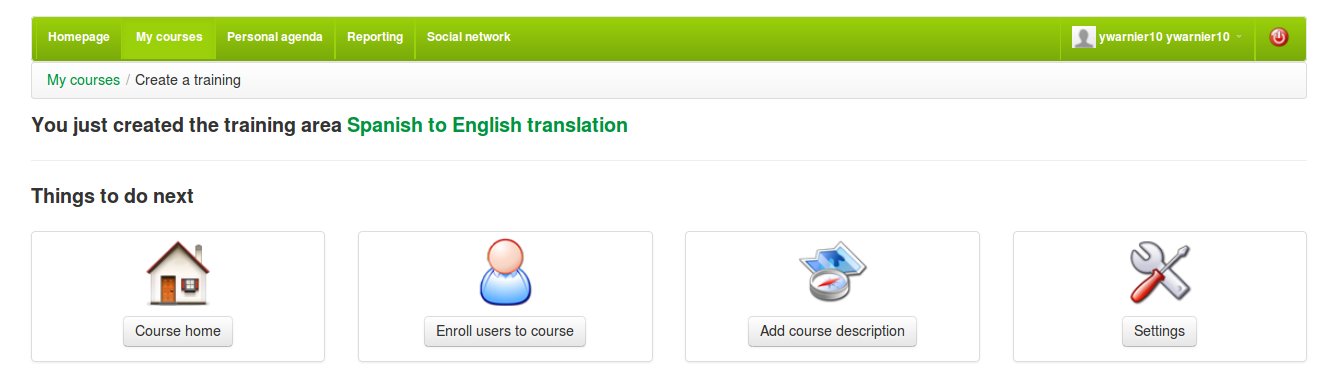
You have the option here to enroll students, add a course description or alter course settings. You can do these later - for now click on the “Course Home” link (ot the link with the title of your course) to take you to the course homepage which (initially) will look something like this:
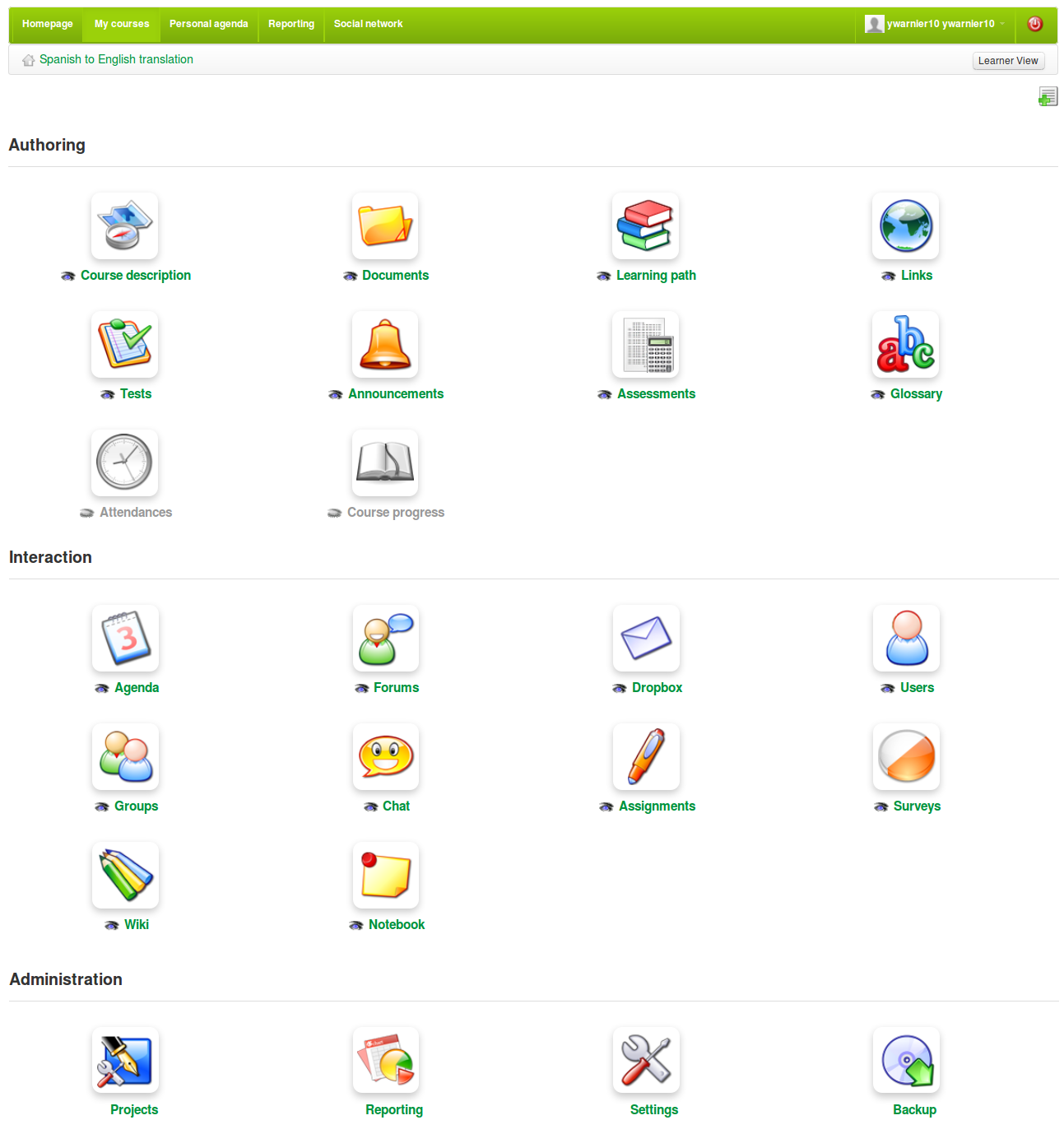
Congratulations! You’ve just created your first course in Chamilo! Of course, it’s still awaiting your content, but for now, feel free to explore a bit before moving on to the next chapter. Don’t worry if some of it seems a bit overwhelming for now - we’ll take you through the key tools shortly.
Clicking on the grey “Home” icon in the breadcrumb navigation will always take you back to the course homepage. This is where you will be taken to, whenever you log in to the portal, unless you have more than one course, in which case you will be taken to the My Courses page, where you can simply click on any course to go to its homepage (don’t confuse the Course homepage with the Portal homepage! Use the breadcrumb navigation, not the tabs, when working within a course).
As you work through the screens described in this book, you will be able to quickly switch between “teacher” and “student” view by clicking on the button the top right hand side of the page to get an idea of how the pages you are building will appear to the students.
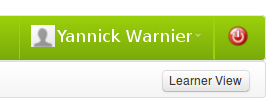
In most cases, this will be very similar to the teacher view, but without the options to edit the course (don’t forget to toggle back to “Teacher” view to resume building your course).
- icons might change depending on the specific version of Chamilo↩