1 Developing mechanics
Introduction
This is the base chapter where most of the magic will happen, and that’s because gameplay is the most important thing in our game (at least in the beginning). We will learn how to build our core mechanics progressively, starting with the paddle and user input, and finishing with collisions and high-level rules.
Also, we’ll learn the basics of handling game states but only for the purpose of coding the gameplay screen. How to handle state transitions will be covered in the following chapter.
1.1 Paddle
Programming the paddle will teach us how to load images and get the user input, simple mouse input (like its position), and check whether a key is pressed.
- Create the
state_main.jsfile in the/jsdirectory. This file will hold the code for the state that handles the core mechanics:1varStateMain={2// TODO3// internal functions4}; - Define the
preloadfunction. Here we will load all the assets to be used in the game. Right now it’s just the paddle sprite, but that will change in the following sections:1preload:function(){2game.load.image('imgPaddle','img/paddle.png');3}, - Define the
createfunction. This functions runs once and is used for setting up the sprite:1create:function(){23}, - Define the member variables for handling paddle horizontal velocity and previous mouse position. We declare the movement to be 500px/sec and a member variable for storing the mouse position in the previous frame:
1this.paddleVelX=500/1000;2this.prevX=game.input.x; - Add the paddle sprite on the screen by using the game object’s factory. Also, set its anchor point to the bottom-center and finally create a custom member variable for storing the sprite’s half size for future reference:
1this.paddle=game.add.sprite(0,0,'imgPaddle');2this.paddle.anchor.setTo(0.5,1);3this.paddleHalf=this.paddle.width/2; - Call the function for restarting the paddle into its original position (not coded yet):
1this.resetPaddle(); - Define the
updatefunction. It keeps running as long as the browser tab is focused, and here we’ll code most of the loop-based and time-based game logic:1update:function(){23}, - Declare and assign the variables for getting keyboard input from the arrow keys:
1varisLeftDown=game.input.keyboard.isDown(Phaser.Keyboard.LEFT);2varisRightDown=game.input.keyboard.isDown(Phaser.Keyboard.RIGHT); - Assign the paddle position according to the mouse or keyboard input. If the mouse hasn’t moved (this is why we declared
prevX), then we check for keyboard input. It’s important to mention that in this game the arrow keys are mutually exclusive:1if(this.prevX!=game.input.x){2this.paddle.x=game.input.x;3}elseif(isRightDown&&!isLeftDown){4this.paddle.x+=this.paddleVelX*game.time.physicsElapsedMS;5}elseif(isLeftDown&&!isRightDown){6this.paddle.x-=this.paddleVelX*game.time.physicsElapsedMS;7} - Assign current mouse position as the previous:
1this.prevX=game.input.x; - Limit the movement of the paddle to the screen bounds:
1if(this.paddle.x-this.paddleHalf<0)2this.paddle.x=0+this.paddleHalf;3if(this.paddle.x+this.paddleHalf>game.world.width)4this.paddle.x=game.world.width-this.paddleHalf; - Define the
resetPaddlefunction:1resetPaddle:function(){23} - Set the paddle’s anchor point and place the paddle a little higher than the bottom of the screen:
1this.paddle.x=game.world.centerX;2this.paddle.y=game.world.height-this.paddle.height;
It’s time to link the state_main.js file to index.html:
<script type="text/javascript" src="js/phaser.min.js"></script>
This is how our index.html file should look like:
index.html
 1 <!DOCTYPE html>
 2 <html lang="en">
 3 <head>
 4   <meta charset="UTF-8">
 5   <title>html5 Breaker game</title>
 6   <script type="text/javascript" src="js/phaser.min.js"></script>
 7   <script type="text/javascript" src="js/state_main.js"></script>
 8   <script type="text/javascript" src="js/main.js"></script>
 9 </head>
10 <body>
11   <div id="phaser_game"></div>
12 </body>
13 </html>
Finally, add StateMain to the game object and start the game with it:
main.js
1 var game;
2 window.onload = function () {
3   game = new Phaser.Game(640, 400, Phaser.AUTO, "phaser_game");
4   game.state.add("StateMain", StateMain);
5   game.state.start("StateMain");
6 };
By the end of this section, we should have a nice paddle moving along the X axis with the keyboard’s arrow keys or following the mouse position.
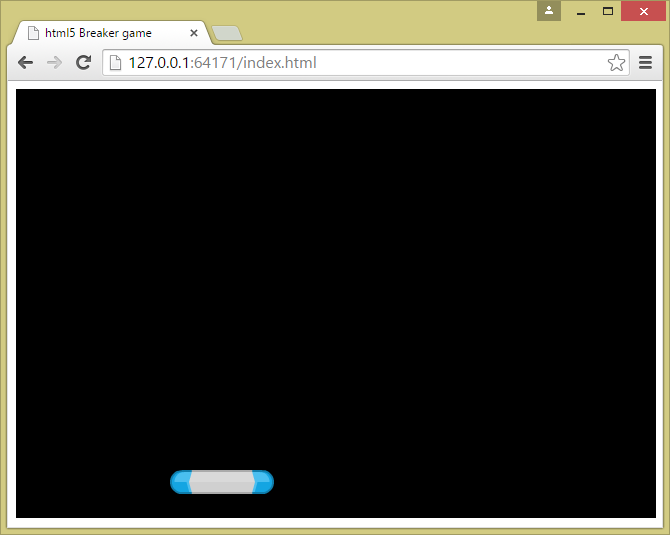
Paddle

|
InfoRemember to add a coma after each function’s definition (but the last), and a semi-colon after each state’s definition. Not doing it will produce errors in the code. Please refer to the example below. |
1 var You = {
2   theFunction: function () {
3     // your code here
4   },
5   other: function () {
6     // your code here
7   }
8 };