1 HTML5 Local Storage
Browser vendors slowly began adding different library support to each software environment which provides the ability to persist data between sessions and page reloads. This is an extremely powerful ability that allows web applications developers to cache and persist all sorts of awesome stuff. For example:
- Cache and access music and sound files for audio-based web applications and games
- Store local databases of products, to-do lists, or even information on local places and venues when traveling away from our handy mobile networks
- Store images for an HTML5 Canvas-powered image editing application
That is a just a really tiny subset of possible applications that were once only possible under the context of native applications. Normally, a native application’s operating system provides a deep abstraction layer for getting and setting application-specific data like preferences or local database models. Whilst web applications historically had none of these luxuries, there was one Web 1.0 feature that allowed application developers to store some data with the browser – in the form of cookies.
Cookies, controversially, had a few downsides:
- Cookies are included in every HTTP Request, slowing down the application by needlessly and repeatedly transmitting the same data.
- Cookies are also sent over-the-wire on the same protocol that the site is sent, so if a site is not hosted completely over SSL, then security breaches can occur.
- Cookies are very limited in size – about 4KB in all – which is, under many circumstances, not worth the weight of the data.
What we really desire is the ability to store a lot of data, on the client only, that not only can persist between page refreshes and isn’t sent across the wire each request, but is a secure place to store data.
Enter HTML5 Local Storage. Most beneficially, once stored on the client, any and all data is cached and quickly accessible, so it is entirely possible to work with an entirely localized set of data and files versus making any network calls, which is a really powerful ability that reduces the disadvantages of web-versus-native application development.
The official W3C specification for HTML5 Local Storage is under Web Storage, at http://dev.w3.org/html5/webstorage/.
Want to run the example code for this chapter? Grab and install the latest version of Node.js. After installing, you can run a simple web server by opening the Chapter 3 code directory and using node to run the server:
node my/directory/wrinklefree-jquery/ch3/server.jsAfterwards, simply open a browser to
localhost:8888.
So what is HTML5 Local Storage?
HTML5 Local Storage is a local database of sorts. It is a key-value datastore that persists across requests and page reloads. Just like many NoSQL technologies, the core functionality lets the developer store any scalar JavaScript data type (strings, numbers, or booleans) in quick and simple fashion, addressable by a key string. All data is then stored as a string, so if necessary, use parseInt() and parseFloat() to process numbers. Booleans, will be stored as strings, as well – "true" or "false".
HTML5 Local Storage Support
HTML5 Local Storage is supported by the following browsers and environments. Note that it is supported all by even Internet Explorer 8!
- Internet Explorer 8+
- Firefox 3.5+
- Safari 4+
- Chrome 4+
- Opera 10.5+
- iOS 2.0+
- Android 2.0+
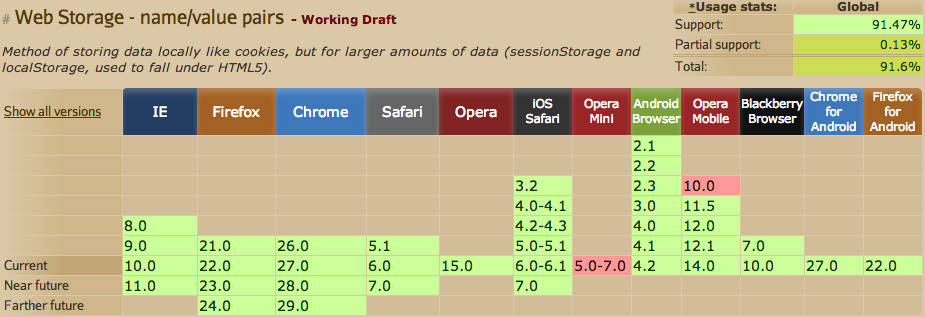
WebStorage Support
Local Storage – An Introduction
HTML5 Local Storage centers around one global object:
1 window.localStorage
The core functionality is based around a few functions that the supporting browsers provide:
localStorage.getItem('someItem')localStorage.setItem('someItem', 'string to be written to someItem')localStorage.removeItem('someItem')
Some things of note:
- When calling
getItem( ... )without an input, an error will not be thrown. Instead, null will be returned. - When calling
setItem( ... )with a key that already exists, the data currently stored at that key will simply be overwritten. - When calling
removeItem( ... )without an input, no errors will be thrown. Instead, nothing will happen.
Also, we can make use of Local Storage by simply accessing it as a persistent keyed array, instead of using the functions provided:
1 var bar = localStorage['foo'];
2 localStorage['foo'] = bar;
Listening for changes made to the Local Storage
We also can programmatically track changes to the Local Storage object in other tabs or windows by listening in on the storage event. The storage event will allow us to track any changes made to the state of the Local Storage object by allowing us to hook into it whenever the actual values stored change.
The caveat is that these events only fire on other tabs or windows under the same origin (scheme, domain, port number), so don’t be surprised if the storage event doesn’t fire on the same page.
In other words, the event will not trigger whenever calls setItem(), removeItem(), or clear() result in no change to the Local Storage object.
We can listen for storage events by making use of addEventListener(). Internet Explorer 8 doesn’t support But we can also use a fallback for older browsers - attachEvent():
1 if(window.addEventListener){
2 	window.addEventListener("storage", handler, false);
3 } else {
4 	window.attachEvent("onstorage", handler);
5 }
We can then handle the event with our handler function, where the e is a StorageEvent object, except in older Internet Explorer versions, where we need to grab window.event:
 1 function handler(e){
 2 	var event = e || window.event;
 3
 4 	// "string" -- key name that was added/removed/modified
 5 	var key = event.key;
 6
 7 	// the previous value, _null_ if new value
 8 	var oldValue = event.oldValue;
 9
10 	// the new value, _null_ if removed
11 	var newValue = event.newValue;
12
13 	// the url of the page that triggered this change
14 	// some older browsers use uri, newer browsers use url
15 	var url = event.url || event.uri;
16 }
As you may see, we can access four properties from the event:
event.keyevent.oldValueevent.newValue-
event.uriorevent.url, depending on browser
Limitations of HTML5 Local Storage
Each origin may store a minimum of 5MB of data in Local Storage by default. This means that if we were to browse to http://www.whatwg.org/specs/web-apps/current-work/multipage/, then our origin is http://www.whatwg.org, which includes the scheme (http), the domain (www.whatwg.org), and the port (80 by default).
5MB is equivalent to 51024KB = 510241000B. JavaScript characters are stored as 16bit UCS-2. If each character is 16bits, and 16bits = 2B, then 51024*500 characters can fit under Local Storage. That means, 2,560,000 characters or about 512,000 words. For reference, Homer’s Iliad contains only 358,020 words. The Odyssey contains 117,319 words.
That is a lot of space!
Thus, http://www.whatwg.org can store 5MB of strings (Local Storage stores everything as a string), so there are some things to consider, such as storing numbers. Storing n powers of 2 in Local Storage will take up considerably more space than it would normally. Storing [1, 2, 4, 8, 16, 32, …] will take up far less space than ["1", "2", "4", "8", "16", "32", …].
So, as far as we can see, Local Storage is really fast, but there are storage space limitations, and as of the time of this writing there is no means to ask for more capacity from a user.
How will I know when I’ve hit the limit, you say? There’s an app for that! Or rather, the storage API will throw an error: "QUOTA_EXCEEDED_ERR". We can catch this error and decide what to do then (Notify the user? Crash like a bomb went off?):
1 try{
2 	localStorage.setItem(key, JSON.stringify( someObject));
3 } catch(e){
4 	if( e.name === "QUOTA_EXCEEDED_ERR"){
5 		alert("Oh no! We ran out of room!");
6 	}
7 }
Putting it all together
It’s time to put the reading above to use and wrap this HTML5 Local Storage stuff up with a bow! So let’s start an example project and go from there.
The Problem
In the last chapter on HTML5 Geolocation, we began to setup a site which recorded and submitted users’ locations. Well, Jeremy has since gone and hired bunch of other developers to work on the site and add more features.
Unfortunately, those other developers didn’t read Wrinklefree jQuery and HTML5, so they aren’t as awesome as you! They have added on thirty more scripts that are loaded into the pages on the site, as well as three more CSS files, for the sum of 1MB more of data that must be loaded and cached by the browser.
Due to this, Jeremy has requested that you help him speed up his website again! Naturally, the mission is yours Agent, should you choose to accept it.
The Project
So you’ve decided to help Jeremy again, and you are armed with some knowledge of HTML5 Local Storage. How can we manage to speed up Jeremy’s site?
Let’s get creative and use HTML5 Local Storage to inject cached JavaScript and CSS files into the browser page!
By using HTML5, and piggybacking onto the API provided by jQuery, we can manage to load and cache files in HTML5 Local Storage if we can, and gracefully fail if we cannot.
To load files via jQuery, we can simply make use of jQuery’s $.ajax() method, and its helper functions: $.getScript() or $.get(). By using jQuery to handle the network requests, we don’t have to worry about Cross-Origin Resource Sharing.
Cross-Origin Resource Sharing
Cross domain AJAX requests transgress the browser’s security model called the Same Origin Policy. This policy states that, among many other things, scripts originating from different origins cannot access the browser’s page without certain restrictions.
AJAX requests, such as those made with the XMLHttpRequest object (handled by jQuery for us), are also subject to the policy, and thus if we try to load a resource from another domain, we are unable to access the contents of a script or CSS file due to the Same Origin Policy.
One technique for relaxing the Same Origin Policy is Cross-Origin Resource Sharing (also handled by jQuery). This allows us to use our scripts to access the contents of files from other origins.
Continuing on, the only drawback to CORS is that any server of different origin (e.g. not our server) where we pull the files from must implement the CORS protocol to allow our origin to use it. Otherwise, we must simply fallback to injecting a script tag into our page and letting those scripts run, like many script loaders do today. However, our project will not be able to cache those files into HTML5 Local Storage.
So, are you ready to start coding?
The Code
Let’s start by scaffolding a class that we can use to access the Local Storage object.
 1 $(function(){
 2 	$.setStorage = function(key, data){
 3 		try {
 4 			localStorage.setItem(key, JSON.stringify(data));
 5 			return true;
 6 		} catch(e) {
 7 			return false;
 8 		}
 9 	};
10 });
This is a simple enough piece to start. This code will allow us to call $.setStorage('foo', {foo: 'bar'}), where the object {foo: 'bar'} will be saved as a string in Local Storage (and fail without breaking execution).
We can also write some functions to load the stored data and also to clear it.
 1 // definition code for our Class
 2 window.jqLocalStorage = function(){
 3 	this.head = document.head || document.getElementsByTagName('head')[0];
 4 }
 5
 6 $.existsInStorage = function(key){
 7 	var data = $.parseJSON(localStorage.getItem(key) || 'false');
 8 	return data;
 9 }
10
11 $.clearStorage = function(){
12 	try{
13 		for(var i in localStorage){
14 			localStorage.removeItem(i);
15 		}
16 	} catch(e){
17 		…
18 	}
19 };
Next, we want to create functions to load script and stylesheet content (remote, local, or CORS supported).
 1 jqLocalStorage.prototype.loadScriptContentAndCacheIt = function (url){
 2 	var self = this;
 3 	return $.get(url, null, null, 'script').then(function(data, success, Promise){
 4 		self.injectScriptTagByText(data);
 5 		$.setStorage(url, data);
 6 	});
 7 };
 8
 9 jqLocalStorage.prototype.loadStyleContentAndCacheIt = function (url){
10 	var self = this;
11 	return $.get(url).then(function(data, success, Promise){
12 		self.injectStyleTagByText(data);
13 		$.setStorage(url, data);
14 	});
15 };
And, of course, the respective functionality to inject it.
 1 jqLocalStorage.prototype.injectScriptTagByText = function (text){
 2 	var script = document.createElement('script');
 3 	script.defer = true;
 4 	script.text = text;
 5 	this.head.appendChild(script);
 6 }
 7
 8 jqLocalStorage.prototype.injectStyleTagByText = function (text){
 9 	$('head').append('<style>'+text+'</style>');
10 }
So now we have the functions to put our cached scripts and styles onto the page! You’ll notice that the function to inject a script is done without jQuery. This is because we want to be sure Internet Explorer and other older browser engines will properly interpret the script’s text properties and execute it.
We also want to handle the ability to load external, non-CORS scripts and stylesheets. We can do this by making use of simple techniques used by most script loaders today. Script tags will just need to be inserted into the DOM with a src attribute set, and link tags will be injected with href attributes.
 1 jqLocalStorage.prototype.injectScriptTagBySrc = function (url, dfd){
 2 	var script = document.createElement('script');
 3 	script.defer = true;
 4 	script.src = url;
 5 	script.onload = script.onreadystatechange = function(){
 6 		dfd.resolve();
 7 	};
 8 	this.head.appendChild(script);
 9 }
10
11 jqLocalStorage.prototype.injectStyleTagBySrc = function (url, fn){
12 	var style = document.createElement('link');
13 	style.href = url;
14 	this.head.appendChild(style);
15 }
Tying all of this functionality together, we will need to define a few helper functions first before creating the final piece of our project. First off we need some functions to distinguish between a local or CORS file and remote file, as well as a regex test if a file is a CSS file.
 1 jqLocalStorage.prototype.isLocal = function(url){
 2 	var hasHttp = url.indexOf('http://') != -1,
 3 	hasHttps = url.indexOf('https://') != -1,
 4 	hasSlashSlash = url.indexOf('//') != -1;
 5 	return !hasHttp && !hasHttps && !hasSlashSlash;
 6 }
 7
 8 jqLocalStorage.prototype.isCSS = function (url){
 9 	var isCSS = url.indexOf('.css') != -1;
10 	return isCSS;
11 }
Great! The isLocal() function is a bit of a hack, but it allows for us to interpret if a file is served from the same domain. The isCSS() function simply tests a url for a '.css' substring.
So, we can begin finalizing our API by setting up the function to load an array of files.
 1 $.cacheFiles = function (files){
 2 	var arr = [],
 3 		jqls = new jqLocalStorage();
 4
 5 	for(var i in files){
 6 		arr.push(jqls.handle_file(files[i]));
 7 	}
 8
 9 	return $.when.apply($, arr)
10 };
This code will iterate over an array of files that look like this:
1 {
2 	url: '...',
3 	CORS: true/false
4 }
We then just need application logic to implement the decision tree in determining:
- The type of file
- and the type of file-loading mechanism
 1 jqLocalStorage.prototype.handle_file = function (file){
 2 	if(!file || !file.url) return;
 3
 4 	var url = file.url,
 5 		isCORS = file.CORS,
 6 		isLocal = this.isLocal(url),
 7 		data,
 8 		dfd = $.Deferred();
 9
10 	if(!this.isCSS(url)){
11 		if(isLocal){
12 			data = $.existsInStorage(url);
13 			if(data){
14 				this.injectScriptTagByText(data);
15 				dfd.resolve();
16 			} else {
17 				$.when(this.loadScriptContentAndCacheIt(url)).then(function(){
18 					dfd.resolve();
19 				});
20 			}
21 		} else {
22 			this.injectScriptTagBySrc(url, dfd);
23 		}
24 	} else {
25 		if(isLocal){
26 			data = $.existsInStorage(url);
27 			if(data){
28 				this.injectStyleTagByText(data);
29 				dfd.resolve();
30 			} else {
31 				$.when(this.loadStyleContentAndCacheIt(url)).then(function(){
32 					dfd.resolve();
33 				});
34 			}
35 		} else {
36 			this.injectStyleTagBySrc(url);
37 			dfd.resolve();
38 		}
39 	}
40 	return dfd.promise();
41 }
You will notice that the $.cacheFiles() function that we defined returns a jQuery when(), which is, in fact, a jQuery Promise object. By making use of the prototypal call() function the all Function objects implement, we can read in an arbitrary list of files in the array passed as input to $.cacheFiles(), and convert an array of Promise objects into an argument list for $.when(). The resulting call to $.when() will result in something similar to this:
1 return $.when(promise1, promise2, ...);
By using promise objects, we have the ability to run callback functions once all of the files being loaded have completed loading from network or Local Storage and are inserted into the page. Due to this functionality, our API will let us know when it is acceptable to run any code that depends on the loaded resources to look or execute without errors.
An example use case of this feature would be to load a script dynamically that provides a function to play music once we’ve determined that a user’s browser supports this feature. We can load this script file and then run some code after it is available on the page.
1 $.cacheFiles([{url:"/music.js"}]).then(function(){
2 	// do something with our music
3 	music.play()
4 });
This is a powerful feature that not only will let us control how many scripts are loaded onto a page, but the fact the Local Storage can cache and insert content onto the page faster than the roundtrip time it takes to check if a script is cached will drastically reduce loading times of resources!
Just to put the final reasoning into place, let’s load test this functionality. As a simple test, we will load 5 JavaScript files and 3 CSS files.
The JavaScript files will be local files for:
- Raphael.js – an SVG library (graphics)
- Angular.js – an MVC framework competitor
- lodash.js – a wonderful utility library and dependency for Backbone.js
- Backbone.js – another MVC framework
- D3.js – an SVG and HTML5 graphing framework
- Fine Uploader – a standalone comprehensive file uploader
The CSS files will be:
- styles.css – the same css file used for our previous chapters
- normalize.css – a modern HTML5-ready alternative to CSS resets
- font awesome – an iconic font that includes tons of great application icons
Our basic page structure is going to look something like this:
 1 <html>
 2 	<head>
 3 		<title>Example 3 - Optimizing with Local Storage</title>
 4 		<script src="http://code.jquery.com/jquery-1.10.2.min.js"></script>
 5 		<script src="/03_01.js"></script>
 6 	</head>
 7 	<body>
 8 		<div class="container">
 9 			<div class="ten columns offset-by-three">
10 				<h1>Test Form</h1>
11 				<form class="CatForm" action="#">
12 					<label for="test">Test</label>
13 					<input name="test" type="text" placeholder="test" autofocus required>
14 					<hr>
15 					<button>Submit</button>
16 				</form>
17 			</div>
18 		</div>
19 	</body>
20 </html>
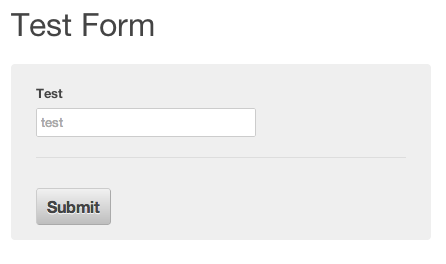
As we can see, the previous markup creates a basic and minimal page structure with some random content on the page. Here’s what the page looks like without loading anything with our new Local Storage project:

An Unstyled Form
The page is very basic and unstyled. Here’s a snapshot of the network requests from Chrome to my local server:
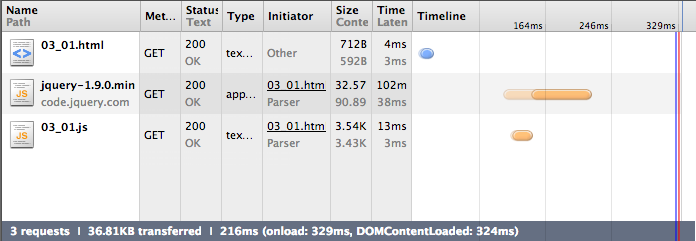
The Network Requests for the Basic Page
Every browser loads a webpage by first making a request for that HTML file. Once this completes, the browser will read through the HTML, and find the attached resources for the page and immediately begin loading the page.
Note :
The screenshot says
jquery-1.9.0.min.js, which is the version of jQuery used when creating these screenshots. The version of jQuery has been updated in the code in this chapter and this book’s code samples online.
Let’s add in the styles and scripts to the HTML first to get a basic idea of how long it would take to load this page (from my local server, thus a relatively fast page load).
 1 <html>
 2 	<head>
 3 		<title>Example 3 - Optimizing with Local Storage</title>
 4 		<script src="http://code.jquery.com/jquery-1.10.2.min.js"></script>
 5 		<script src="/03_01.js"></script>
 6 		<script src="/vendor/raphael-min.js"></script>
 7 		<script src="/vendor/angular.min.js"></script>
 8 		<script src="/vendor/lodash.min.js"></script>
 9 		<script src="/vendor/backbone-min.js"></script>
10 		<script src="/vendor/d3.v3.min.js"></script>
11 		<script src="/vendor/fineuploader.min.js"></script>
12 		<link href="styles.css">
13 		<link href="/vendor/normalize.css">
14 		<link href="/vendor/font-awesome.min.css">
15 	</head>
16 	<body>
17 		<div class="container">
18 			<div class="ten columns offset-by-three">
19 				<h1>Test Form</h1>
20 				<form class="CatForm" action="#">
21 					<label for="test">Test</label>
22 					<input name="test" type="text" placeholder="test" autofocus required>
23 					<hr>
24 					<button>Submit</button>
25 				</form>
26 			</div>
27 		</div>
28 	</body>
29 </html>
This page load from localhost:// looks something like this:
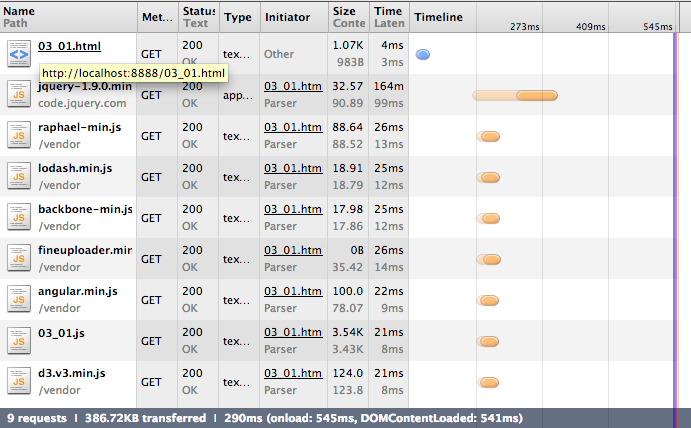
Loading Scripts over the Wire
Cool! So now we have a control with which to test our experiment. Let’s switch our code over to use the jQuery-ified function that we wrote:
 1 <html>
 2 	<head>
 3 		<title>Example 3 - Optimizing with Local Storage</title>
 4 		<script src="http://code.jquery.com/jquery-1.10.2.min.js"></script>
 5 		<script src="/03_01.js"></script>
 6 	</head>
 7 	<body>
 8 		<div class="container">
 9 			<div class="ten columns offset-by-three">
10 				<h1>Test Form</h1>
11 				<form class="CatForm" action="#">
12 					<label for="test">Test</label>
13 					<input name="test" type="text" placeholder="test" autofocus required>
14 					<hr>
15 					<button>Submit</button>
16 				</form>
17 			</div>
18 		</div>
19 		<script>
20 			var files = [
21 				{url: "/vendor/raphael-min.js"},
22 				{url: "/vendor/angular.min.js"},
23 				{url: "/vendor/lodash.min.js"},
24 				{url: "/vendor/backbone-min.js"},
25 				{url: "/vendor/d3.v3.min.js"},
26 				{url: "/vendor/fineuploader.min.js"},
27 				{url: "/styles.css"},
28 				{url: "/vendor/normalize.css"},
29 				{url: "/vendor/font-awesome.min.css"}
30 			]
31 			$.cacheFiles(files);
32 		</script>
33 	</body>
34 </html>
By switching from conventional resource loading to our jQuery loading plugin, the number of network requests will drop. The resulting page looks like this:
A Styled Form - with CSS Loaded via jQuery
However, instead of nine separate network requests, we make only three!
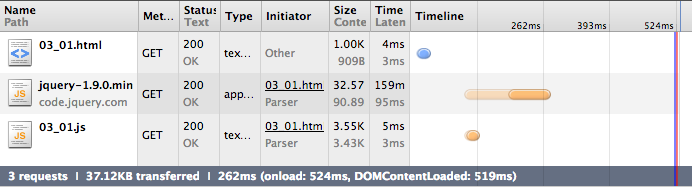
3 Requests, The Rest Were Cached by Local Storage
Note that while we have minimized data to be loaded, there is very miniscule gains in network load times due to the files being served from a local server.
To quantify the real-world differences, let’s test the benefit from a CDN, such as http://cdnjs.com. This will force our webpage to load scripts from a website. Even though this will still take very little time to load the external files (because http://cdnjs.com is extremely fast), I will prove that we can cut times even from the tiny round-trip cost incurred from an HTTP request.
 1 <html>
 2 	<head>
 3 		<title>Example 3 - Optimizing with Local Storage</title>
 4 		<script src="http://code.jquery.com/jquery-1.10.2.min.js"></script>
 5 		<script src="/03_01.js"></script>
 6 		<script src="//cdnjs.cloudflare.com/ajax/libs/raphael/2.1.0/raphael-min.js"></s\
 7 cript>
 8 		<script src="//cdnjs.cloudflare.com/ajax/libs/angular.js/1.1.1/angular.min.js">\
 9 </script>
10 		<script src="//cdnjs.cloudflare.com/ajax/libs/lodash.js/1.0.0-rc.3/lodash.min.j\
11 s"></script>
12 		<script src="//cdnjs.cloudflare.com/ajax/libs/backbone.js/0.9.10/backbone-min.j\
13 s"></script>
14 		<script src="//cdnjs.cloudflare.com/ajax/libs/d3/3.0.1/d3.v3.min.js"></script>
15 		<script src="//cdnjs.cloudflare.com/ajax/libs/file-uploader/3.1.1/fineuploader.\
16 min.js"></script>
17 		<link rel="stylesheet" href="/styles.css">
18 		<link rel="stylesheet" href="vendor/normalize.css">
19 		<link rel="stylesheet" href="vendor/font-awesome.min.css">
20 	</head>
21 	<body>
22 		<div class="container">
23 			<div class="ten columns offset-by-three">
24 				<h1>Test Form</h1>
25 				<form class="CatForm" action="#">
26 					<label for="test">Test</label>
27 					<input name="test" type="text" placeholder="test" autofocus required>
28 					<hr>
29 					<button>Submit</button>
30 				</form>
31 			</div>
32 		</div>
33 	</body>
34 </html>
So, by loading most of our styles and scripts from http://cdnjs.com, we have the opportunity to measure a ‘fast’ website with:
- really low latency and
- very high bandwidth file distribution
The results, on the other hand, prove how powerful Local Storage can be. Let’s compare the timings between loading scripts http://cdnjs.com and caching them with Local Storage:
](/preview_site_images/wrinklefree-jquery-and-html5/03_06.png)
Loading Scripts from [http://cdnjs.com](http://cdnjs.com)
3 Requests, The Rest Were Cached by Local Storage
Yikes! Using an external script source resulted in significantly higher load times. Unfortunately, this is just how the internet works. If you browse to a website http://example.com, then your browser probably loaded a CSS and JavaScript file from either example.com or some CDN.
Preventing these network requests with HTML5 Local Storage can drastically improve page load times instead of only relying on browser caching mechanisms.
Summary
Here is a recap of the topics and paradigms we covered:
- The inner workings of the HTML5 Local Storage API
- How to test for support of the API
- Handle errors from
getItem(),setItem(), andremoveItem()gracefully - How to load and cache resources and add this to a jQuery plugin
- How to combine the power of jQuery and HTML5 Local Storage and coincidentally drastically improve page-load times
While HTML5 Local Storage is extremely useful, it is important to note a few technologies not covered in this book (yet?).
One such technology is HTML5 Session Storage, which provides more long-term persistent storage than Local Storage. The other is the HTML5 ApplicationCache Manifest, which provides offline browsing on top of the speed and reduced server-load benefits that Local Storage provides.
In the next chapter, we will learn how to read from and write to files on our computers with the HTML5 File APIs.