2. Locating an Element - Basics
A locator describes how to find an element amongst all of the other elements on the page. Think of it as giving directions to your house. The uniqueness of the house, who you are talking to, the complexity of your area, etc. affect how detailed the directions need to be.
Say our city has 2 streets and 4 houses with families.
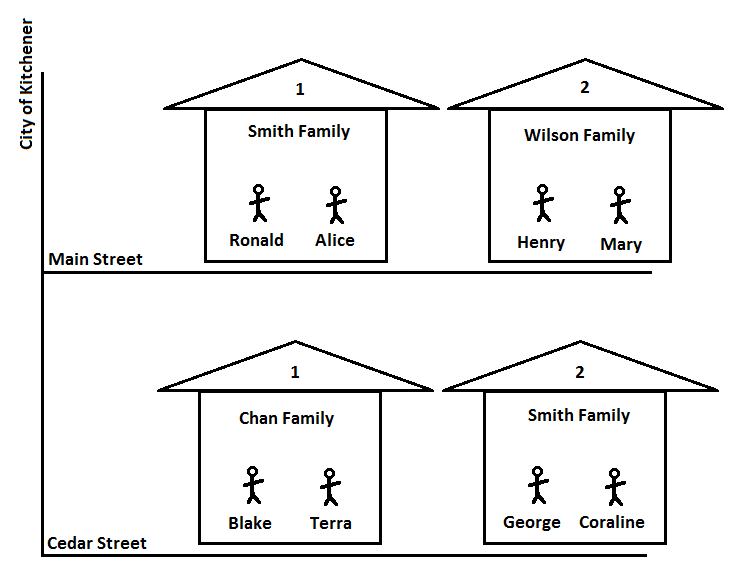
It is unambiguous to say that you want to go the “Wilson Family” house. There is exactly one house that matches that criteria.
What if you say you want to go to the “Smith Family” house? Now it is ambiguous as there are 2 houses that meet that criteria. We can remove the ambiguity by doing one of the following:
- Providing additional details about the house. For example, the house number is 1.
- Providing details about where to look for the house. For example, the house is on Main Street.
- Providing details about what is in the house. For example, the house where Ronald and Alice live.
- Providing details about what is around the house. For example, the house is beside the Wilson’s house.
The same strategies can be used to help Watir find the exact element you want to interact with.
For example, the city’s information could be presented as a web page.
<div class="city" id="Kitchener">
  <div class="street" id="MainStreet">
    <div class="house" data-name="SmithFamily" data-number="1">
      <span class="resident">Ronald</span>
      <span class="resident">Alice</span>
    </div>
    <div class="house" data-name="WilsonFamily" data-number="2">
      <span class="resident">Henry</span>
      <span class="resident">Mary</span>
    </div>
  </div>
  <div class="street" id="CedarStreet">
    <div class="house" data-name="ChanFamily" data-number="1">
      <span class="resident">Blake</span>
      <span class="resident">Terra</span>
    </div>
    <div class="house" data-name="SmithFamily" data-number="2">
      <span class="resident">George</span>
      <span class="resident">Coraline</span>
    </div>
  </div>
</div>
Again, assume that we want to find the “Smith Family” house. To tell Watir to find the div element with the data-name attribute value of “SmithFamily” is ambiguous (ie there are multiple). We can use the same four approaches to remove the ambiguity.
- Providing additional details about the house. For example, the desired div element has a data-number attribute value of 1.
- Providing details about where to look for the house. For example, the desired div element is within the div element that has the id of MainStreet.
- Providing details about what is in the house. For example, the desired div element that includes the spans with text Ronald and Alice.
- Providing details about what is around the house. For example, the desired div element is beside the div element with data-name attribute of “WilsonFamily”.
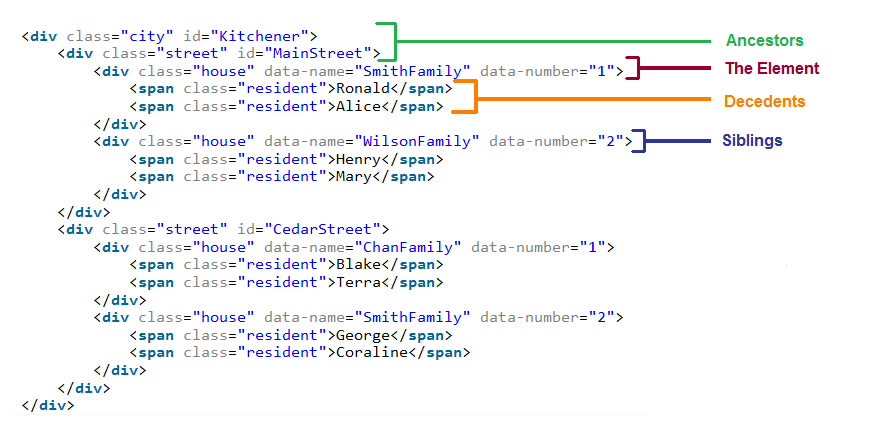
These four strategies can be conceptually generalized based on the relationship of the element we want to find and the structure of elements. The strategies are to use the properties of:
- The Element - This is the specific element that you want to find.
- Ancestors - These are the elements that contain the desired element.
- Decedents - These are the elements contained within the desired element.
- Siblings - These are elements that share the same parent as the desired element.
The following image illustrates the relationship of the elements.
2.1 Concepts
An element’s properties, such as attributes, text, label, etc., can be used to be specific about which element to find.
Single vs multiple properties
An element can be located using 0 properties, which returns the first element.
browser.div
To locate an element with specific properties, create a hash of the properties. A hash looks like:
:property1 => 'value1', :property2 => 'value2'
Where:
- The keys of the hash are the properties to test or the how to match the element.
- The values of the hash are the expected property values or the what to match.
The hash can be used to match a single property. For example, the following says to find a div element that has the id “my_id”.
browser.div(:id => 'my_id')
The hash can be expanded to include any number of properties. The following locates a div element that has the class “enabled”, the text “Navigate” and name attribute containing the word “navigate”.
browser.div(:class => 'enabled', :text => 'Navigate', :name => /navigate/)
Exact vs partial match
When looking for matching elements, Watir can check if the property is an exact match or a partial match. This is controlled by the value in the locator.
- A String object will perform an exact match.
- A Regular Expression (Regexp) object will perform a partial match.
For example, the following locator is using a String (denoted by the quotation marks) for the value of the :id property. This means that it will only match elements whose id attribute is exactly “my_id”. It will not match elements whose id is “before_my_id” or “my_id_after”.
browser.div(:id => 'my_id')
If you want to match elements whose id attribute contains “my_id” anywhere (ie a partial match), you can use a Regexp (denoted by the forward slashes). The following locator will match elements that have the id “my_id”, as well as “before_my_id” or “my_id_after”.
browser.div(:id => /my_id/)
2.2 Element type
When locating an element, Watir needs to be told:
- What type of element to find and
- How many matches to return.
This is achieved by calling the corresponding element type method.
Element vs collection
Watir can find and return an:
- Element - The first (single) matching element or
- Element Collection - All matching elements.
There are two element type methods, for each supported element, that correlate to the return type:
- Singular - This version returns the element.
- Plual - This version returns the element collection.
For example, the div method, which is singular, will tell Watir to find the first div element on the page.
browser.div
The pluralization of div is divs, which will return all div elements on the page.
browser.divs
Note that the pluralized version is generally the singular version with a “s” added to the end. However, following English conventions, there will be some element types that have “es” added to the end or have the ending “y” replaced by “ies”.
| Scenario | HTML Element | Singular | Plural |
|---|---|---|---|
| Add ‘s’ | <span> | span | spans |
| Add ‘es’ | <progress> | progress | progresses |
| Add ‘ies’ | <summary> | summary | summaries |
Standard HTML element methods
In general, the singular element type method is the same as the HTML element tag.
For example, the HTML ul element:
<ul id="my_id">
  <li>Item 1</li>
  <li>Item 2</li>
</ul>
Would be retrieved by Watir’s ul method.
browser.ul
The following table lists the methods to locate some common element types.
| Element Method | Collection Method | HTML Elements Matched |
|---|---|---|
| a | as | <a> |
| div | divs | <div> |
| h1 | h1s | <h1> |
| li | lis | <li> |
| span | spans | <span> |
| table | tables | <table> |
Convenience methods
Watir defines additional element type methods that:
- Are more specific. For example,
\<input type="checkbox"\>can be located usingbrowser.checkboxinstead of usingbrowser.input(type: 'checkbox'). - Makes visually similar elements equivalent. For example, HTML has a variety of buttons -
\<button\>,\<input type="button"\>, etc. They are all equivalent in Watir as each is located with the samebrowser.buttonmethod. - Provide more readable names through aliases. For example,
\<a\>elements can be located viabrowser.aorbrowser.link.
The following table lists the common convenience methods.
| Element Method | Collection Method | HTML Elements Matched |
|---|---|---|
| button | buttons | <button> |
| <input type=”button”> | ||
| <input type=”image”> | ||
| <input type=”reset”> | ||
| <input type=”submit”> | ||
| checkbox | checkboxes | <input type=”checkbox”> |
| element | elements | All |
| file_field | file_fields | <input type=”file”> |
| hidden | hiddens | <input type=”hidden”> |
| image | images | <img> |
| link | links | <a> |
| radio | radios | <input type=”radio”> |
| select_list | select_lists | <select> |
| text_field | text_fields | <input type=”password”> |
| <input type=”text”> |
Custom elements
Some applications use element types that are not in the HTML specifications.
<li class="lastMove">
  <div id="81ae2" class="folder">
    <small onclick="someFunction1()"> </small>
  </div>
</li>
The small element type is not defined in the specifications. As a result, Watir does not define a small method - ie you cannot do browser.small.click. To locate these elements, you can use the genaric element method with a :tag_name locator.
browser.element(:tag_name => 'small')
2.3 Attributes
Attributes provide additional infomation (meaning and context) about the element. They appear in the opening tag of an element in the form name=”value”.
In the following element, there are 3 attributes - id, name and class. They have the values “divs_id”, “divs_name” and “divs_class” respectively.
<div id="divs_id" name="divs_name" class="divs_class">text</div>
Watir can locate an element by its attributes by setting attribute name as the key and the attribute value as the value.
browser.div(:attribute_name => "attribute_value")
Standard attributes
The HTML specifications only allow certain attributes to be included on an element. In Watir, any of these attributes can be used to locate the element.
As an example, consider the id attribute used in the following HTML. The uniqueness of this attribute makes it an ideal unambiguous locator.
<div id="phone_number">
  <span id="area_code">123</span>
  <span id="exchange">456</span>
  <span id="subscriber">7890</span>
</div>
An element can be located by an exact id match:
browser.span(:id => "exchange").text
#=> "456"
Or by a partial id match:
browser.span(:id => /area/).text
#=> "123"
Class
If something on the page looks different (ex the text size, the background colour, etc), it means that a style has been applied to the element. Often, to reduce maintenance of the page, developers will extract these styles into a style sheet that defines groups of styles. These groups of styles are called classes. An element can use one or more classes by defining the class attribute.
While the class is a standard HTML attribute, there is special handling by Watir. Consider the following HTML:
<span class="number">123</span>
<span class="bold number">456</span>
<span class="bold number">7890</span>
The first span element has a single class called “number”. The other two spans have two classes - “bold” and “number”. Note that in the class attribute value, multiple classes are separated by a space.
When locating an element by its class, watir will try matching each individual class rather than the entire attribute value. For example, locating an element with class “number”, will return elements with a class attribute value “number” as well as “multiple number classes”.
Locating an element based on an exact class match would look like:
browser.span(:class => 'number').text
#=> "123"
A regular expression can be used to partially match a class name:
browser.span(:class => /bo/).text
#=> "456"
Data attributes
In some cases, the standard HTML attributes do not provide enough information for an application. Custom data attributes allow additional information to be added to the element, while still being valid HTML markup.
For example, a div element that represents a person might use custom data attributes to store the person’s height and weight.
<div data-height="30cm" data-weight="9kg">Owen</div>
<div data-height="20cm" data-weight="7kg">Izzy</div>
The custom data attributes will have the form “data-customname”, where “customname” can be any text.
These custom attributes can be used the same as the standard locators. However, for the attribute name, the dash (-) must be replaced by an underscore (_).
Locate an element based on an exact match of the attribute value:
browser.div(:data_height => '20cm').text
#=> "Izzy"
Locate an element based on a partial match of the attribute value:
browser.div(:data_weight => /9/).text
#=> "Owen"
Custom attributes
Some applications will still be using attributes that are not in the HTML specifications (likely due to the application being developed before data attributes were introduced). These attributes are not directly supported by Watir as locators.
For these attributes, you can use a CSS or XPath selector.
<div>
    <span customattribute="custom1">Custom Attribute 1</span>
    <span customattribute="custom2">Custom Attribute 2</span>
    <span customattribute="custom3">Custom Attribute 3</span>
</div>
In CSS-locators, the square brackets are used for matching attributes.
To locate a span that has the customattribute attribute, of any value:
browser.span(:css, 'span[customattribute]').text
#=> "Custom Attribute 1"
To locate the span with a specific customattribute value:
browser.span(:css, 'span[customattribute="custom2"]').text
#=> "Custom Attribute 2"
XPath is similar to CSS-locators, however the attribute name must be prefixed with an at symbol (@):
browser.span(:xpath, '//span[@customattribute="custom2"]').text
#=> "Custom Attribute 2"
2.4 Text
The :text locator allows elements to be located by their text.
<div>This is the text of the element.</div>
The element can located by an exact text match:
browser.div(:text => 'This is the text of the element.')
As well as by a partial text match:
browser.div(:text => /text of the element/)
Note that an element’s text is considered all text nodes of the element as well as its descendents.
<span id="container">This line has <span id="inner">inner</span> text</span>
For this element, the span’s text is “This line has inner text”. It is not just the element’s direct child text nodes - “This line has text”.
browser.span(:text => 'This line has inner text').exists?
#=> true
This is important to remember when locating an element by its text using a regular expression. If locating a span that contains the text “inner”, the outer span with id “container” will be returned rather than the inner span.
browser.span(:text => /inner/).id
#=> "container"
2.5 Label
Elements can also be located by their associated label element’s text.
In the following html, the input field has an associated label with the text “First Name:”.
<label for="first_name">First Name:</label>
<input type="text" id="first_name" name="first_name" />
The input field can be located by the exact label text:
browser.text_field(:label => 'First Name:')
Or by part of the label text:
browser.text_field(:label => /Name/)
2.6 Index
When locating a single element, Watir will, by default, return the first element matching the criteria.
For example, given the html:
<div>
  <a href="http://www.watir.com">Watir</a>
  <a href="http://watirwebdriver.com">Watir-Webdriver</a>
</div>
The first matching element is returned when no :index is specified or when the :index value is 0.
browser.link.text
#=> "Watir"
browser.link(:index => 0).text
#=> "Watir"
The second matching element is found using an :index with value 1. Notice that Watir is using a 0-based index - ie 0 is the first element, 1 is the second element, etc.
browser.link(:index => 1).text
#=> "Watir-Webdriver"
A couple of items note:
- The value can be an integer or a string.
- The :index locator only applies to locating a single element. An exception will occur when using it to locate an element collection.
browser.divs(:text=>/Watir/,:index=>1).length#=> Watir::Exception::MissinWayOfFindingObjectException
2.7 CSS
The :css locator allows a css-selector to be used to find an element.
browser.div(:css => 'div#my_id')
For more details on creating a css-selector, see the css-selector specifications.
2.8 Xpath
The :xpath locator allows an element to be located based on its path.
browser.div(:xpath => '//div[@id="my_id"]')
For more details on determining an element’s xpath, see the xpath specifications.