Appendix: Running Your Own Node
Running Nodes
You can connect to any Tezos node from Signet. We will cover running a node on your machine and running it on a server on your home network. The Octez suite contains octez-node, the node software, and we will show you how to install that. You’ll need at least 16GB of RAM for it to be comfortable, so if it is something you think you’ll need permanently, you should consider a dedicated machine for it.
In the case of running the node on the same machine as Signet, the node address will be http://localhost:8732. For the server, on your home network, you’ll need the IP address. For example, if it is 192.168.1.140, the node address will be http://192.168.1.140:8732.
In Signet, go to the Networks... page and choose Custom. Fill out the node address in the dialogue:
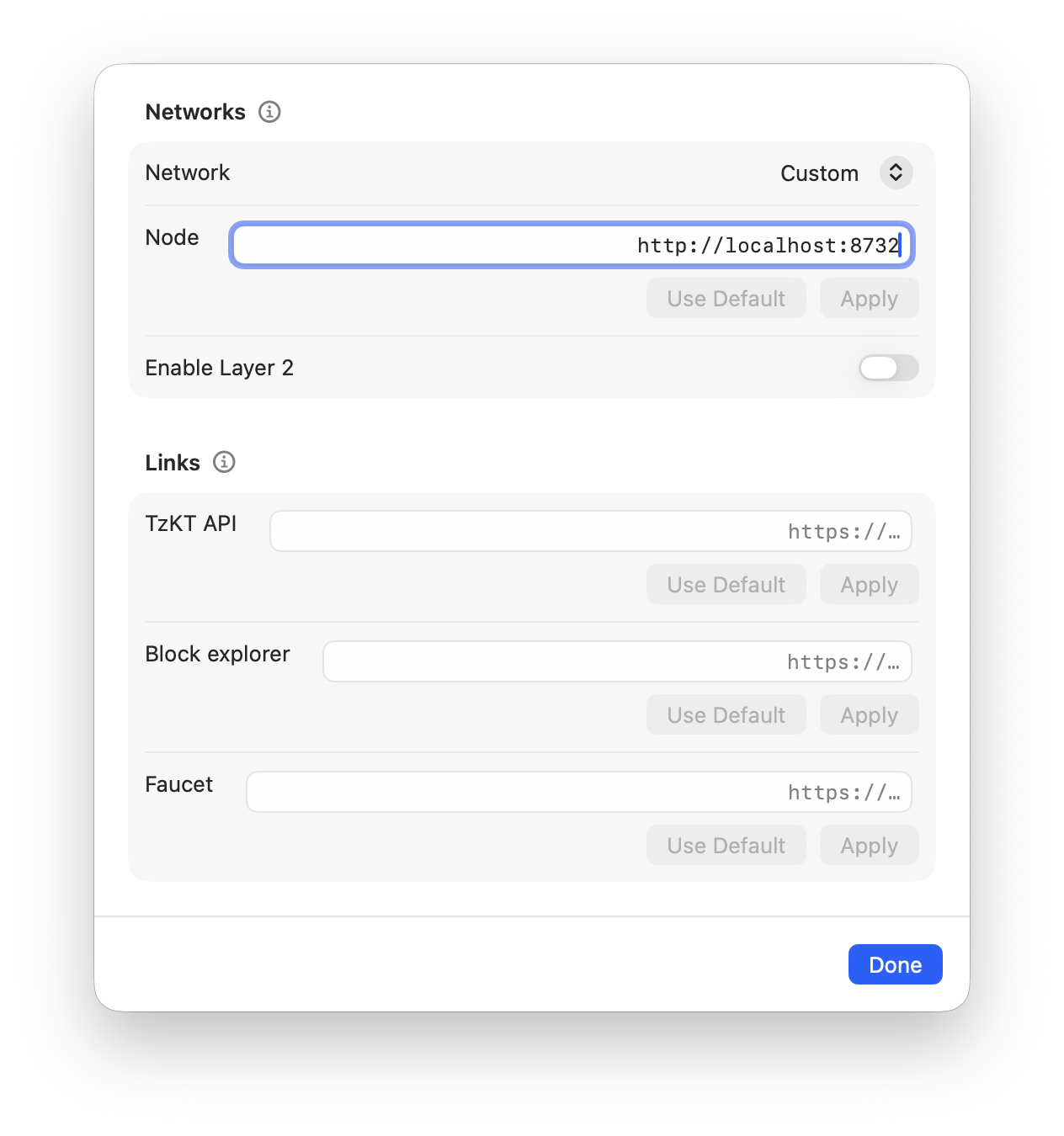
By default, Signet will try to use the node on the local machine. Alternatively, if you are running the node on Mainnet, you can simply change the node in the settings for Mainnet.
Running Directly on a Mac
You can run your own node on your Mac and connect Signet to it. You’ll need to have enough RAM to support the node and also your other applications. The easiest way to do this is to install packages using Homebrew. If you don’t have Homebrew installed, please refer to the instructions at brew.sh. Open the Terminal application and run:
$ /bin/bash -c "$(curl -fsSL https://raw.githubusercontent.com/Homebrew/install/HEAD/install.sh)"
The $ represents the shell prompt; do not type it.
Then to install the node and related software you can use my Homebrew packages. They are based on work by Nomadic Labs.
$ brew tap drchrispinnock/octez
$ brew trust drchrispinnock/octez
$ brew install octez-client octez-node
The other way to do it is to build Octez from source. This is beyond the scope of this book, but you can find details at the Octez documentation site and also in [6]. Once you have installed it, configure the node:
$ octez-node config init --network=mainnet \
    --history-mode=rolling \
    --net-addr="0.0.0.0:9732" \
    --rpc-addr="127.0.0.1:8732"
Import a snapshot:
$ curl -o rolling https://snapshots.tzinit.org/mainnet/rolling
$ octez-node snapshot import rolling
$ rm -f rolling
Then you can run the node in the terminal and see the progress there.
$ octez-node run
Oct 24 19:17:14.046 NOTICE │ the node configuration has been successfully
Oct 24 19:17:14.046 NOTICE │   validated.
Oct 24 19:17:14.046 NOTICE │ generating an identity file
Generating a new identity... (level: 26.00)
....
You can now connect to the node from Signet with http://localhost:8732. Alternatively you can get octez-node to run on login under your user by using brew services:
$ brew services start octez-node
You can get your Mac to use a dedicated user (e.g. tezos) to run the Octez software. For more details see [8] or [6].
Running on a Linux Desktop or Server
If you are using Linux on the desktop or have a Linux machine on your home network, you can set up a node very easily. The Tezos Foundation provides packages of the Octez software via the Tzinit project. A rolling node is suitable for most applications.
We will use the sudo command. If you don’t have sudo access, you can install as the root user. Use usermod to add your account to the list of allowed users. (Or you can edit /etc/group by hand.)
$ su -
Password: (enter the root password)
# apt update
# apt install -y sudo
# usermod -aG sudo <yourusername>
# exit
You’ll need to log out completely and log in again to get the new group membership.
For Debian Linux 13, you can install the release version of octez-node, the node, as follows:
As a user with sudo access:
$ sudo apt update
$ sudo apt install -y extrepo wget
$ sudo extrepo enable tzinit
$ sudo apt update
$ sudo apt install -y octez-node
Then to configure your node, become the tezos user and run these commands:
$ sudo su - tezos
$ octez-node config init --network=mainnet \
    --history-mode=rolling \
    --net-addr="0.0.0.0:9732" \
    --rpc-addr="0.0.0.0:8732" \
    --allow-all-rpc="0.0.0.0:8732"
This will set up a node that you can do everything with. This is fine if you are running a node on a private home network where you control all the devices, but if it will be directly on the internet or a shared network, you should protect it with a firewall or consider removing the --allow-all-rpc which allows operations that might cause your node to use a lot of resources.
As with the method for the Mac above, you can import a backup called a snapshot.
$ wget https://snapshots.tzinit.org/mainnet/rolling
$ octez-node snapshot import rolling
$ rm -f rolling
$ exit
Now you can set up the node to start now and run at boot:
$ sudo systemctl enable octez-node
$ sudo systemctl start octez-node
Connect Signet to the node as per the first section in this Appendix. If the node is running on your local machine, you can use http://localhost:8732. For another machine, you’ll need its IP address. You can get this on most Linux systems using ip -br addr - for example, in this case 192.168.1.140.
$ ip -br addr
lo               UNKNOWN        127.0.0.1/8 ::1/128
eno1             UP             192.168.1.140/24
Running on a Windows Machine
Running a node on a Windows system is possible using Windows Subsystem for Linux. You can find details at [9] or in my infrastructure book [6]. Alternatively, I have vibe coded a tool to help you called OctezDesk. This will install the software and set up the node for you.
Running Nodes on Test Networks
If you want to run a node on a different network to Mainnet, replace mainnet with the values below. For the snapshot, use the link below instead of the one above. For some test networks such as Weeklynet and Quantumnet, you may need development versions of the software instead of the release.
| Network | --network= |
|---|---|
| Shadownet | https://teztnets.com/shadownet |
| Bakingnet | https://teztnets.com/bakingnet |
| Ushuaianet | https://teztnets.com/ushuaianet |
| Quantumnet | https://quantumnet.pqpark.dal.nomadic-labs.com/network.json |
| Network | Snapshot |
|---|---|
| Shadownet | https://snapshots.tzinit.org/shadownet/rolling |
| Bakingnet | https://snapshots.tzinit.org/bakingnet/rolling |
| Ushuaianet | https://snapshots.tzinit.org/ushuaianet/rolling |
| Quantumnet | https://quantumnet.pqpark.dal.nomadic-labs.com/snapshots/latest.rolling |
For Weeklynet, refer to the instructions at the Teztnets site, as it reboots every week.