The WebIDE
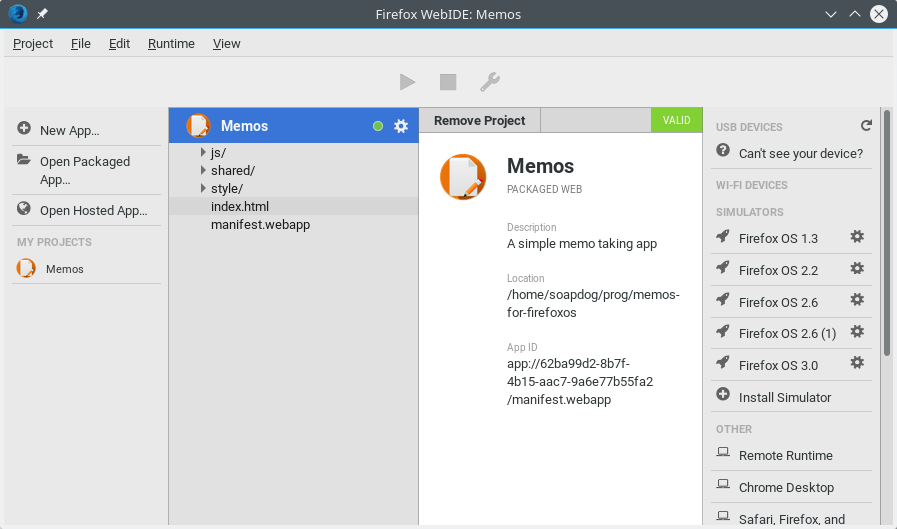
We’ve setup the WebIDE in the chapter about preparing the environment and we used it on the chapter about building our first app. Now we’re going to take a deeper look into the WebIDE features and learn how to do the most common tasks.
To learn more about it, check out the WebIDE page on MDN.
Adding Apps
You can add both hosted and packaged apps to the WebIDE. Lets see how to add each type of app:
Adding packaged apps
You already saw how to add packaged apps to the WebIDE during our first app creation, but we’re going to do a recap so I can show you what else is possible.
To add a new packaged application click the Open Packaged App button on the WebIDE main screen as shown in the screenshot below.
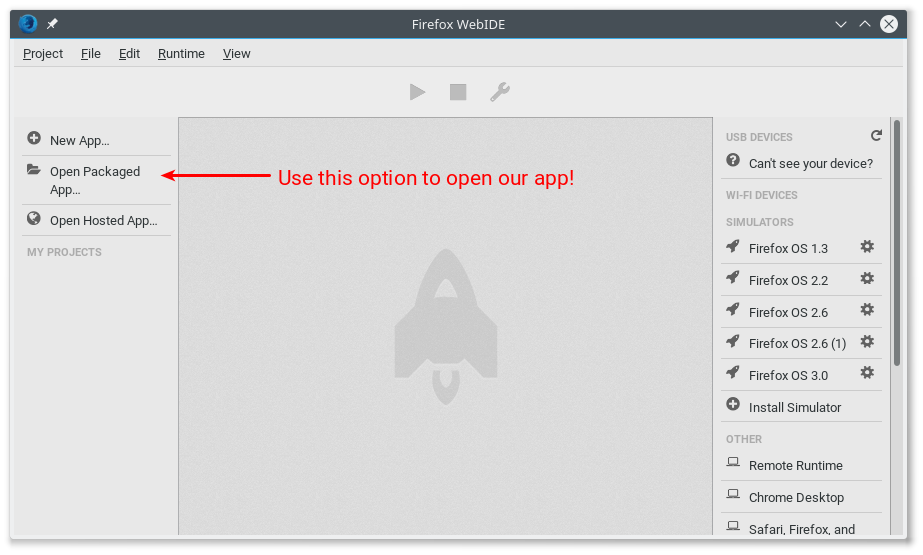
When you click on the button highlighted on the image, Firefox opens a file selection dialog. You should browse your hard drive and select the folder that contains the manifest file for the application that you want to add to the WebIDE. If there are no issues with your manifest then your app will be added to the list on screen.
Adding hosted apps
If you’re building a hosted app then you should test it by using a web server. Do not try to use the method described above for hosted apps because you may miss some errors that will only happen on a hosted environment - such as serving the manifest with the wrong MIME type. Note that the simulator won’t warn you about things like incorrect MIME types, but it’s important to get such things right if you submit your app to the Mozilla Marketplace.
Most of the hosted apps are not applications built exclusively for Firefox OS but responsive design based websites that are able to adapt themselves to different devices and resolutions. These web apps usually have a complex backend that needs to be in-place for the application to work and that’s why you need to test the app using a real web server running your backend stuff.
To run your app in the simulator, click the Open Hosted App button on the WebIDE main screen and then fill the URL of your application in the text entry box and click the OK button on that dialog box.
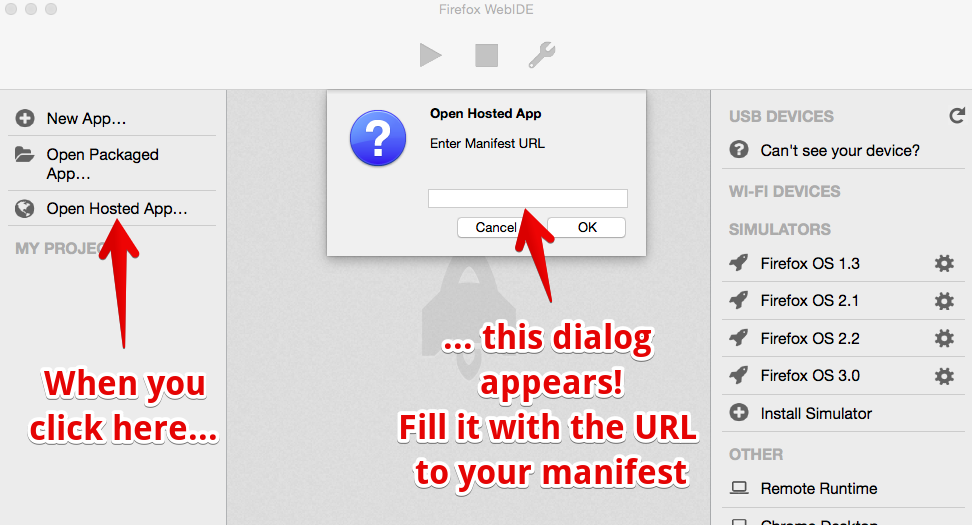
After clicking the button, the manifest is verified and if it is correct the application will be added and the WebIDE.
Running your app
Before you can run your application, you need to start your selected simulator. Choose one of your installed options listed on the right side of the WebIDE main screen
Once you have a Simulator running you can click the Play button located at the top of the WebIDE window and it will install and run the app on the active Simulator.
The application icon will appear at the home screen of the Simulator once the installation is complete. You can just click it to run.
Updating your app
Every time you change some of your files and want to test again on the Simulator you need to press the Reload button to update the installation of your app on the active Simulator.
Debugging
After the application is added to the active Simulator we’re able to debug it by clicking the Wrench button in the WebIDE window. This will launch the your app on the running Simulator and open a JavaScript Console connected to your app.
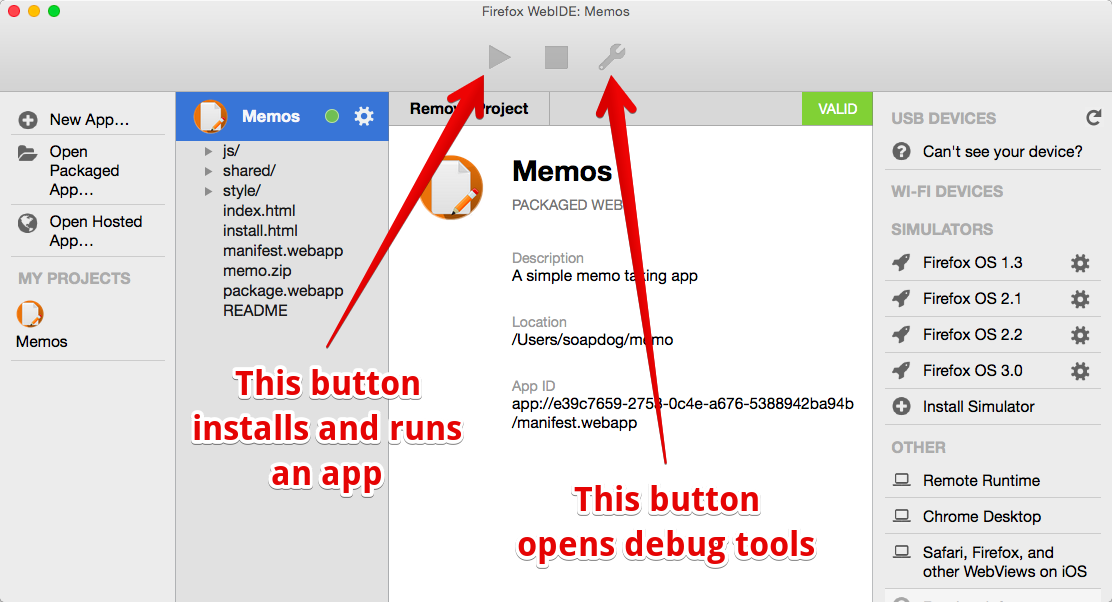
After pressing this button you will see a screen like this:
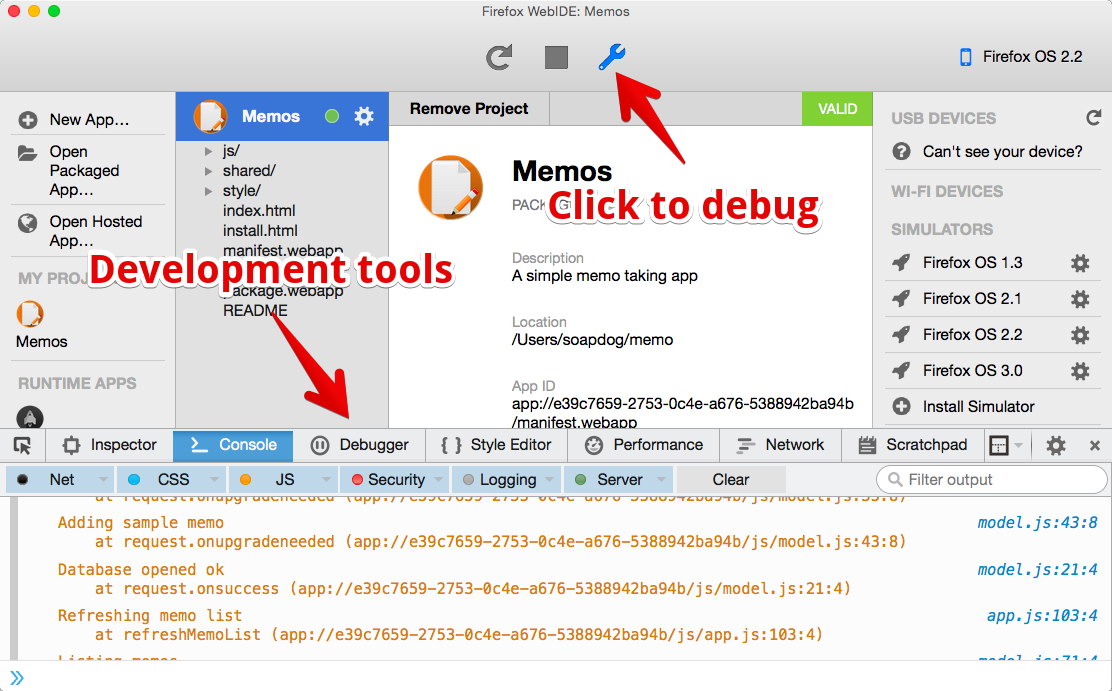
With the tools connected to your app you can test your JavaScript, debug your DOM, edit styles, etc. Like those startup guys like to say: pivot until your app is good.
Once your app is running well on the simulator it’s time to test on a real device.
Testing apps on a real device
Nothing replaces testing on a real device. On the simulator, you test things by using a mouse and clicking on a computer screen; while on a real device you use your fingers on a touchscreen and by using physical buttons. Its a very different user and development experience.
As an example why this type of testing matters, let me tell you a brief story: Many years ago, Raphael Eckhardt (the designer who created the cover of this book) and I were building a puzzle game not that disimilar to Bejeweled. Our game involved dragging and dropping some pieces on a board and was working pretty well on the simulator.
When we then tested the game on an actual phone we realized our game components were not touch friendly at all. When placing a hand over the screen the board would be hidden below the hand. Even worst, the pieces the users were supposed to drag were smaller than the user’s finger tip, so the user couldn’t see what they were doing! In summary, our UX sucked very badly. That happened because we kept trying things only on the simulator using a mouse that had a tiny cursor. When we decided to try with our fatter-than-a-cursor fingers we realized that we need to rework our UI.
To avoid having a similarly frustrating experience, always test on a real device… or two, or more if you can get your hands on multiple devices. Test often with simple prototypes. Otherwise, you can waste valuable time and money having to recreate assets.
Connecting with a Firefox OS device
If you have a Firefox OS device (and have any needed drivers installed) then you can push apps directly from the WebIDE to the device using a USB connection of a WI-FI connection depending on which version of Firefox OS you are running. In both cases you need to go to the Settings app on the device -> Developer and mark the option to debug using ADB and DevTools. If your device supports it then you can also mark the option to allow WI-FI debugging. Once your device is recognized, it will appear on the right side area of the WebIDE main screen
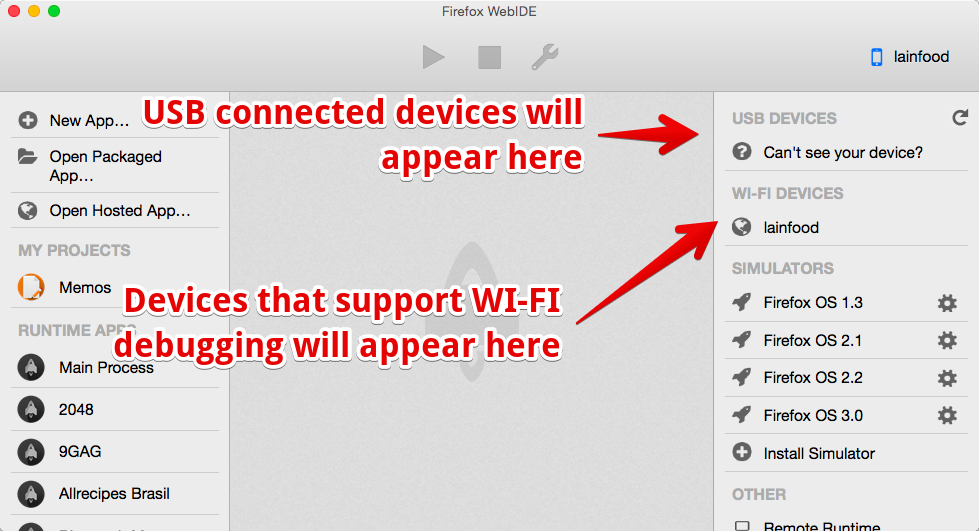
Clicking on a device (such as lainfood on that screenshot) will connect the WebIDE to it. After that you can use the normal Play, Stop and Debug buttons to interact with your app and your device.
Summary
In summary, the WebIDE is fantastic. Its much better than the old Firefox OS 1.1 Simulator Extension since it has better developer tools and can run multiple Firefox OS versions. We can envision the WebIDE getting better and better with its built-in editors and more.
Besides feeling awesome and empowered, by this point in the book you hopefully have a good grasp of the workflow for building apps for Firefox OS.
In the next chapter we’ll talk about distributing your application. It is time to spread your app around the world!