1. Say Hi to Tmux!
Let’s say you’re a typical developer working on a website. You’ve got one terminal window open for developing9, another window open for your live rebuild/reload script, and a third open to keep an eye on the server logs. And you’re pretty cool so you’ve got these all in tabs on your terminal app. Something like this:
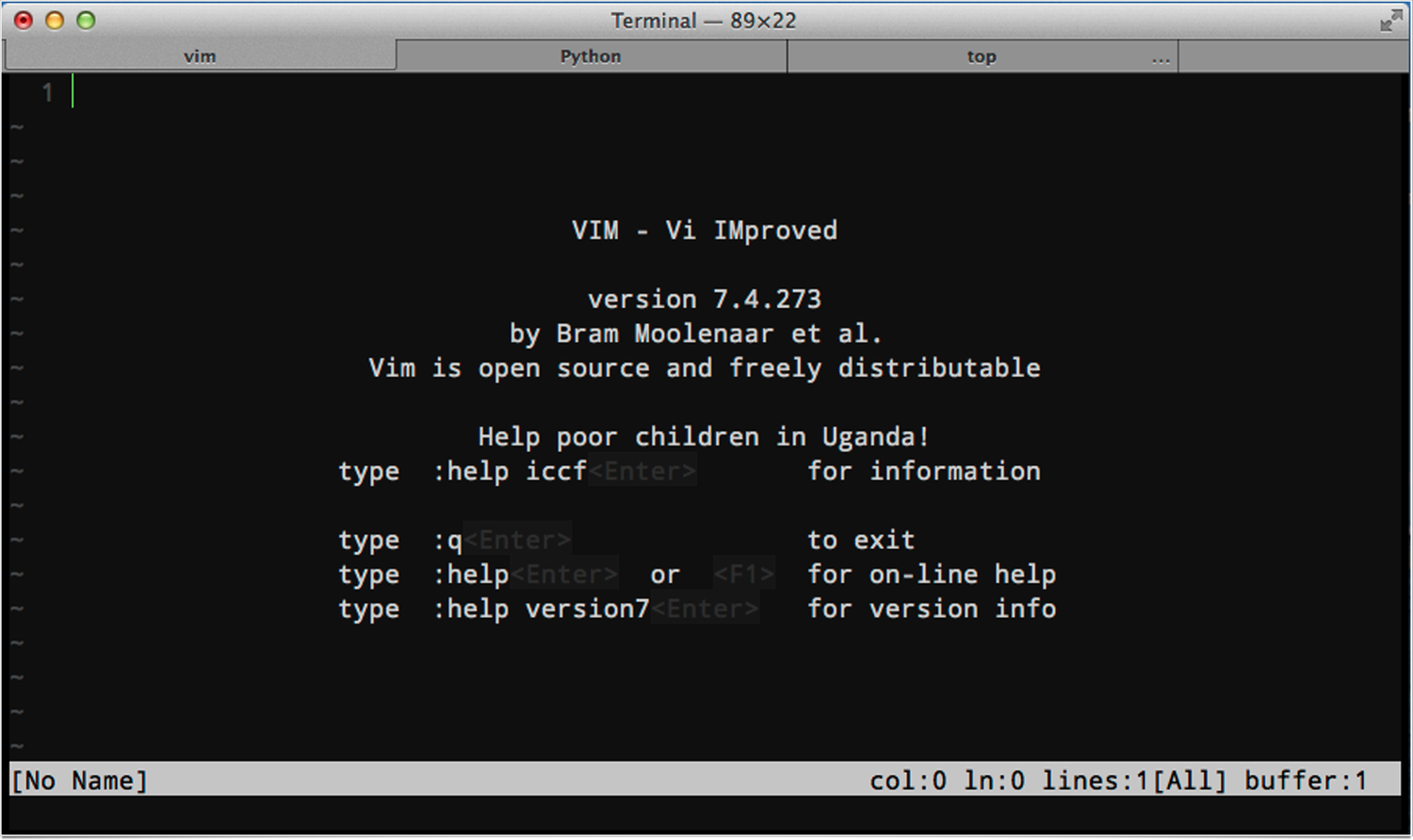
And that’s fine. But we can do so much more! Right now you’re stuck with an either/or situation: either you can have all your terminals in one window, or you can see them all at the same time. If they’re all in one window you can move and resize them easily. If they’re all in different windows you can see what’s going on in multiple processes at once, but you’ve got multiple windows to move around if you need to rearrange your workspace.
And that’s the first and most obvious problem that tmux solves. Let’s get all your windows in a single terminal session, and have them all visible at the same time:
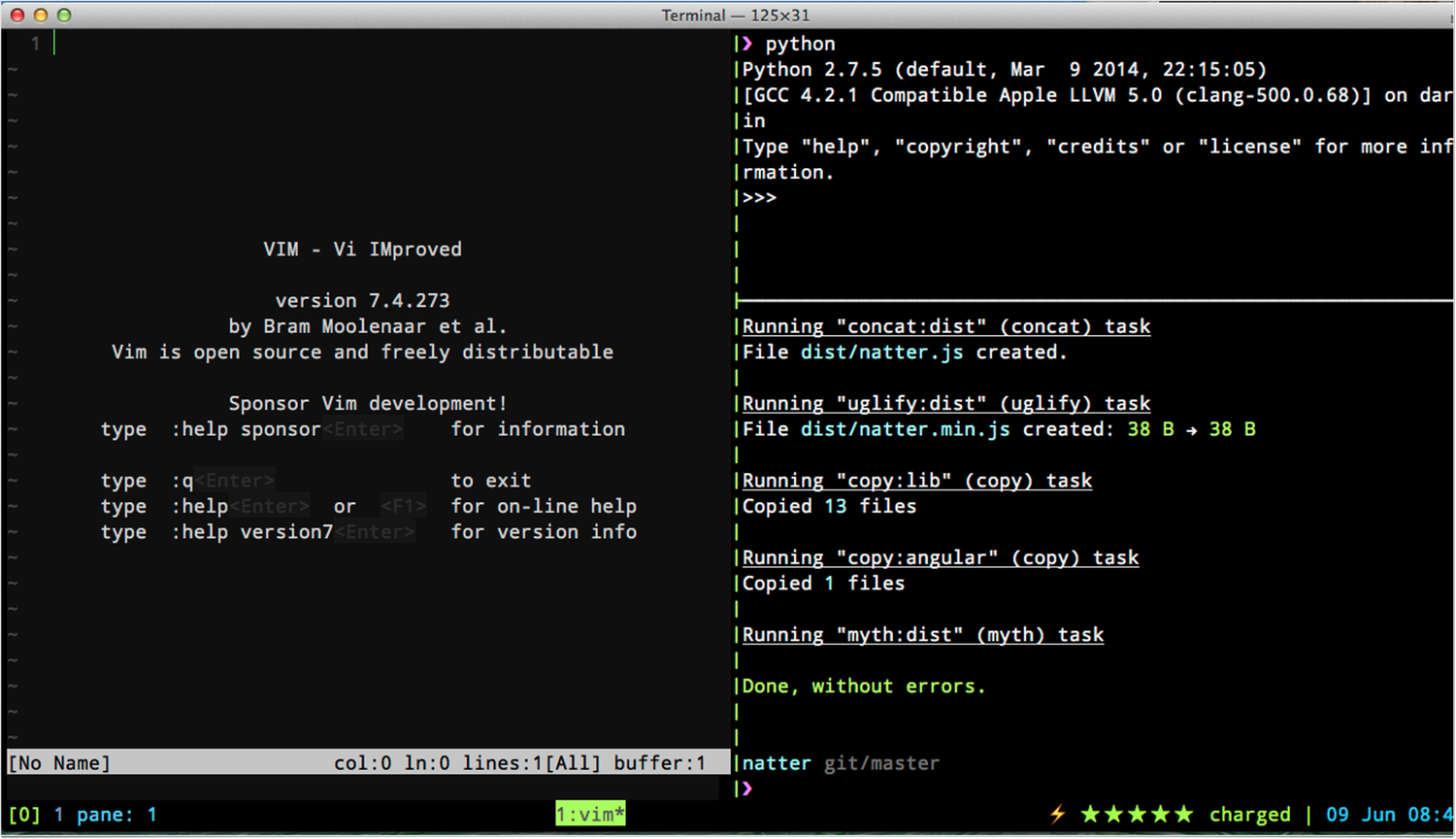
But that’s just the beginning. Tmux is all about putting your workspace into context, grouping related screens, and making it easy to switch between contexts as needed. For people who work with remote servers, tmux allows you to save your contextual setup between sessions, so when you come back to your server after a few hours (or even a few weeks) everything is where you left it. And the even better news is that all this power is stupidly simple to use.
Unfortunately, tmux doesn’t look quite that awesome out of the box. We’re going to have to do a few things to it first. A brand new install of tmux looks more like this:
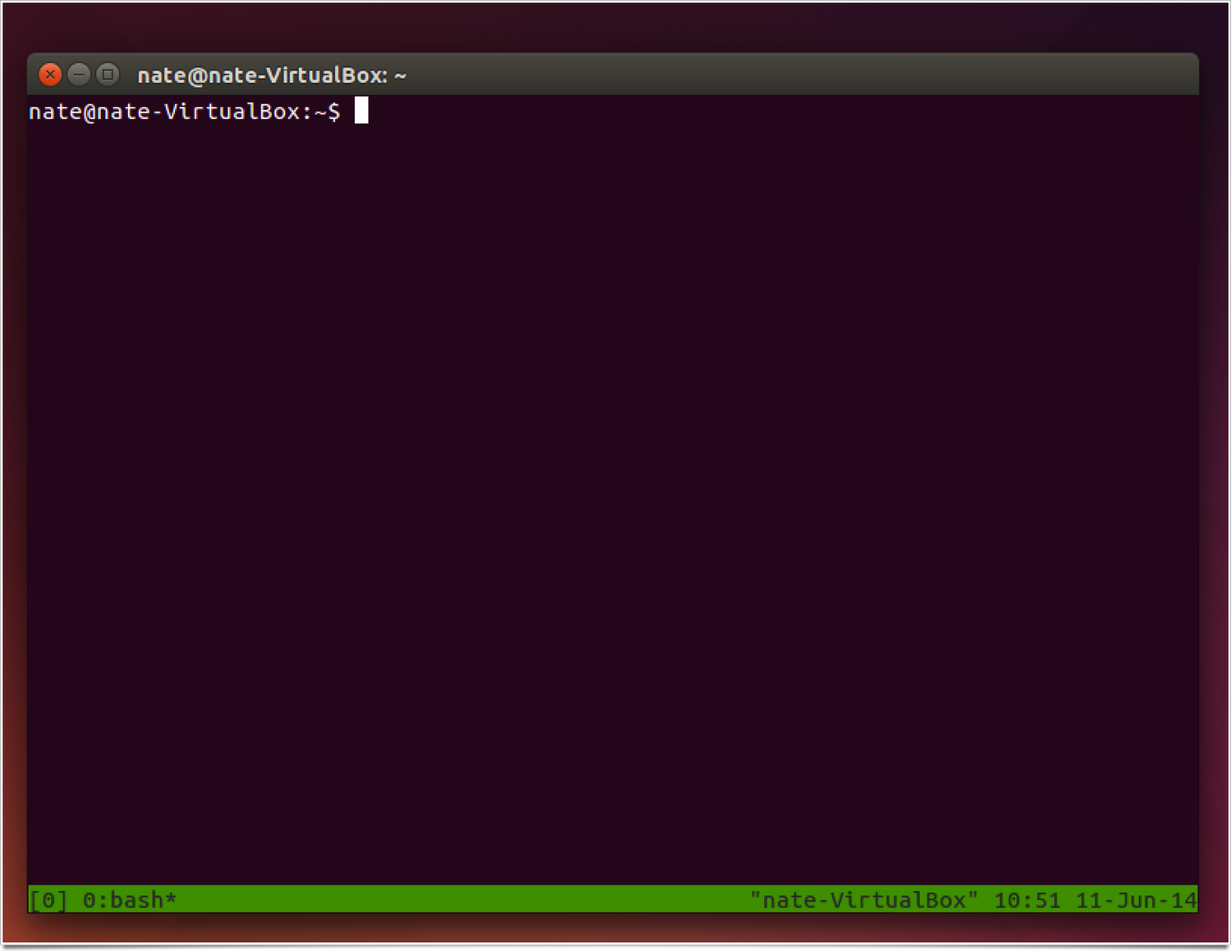
The rest of this book is dedicated to getting you from that brand new tmux to the fully customized tmux of your dreams.