File Editor Sample
General Application (App) Requirements
An application (app) should be capable of the following:
- Presenting a user interface (UI) to the app user which can display information to the user, accept information from the user, and provide app navigation to the user (button clicks, etc).
- Retrieve information (from a file system, a database, etc.).
- Store information (in a file system, a database, etc.).
- Maintain state information (“remember”) the user’s prior responses).
This example illustrates all of this and may be run offline (with no internet connection, on laptops and desktops which use a variety of operating systems and hardware) or online from a webserver as a browser app on a mobile device, laptop, or desktop.
The Server Component
In any case, this app has a server component. This server component runs on the laptop or desktop for offline use or run on the server for online use. The server component provide access to file systems and databases and possibly other resources of the host.
Setting Up the Server Component
We will first setup the server component of this application, later we will implement the user interface for the application.
First create a directory for your project.
- Open the Command Prompt Window. Create a new directory to contain the
project. I used the following commands to create the directory “mysample” in
my home directory and a “public” subdirectory for static assets and a
subdirectory “data” of “public” for data files:
md mysample cd mysample md public cd public md data cd .. - Then initialize your project with the “npm init” command:
npm init - You may simply hit enter to answer all the questions presented. This
updates the package.json file in your directory. Now, to
install express, enter the following command:
npm install express --save - The “–save” option adds an entry for express in the package dependences of package.json. Your directory is now prepared to contain the elements of your applications, which we will add to this directory and subdirectories.
- Your Command Prompt window should look something like this at this
point:
C:\Users\joe>mdmysampleC:\Users\joe>cdmysampleC:\Users\joe\mysample>mdpublicC:\Users\joe\mysample>cdpublicC:\Users\joe\mysample\public>mddataC:\Users\joe\mysample\public>cd..C:\Users\joe\mysample>npminitThisutilitywillwalkyouthroughcreatingapackage.jsonfile.Itonlycoversthemostcommonitems,andtriestoguesssensibledefaults.See`npmhelpjson`fordefinitivedocumentationonthesefieldsandexactlywhattheydo.Use`npminstall<pkg>--save`afterwardstoinstallapackageandsaveitasadependencyinthepackage.jsonfile.Press^Catanytimetoquit.name:(mysample)version:(1.0.0)description:entrypoint:(index.js)testcommand:gitrepository:keywords:author:license:(ISC)AbouttowritetoC:\Users\joe\mysample\package.json:{"name":"mysample","version":"1.0.0","description":"","main":"index.js","scripts":{"test":"echo\"Error: no test specified\"&& exit 1"},"author":"","license":"ISC"}Isthisok?(yes)C:\Users\joe\mysample>npminstallexpress--savemysample@1.0.0C:\Users\joe\mysample`--express@4.14.1+--accepts@1.3.3|+--mime-types@2.1.14||`--mime-db@1.26.0|`--negotiator@0.6.1+--array-flatten@1.1.1+--content-disposition@0.5.2+--content-type@1.0.2+--cookie@0.3.1+--cookie-signature@1.0.6+--debug@2.2.0|`--ms@0.7.1+--depd@1.1.0+--encodeurl@1.0.1+--escape-html@1.0.3+--etag@1.7.0+--finalhandler@0.5.1|+--statuses@1.3.1|`--unpipe@1.0.0+--fresh@0.3.0+--merge-descriptors@1.0.1+--methods@1.1.2+--on-finished@2.3.0|`--ee-first@1.1.1+--parseurl@1.3.1+--path-to-regexp@0.1.7+--proxy-addr@1.1.3|+--forwarded@0.1.0|`--ipaddr.js@1.2.0+--qs@6.2.0+--range-parser@1.2.0+--send@0.14.2|+--destroy@1.0.4|+--http-errors@1.5.1||+--inherits@2.0.3||`--setprototypeof@1.0.2|+--mime@1.3.4|`--ms@0.7.2+--serve-static@1.11.2+--type-is@1.6.14|`--media-typer@0.3.0+--utils-merge@1.0.0`--vary@1.1.0npmWARNmysample@1.0.0NodescriptionnpmWARNmysample@1.0.0Norepositoryfield.C:\Users\joe\mysample>
The Server Code
Using your text editor, key the following code into a file “server.js” in your application directory (“mysample” above).
  1 // server.js
  2 // load the things we need
  3 var express = require('express');
  4 var app = express();
  5 var fs = require("fs");
  6 var path = require('path');
  7
  8
  9 var fileName = "";
 10 var dirName = "";
 11 var mydata = "";
 12 var subtasks = 0;
 13 var subdirs = [];
 14 var files = [];
 15 function f_stats_complete (res, subdirs, files) {
 16   res.send('?subdirs='+subdirs+'&files='+files);
 17 }
 18 function createCallback (_fullpath, _res) {
 19   return function (err, stats) {
 20     if (err) {
 21       console.log('fs.stat err='+err);
 22     } else if (stats.isDirectory()) {
 23       subdirs.push(_fullpath);
 24     } else if (stats.isFile()) {
 25       files.push(_fullpath);
 26     }
 27     if (--subtasks === 0) {
 28       f_stats_complete (_res, subdirs, files);
 29     }
 30   }
 31 }
 32
 33 app.set('port', (process.env.PORT || 5000));
 34
 35 // set the view engine to ejs
 36 app.set('view engine', 'ejs');
 37 app.use(express.static(__dirname + '/public'));
 38
 39 app.get('/xhr-stat',function(req,res){
 40   fileName=req.query.filename;
 41   fs.stat(fileName,(err,stats) => {
 42   res.send('?err='+err+'&stats='+JSON.stringify(stats));
 43   });
 44 });
 45
 46 app.get('/xhr-unlink-file', function(req, res){
 47   fileName=req.query.filename;
 48   fs.unlink(fileName, (err) => {
 49     if (err) throw err;
 50     res.send('deleted '+ fileName + ' successfully');
 51   });
 52 });
 53
 54 app.get('/xhr-write', function(req, res){
 55   fileName=req.query.filename;
 56   mydata=req.query.mydata;
 57   fs.open(fileName, 'w', (err,fd) => {
 58     if (err) {
 59       console.log('err.code='+err.code);
 60       console.log('err='+err);
 61       if (err.code === 'ENOENT'){
 62 	console.log('error='+err);
 63         res.send('error=ENOENT')
 64       } else {
 65         throw err;
 66       }
 67     }
 68     else {
 69       mydata = mydata.replace(/[\r]/gm,'');
 70       fs.writeFile(fd, mydata, (err, data) => {
 71         if (err) throw err;
 72         fs.close(fd, (err) => {
 73           if (err) throw err;
 74         });
 75         res.send('written successfully');
 76       });
 77     }
 78   });
 79 });
 80
 81 app.get('/xhr-read', function(req, res){
 82   fileName=req.query.filename;
 83   fs.open(fileName, 'r', (err,fd) => {
 84     if (err) {
 85       if (err.code === 'ENOENT'){
 86         res.send('error=ENOENT')
 87       } else {
 88         res.send('error='+err);
 89       }
 90     } else {
 91       fs.readFile(fd, (err, data) => {
 92       if (err) throw err;
 93       mydata = data.toString();
 94       fs.close(fd, (err) => {
 95       if (err) throw err;
 96       });
 97       res.send(mydata);
 98       });
 99     };
100   });
101 });
102
103 app.get('/xhr-mkdir', function(req, res){
104   dirName=req.query.dirname;
105   fs.mkdir(dirName, (err) => {
106     if (err) {
107       res.send('?error='+err);
108     } else {
109       res.send();
110     }
111   });
112 });
113
114 app.get('/xhr-rmdir', function(req, res){
115   dirName=req.query.dirname;
116   fs.rmdir(dirName, (err) => {
117     if (err) {
118       res.send('?error='+err);
119     } else {
120       res.send('OK');
121     }
122   });
123 });
124
125 app.get ('/xhr-readdir', function(req,res){
126   if (req.query.dirname) {
127     dirName=req.query.dirname;
128     subdirs=[];
129     files=[];
130     fs.readdir(dirName, (err,data) => {
131       if (err) {
132         if (err.code === 'ENOENT'){
133 	  res.send('error=ENOENT')
134         } else {
135 	  console.log('error='+err)
136           res.send('error='+err);
137           throw err;
138         }
139       } else {
140 	var arrLength=data.length;
141 	subtasks = arrLength;
142 	if (subtasks === 0){
143           res.send('error=no entries in directory');
144 	}
145 	for (var i =0; i < arrLength; i++) {
146           var fullpath=dirName+path.sep+data[i];
147 	  var stats = null;
148 	  fs.stat(fullpath, createCallback (fullpath, res));
149 	}
150       }
151     });
152   } else {
153     res.send('error=dirname missing from xhr-readdir parameters');
154   }
155 });
156
157 app.listen(app.get('port'), function() {
158   console.log('Node app is running on port', app.get('port'));
159 });
Server Code Commentary
Lines 3-6 load the required modules into the javascript engine. The node require function loads a module to make the functionality of the module available to the code which follows. More information on node modules may be found here. Require may be used to load code from various sources, packages installed with NPM, core modules provided with node, modules you have written yourself, etc.
Express provides a lot of functionality: it establishes a web server which can listen for http requests on a port, it serves static assets such as your html and images, and it provides a routing mechanism to code in your file.
Line 4 creates an object “app” for your webserver. This allows the following code to refer to the webserver.
Line 5, creates your node file system object, which permits your code to access your machine’s file system. The node file system api is documented here.
Line 6, creates a path object. We use this only to discover the proper path separator to use between directory names for the underlying operating system. I. E. ‘\’ for Windows, ‘/’ for everyone else.
Lines 9-14 declare global variables which will be used in the following code.
Line 15-17 define a function “f_stats_complete” which will be called asnchronously when all the entries in a directory have been classified as files or subdirectories. The first parameter is the response object captured at the time createCallback was called. The second and third parameters, subdirs and files, are arrays of subdirectories and files that are used by the client side logic to build the user interface.
Lines 18-31 is a factory which generates unnamed functions which are used as asynchronous callbacks for file system stat calls which are made for all the entries in a directory. This factory method of creating callbacks utilizes the concept of closures to preserve the values of the parameters of createCallBack until the events occur.
Line 33 sets the port that the express webserver should listen to for incoming http requests. In a server environment such as Heroku, this is taken from an environment variable provided by the service provider, else in a development environment, such as your laptop, a constant of 5000 is assigned.
Line 36 sets the view engine to “ejs”, embedded javscript. This is not utilized in this example, but is useful if your application uses templating. The other choice is “jade”.
Line 37 sets the subdirectory from which static assets, such as html and images, javascript, and images are served. References to assets are relative to this subdirectory. Thus html files would be served from C:Users\joe\mysample\public.
Lines 39-44 illustrate the “routing” feature of express which associates http requests with javascript code. A http get request for “/xhr-stat” will execute the unnamed function defined here. The parameters provided to the unnamed function, “req” and “res” are objects used by express to encapsulate the http request and the http response, respectively.
Line 40 the file name to be “stat”ed is retrieved from the request.
Line 41 invokes the file system stat function passing the file name and a function to be executed asynchronously on completion. The completion event passes an error object and a stats object to the completion function. The “() ⇒ {}” construct is an es6 arrow function definition. The arrow function definition is a new shorthand notation for anonymous function definition. Though arrow functions and anonymous functions are similar, there are some differences in scoping and interpretation. I suggest googling “javascript arrow function” to develop an understanding of this esoterica.
Line 42 sends the html response back to the requestor. Note that the string sent back looks like a html query, i.e. url?parm1=val1&parm2=val2. A good explanation of JSON embedded in a good es5 javascript book is here.
Lines 46-52 is the handler for a request to delete (unlink) a file. This and the following handlers are so similar to the one above that I do not feel compelled to labor the detailed explanation.
Lines 54-79 is the handler for a write request. Something new here is the “throw” statement which displays the unexpected error on the console in the Command Prompt window.
Lines 81-101 is the read file handler. The ENOENT error code indicates that the file does not exist during the open. Open errors are sent back to the client as an “error=” clause in the query string since these errors are likely to actually be encountered and the client should be able to respond sensibly. The entire content of the file is read into a buffer and passed as the data parameter to the asynchronous callback of the read. This buffer is converted to a string which is sent back to the client after the file is closed.
Lines 103-112 is the handler for creating a new directory. If an error is encountered it is sent to the client.
Lines 114-123 is the handler for removing a directory. If an error is encountered, it is sent to the client.
Lines 125-155 handles a request to read a directory and builds arrays of the files and subdirectories contained within it. This it accomplishes by launching fs.stat calls for each entries with callbacks created by createCallback above.
Lines 157-159 starts the server. Line 158 logs the message announcing the port it is running on.
Server Summary
The bulk of the server code are response functions that are “routed” from http urls by express. For example “http://localhost:5000/xhr-read” is routed to the function defined beginning at line 81. Each of the response functions accepts a request parameter “req”, and a “response” parameter “res”. Each response function retrieves information from the request parameter which elaborates the details of the desired action. The response function processes by executing the desired action by invoking “fs” file system calls. Finally the response function sends the response with “res.send”. The “xhr-“ prefix is intended to signal that the client will be utilizing XMLHttpRequest to invoke it. The server we just built will permit us to build an application that is capable of browsing directories, reading and writing text files, creating directories, and deleting directories and files.. It illustrates the nature of asynchronous processing which is so central to the Node philosophy. This server can be be reused as the heart of a large class of web applications that require reading and writing host files and serving html resources.
Testing the Server
Serving an HTML Page
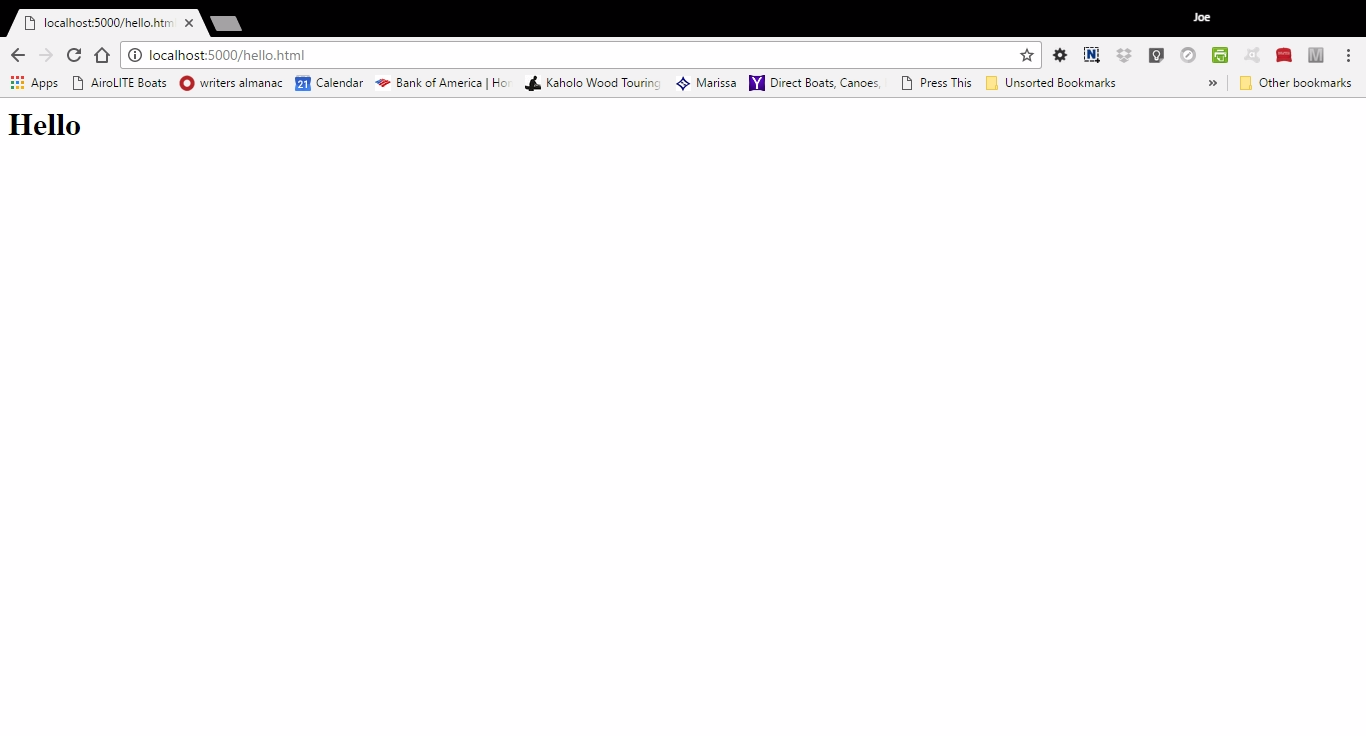
Place a simple html page in the public subdirectory of your project. For example, “hello.html”.
1 <h1>Hello, World</h1>
- Navigate to your project in the Command Prompt window and start the server:
  C:\Users\joe>cd mysample

  C:\Users\joe\mysample>node server.js
  Node app is running on port 5000
Now open a Chrome browser window and key “localhost:5000/hello.html” in the Chrome Address bar and hit the enter key. You should see:
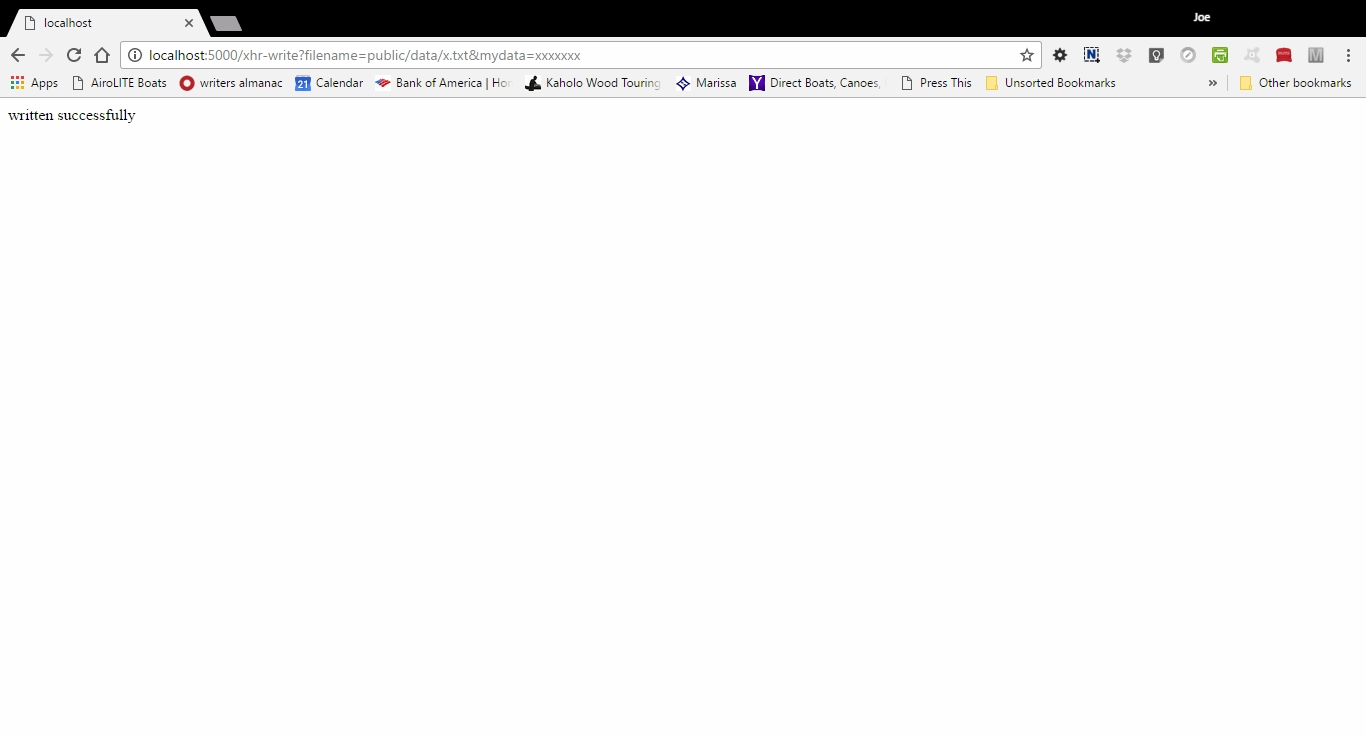
Now key “localhost:5000/xhr-write?filename=public/data/x.txt&mydata=xxxxxxx” in the Chrome Address bar and hit the enter key. You should see:
Now key “localhost:5000/xhr-read?filename=public/data/x.txt” in the Chrome Address bar and hit the enter key. You should see:
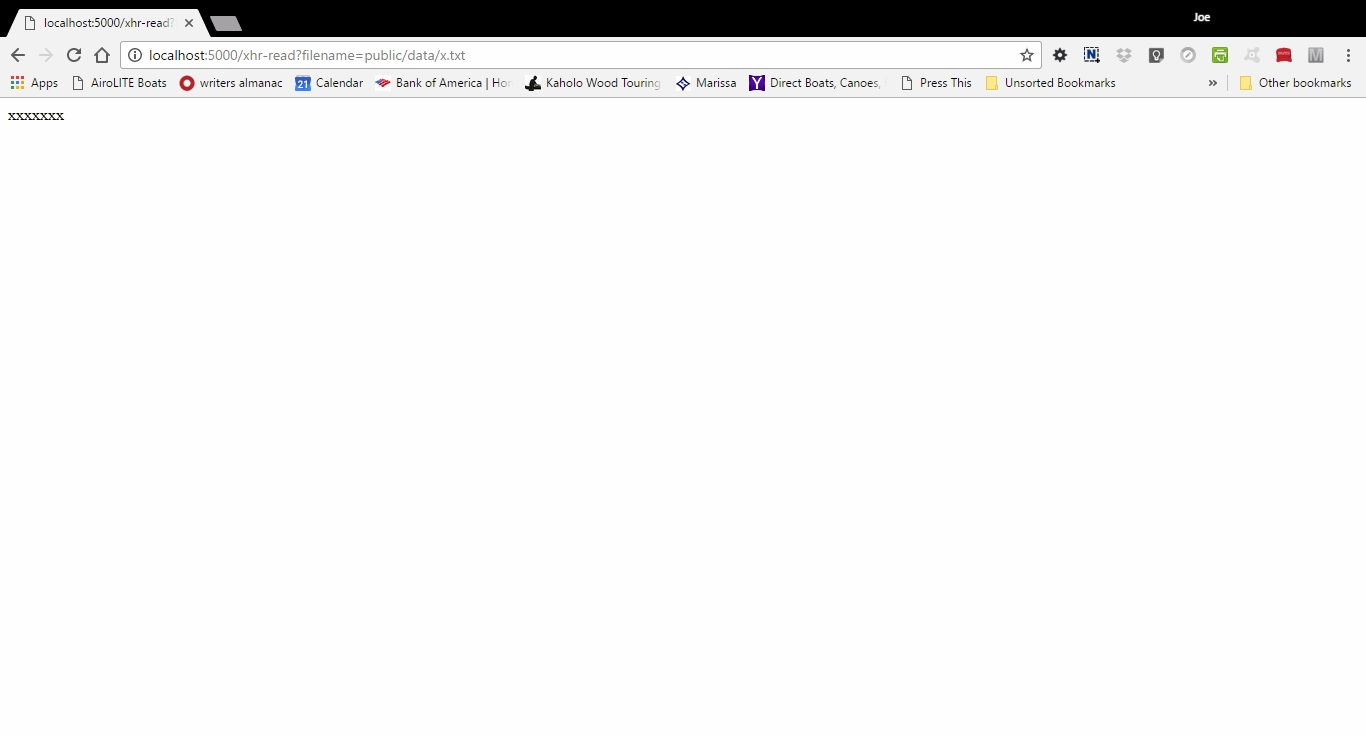
Note that filename is relative to the project directory. Thus the file just written and read is C:Users\joe\mysample\public\data\x.txt.
The other xhr functions can be similarly tested.
Here we will proceed to build the sample applications user interface as a client web page which will exercise the the remaining functions.
The Client Code
With your text editor, key the following file “fileeditor.html” and save it in your public directory
  1 <!DOCTYPE html>
  2 <html>
  3 <head>
  4 <meta charset="UTF-8">
  5 <meta name="viewport" content="width=device-width, initial-scale=2">
  6 <title>File Editor</title>
  7 <style>
  8 body {font-size:large;}
  9 button {font-size:large;}
 10 .button {font-size:large;}
 11 input {font-size:large;}
 12 textarea {font-size:large;}
 13 </style>
 14 <script>
 15 window.onerror = function (errorMsg, url, lineNumber, column, errorObj) {
 16     alert('Error: ' + errorMsg + ' Script: ' + url + ' Line: ' + lineNumber
 17     + ' Column: ' + column + ' StackTrace: ' +  errorObj);
 18 }
 19
 20 var responseText = [];
 21 var errors = [];
 22 var subdirs = [];
 23 var subdirsi = '';
 24 var files = [];
 25 var innerhtml='';
 26 var filesep='\\';
 27 var the_text = '';
 28
 29   function handleFileSelect(evt) {
 30     var upfiles = evt.target.files; // FileList object
 31     var f = upfiles[0];
 32     var reader = new FileReader();
 33     reader.onload = (function(theFile) {
 34       return function(e) {
 35 	document.getElementById('textarea').value = e.target.result;
 36 	document.getElementById('file_name').value = document.getElementById('dir_name'\
 37 ).value + '/' + escape(f.name);
 38 	f_save();
 39 	// f_write();
 40       };
 41     })(f);
 42     reader.readAsText(f);
 43   }
 44
 45
 46 function f_download() {
 47   var myfile=document.getElementById("file_name").value;
 48   myfile = myfile.replace('public/', '');
 49   innerhtml = '<a href="' + myfile + '" id="download" download>Download</a>';
 50   document.getElementById("download_div").innerHTML = innerhtml;
 51   document.getElementById("download").click();
 52 }
 53
 54 function f_up() {
 55   var mydir = document.getElementById("dir_name").value;
 56   var i = mydir.lastIndexOf('/');
 57   if (i > 0) {
 58     mydir = mydir.substring(0,i);
 59   } else {
 60     mydir = '/';
 61   }
 62   document.getElementById("dir_name").value = mydir;
 63   f_save();
 64   f_load();
 65 }
 66
 67 function f_write(){
 68   var myfile=document.getElementById("file_name").value;
 69   var mydata=document.getElementById("textarea").value;
 70   var params="filename="+myfile+"&mydata="+encodeURIComponent(mydata);
 71   var url="xhr-write?"+params;
 72   var http=new XMLHttpRequest();
 73   http.open("GET", url, true);
 74   http.onreadystatechange = function()
 75   {
 76     if(http.readyState == 4 && http.status == 200)
 77     {
 78       responseText = http.responseText;
 79       responseText = responseText.replace(/\\/g,'/');
 80       var urlParams = new URLSearchParams (responseText);
 81       if (urlParams.has('error')) {
 82         document.getElementById("response").innerHTML = responseText;
 83       } else {
 84         f_load();
 85       }
 86     }
 87   }
 88   http.send(null);
 89 }
 90
 91 function f_makedir(){
 92   var mydir=document.getElementById("dir_name").value;
 93   var params="dirname="+mydir;
 94   var url="xhr-mkdir?"+params;
 95   var http=new XMLHttpRequest();
 96   http.open("GET", url, true);
 97   http.onreadystatechange = function()
 98   {
 99     if(http.readyState == 4 && http.status == 200)
100     {
101       responseText = http.responseText;
102       var urlParams = new URLSearchParams (responseText);
103       if (urlParams.has('error')) {
104         document.getElementById("response").innerHTML =urlParams.get('error');
105       }
106       else
107       {
108         f_load();
109       }
110     }
111   }
112   http.send(null);
113 }
114
115 function f_select_file (selfile) {
116   document.getElementById("response").innerHTML = '';
117   document.getElementById("file_name").value = selfile;
118   window.localStorage["filename"] = selfile;
119   var url = "xhr-read";
120   var params = "filename=" + selfile;
121   var http=new XMLHttpRequest();
122   http.open("GET", url+"?"+params, true);
123   http.onreadystatechange = function()
124   {
125     if(http.readyState == 4 && http.status == 200)
126     {
127       document.getElementById("textarea").value = http.responseText;
128     }
129   }
130   http.send(null);
131 }
132
133 function f_delete_dir () {
134   document.getElementById("response").innerHTML = '';
135   var seldir = document.getElementById("dir_name").value;
136   var url = "xhr-rmdir";
137   var params = "dirname=" + seldir;
138   var http=new XMLHttpRequest();
139   http.open("GET", url+"?"+params, true);
140   http.onreadystatechange = function()
141   {
142     if(http.readyState == 4 && http.status == 200)
143     {
144       f_load();
145     }
146   }
147   http.send(null);
148 }
149
150 function f_delete_file () {
151   document.getElementById("response").innerHTML = '';
152   var selfile = document.getElementById("file_name").value;
153   var url = "xhr-unlink-file";
154   var params = "filename=" + selfile;
155   var http=new XMLHttpRequest();
156   http.open("GET", url+"?"+params, true);
157   http.onreadystatechange = function()
158   {
159     if(http.readyState == 4 && http.status == 200)
160     {
161       document.getElementById("response").innerHTML = "deleted/loading";
162       f_load();
163     }
164   }
165   http.send(null);
166 }
167
168 function f_select_subdir (subdir) {
169   window.localStorage['dirname'] = subdir;
170   document.getElementById("dirs_div").innerHTML = 'There are no subdirectories';
171   document.getElementById("files_div").innerHTML = 'There are no files in this d\
172 irectory';
173   f_load();
174 }
175
176 function f_readdir () {
177   var dirname=window.localStorage['dirname'];
178   document.getElementById("dirs_div").innerHTML = 'Working, Please Wait....';
179   document.getElementById("files_div").innerHTML = '';
180   var url = "xhr-readdir";
181   var params = "dirname=" + dirname;
182   var http=new XMLHttpRequest();
183   http.open("GET", url+"?"+params, true);
184   http.onreadystatechange = function() {
185
186     if (http.readyState == 4 && http.status == 200)
187     {
188       responseText = http.responseText;
189       responseText = responseText.replace(/\\/g,'/');
190       var urlParams = new URLSearchParams (responseText);
191       if (urlParams.has('error')) {
192         document.getElementById("dirs_div").innerHTML = responseText;
193       } else {
194         innerhtml = 'Subdirectories: ';
195 	if (urlParams.has('subdirs')){
196           subdirs = urlParams.get('subdirs');
197           subdirs=subdirs.split(",");
198 	  var n = subdirs.length;
199 	  if (n > 0 && subdirs[0] > '') {
200 	    for (var i = 0; i< n; i++) {
201               subdirsi = subdirs[i];
202 	      innerhtml += '<button type="button" onclick="f_select_subdir(\''+subdirsi\
203 +'\');return false">'+subdirs[i]+'</button>';
204 	    }
205 	  } else {
206             innerhtml += "There are no subdirectories";
207 	  }
208 	} else {
209           innerhtml += "There are no subdirectories";
210 	}
211 	document.getElementById("dirs_div").innerHTML = innerhtml;
212
213
214         if (urlParams.has('files')){
215 	  innerhtml='Files: ';
216 	  files = urlParams.get('files');
217 	  files = files.split(",");
218 	  n = files.length;
219 	  if (n > 0 && files[0] > '') {
220 	    for (var i= 0; i < n; i++) {
221 	      filesi = files[i];
222               innerhtml += '<button type="button" onclick="f_select_file(\''+fil\
223 esi+'\');return false">' + files[i] + '</button>';
224 	    }
225 	  } else {
226 	    innerhtml += 'There are no files in this directory';
227 	  }
228 	} else {
229           innerhtml += 'There are no files in this directory';
230         }
231 	document.getElementById("files_div").innerHTML = innerhtml;
232
233
234       }
235     } else if (http.readyState == 4 && http.status == 0)
236     {
237         document.getElementById("dirs_div").innerHTML = 'Subdirectories: There a\
238 re no subdirectories';
239 	document.getElementById("files_div").innerHTML = 'Files: There are no files in \
240 this directory';
241     }
242   }
243   http.send(null);
244 }
245
246 function f_load () {
247   document.getElementById("response").innerHTML = '';
248   if (window.localStorage["dirname"] !== undefined) {
249     document.getElementById("dir_name").value =window.localStorage["dirname"];
250   } else {
251     window.localStorage["dirname"] = document.getElementById("dir_name").value;
252   }
253   if (window.localStorage["filename"] !== undefined) {
254     document.getElementById("file_name").value =window.localStorage["filename"];
255   } else {
256     window.localStorage["filename"] = document.getElementById("file_name").value\
257 ;
258   }
259   f_readdir();
260 document.getElementById('upfilesid').addEventListener('change', handleFileSelect\
261 , false);
262 }
263
264 function f_save () {
265   window.localStorage["dirname"]=document.getElementById("dir_name").value;
266   window.localStorage["filename"]=document.getElementById("file_name").value;
267 }
268 </script>
269 </head>
270 <body onload="f_load();">
271 <h1>File Editor</h1>
272 Directory: <input type="text" size="80" id="dir_name" value="public/data" class=\
273 "button">
274 <button type="button" onclick="f_save();f_load();" class="button">Load</button>
275 <button type="button" onclick="f_up();" class="button">Up</button>
276 <button type="button" onclick="f_makedir();" class="button">Create Subdirectory<\
277 /button>
278 <button type="button" onclick="f_delete_dir();" class="button">Delete directory<\
279 /button><br>
280 <br>
281 <div id="dirs_div">
282 </div>
283 <div id="files_div">
284 </div>
285 <div id="text_area">
286 	<textarea id="textarea" rows="18" cols="97" class="button"></textarea>
287 </div>
288 File: <input type="text" class="button" size="80" id="file_name" value="">
289 <button type="button" onclick="f_save();f_write();" class="button">Write</button>
290 <button type="button" onclick="f_delete_file();" class="button">Delete</button><\
291 br>
292 <br>
293 <button type="button" onclick="f_download();" class="button">Download</button>
294 <div id="response"></div>
295 <div style="visibility:hidden;" id="download_div"></div>
296 Upload: <input type="file" class="button" id="upfilesid" name="upfiles[]" />
297 </body>
298 </html>
Local Storage
This example used html5 local storage to maintain state; that is to remember the user’s input from screen to screen and session to session. Thus we dodge all the issues surrounding “cookies”, session identifiers, etc. Local Storage is an object automatically maintained by the browser as a window object (in a mysterious location on your client’s file system). It is accessed as a normal javascript object. Thus you may set or get the value associated with “mykey” as window.localStorage[“mykey”]. The implementation of local storage varies a bit from browser to browser, but I think you can count on being able to store up to 5 megabytes of data this way on all modern browsers. More information on this feature is available here.
XMLHttpRequest
This example uses XMLHttpRequest to transfer data between client and server. This allows us to invoke the functions in our server above to read and write files to the servers file system. This is an asynchronous protocol defined here. In general this works as follows: a request is constructed by calling the constructor XMLHttpRequest(), the open method is used to initialize the request with the url and parameters, an anonymous unnamed function is assigned to the request’s onreadystatechange property to handle the completion event, the request’s send method transmits the request, the comletion event waits for the completion and processes the response. XMLHttpRequest.readyState == 4 means the request is done. http.status == 200 means OK successful.
File upload
Access to a local file for upload is achieved by html5 facility for selecting a file to upload and reading the file. This is described here. Reading client files this way is deemed secure because the user has chosen the file.
Client Code Commentary
Line 1 Declares this file as a html5 document.
Line 2 The opening html tag.
Line 3 The opening head tag. The javascript script will be in the head section.
Line 4 The meta tag declares the character encoding of the file to be UTF-8.
Line 5 This meta tag defines the viewport width and initial scale.
Line 6 Sets the window title to “File Editor”.
Lines 7-13 CSS style rules setting font-size to “large”. This is particularly important for small screen mobile devices.
Line 14 The beginning script tag. Javascript code follows.
Lines 15-18 Assign an unnamed function to the window’s error event. This will cause an alert popup if an error occurs on the page. Useful debugging information is included in the popup.
Lines 20-27 The global variable declarations.
Lines 29-43 Defines an event listener as a named function handleFileSelect which is invoked when a file is selected for uploading from the client’s machine. evt.target.files is an array of the client’s files selected. A FileReader object is created which will populate the text area with the text read from the selected file. The FileReaders load event occurs asynchronously. The contents of the text area may then be written to the file system by updating the file-name text element and clicking the write button. The FileReader is started on line 42. Also during the load event, the directory name and file name from the Directory and File text fields are saved in local storage.
Lines 46-52 This code provides the ability to download the contents of a file which has been read from the server and is being displayed in the text area. The filename in the file_name text elements is the path to the file relative to the server’s application directory. HTML file names are relative to the directory from which the page is displayed, i.e. “public”. Hence the “public” part of the path is removed in line 48 before constructing an “<a” anchor element in lines 49-50. In line 51, the anchor element is “click”ed and the file downloads.
Lines 54-65 The up button provides access to the parent of the directory currently being displayed by stripping the subdirectory at the end of the path displayed in the dir_name text element, saving it in local storage, and reloading by calling f_load.
Lines 67-89 Implements the Write button which writes the contents of the textarea to the file specified in the file_name text element. Line 70 constructs the parameters for the XMLHttpRequest. Note the use encodeURIComponent to encode the data from the text area to insure proper transmission of the data. Line 71 constructs the XMLHttpRequest. Line 72 initializes the request. Line 74 defines the completion function. Line 76 waits for successful completion of the request. Line 84 invokes f_load to return the screen to a waiting for action state. Line 88 fires the request.
Lines 91-113 Implements the Create Subdirectory button. The parameters and url for the XMLHttpRequest are constructed in Lines 93 and 94. The XMLHttpRequest is constructed in line 95. The request is initialized in line 96. The completion event is set in lines 97-111. The response from the request is processed beginning in line 93. The response is processed as a URLSearchParams object beginning in line 102. If the response has an error component, it is displayed in the response element in the html document in line 104, else f_load prepares for the next user activity. Line 112 sends the request to the server.
Lines 115-131 If the user clicks on one of the buttons created for the files displayed, the response display is cleared in line 116, the file_name text field is set to the selected file and stored in localStorage in line 117 and 118. The XMLHhttpRequest is setup to read the selected file in lines 119-121. The completion function in lines 123-129 displays the contents of the file in the textarea. The XMLHttpRequest is sent in line 130.
Lines 133-148 Processes the Delete directory button.
Line 150-166 Processes the Delete button.
Lines 168-174 Processes a selected subdirectory button by initializing the dirs_div and files_div with “there are no” messages, then invokes f_load to add buttons to these divs with the subdirectories and files found for the selected directory.
Lines 176-244 The f_readdir funtion is invoked from the f_load function to display the entries in the directory recorded in localStorage as buttons within the dirs_div and files_div divisions of the page. It retrieves the directory name from localStorage in line 177. Then it sets up the XMLHttpRequest xhr-readdir in lines 180-182. The request completion routine starting at 184 retrieves the response text which is formatted as a URLSearch string, Line 189 changes backslashes to slashes (for Windows). Line 190 constructs an URLSearchParams object from the response text. If there is an error parameter, the error is displayed in the dirs_div division else the subdirs parameter is split at the commas into an array at line 197. Within the for loop, a button is constructed with an onclick routine specified as f_select_subdir with the parameter set to the subdirectory name at line 202. If there are no subdirectorys, the innerhtml is set to “There are no subdirectories” at lines 206 and 209. At line 211 the innerhtml of dirs_div is set to the value accumulated above.
Starting at line 214, the files returned from the XMLHttpRequest are processed in a manner similar to the subdirectories above. The innerhtml of the files_div is set at line 231.
At 235 a test for an error status (0), is made. If there is an error, “there are no” messages are displayed.
The XMLHttpRequest is sent at line 243.
Line 246-262 The f_load routine is invoked when the page is loaded and when a restart is desired without reloading the page. The default dir_name is set from localStorage. If the dirname has a value, the localStorage is set to that value. Similarly the default filename comes from localStorage or localStorage is set from the screen.
Line 259, the population of the screen is started with f_readdir here.
Line 260 The upload file event listener is set here for the change event.
Line 264 The f_save routine saves the dir_name and file_name from the screen to localStorage.
Line 268 end of script, the html starts now.
Line 269 end of head tag.
Line 270 body tag with onload event specified as f_load.
Line 271 h1 heading tag for the screen.
Line 272 Text field dir_name default value “public/data”.
Line 274 “Load” button. Invoke f_save and f_load on click.
Line 275 “Up” button. Invoke f_up to go to parent directory.
Line 274 “Create Subdirectory” button. Invoke f_makedir.
Line 278 “Delete directory” button. Invoke f_delete_dir.
line 280 break tag. end of line.
Line 281 dirs_div div tag. The division where subdirectory buttons are displayed.
Line 283 files_div div tag. The division where file buttons are displayed for files within the directory.
Line 285 text_area div tag.
Line 286 textarea tag. The text area in which the selected file contents is displayed and edited. Line 288 The File text area displays the name of the file in the text area. It may be edited to write to a new file.
Line 289 The Write button to write the text in the textarea to the file specified in the File text area. Invokes f_save and f_write.
line 290 The Delete button. Deletes the file specified in the File Text area. Invokes f_delete_file.
Line 293 The Download button. Invokes f_download.
Line 295 The hidden download division. The download button works by creating a hidden download anchor button and programmatically clicking it.
Line 296 the Upload element. This permits the browsing for a file to upload to the host.
Line 294 Response div. Displays error responses.
Line 297 end of body tag.
line 298 end of html tag.
Client Code Summary
The client code above illustrates how to use XMLHttpRequest to invoke our “xhr-“ response routines of our server, how to define and access html text and textarea fields, and how to upload and download text files.
Testing the Application
- Navigate to your project in the Command Prompt window and start the server:
  C:\Users\joe>cd mysample

  C:\Users\joe\mysample>node server.js
  Node app is running on port 5000
Now open a Chrome browser window and key “http://localhost:5000/fileeditor.html” in the Chrome Address bar and hit the enter key. You should see:
Test 1 File Editor Screen
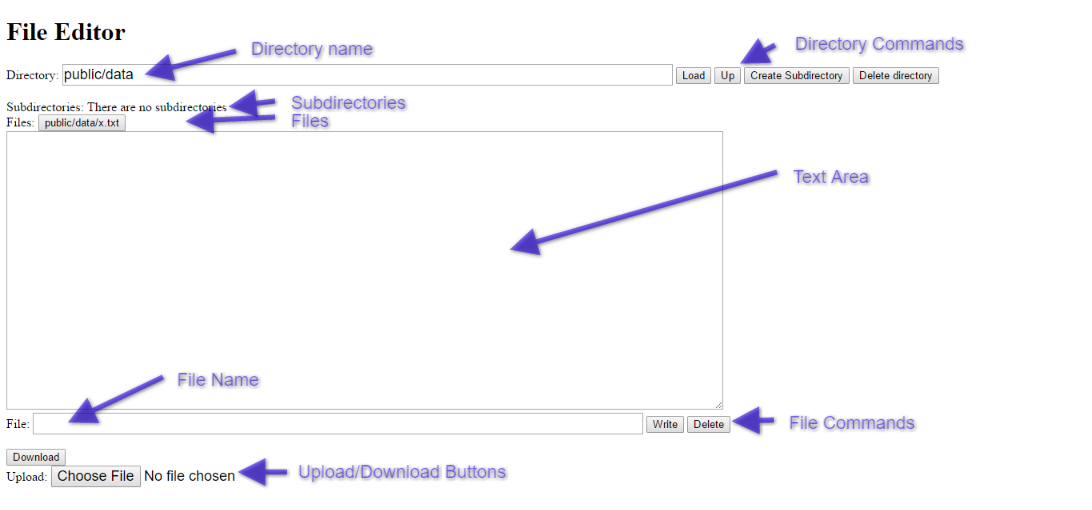
The Directory Name entry box.
This box governs much of the operations of this application. The value in this box is “remembered” in local storage from invocation to invocation. Thus on invocation, the screen will look very similar to the last session for this client. The subdirectories and files of this directory are shown below. If you would like to see a different directory, you may key the path here and click the “Load” button”. The path is relative to the application directory, absolute paths may also be entered here if you have access to the directory.
The Directory Commands buttons
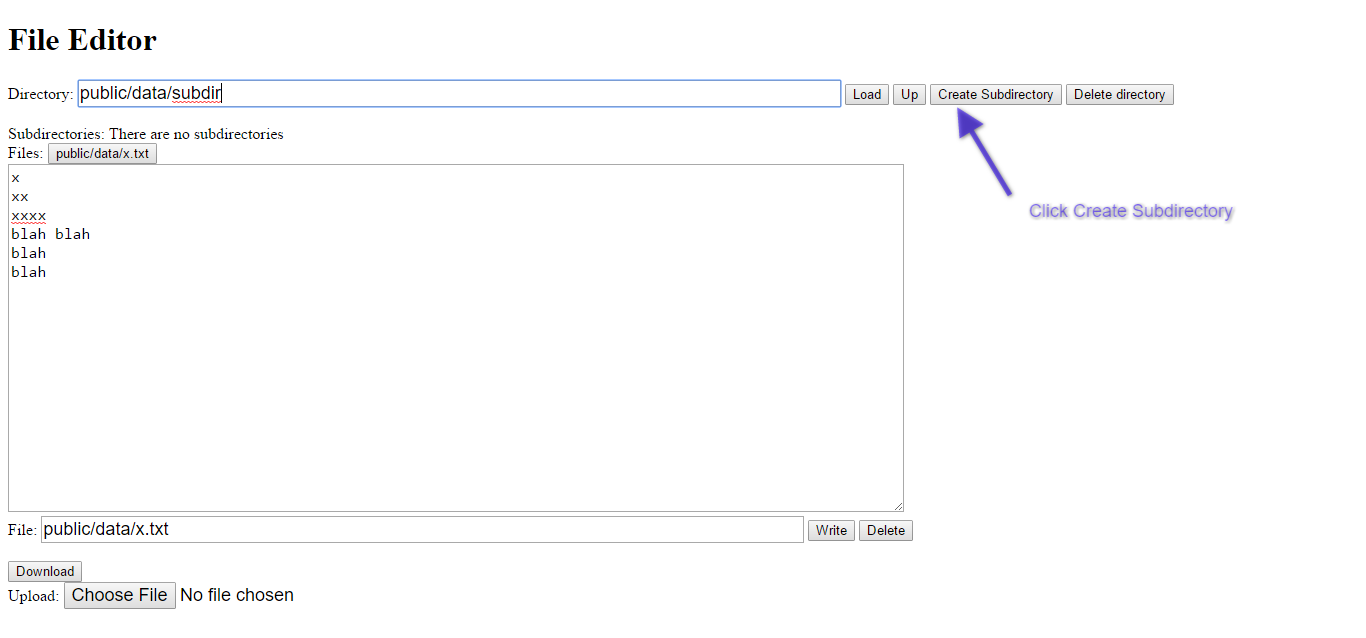
The “Load” button allow you to view a different directory by first entering the desired path in the Directory Name entry box. The “Up” button allows you to view the parent directory of the currently displayed directory. The “Create Subdirectory” button allows you to create a subdirectory after modifying the Directory Name entry box with the path of the desired new directory. The “Delete directory” button permits you to delete the displayed directory.
The Subdirectories display area
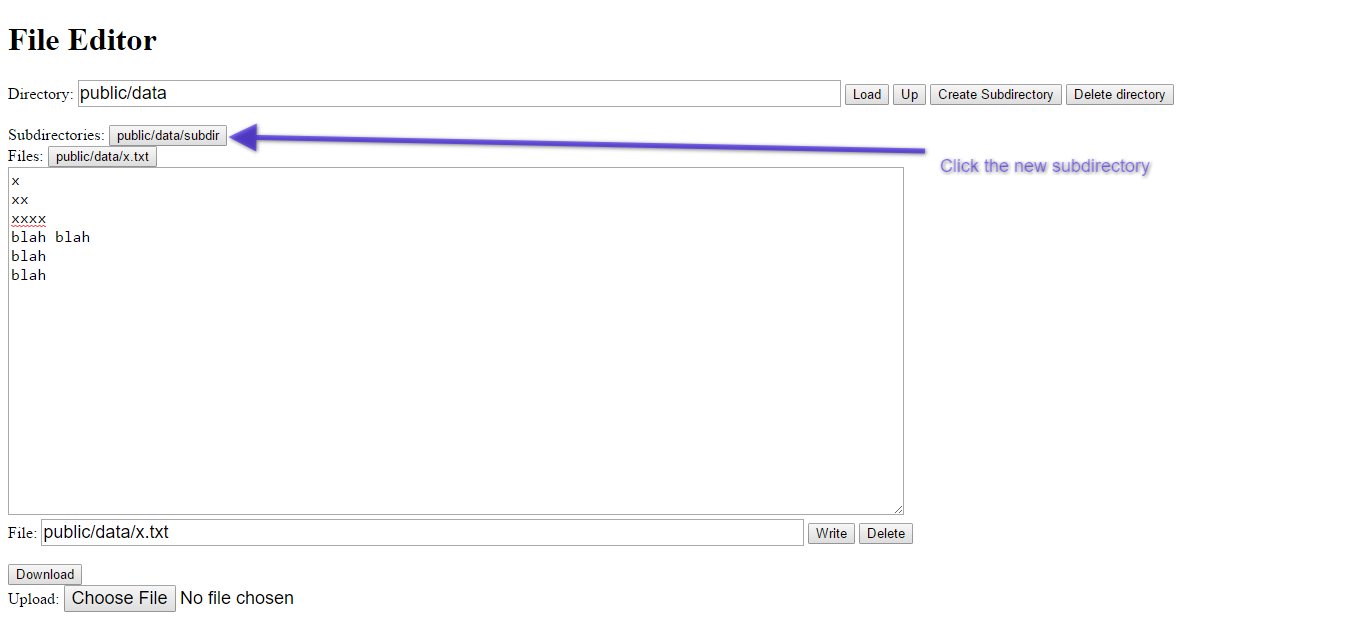
The subdirectories of the current directory are displayed here as buttons. Clicking one of these makes that subdirectory the current directory. If there are no subdirectories in the current directory, the message “There are no subdirectories” appears in this area.
The Files display area
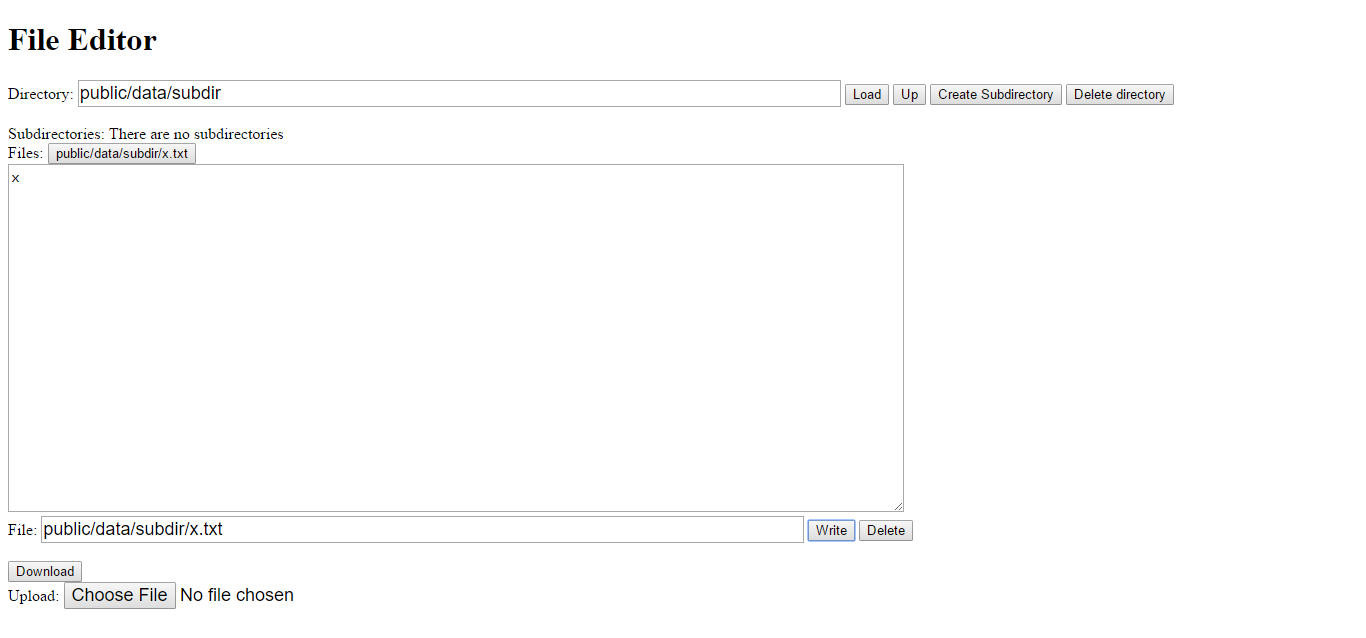
The names of the files in the current directory are displayed as buttons. Clicking one of the buttons, loads the contents of the file into the Text Area below where it may be edited.
The Text Area
This area displays contents of the current file and may be edited.
The File Name entry box
This displays the name of the current file and may be modified to copy the file. This file name is also saved in local storage so that it is “remembered” from session to session.
The File Commands buttons
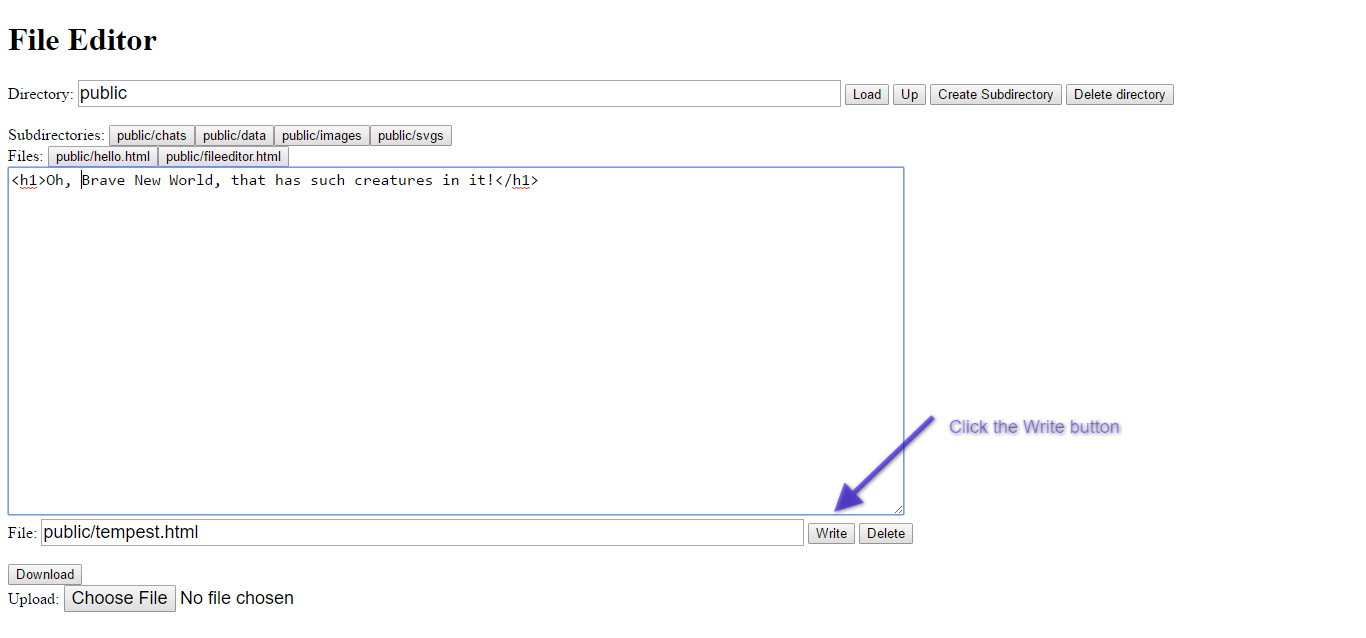
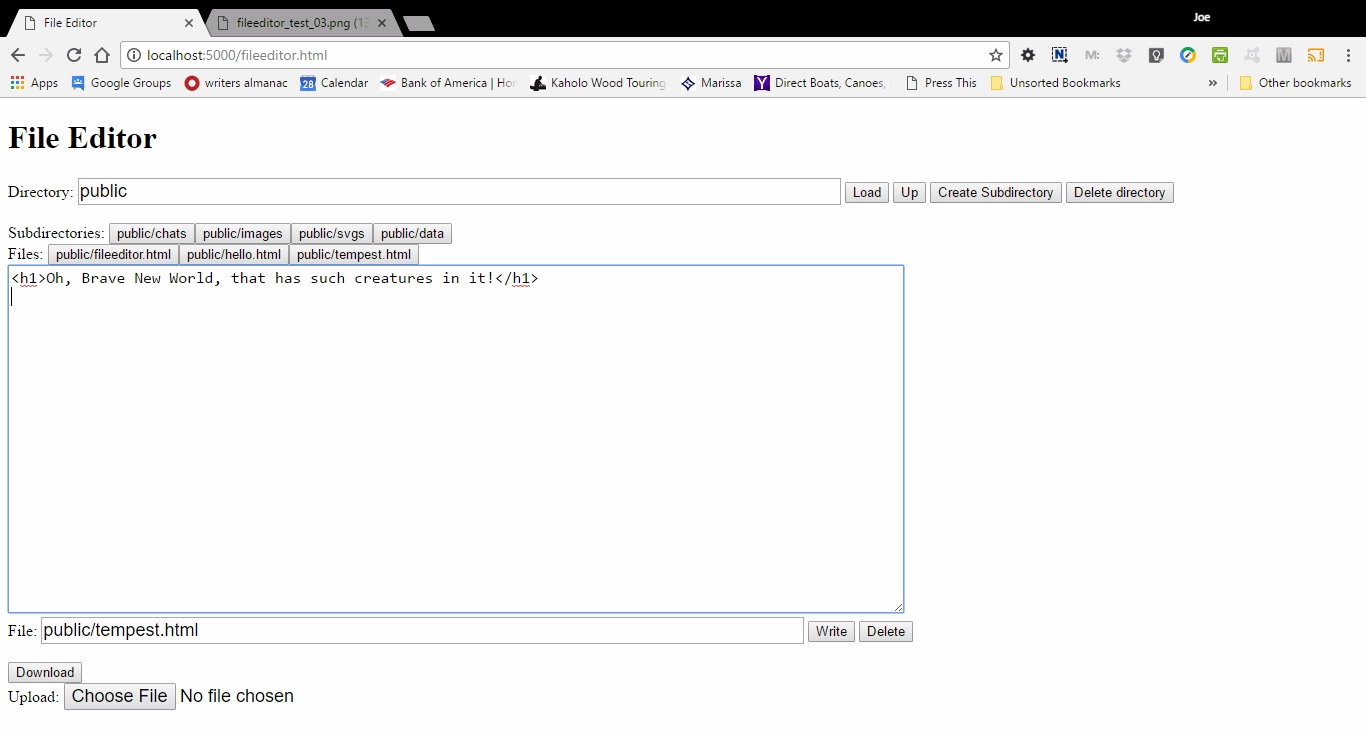
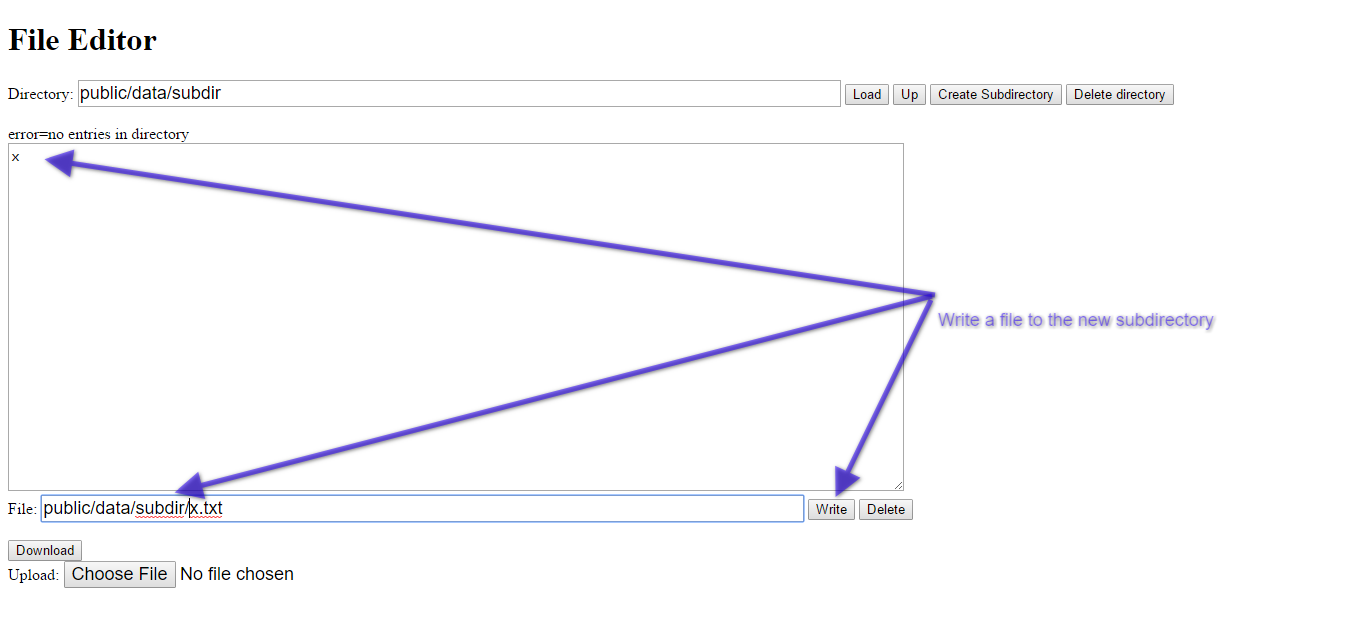
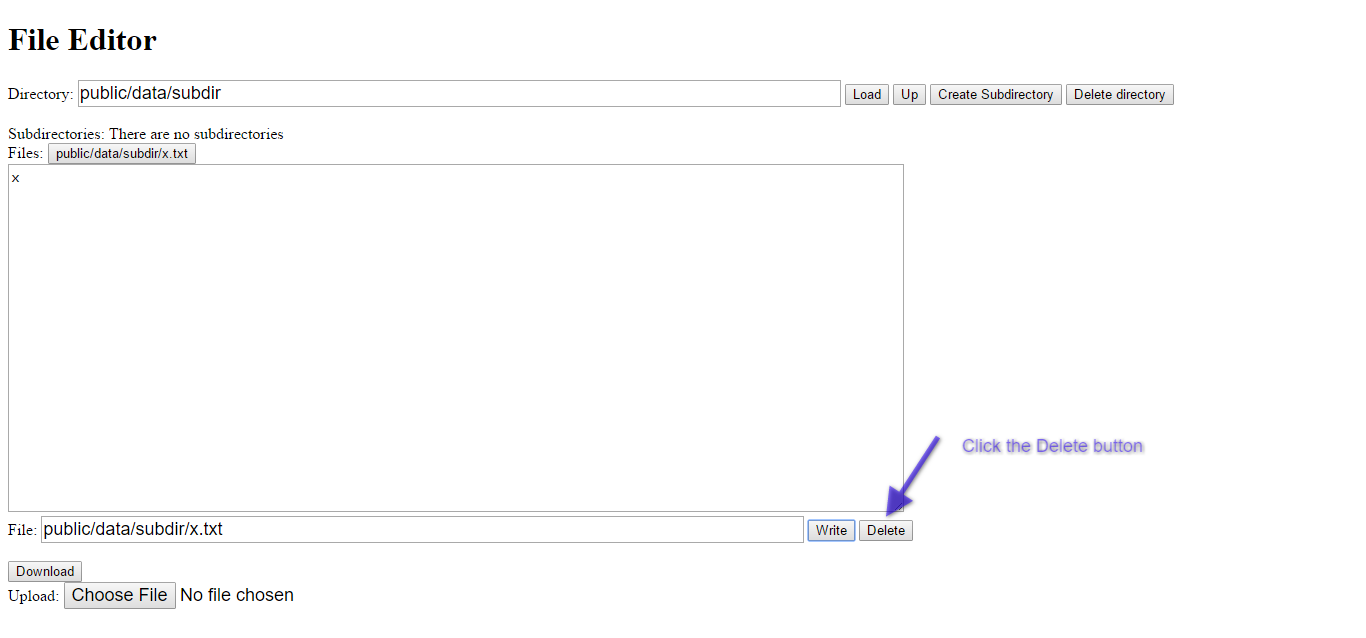
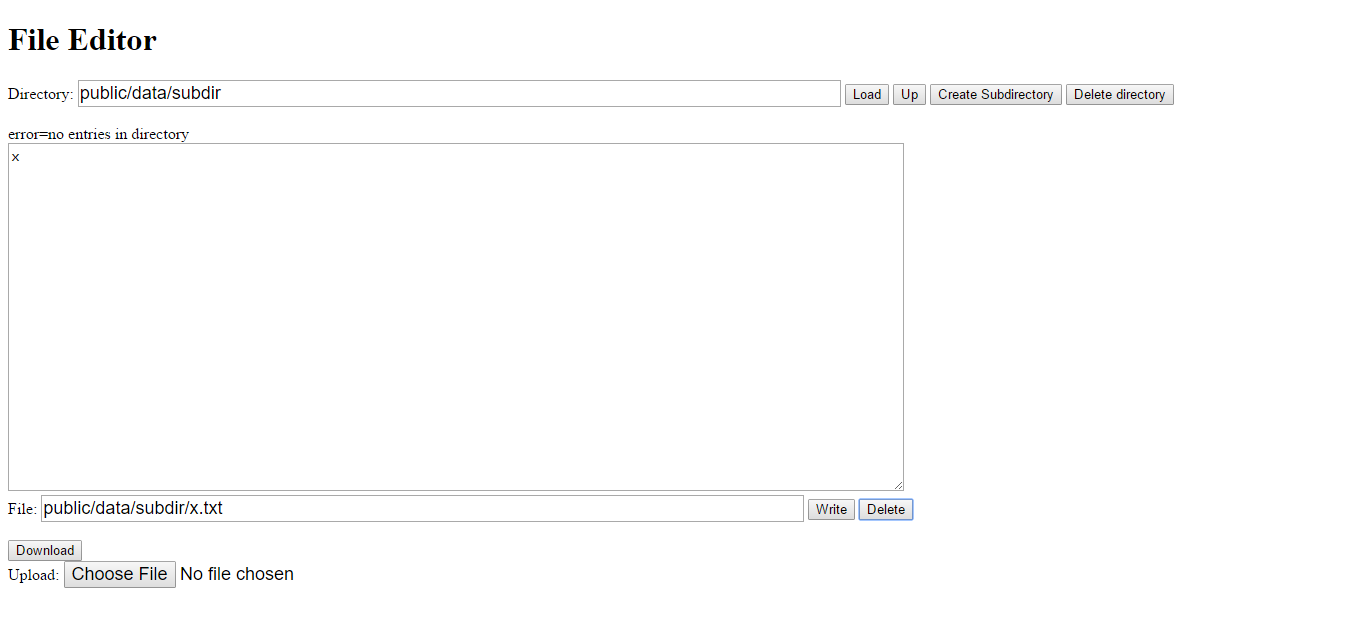
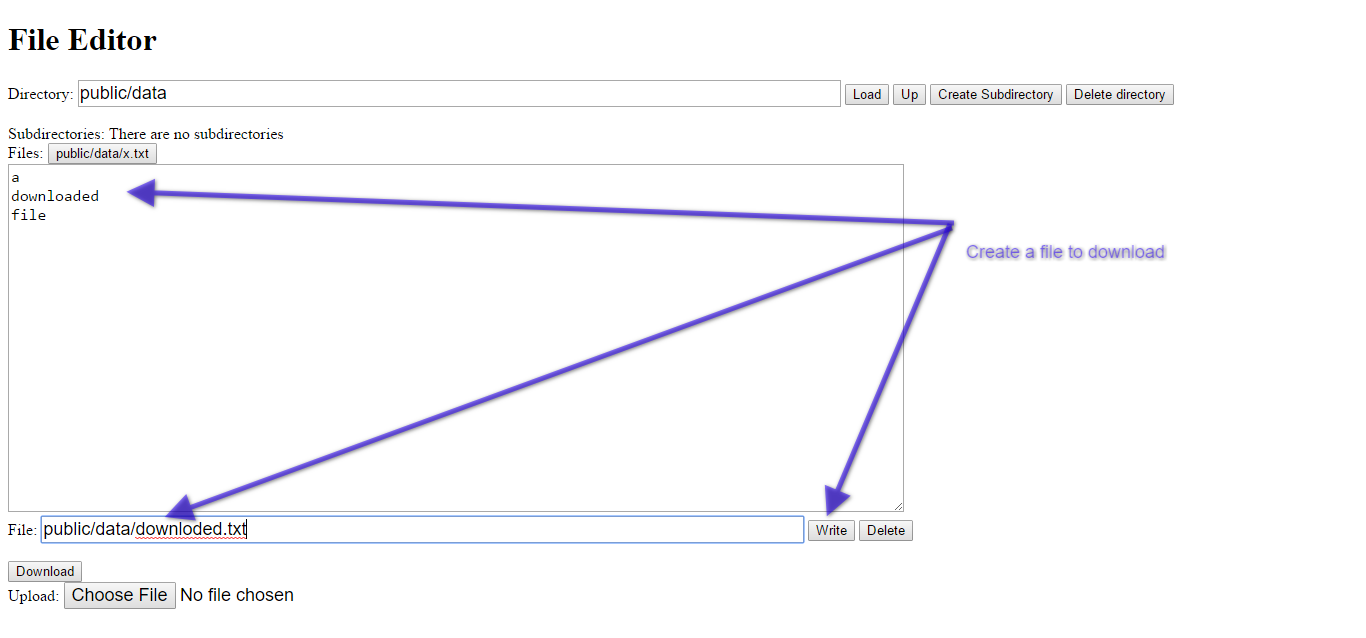
The “Write” button writes the contents of the Text Area to the file currently in the File Name entry box. The “delete” button deletes the file.
The Upload and Download Buttons
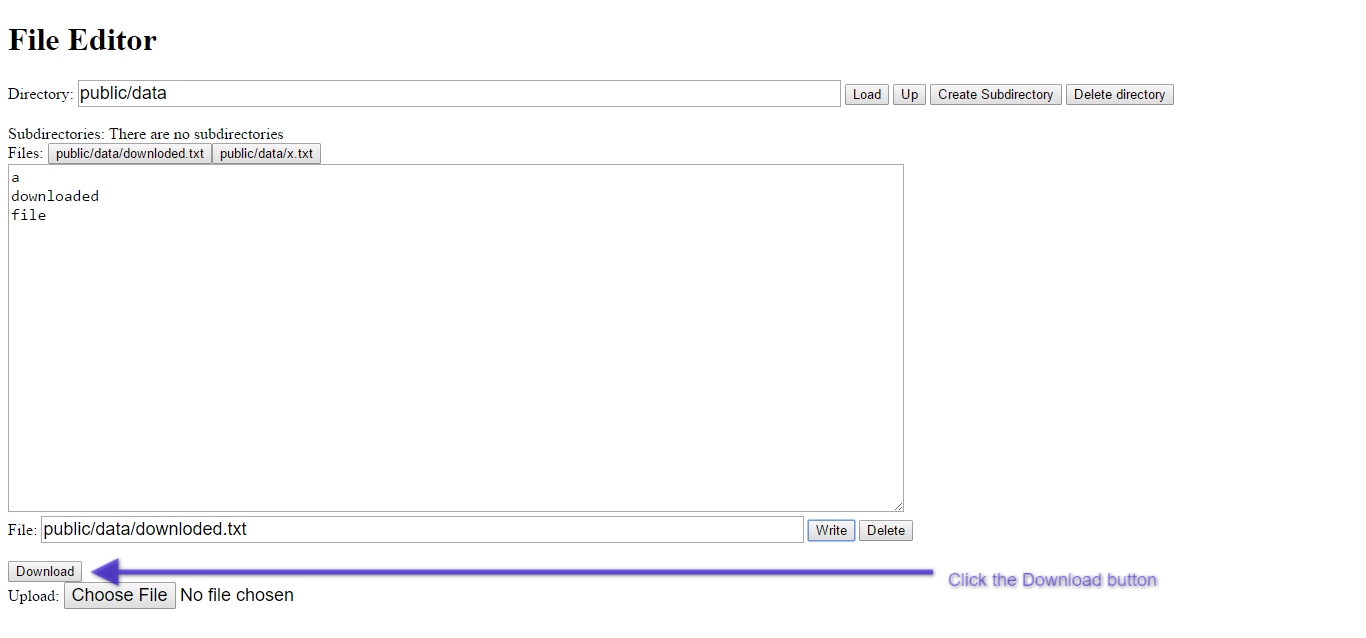
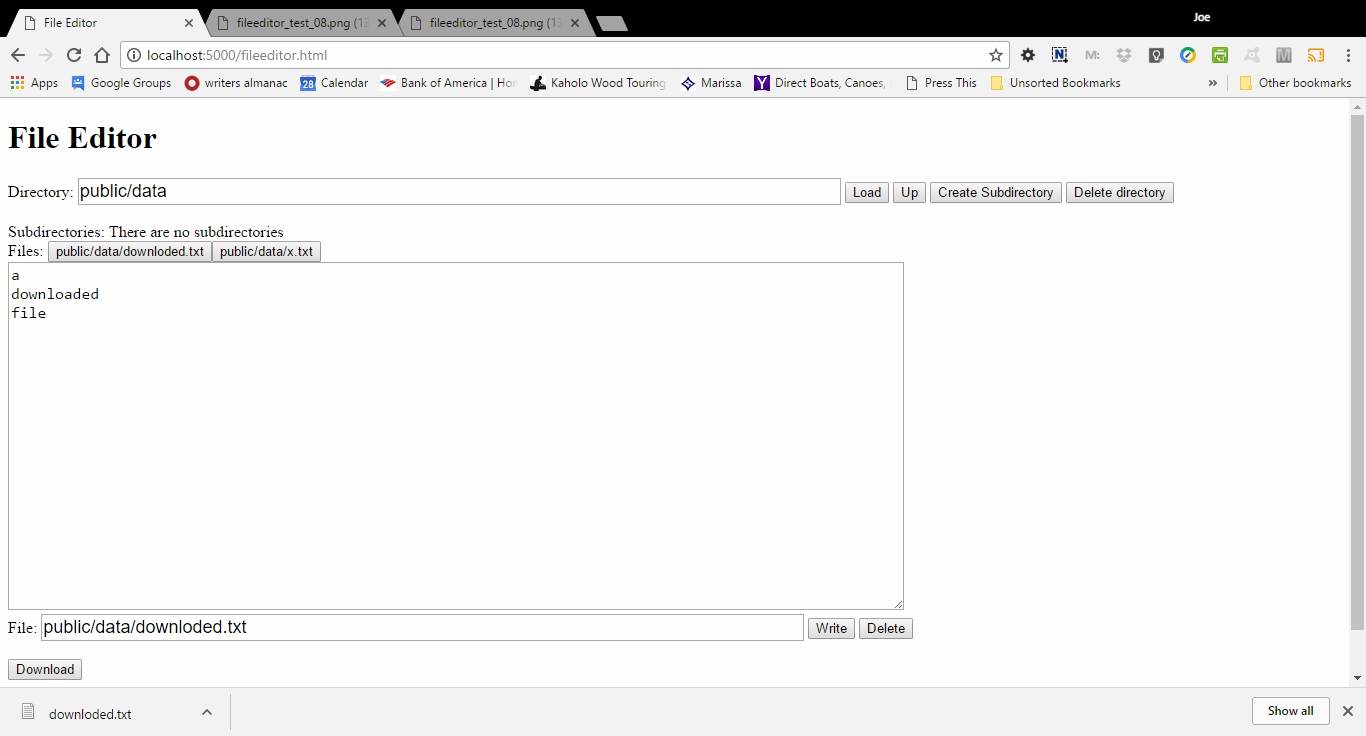
These buttons may be used to upload files from the client’s machine and to download files to the client’s machine.
Test 2 “Up” button
Click the “Up” Directory Command Button.
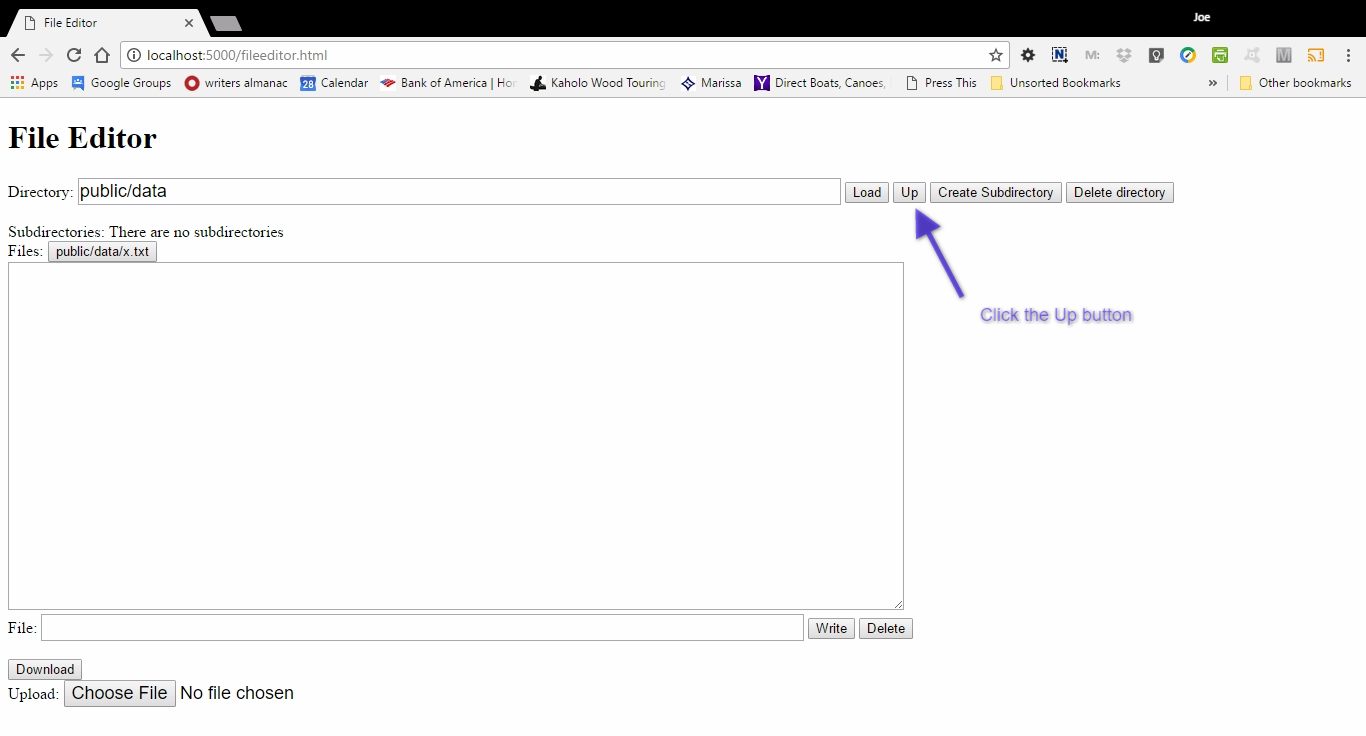
You should see
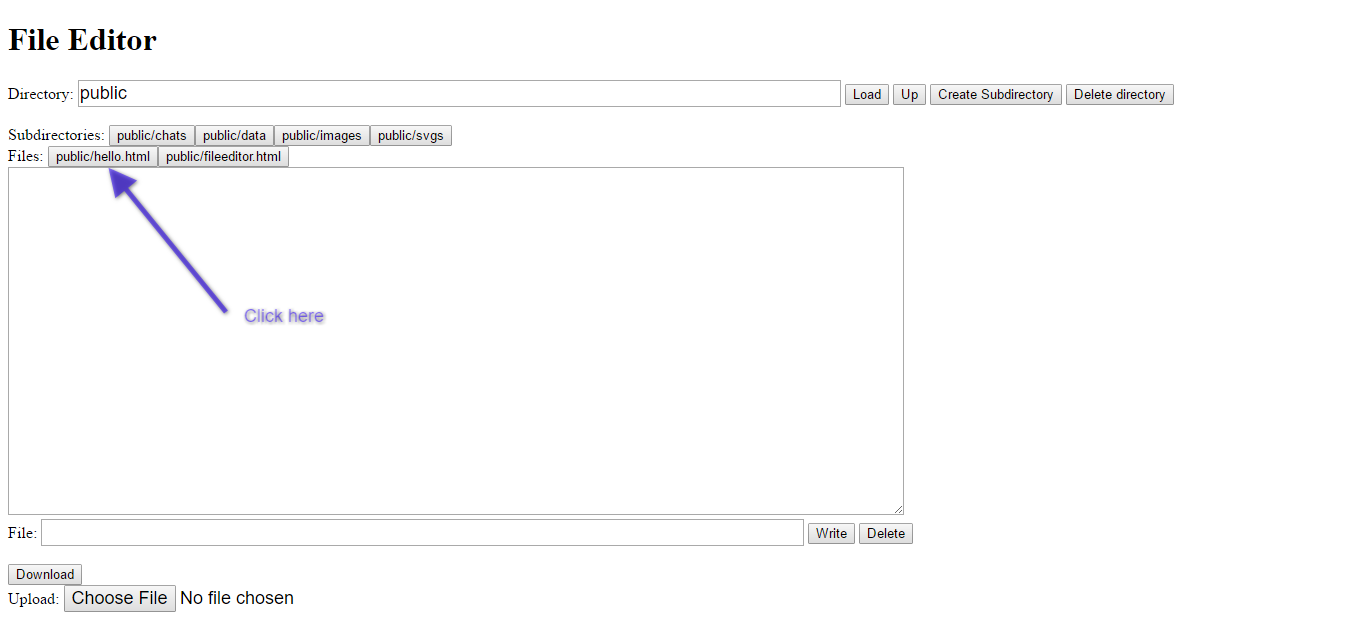
Click a file button
Click “public/hello.html”. You should see
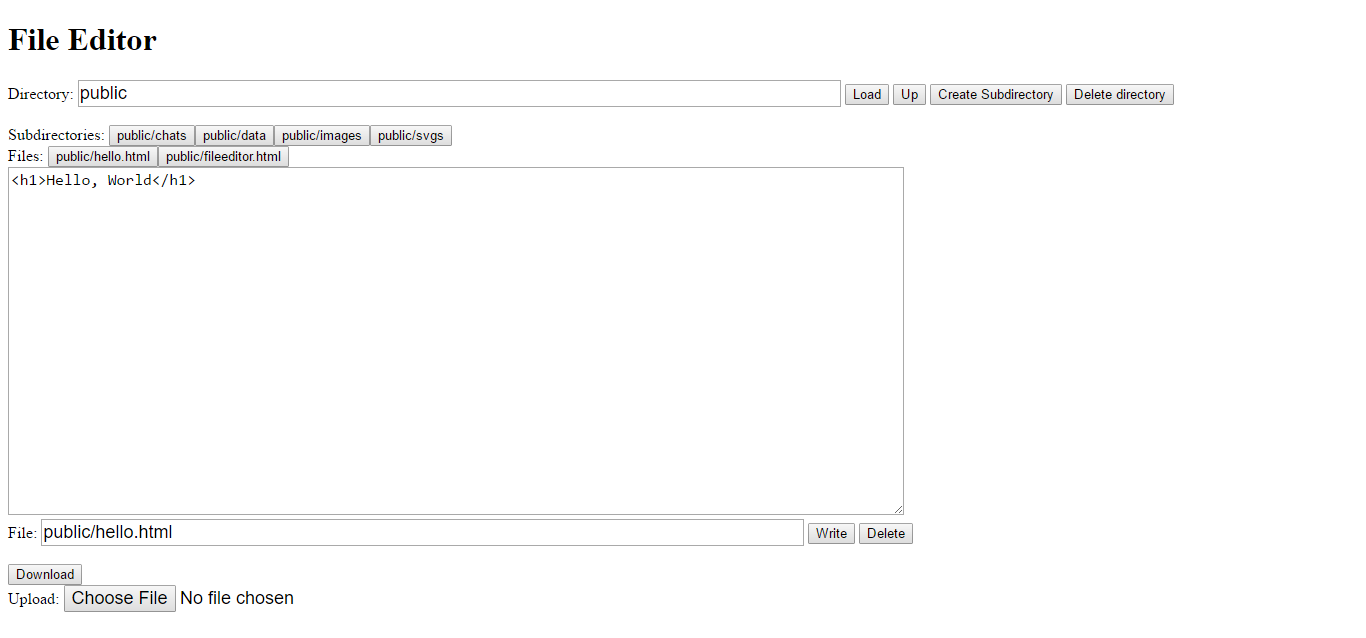
Test 3 Edit the content and write a new file
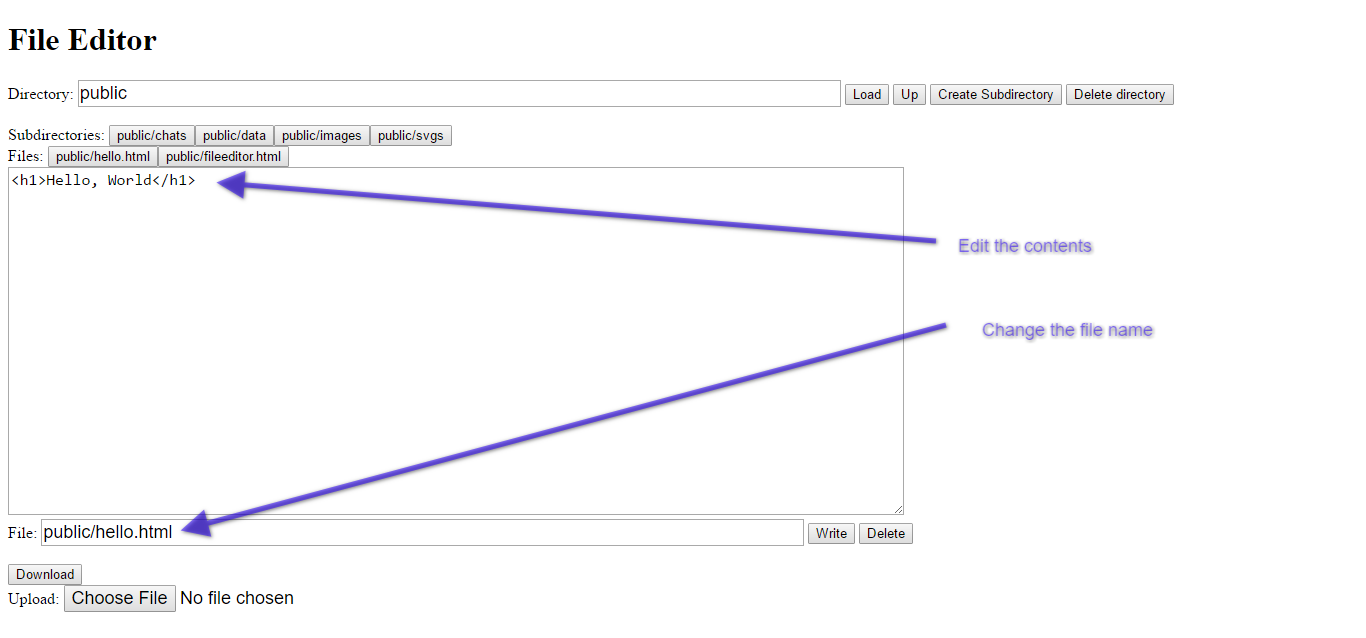
Test 4 Edit and save a file
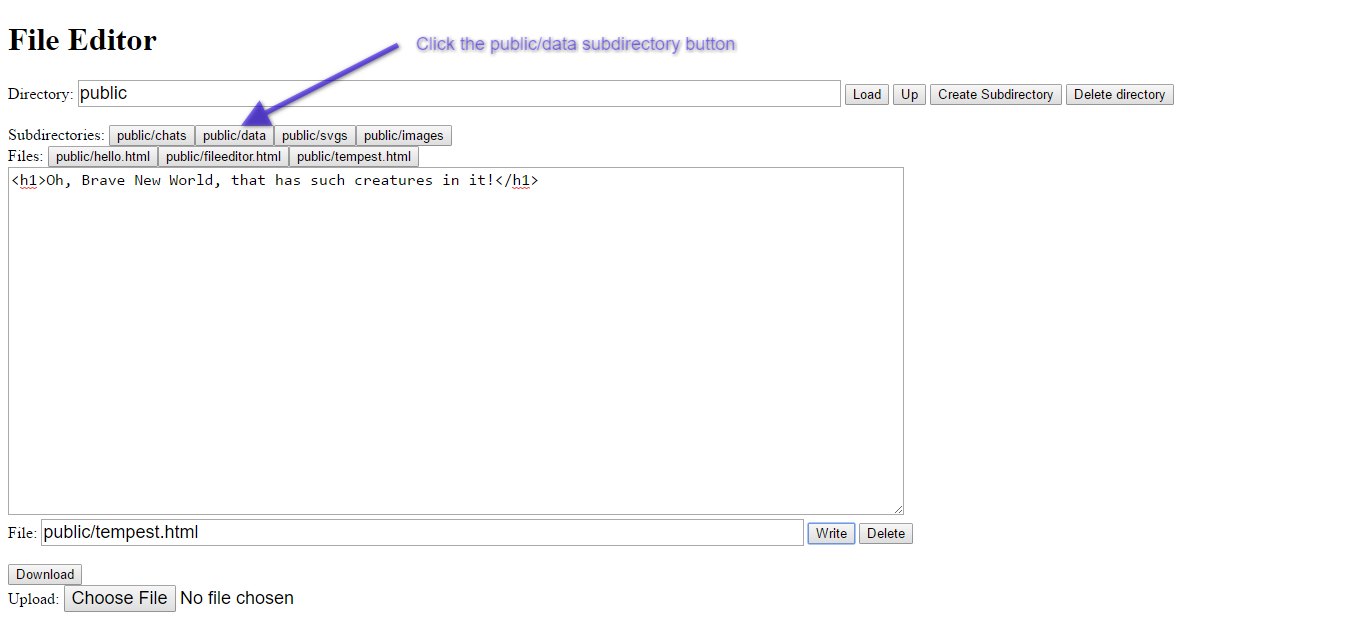
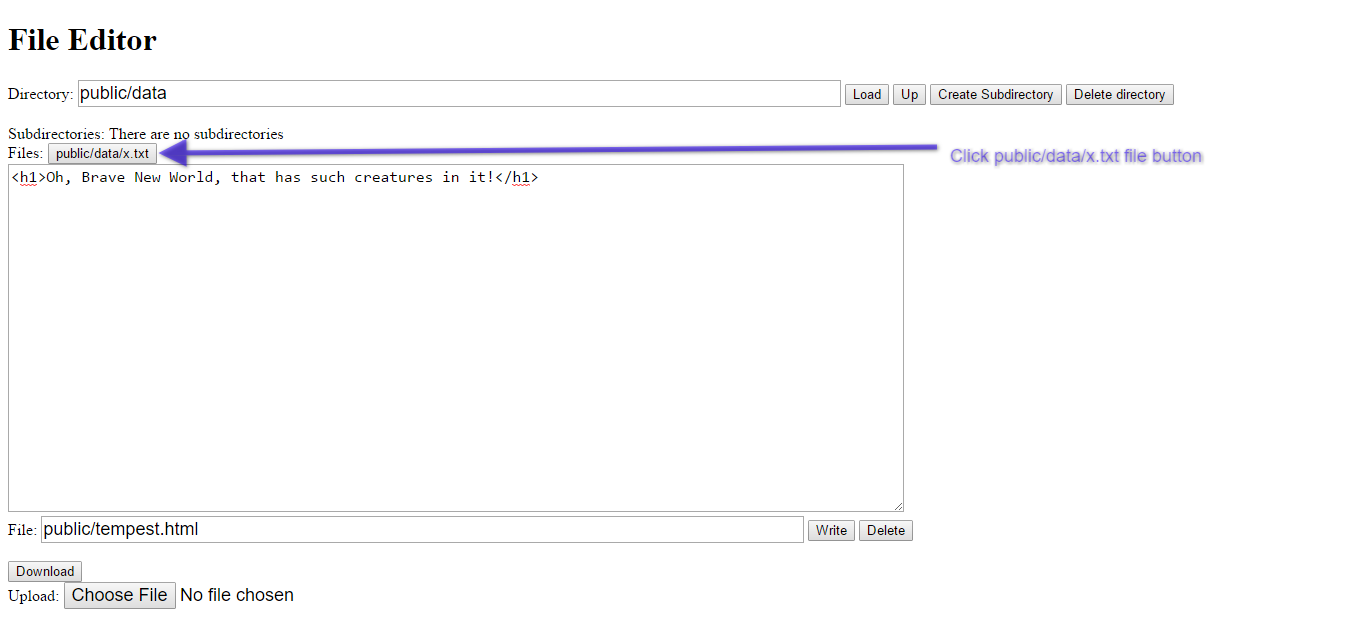
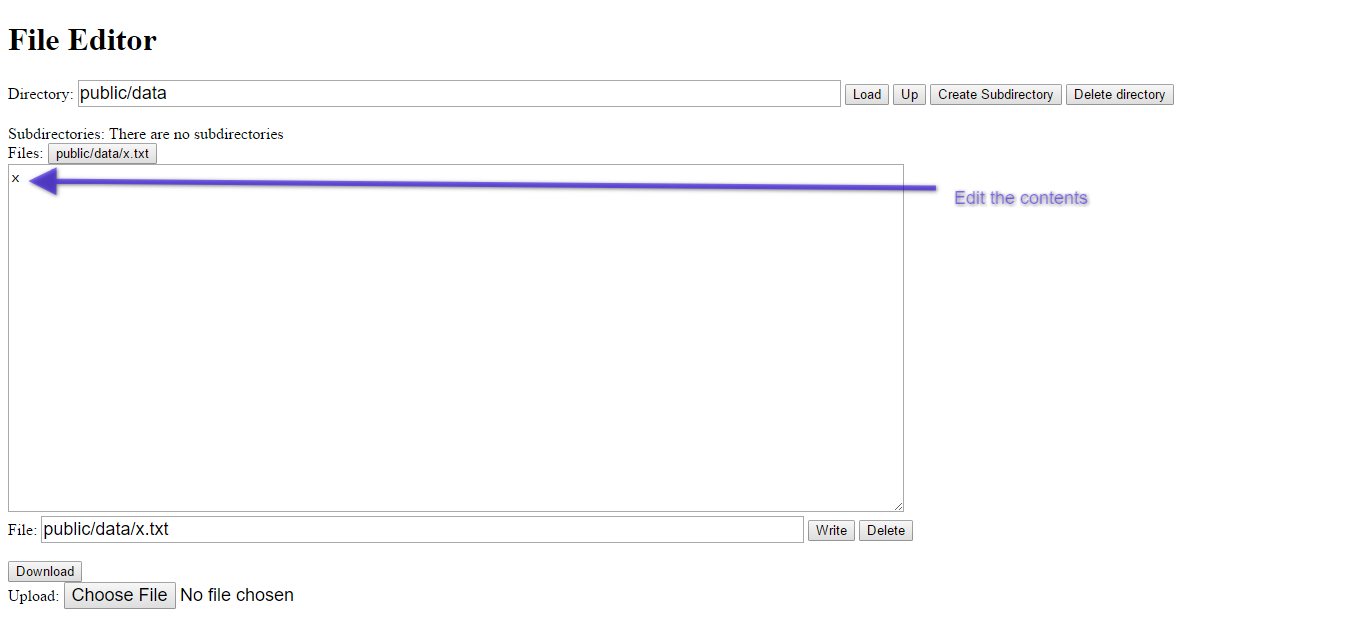
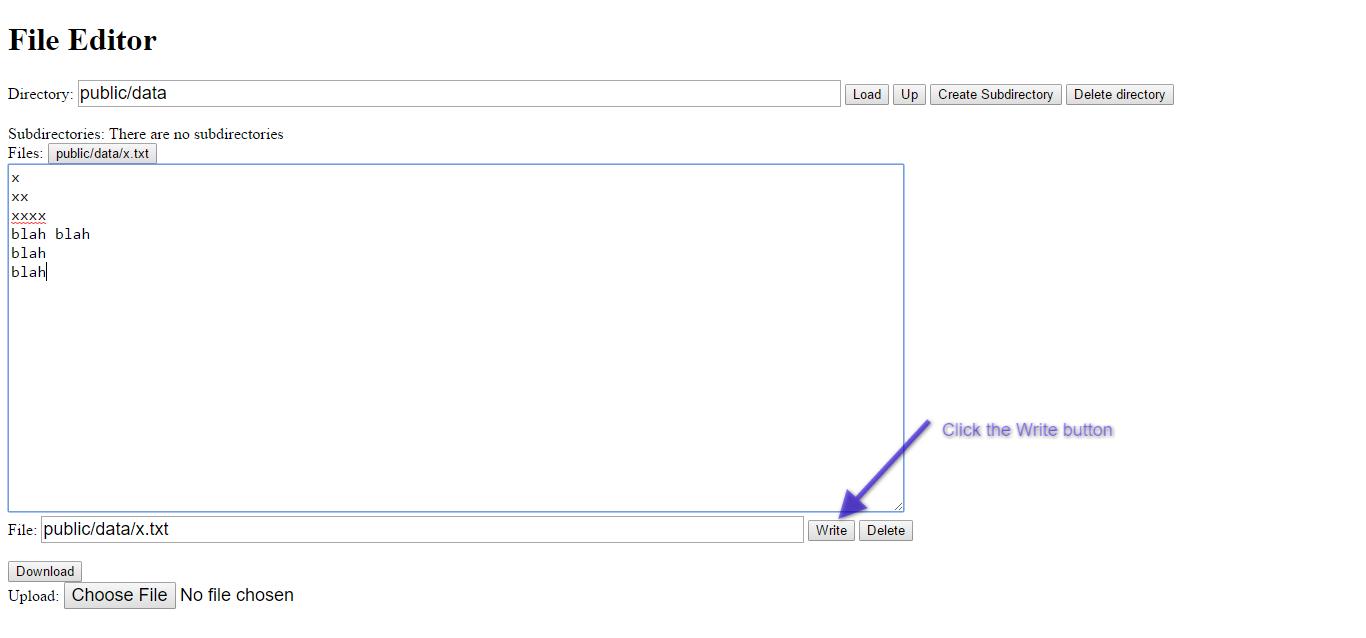
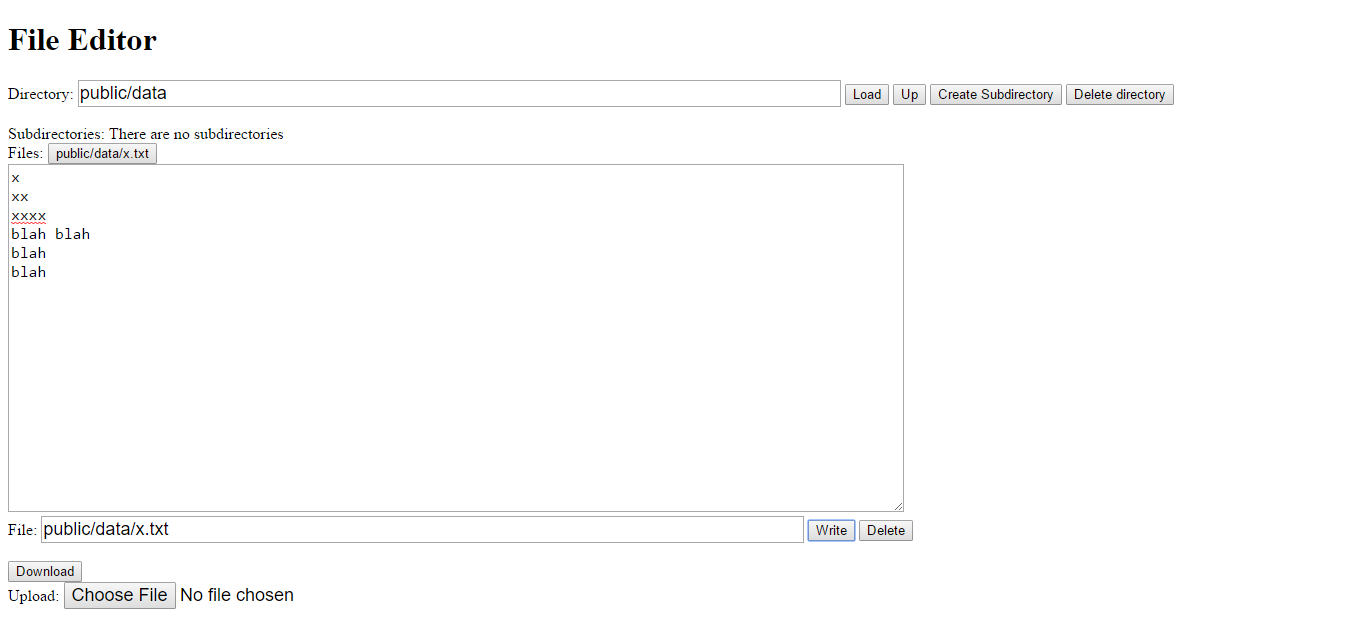
Test 5 create a subdirectory
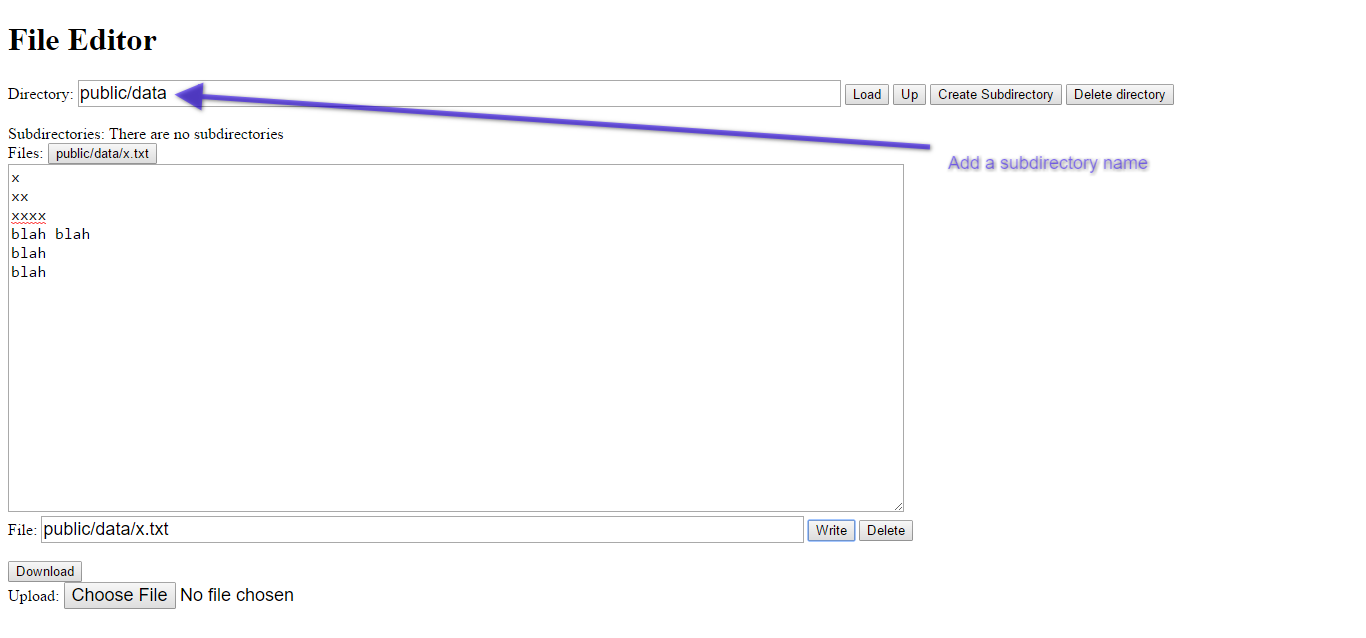
Test 6 Delete a File
Test 7 Delete a Directory
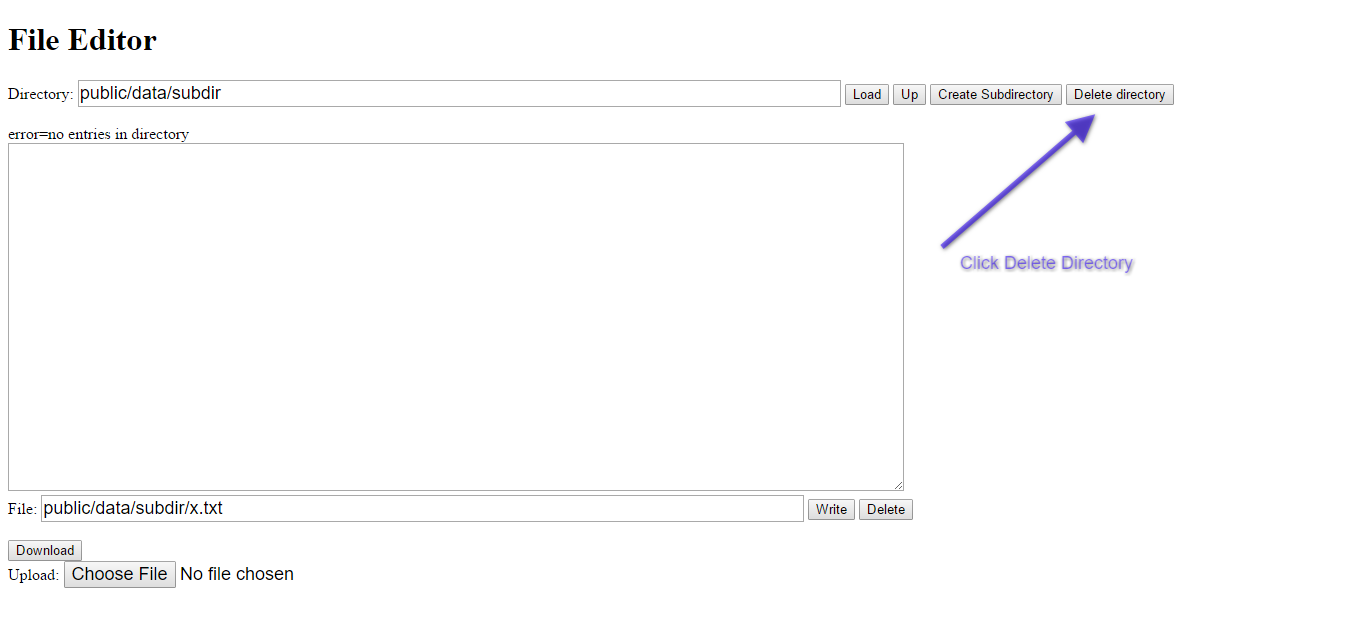
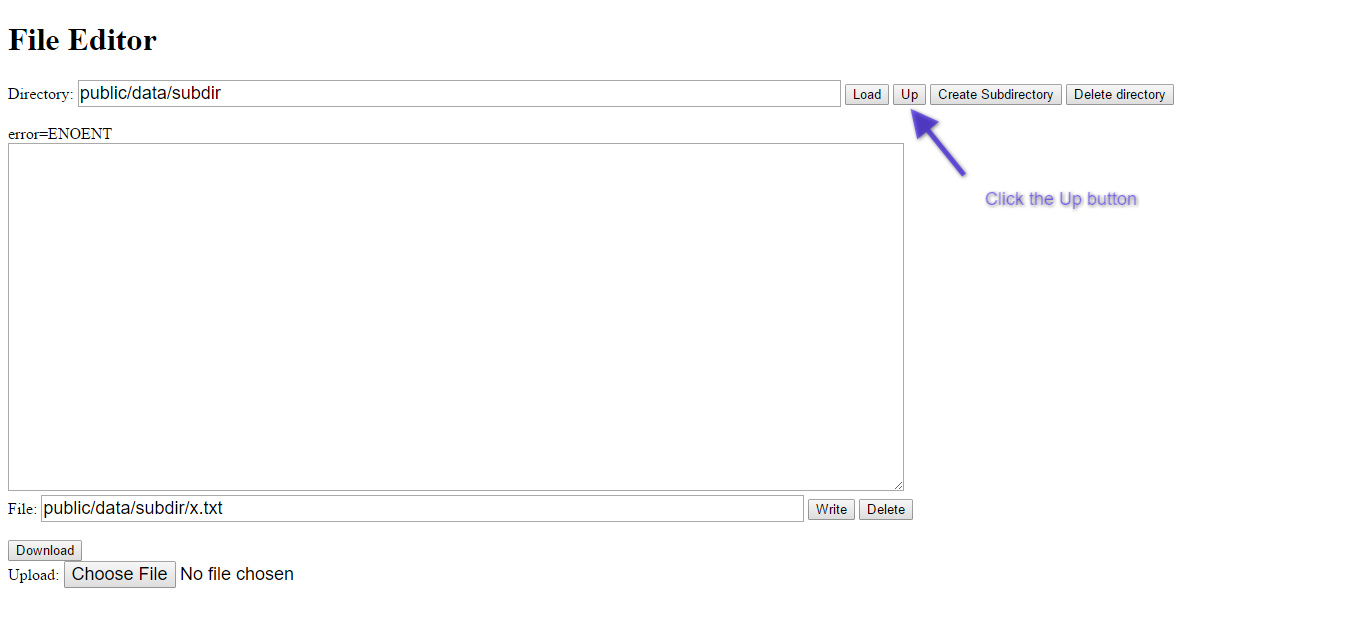
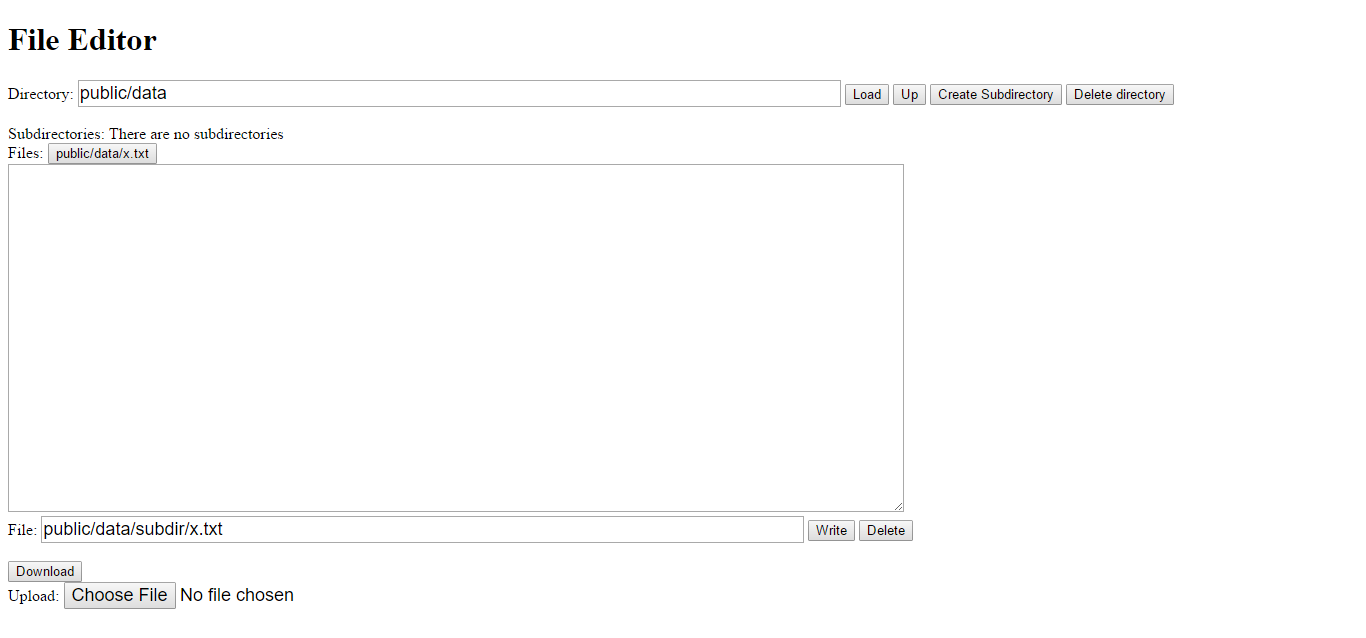
Test 8 Download a File
Test 9 Upload a File
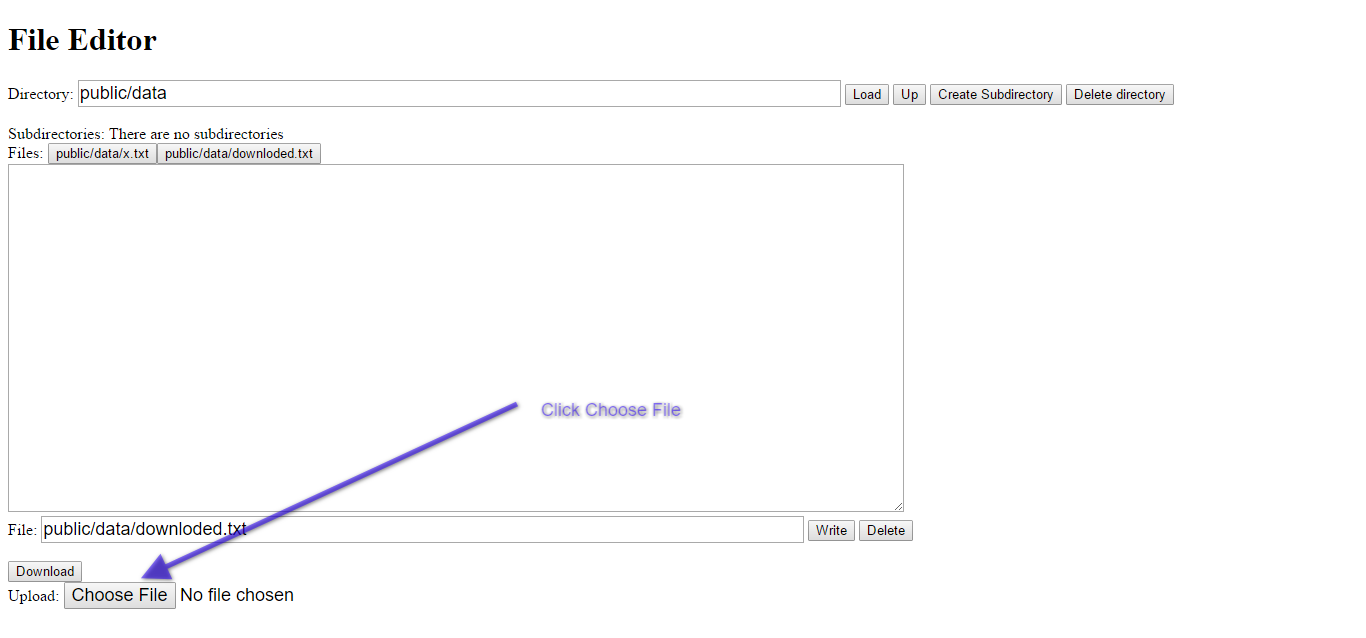
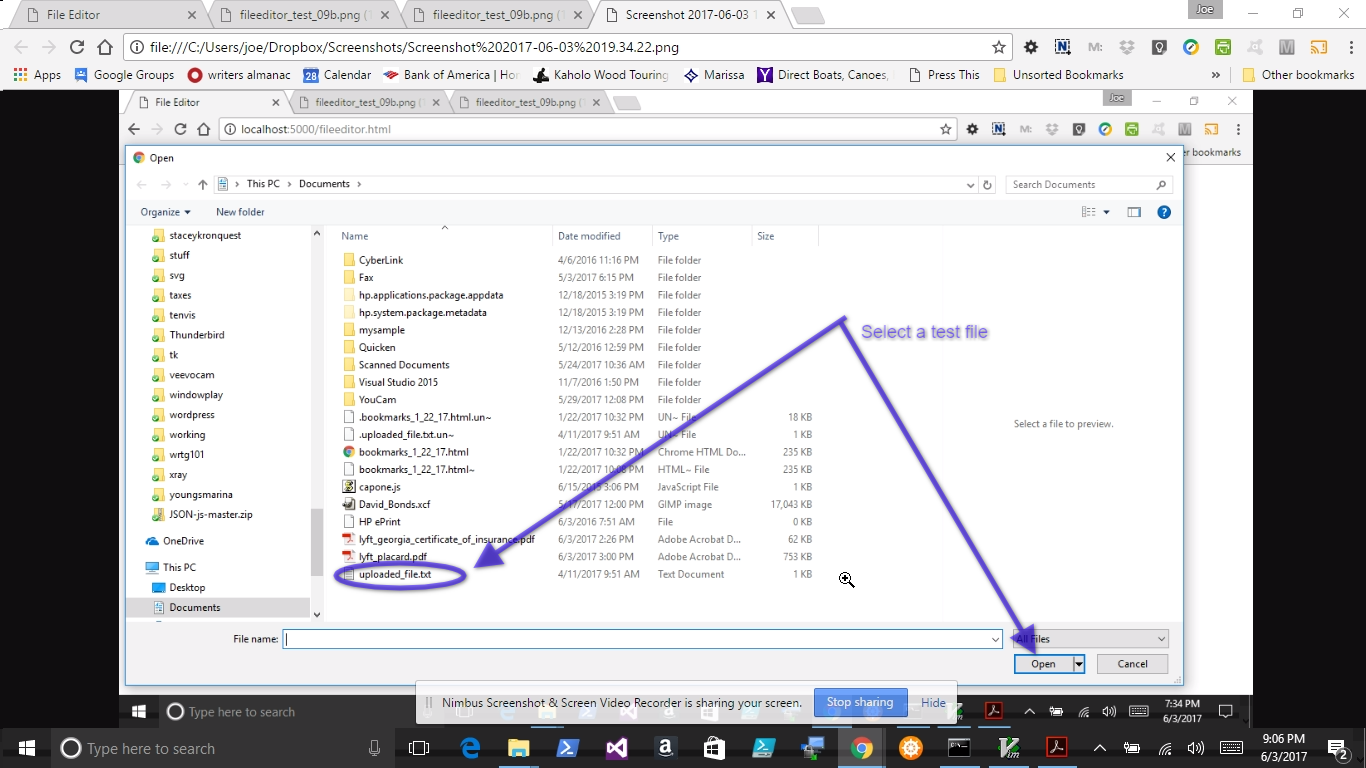
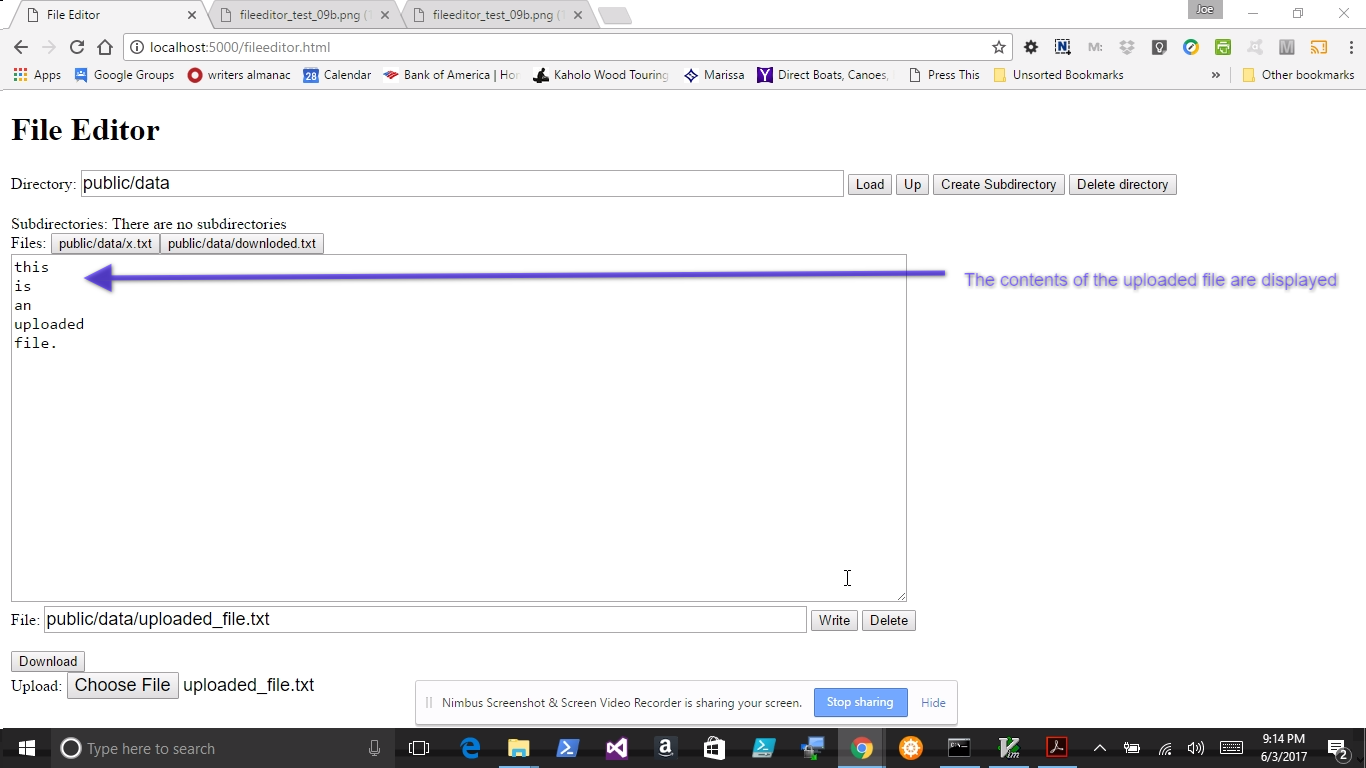
The selected file has been uploaded and is now displayed in the text area. You may now write the file to your file system. Fill in the path and file name click write.
Build Your Own Application
You may reuse the server and roll your own client to implement your own application at this point using the techniques you have learned building the sample.
Load Your Application to the Server
Congratulations, you are now an application developer. The following chapters will add a few more tools to your tool chest. I would encourage you to continue learning, perhaps by pursuing the various frameworks for javascript development, mastering graphics packages, etc.
- Now push your application to the server, using the following commands
(jrb-sampleapp is your choice of heroku application name):
heroku login heroku create jrb-sampleapp git add . git commit -m "initial commit" git push heroku master - This should look something like this:
C:\Users\joe\Dropbox\jrb-sampleapp>herokuloginEnteryourHerokucredentials:Email:danceswithdolphin@gmail.comPassword:**********Loggedinasdanceswithdolphin@gmail.comC:\Users\joe\Dropbox\jrb-sampleapp>herokucreatejrb-sampleappCreatingjrb-sampleapp...donehttps://jrb-sampleapp.herokuapp.com/ | https://git.heroku.com/jrb-sampleapp.gitC:\Users\joe\Dropbox\jrb-sampleapp>gitadd.warning:LFwillbereplacedbyCRLFinbackup/public/chat.html.bak.Thefilewillhaveitsoriginallineendingsinyourworkingdirectory.warning:LFwillbereplacedbyCRLFinbackup/public/data/foo.txt.Thefilewillhaveitsoriginallineendingsinyourworkingdirectory.warning:LFwillbereplacedbyCRLFinbackup/public/data/footies.txt.Thefilewillhaveitsoriginallineendingsinyourworkingdirectory.warning:LFwillbereplacedbyCRLFinbackup/public/foo-Copy.txt.Thefilewillhaveitsoriginallineendingsinyourworkingdirectory.warning:LFwillbereplacedbyCRLFinbackup/public/foo.txt.Thefilewillhaveitsoriginallineendingsinyourworkingdirectory.warning:LFwillbereplacedbyCRLFinbackup/public/footies.txt.Thefilewillhaveitsoriginallineendingsinyourworkingdirectory.warning:LFwillbereplacedbyCRLFinbackup/public/index.html.Thefilewillhaveitsoriginallineendingsinyourworkingdirectory.warning:LFwillbereplacedbyCRLFinbackup/root/package.json.Thefilewillhaveitsoriginallineendingsinyourworkingdirectory.warning:LFwillbereplacedbyCRLFinpackage.json.Thefilewillhaveitsoriginallineendingsinyourworkingdirectory.warning:LFwillbereplacedbyCRLFinpublic/chat.html.Thefilewillhaveitsoriginallineendingsinyourworkingdirectory.warning:LFwillbereplacedbyCRLFinpublic/data/downloaded.txt.Thefilewillhaveitsoriginallineendingsinyourworkingdirectory.warning:LFwillbereplacedbyCRLFinpublic/images/screenandfish.svg.Thefilewillhaveitsoriginallineendingsinyourworkingdirectory.warning:LFwillbereplacedbyCRLFinpublic/index.html.Thefilewillhaveitsoriginallineendingsinyourworkingdirectory.warning:LFwillbereplacedbyCRLFinpublic/svgplay.svg.Thefilewillhaveitsoriginallineendingsinyourworkingdirectory.warning:LFwillbereplacedbyCRLFinpublic/svgplay2.html.Thefilewillhaveitsoriginallineendingsinyourworkingdirectory.warning:LFwillbereplacedbyCRLFinpublic/svgplay2.svg.Thefilewillhaveitsoriginallineendingsinyourworkingdirectory.warning:LFwillbereplacedbyCRLFinpublic/svgplay3.html.Thefilewillhaveitsoriginallineendingsinyourworkingdirectory.warning:LFwillbereplacedbyCRLFinpublic/svgs/cutedolphin.svg.Thefilewillhaveitsoriginallineendingsinyourworkingdirectory.warning:LFwillbereplacedbyCRLFinpublic/svgs/framed_screen.svg.Thefilewillhaveitsoriginallineendingsinyourworkingdirectory.warning:LFwillbereplacedbyCRLFinpublic/svgs/simple_animation.svg.Thefilewillhaveitsoriginallineendingsinyourworkingdirectory.warning:LFwillbereplacedbyCRLFinserver.js.Thefilewillhaveitsoriginallineendingsinyourworkingdirectory.warning:LFwillbereplacedbyCRLFinsvgs/cutedolphin.svg.Thefilewillhaveitsoriginallineendingsinyourworkingdirectory.C:\Users\joe\Dropbox\jrb-sampleapp>gitcommit-m"initial commit"[master(root-commit)e3500de]initialcommitwarning:LFwillbereplacedbyCRLFinbackup/public/chat.html.bak.Thefilewillhaveitsoriginallineendingsinyourworkingdirectory.warning:LFwillbereplacedbyCRLFinbackup/public/data/foo.txt.Thefilewillhaveitsoriginallineendingsinyourworkingdirectory.warning:LFwillbereplacedbyCRLFinbackup/public/data/footies.txt.Thefilewillhaveitsoriginallineendingsinyourworkingdirectory.warning:LFwillbereplacedbyCRLFinbackup/public/foo-Copy.txt.Thefilewillhaveitsoriginallineendingsinyourworkingdirectory.warning:LFwillbereplacedbyCRLFinbackup/public/foo.txt.Thefilewillhaveitsoriginallineendingsinyourworkingdirectory.warning:LFwillbereplacedbyCRLFinbackup/public/footies.txt.Thefilewillhaveitsoriginallineendingsinyourworkingdirectory.warning:LFwillbereplacedbyCRLFinbackup/public/index.html.Thefilewillhaveitsoriginallineendingsinyourworkingdirectory.warning:LFwillbereplacedbyCRLFinbackup/root/package.json.Thefilewillhaveitsoriginallineendingsinyourworkingdirectory.warning:LFwillbereplacedbyCRLFinpackage.json.Thefilewillhaveitsoriginallineendingsinyourworkingdirectory.warning:LFwillbereplacedbyCRLFinpublic/chat.html.Thefilewillhaveitsoriginallineendingsinyourworkingdirectory.warning:LFwillbereplacedbyCRLFinpublic/data/downloaded.txt.Thefilewillhaveitsoriginallineendingsinyourworkingdirectory.warning:LFwillbereplacedbyCRLFinpublic/images/screenandfish.svg.Thefilewillhaveitsoriginallineendingsinyourworkingdirectory.warning:LFwillbereplacedbyCRLFinpublic/index.html.Thefilewillhaveitsoriginallineendingsinyourworkingdirectory.warning:LFwillbereplacedbyCRLFinpublic/svgplay.svg.Thefilewillhaveitsoriginallineendingsinyourworkingdirectory.warning:LFwillbereplacedbyCRLFinpublic/svgplay2.html.Thefilewillhaveitsoriginallineendingsinyourworkingdirectory.warning:LFwillbereplacedbyCRLFinpublic/svgplay2.svg.Thefilewillhaveitsoriginallineendingsinyourworkingdirectory.warning:LFwillbereplacedbyCRLFinpublic/svgplay3.html.Thefilewillhaveitsoriginallineendingsinyourworkingdirectory.warning:LFwillbereplacedbyCRLFinpublic/svgs/cutedolphin.svg.Thefilewillhaveitsoriginallineendingsinyourworkingdirectory.warning:LFwillbereplacedbyCRLFinpublic/svgs/framed_screen.svg.Thefilewillhaveitsoriginallineendingsinyourworkingdirectory.warning:LFwillbereplacedbyCRLFinpublic/svgs/simple_animation.svg.Thefilewillhaveitsoriginallineendingsinyourworkingdirectory.warning:LFwillbereplacedbyCRLFinserver.js.Thefilewillhaveitsoriginallineendingsinyourworkingdirectory.warning:LFwillbereplacedbyCRLFinsvgs/cutedolphin.svg.Thefilewillhaveitsoriginallineendingsinyourworkingdirectory.61fileschanged,3170insertions(+)createmode100644.gitignorecreatemode100644Procfilecreatemode100644arrayplay.jscreatemode100644backup/public/chat.htmlcreatemode100644backup/public/chat.html.bakcreatemode100644backup/public/chats/slimpickings.txtcreatemode100644backup/public/chats/x.txtcreatemode100644backup/public/chats/y.txtcreatemode100644backup/public/data/cashflow.txtcreatemode100644backup/public/data/foo.txtcreatemode100644backup/public/data/foot.txtcreatemode100644backup/public/data/footie.txtcreatemode100644backup/public/data/footies.txtcreatemode100644backup/public/data/test.txtcreatemode100644backup/public/data/x.txtcreatemode100644backup/public/fileeditor-Copy(2).htmlcreatemode100644backup/public/fileeditor-Copy.htmlcreatemode100644backup/public/fileeditor.htmlcreatemode100644backup/public/filelist-Copy.htmlcreatemode100644backup/public/filelist.htmlcreatemode100644backup/public/foo-Copy.txtcreatemode100644backup/public/foo.txtcreatemode100644backup/public/footies.txtcreatemode100644backup/public/index.htmlcreatemode100644backup/public/upload.htmlcreatemode100644backup/root/.gitignorecreatemode100644backup/root/Procfilecreatemode100644backup/root/package.jsoncreatemode100644backup/root/server-Copy.jscreatemode100644backup/root/server.jscreatemode100644listassignment.jscreatemode100644package.jsoncreatemode100644public/backup/fileeditor.htmlcreatemode100644public/chat.htmlcreatemode100644public/chats/Diary.txtcreatemode100644public/data/downloaded.txtcreatemode100644public/fileeditor.htmlcreatemode100644public/graphicseditor.htmlcreatemode100644public/horse.mp3createmode100644public/horse.oggcreatemode100644public/image_with_path.svgcreatemode100644public/images/cutedolphin.pngcreatemode100644public/images/screenandfish.svgcreatemode100644public/index.htmlcreatemode100644public/listassignment.htmlcreatemode100644public/listassignment.jscreatemode100644public/mouseplay.htmlcreatemode100644public/svgplay.svgcreatemode100644public/svgplay2.htmlcreatemode100644public/svgplay2.svgcreatemode100644public/svgplay3.htmlcreatemode100644public/svgs/arc.svgcreatemode100644public/svgs/cutedolphin.svgcreatemode100644public/svgs/framed_screen.svgcreatemode100644public/svgs/mdn_animatemotion_example.svgcreatemode100644public/svgs/simple_animation.svgcreatemode100644public/twirlly.htmlcreatemode100644public/twirlly.svgcreatemode100644public/whinny.htmlcreatemode100644server.jscreatemode100644svgs/cutedolphin.svgC:\Users\joe\Dropbox\jrb-sampleapp>gitpushherokumasterCountingobjects:66,done.Deltacompressionusingupto4threads.Compressingobjects:100%(53/53),done.Writingobjects:100%(66/66),97.91KiB|0bytes/s,done.Total66(delta7),reused0(delta0)remote:Compressingsourcefiles...done.remote:Buildingsource:remote:remote:----->Node.jsappdetectedremote:remote:----->Creatingruntimeenvironmentremote:remote:NPM_CONFIG_LOGLEVEL=errorremote:NPM_CONFIG_PRODUCTION=trueremote:NODE_VERBOSE=falseremote:NODE_ENV=productionremote:NODE_MODULES_CACHE=trueremote:remote:----->Installingbinariesremote:engines.node(package.json):unspecifiedremote:engines.npm(package.json):unspecified(usedefault)remote:remote:Resolvingnodeversion6.xviasemver.io...remote:Downloadingandinstallingnode6.10.2...remote:Usingdefaultnpmversion:3.10.10remote:remote:----->Restoringcacheremote:Skippingcacherestore(newruntimesignature)remote:remote:----->Buildingdependenciesremote:Installingnodemodules(package.json)remote:jrb-sampleapp@1.0.0/tmp/build_b4968d8bfa1d70bfba5ee733138424b8remote:+--express@4.15.2remote:+--accepts@1.3.3remote:¦+--mime-types@2.1.15remote:¦¦+--mime-db@1.27.0remote:¦+--negotiator@0.6.1remote:+--array-flatten@1.1.1remote:+--content-disposition@0.5.2remote:+--content-type@1.0.2remote:+--cookie@0.3.1remote:+--cookie-signature@1.0.6remote:+--debug@2.6.1remote:¦+--ms@0.7.2remote:+--depd@1.1.0remote:+--encodeurl@1.0.1remote:+--escape-html@1.0.3remote:+--etag@1.8.0remote:+--finalhandler@1.0.1remote:¦+--debug@2.6.3remote:¦+--unpipe@1.0.0remote:+--fresh@0.5.0remote:+--merge-descriptors@1.0.1remote:+--methods@1.1.2remote:+--on-finished@2.3.0remote:¦+--ee-first@1.1.1remote:+--parseurl@1.3.1remote:+--path-to-regexp@0.1.7remote:+--proxy-addr@1.1.4remote:¦+--forwarded@0.1.0remote:¦+--ipaddr.js@1.3.0remote:+--qs@6.4.0remote:+--range-parser@1.2.0remote:+--send@0.15.1remote:¦+--destroy@1.0.4remote:¦+--http-errors@1.6.1remote:¦¦+--inherits@2.0.3remote:¦+--mime@1.3.4remote:+--serve-static@1.12.1remote:+--setprototypeof@1.0.3remote:+--statuses@1.3.1remote:+--type-is@1.6.15remote:¦+--media-typer@0.3.0remote:+--utils-merge@1.0.0remote:+--vary@1.1.1remote:remote:remote:----->Cachingbuildremote:Clearingpreviousnodecacheremote:Saving2cacheDirectories(default):remote:-node_modulesremote:-bower_components(nothingtocache)remote:remote:----->Buildsucceeded!remote:----->Discoveringprocesstypesremote:Procfiledeclarestypes->webremote:remote:----->Compressing...remote:Done:13.8Mremote:----->Launching...remote:Releasedv3remote:https://jrb-sampleapp.herokuapp.com/ deployed to Herokuremote:remote:Verifyingdeploy...done.Tohttps://git.heroku.com/jrb-sampleapp.git*[newbranch]master->masterC:\Users\joe\Dropbox\jrb-sampleapp>
You should now be able to enter “http://jrb-sampleapp.herokuapp.com” in the url bar of chrome and see your application in action.
Congratulations, you are now an application programmer.