Creating a Contact Form and Working with Custom Forms
In this walkthrough, we’re going to build something relatively easy: a simple
contact form where your users can enter their name, email address, and message,
which will be emailed to you automatically by your website (with the user’s
email as the reply-to). In terms of the big picture, this will teach you how to
create custom forms using Django, as so far in Hello Web App, we’ve only shown
you how to create a ModelForm.
Set up the URL
Pretty much every new feature that will go into your web app will go through the same process: set up the URL, set up the logic, then set up the template. We’re going to set up a simple page that lives at /contact/. Add the new page to your urls.py:
1 # make sure you're importing your views
2 from collection import views
3
4 urlpatterns = [
5     ...
6     # new url definition
7     url(r'^contact/$', views.contact, name='contact'),
Set up the view
Now in views.py, we need to start setting up the logic. Let’s set it up to just display a form for now. Later on, we’ll do the rest of the logic for after the form is submitted in a bit:
 1 # add to the top
 2 from collection.forms import ContactForm
 3
 4 # add to your views
 5 def contact(request):
 6     form_class = ContactForm
 7
 8     return render(request, 'contact.html', {
 9         'form': form_class,
10     })
We’re grabbing a form (which we haven’t defined yet) and passing it over into the template (which we haven’t created yet).
Set up the form
In Hello Web App, we went over creating forms with ModelForms, but skipped
creating basic forms without a model. But it’s just as simple to create custom
forms!
In our forms.py, add the below form code:
1 # make sure this is at the top if it isn't already
2 from django import forms
3
4 # our new form
5 class ContactForm(forms.Form):
6     contact_name = forms.CharField()
7     contact_email = forms.EmailField()
8     content = forms.CharField(widget=forms.Textarea)
We’re going to define the fields we want in our form, which will be just the contact’s name, their email, and what they’d like to say to you.
All those form fields were grabbed from Django’s form fields documentation
(http://hellowebapp.com/ic/2), which is pretty easy to read to see what other
fields are available. We’re making all the form fields required, using an
EmailField for the email so we can take advantage of the additional email
formatting checks that Django provides, and making the “content” field a
Textarea.
Create the template
Now we need to create the template page to display the contact form on our website. We’re going to create the form using the form passed in from our view.
 1 {% extends 'base.html' %}
 2 {% block title %}Contact - {{ block.super }}{% endblock %}
 3
 4 {% block content %}
 5 <h1>Contact</h1>
 6 <form role="form" action="" method="post">
 7     {% csrf_token %}
 8     {{ form.as_p }}
 9     <button type="submit">Submit</button>
10 </form>
11 {% endblock %}
At this point, we have all the pieces in place to display the form. Load /contact/ and check it out:
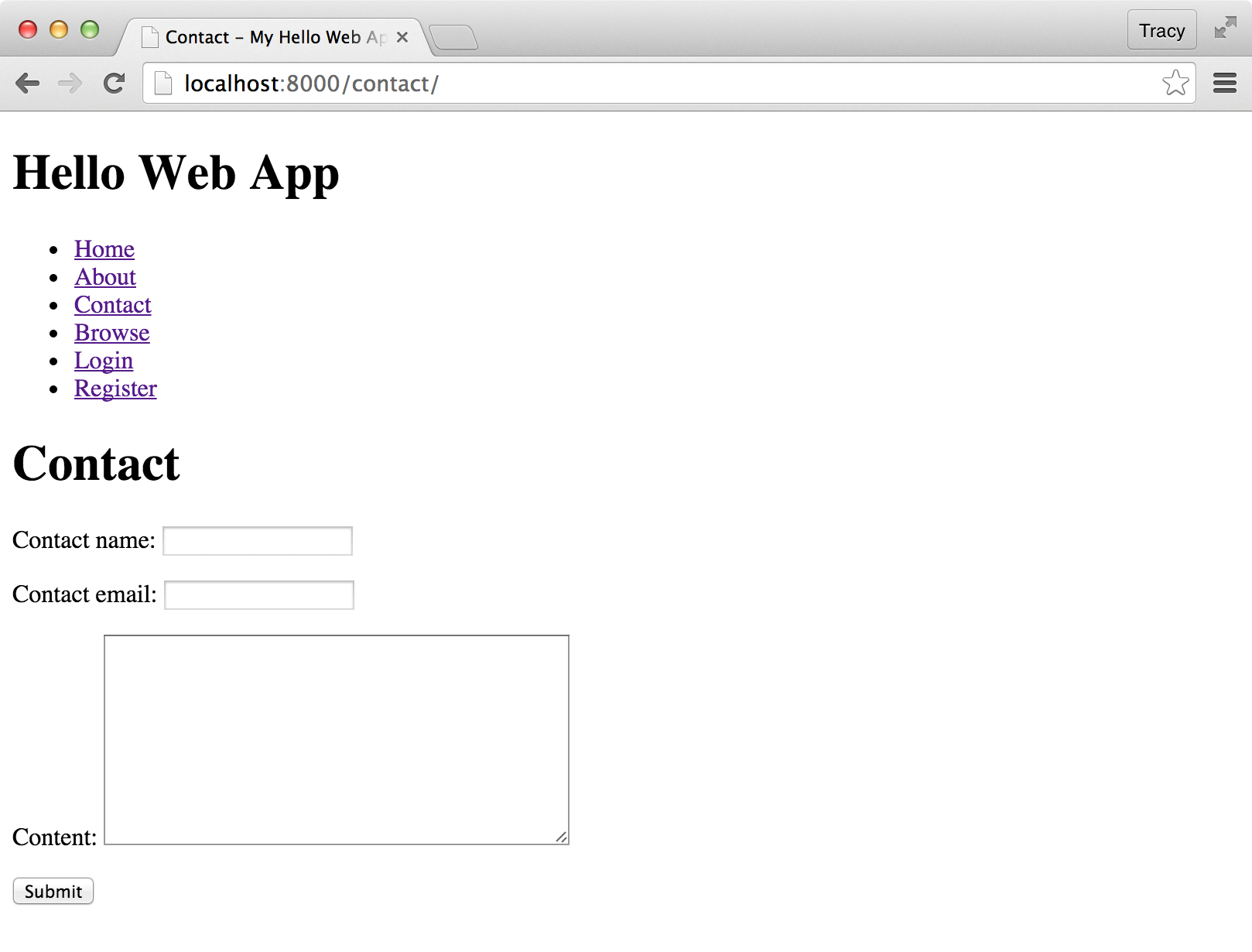
Nice! Now let’s start adding the logic in the back-end to handle the information submitted by the user.
Set up your local email server
This will be redundant for you if you’ve already finished already the Hello Web App tutorial. In case you haven’t, all you need to do to set up a local email server is add these lines to the bottom of your settings.py:
1 EMAIL_BACKEND =
2   'django.core.mail.backends.console.EmailBackend'
3 DEFAULT_FROM_EMAIL = 'testing@example.com'
4 EMAIL_HOST_USER = ''
5 EMAIL_HOST_PASSWORD = ''
6 EMAIL_USE_TLS = False
7 EMAIL_PORT = 1025
This tells Django to output the “email” to your console, where you ran your
python manage.py runserver command. We’ll see what this looks like in a
second.
(This is only for local development — we’ll get into email servers for your production web app at the end of this chapter.)
Add the email logic
Let’s fill out the rest of the email logic. Here’s the view from before, now filled in:
4 # new imports that go at the top of the file
5 from django.template.loader import get_template
6 from django.core.mail import EmailMessage
7 from django.template import Context
24 # our view
25 def contact(request):
26     form_class = ContactForm
27
28     # new logic!
29     if request.method == 'POST':
30         form = form_class(data=request.POST)
31
32         if form.is_valid():
33             contact_name = form.cleaned_data['contact_name']
34             contact_email = form.cleaned_data['contact_email']
35             form_content = form.cleaned_data['content']
36
37             # Email the profile with the contact info
38             template = get_template('contact_template.txt')
39
40             context = Context({
41                 'contact_name': contact_name,
42                 'contact_email': contact_email,
43                 'form_content': form_content,
44             })
45             content = template.render(context)
46
47             email = EmailMessage(
48                 'New contact form submission',
49                 content,
50                 'Your website <hi@weddinglovely.com>',
51                 ['youremail@gmail.com'],
52                 headers = {'Reply-To': contact_email }
53             )
54             email.send()
55             return redirect('contact')
56
57     return render(request, 'contact.html', {
58         'form': form_class,
59     })
Phew, a lot of logic! If you read it from top to bottom, here’s what’s happening if the form was submitted:
- Apply the information from the form to the form class we set up before.
- Make sure that everything is valid (no missing fields, etc.)
- Take the form information and put it in variables.
- Stick the form information into a contact form template (which we will create momentarily).
- Create an email message using that contact template, and send the message.
- Redirect to our contact page (not ideal, we’ll go into why below).
- Otherwise, just create the template with a blank form.
Create a template for your email
Before we can test our logic, we need to create an email template. Our email
template is going to be simple, as it will just show the sections that our user
filled out. Create a new file in your templates directory (touch
contact_template.txt) and fill it in with the info below. Django will grab this
file and fill it in using the context we set up in the view.
1 Contact Name:
2 {{ contact_name|striptags }}
3
4 Email:
5 {{ contact_email|striptags }}
6
7 Content:
8 {{ form_content|striptags }}
(We’re using Django’s template filter strip_tags to strip out HTML from the content. We need to be very careful with taking user input and presenting it as it was given. If we don’t strip HTML, then a malicious user might put in some evil JavaScript in their input!)
Improve the form (optional)
In the screenshot of the form from before, we can see that the labels of the form aren’t very “pretty” — for example, just saying “Contact name,” which is very impersonal.
Django creates these names automatically from your field names, but we can set up our own pretty label names in the form definition in forms.py. To do so, update your code to the below:
 1 class ContactForm(forms.Form):
 2     contact_name = forms.CharField(required=True)
 3     contact_email = forms.EmailField(required=True)
 4     content = forms.CharField(
 5         required=True,
 6         widget=forms.Textarea
 7     )
 8
 9     # the new bit we're adding
10     def __init__(self, *args, **kwargs):
11         super(ContactForm, self).__init__(*args, **kwargs)
12         self.fields['contact_name'].label = "Your name:"
13         self.fields['contact_email'].label = "Your email:"
14         self.fields['content'].label = "What do you want to say?"
We’ve added the bit that starts with __init__, which might look a bit
confusing. If you ignore the first two lines, the rest are pretty easy to read.
We’re just grabbing the relevant fields in our form and updating the label.
We can set more than just the label — we can also set the field as required, add
help text, and other fields as well through __init__. You can see more
information about updating form fields and attributes here in this excellent
post: http://hellowebapp.com/ic/3
Once we’ve reloaded our form, we can see the new labels:
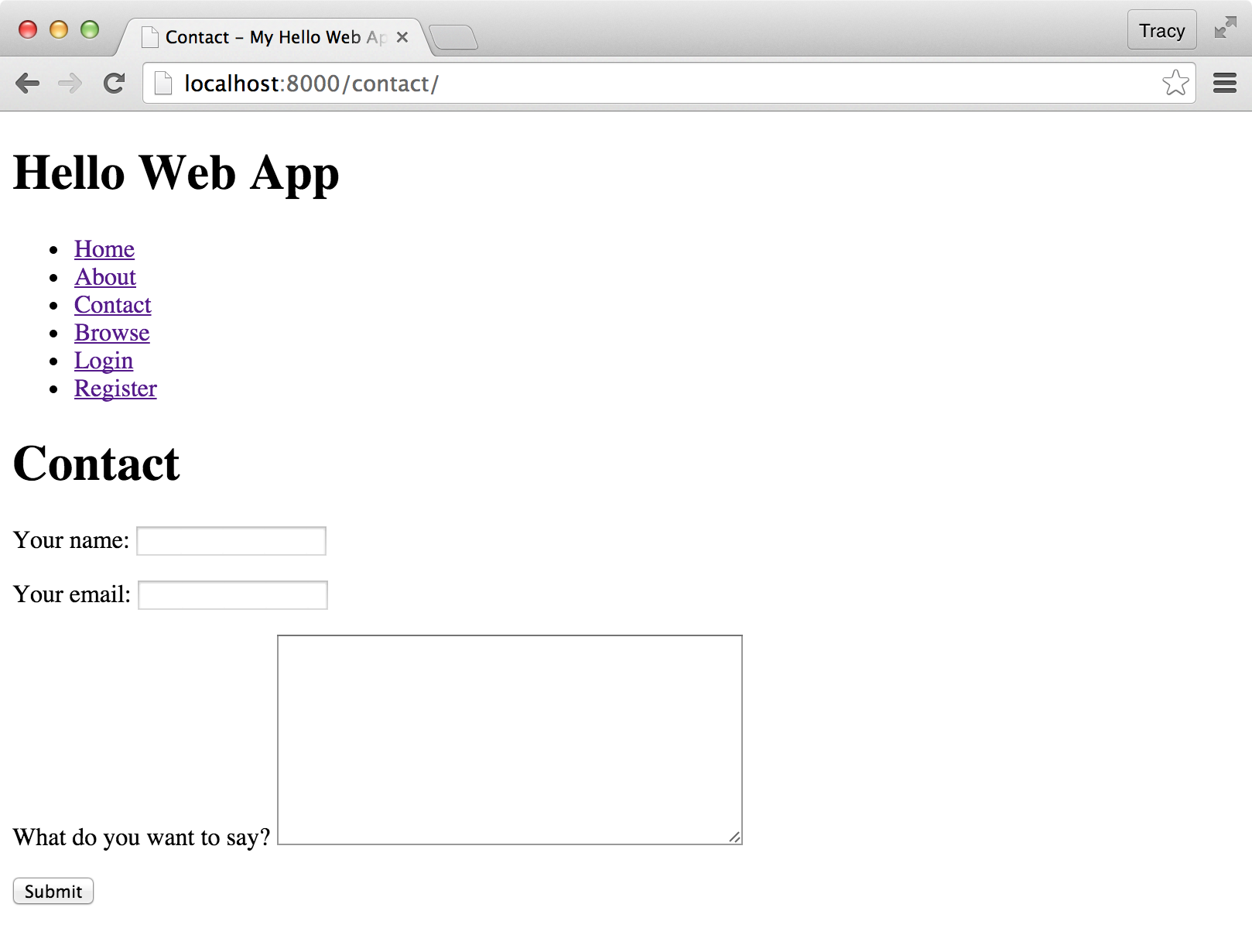
(Of course, this is minus any pretty CSS styling we need to do.)
Once we stick in some test information and submit the form, we can see the “email” in our command line:
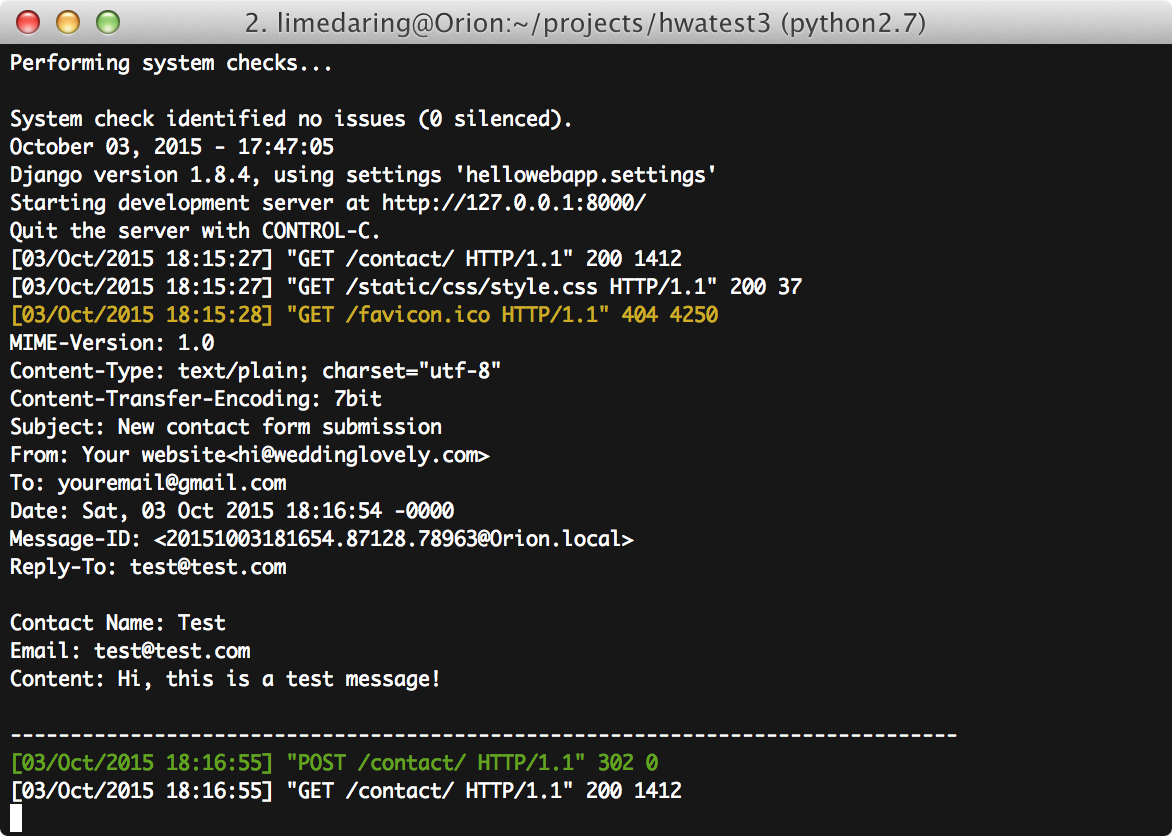
Set up our live email server (optional)
The local email server will output “emails” to your local server (what’s running in your command line), so you can confirm everything is working locally. But, when your web app is live, you obviously want those emails to actually land in your email inbox, rather than the server output.
You can do this by setting up something like Sendgrid (http://hellowebapp.com/ic/4) or Mandrill (http://hellowebapp.com/ic/5) — freemium email servers where you should just need to sign up for an account and set the details of your account in your settings.py.
Sendgrid has a great short walkthrough here: http://hellowebapp.com/ic/6. If you’re at the point in Hello Web App where you’ve set up a production settings file, you can stick the email server stuff in there, and keep your local/test emails (using the Django console) in your normal settings.py file. This way you can “send emails” as you’re developing your app, but you don’t have to worry about going over the daily email limit that these email delivery products have in their freemium accounts.
Things that could be improved
I mentioned above that, upon successful form submission, you will be redirected to your app homepage. That would be really confusing to the user, because there is no success message. You have two options here:
- Set up a separate template that just says “Success!” that users are redirected to after successful submission. This is the easiest option, but adding these kind of templates tends to clutter up your templates directory.
- Utilize the Django messages framework. This is a better option. In your base template file, you can add a “messages” block, and then when you redirect to a page, you could pass along a message (e.g. an alert, an error, a warning, an info message, etc.) that will pop into the top of any page. It’s what I use for my production web apps. Chapter 6, Setting up Django Messages for Alerts, goes into this in detail.
Your contact form is complete!
You now have a working contact form that allows visitors to your web app to email you messages, and hopefully you learned some new skills about creating forms in Django and working with email. Congrats!