Chapter 2: Getting Started
2.1 Introduction
The best way to learn JavaScript/Google Apps Script is to write some code. Getting started is very straightforward: All that is needed is a Gmail account and a browser with an Internet connection. To run some example code, first go to Google Drive and create a spreadsheet. To view the script editor, select Tools->Script editor… from the spreadsheet menu bar. The first time you do this in a new spreadsheet file, you will be presented with a pop-up window entitled “Google Apps Script”, just ignore and close it for now. Give the project a name, any name you like, by hovering over and replacing the text “untitled project” on the top left. Delete the code stub entitled “myFunction” so that the script editor is now blank. Paste in the example code in the following sections and save (save icon or menu action File->Save).
2.2 Google Apps Script Examples
Here are four example functions. When pasted into the script editor, the code formatting applied by the editor becomes evident and makes the code easier to read. The code for this chapter can be viewed and downloaded from GitHub here.
 1 function sayHelloAlert() {
 2   // Declare a string literal variable.
 3   var greeting = 'Hello world!',
 4       ui = SpreadsheetApp.getUi();
 5   // Display a message dialog with the greeting
 6   //(visible from the containing spreadsheet).
 7   // Older versions of Sheets used Browser.msgBox()
 8   ui.alert(greeting);
 9 }
10
11 function helloDocument() {
12   var greeting = 'Hello world!';
13   // Create DocumentApp instance.
14   var doc =
15     DocumentApp.create('test_DocumentApp');
16   // Write the greeting to a Google document.
17   doc.setText(greeting);
18   // Close the newly created document
19   doc.saveAndClose();
20 }
21
22 function helloLogger() {
23   var greeting = 'Hello world!';
24   //Write the greeting to a logging window.
25   // This is visible from the script editor
26   //   window menu "View->Logs...".
27   Logger.log(greeting);
28 }
29
30
31 function helloSpreadsheet() {
32   var greeting = 'Hello world!',
33       sheet = SpreadsheetApp.getActiveSheet();
34   // Post the greeting variable value to cell A1
35   // of the active sheet in the containing
36   //  spreadsheet.
37   sheet.getRange('A1').setValue(greeting);
38   // Using the LanguageApp write the
39   //  greeting to cell:
40   // A2 in Spanish,
41   //  cell A3 in German,
42   //  and cell A4 in French.
43   sheet.getRange('A2')
44         .setValue(LanguageApp.translate(
45                   greeting, 'en', 'es'));
46   sheet.getRange('A3')
47         .setValue(LanguageApp.translate(
48                   greeting, 'en', 'de'));
49   sheet.getRange('A4')
50          .setValue(LanguageApp.translate(
51                    greeting, 'en', 'fr'));
52 }
2.2 Executing Code – One Function At A Time
In order to execute code, there must be at least one valid function in the script editor. After pasting the code above, there are four functions that will each be executed in turn.
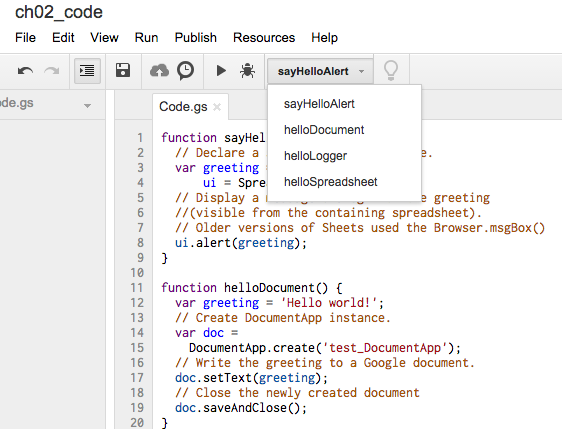
Select function sayHelloAlert() from the “Select function” drop-down list on the script editor toolbar and then press the execute icon (to the left of the function list drop-down). You will need to authorize the script when you first try to execute it. Subsequent executions do not require authorisation. Once authorised, switch to the spreadsheet and you will see a small window with the greeting “Hello world”. These browser popup displays are modal meaning that they block all subsequent code execution until they are closed. For this reason, their use should be limited. The Logger is generally a better tool for writing and displaying output.
Now select the second function named helloDocument() and execute it. This is a much more interesting example than the previous one because it shows how GAS written in one application can be used to manipulate other applications. The first time you try to execute it, you will get a message saying, “Authorization required”. Once you authorise it and then execute, it will create a new Google Document and write the message to it. This example, though trivial and useless, does demonstrate how GAS code written in one application can manipulate other applications. This is a very powerful feature and will be a recurring theme of this book.
The helloLogger() function, when executed, writes the message to a logging area that is viewable from the script editor menu “View->Logs…”. It is equivalent to the “console.log” in Firebug and Node.js. It will be used frequently in later code examples for output and for error reporting.
The final function helloSpreadsheet() demonstrates two important aspects of Google Apps Script:
Firstly, spreadsheets can be manipulated via the Spreadsheet object (the Google documentation refers to Spreadsheet as a “class”). It provides a method that returns an object representing the active sheet (getActiveSheet()) and that this returned object has a method that returns a range (getRange()), in this instance a single cell with the address “A2”. The returned range object method, setValue(), is then called with a string argument that is written to cell A1 of the active sheet. These types of chained method calls look daunting at first. The method call chain described above could be re-written as:
1   var greeting = 'Hello world!',
2       activeSpreadsheet =
3         SpreadsheetApp.getActiveSpreadsheet(),
4       activeSheet =
5         activeSpreadsheet.getActiveSheet(),
6       rng = activeSheet.getRange('A1'),
7       greeting = 'Hello world!';
8   rng.setValue(greeting);
The code above uses a number of intermediate variables and may be easier to understand initially but after experience with GAS, the chained method call will start to feel easier and more natural. The objects referenced in this example will be discussed in detail in chapters 4 and 5.
Secondly, the example code shows how easy it is to call another service from a Google Apps Script function. Here the LanguageApp was used to translate a simple text message into Spanish, German, and French. This ability to seamlessly access other Google services is extremely powerful.
2.3 Summary
This chapter has shown how to access the GAS Script Editor and execute functions from it. The examples demonstrated how GAS can display simple alerts, write messages to the Logger, manipulate ranges in spreadsheets and use other Google applications such as Document and Google services such as LanguageApp. These examples barely scrape the surface of what can be achieved using GAS. The next chapter uses GAS to write user-defined functions that can be called in the same manner as built-in spreadsheet functions.