Appendix A: Excel VBA And Google Apps Script Comparison
Introduction
Microsoft Excel™ remains the dominant spreadsheet application so many of those coming to Google Apps Script programming will be very familiar with it. It hosts a programming language called Visual Basic for Applications™ (VBA) that can be used to extend functionality, build user interfaces, integrate with other Microsoft Office™ applications, and as a front end to relational databases. This appendix aims to provide a quick reference for Excel VBA programmers by giving some VBA examples in parallel with equivalent Google Apps Script (basically JavaScript) code for some common spreadsheet programming tasks. VBA and Google Apps Script are very different languages and the APIs they each use for spreadsheet programming have been developed independently so their respective methods and properties also differ. Despite these differences, the objectives of both languages and the tasks they are applied to are similar to the extent that an experienced VBA programmer should be able to pick up Google Apps Script quite quickly. This appendix assumes knowledge of VBA and aims to facilitate the reader’s transition to the Google Apps Script environment.
The examples below are given in pairs: First the VBA code and then the functionally equivalent Google Apps Script version with some explanatory comments. The VBA is generally not commented because the examples assume VBA expertise. Comments are added, however, for trickier and longer examples or when the code examples in the two languages are very different due to inherent VBA/JavaScript differences or divergent API approaches. The code examples should perform as described but in many instances alternative approaches can be used and the examples may not be optimal.
The VBA examples given generally write their output to the Immediate Window while the Google Apps Script equivalents write to the Logger. Some examples write to or format spreadsheet cells.
Google Apps Script Or JavaScript
“JavaScript” is used here to refer to general JavaScript concepts such as arrays.
Google Apps Script refers to the specific Google implementation as it applies to spreadsheet programming and Google App Script APIs. The context should make the usage clear.
Spreadsheets and Sheets
Spreadsheets and sheets are handled similarly. One difference of note is that Google Apps Script does not make a distinction between Sheets and Worksheets as VBA does.
Active Spreadsheet
Multiple spreadsheet files can be open at a given time but only one is active.
VBA
1 Public Sub SpreadsheetInstance(()
2     Dim ss As Workbook
3     Set ss = Application.ActiveWorkbook
4     Debug.Print ss.Name
5 End Sub
Google Apps Script
1 function spreadsheetInstance() {
2   var ss = SpreadsheetApp.getActiveSpreadsheet();
3   Logger.log(ss.getName());
4 }
VBA uses the Name property while Google Apps Script uses the method getName() to return the value.
Sheet/Worksheet
Spreadsheets contain sheets. In VBA these are stored as collections and in Google Apps Script as JavaScript arrays of Sheet objects. The pairs of examples given here call some Sheet methods and print the output.
VBA
1 Public Sub FirstSheetInfo()
2     Dim sh1 As Worksheet
3     Set sh1 = ActiveWorkbook.Worksheets(1)
4     Dim usedRng As Range
5     Set usedRng = sh1.UsedRange
6     Debug.Print sh1.Name
7     Debug.Print usedRng.Address
8 End Sub
Google Apps Script
 1 function firstSheetInfo() {
 2   var ss = SpreadsheetApp.getActiveSpreadsheet(),
 3       sheets = ss.getSheets(),
 4       // getSheets() returns an array
 5       // JavaScript arrays are always zero-based
 6       sh1 = sheets[0];
 7   Logger.log(sh1.getName());
 8   // getDataRange is analagous to UsedRange
 9   //in VBA
10   // getA1Notation() is functional equivalent to
11   //  Address in VBA
12   Logger.log(sh1.getDataRange().getA1Notation());
13 }
Sheet Collections
The previous examples extracted a single Sheet object and called some of its methods. The example pairs here loop over the all the sheets of the active spreadsheet and print the sheet names.
VBA
1 Public Sub PrintSheetNames()
2     Dim sheets As Worksheets
3     Dim sheet As Worksheet
4     For Each sheet In ActiveWorkbook.Sheets
5         Debug.Print sheet.Name
6     Next sheet
7 End Sub
Google Apps Script
 1 // Print the names of all sheets in the active
 2 //  spreadsheet.
 3 function printSheetNames() {
 4   var ss = SpreadsheetApp.getActiveSpreadsheet(),
 5       sheets = ss.getSheets(),
 6       i;
 7   for (i = 0; i < sheets.length; i += 1) {
 8     Logger.log(sheets[i].getName());
 9   }
10 }
Adding And Removing Sheets
Spreadsheet applications may need to add new sheets to an existing spreadsheet file and then, after some processing, they may need to then remove one or more sheets. Both tasks are easily achieved in both VBA and and Google Apps Script.
VBA
 1 ' Add a new sheet to a workbook.
 2 ' Call the Add method of the
 3 '  Worksheets collection
 4 ' Assign a name to the returned
 5 '  Worksheet instance
 6 '   Name property.
 7 Sub AddNewSheet()
 8     Dim newSheet As Worksheet
 9     Set newSheet = ActiveWorkbook.Worksheets.Add
10     newSheet.Name = "AddedSheet"
11     MsgBox "New Sheet Added!"
12 End Sub
13
14 ' Delete a named sheet from the
15 '  active spreadsheet.
16 ' The sheet to delete is identified
17 '   in the Worksheets collection
18 ' by name. The returned instance
19 '  is deleted by calling its
20 ' Delete method.
21 ' MS Excel will prompt to confirm.
22 Sub RemoveSheet()
23     Dim sheetToRemove As Worksheet
24     Set sheetToRemove = _
25      ActiveWorkbook.Worksheets("AddedSheet")
26     sheetToRemove.Delete
27     MsgBox "Sheet Deleted!"
28 End Sub
Google Apps Script
 1 // Add a new sheet to the active spreadsheet.
 2 // Get an instance of the active spreadsheet.
 3 // Call its insertSheet method.
 4 // Call the setName method of the
 5 //  returned instance.
 6 function addNewSheet() {
 7   var ss =
 8      SpreadsheetApp.getActiveSpreadsheet(),
 9       newSheet;
10   newSheet = ss.insertSheet();
11   newSheet.setName("AddedSheet");
12   Browser.msgBox("New Sheet Added!");
13 }
14
15 // Remove a named sheet from the
16 //  active spreadsheet.
17 // Get an instance of the active
18 //  spreadsheet.
19 // Get an instance of the sheet to remove.
20 // Activate the sheet to remove
21 // Call the spreadsheet instance method
22 //   deleteActiveSheet.
23 function removeSheet() {
24   var ss =
25    SpreadsheetApp.getActiveSpreadsheet(),
26    sheetToRemove =
27        ss.getSheetByName("AddedSheet");
28   sheetToRemove.activate();
29   ss.deleteActiveSheet();
30   Browser.msgBox("SheetDeleted!");
31 }
The code comments in both languages should adequately describe the actions and objects required to add and remove sheets from both spreadsheet applications. The Google Apps Script mechanism appears a little more complicated than its VBA equivalent. In order to remove a sheet, it first has to be activated so that the Spreadsheet instance method deleteActiveSheet() can be called. Otherwise, both languages work quite similarly.
Hiding And Unhiding Sheets
Hiding sheets can help to keep a spreadsheet uncluttered and easy to use while also helping to prevent inadvertent changes to important data. Lists of values that the application uses may not be important to the users so they can be hidden from their view while still remaining available to the application code. The VBA and Google Apps Script code required to do the hiding, unhiding and listing of hidden sheets is very similar.
Hiding a sheet identified by name.
VBA
1 Public Sub SheetHide()
2     Dim sh As Worksheet
3     Set sh = Worksheets.Item("ToHide")
4     sh.Visible = False
5 End Sub
Google Apps Script
1 // Hide a sheet specified by its name.
2 function sheetHide() {
3   var ss =
4     SpreadsheetApp.getActiveSpreadsheet(),
5       sh = ss.getSheetByName('ToHide');
6   sh.hideSheet()
7 }
Listing hidden sheets
VBA
1 Public Sub ListHiddenSheetNames()
2     Dim sheet As Worksheet
3     For Each sheet In Worksheets
4         If sheet.Visible = False Then
5             Debug.Print sheet.Name
6         End If
7     Next sheet
8 End Sub
Google Apps Script
 1 // Write a list of hidden sheet names to log.
 2 function listHiddenSheetNames() {
 3   var ss =
 4     SpreadsheetApp.getActiveSpreadsheet(),
 5       sheets = ss.getSheets();
 6   sheets.forEach(
 7     function (sheet) {
 8       if (sheet.isSheetHidden()) {
 9         Logger.log(sheet.getName());
10       }
11     });
12 }
Unhiding hidden sheets
VBA
1 Public Sub SheetsUnhide()
2     Dim sheet As Worksheet
3     For Each sheet In Worksheets
4         If sheet.Visible = False Then
5             sheet.Visible = True
6         End If
7     Next sheet
8 End Sub
Google Apps Script
 1 // Unhide all hidden sheets.
 2 function sheetsUnhide() {
 3   var ss =
 4     SpreadsheetApp.getActiveSpreadsheet(),
 5       sheets = ss.getSheets();
 6   sheets.forEach(
 7     function (sheet) {
 8       if (sheet.isSheetHidden()) {
 9         sheet.showSheet();
10       }
11     });
12 }
The main difference in the approach taken by each language in these examples is how they iterate over the Worksheets collection in VBA and the array of Sheet objects in Google Apps Script. Newer versions of JavaScript, including Google Apps Script, have added some very powerful methods to arrays. Included in these are methods that take a callback function as an argument that is invoked for each element in the array. The forEach() method above is an example. It operates in a similar manner to the VBA For Each loop but unlike it, forEach() needs a function as an argument. In the examples above anonymous functions were used. This type of approach where functions take other functions as arguments is very powerful but may be unfamiliar to VBA programmers.
Protecting Sheets
Hiding sheets provides a type of “security through obscurity” but does not prevent deliberate tampering. Both VBA and Google Apps Script allow you to protect individual worksheets within a spreadsheet but they take very approaches to this.
VBA
1 ' Password-protect rotect a sheet identified
2 ' by name
3 Public Sub SheetProtect()
4     Dim sh As Worksheet
5     Dim pwd As String: pwd = "secret"
6     Set sh = Worksheets.Item("ToProtect")
7     sh.Protect pwd
8 End Sub
Google Apps Script
 1 // Identify a sheet by name to protect
 2 // When this code runs, the lock icon
 3 // will appear on the sheet name.
 4 // Share the spreadsheet with another user
 5 // as an editor. That user can edit all
 6 // sheets except the protected one. The user
 7 // can still edit the protected sheet.
 8 function sheetProtect() {
 9   var ss =
10     SpreadsheetApp.getActiveSpreadsheet(),
11       sh = ss.getSheetByName('ToProtect'),
12       permissions = sh.getSheetProtection();
13   ss.addEditor(<gmail address goes here>);
14   permissions.setProtected(true);
15   sh.setSheetProtection(permissions);
16 }
In VBA, a password is set and the protected is using the Worksheet Protect method passing it the password string as an argument. Once protected even the spreadsheet file owner needs to know the password to do anything to the sheet. Google Apps Script takes a different approach. By default, only the file creator can see or edit the spreadsheet. The owner can then add editors or viewers to the spreadsheet. A viewer can see all the sheets but not edit them while the editor can, as the name suggests, edit the sheet contents. However, a single sheet can be protected so that it can be viewed by a user granted editor privilege but is not editable by them. The code example given above shows how this can be done. Unlike in VBA, however, the owner of the spreadsheet will always have full edit permissions on all sheets. In other words, the owner cannot remove permissions from themselves.
Ranges
Spreadsheet programming is largely about manipulating ranges so this is a long section.
Selection
Requiring a user to select an input range is a common feature of spreadsheet applications. In order to process the selected cells, the application needs to determine:
- The sheet containing the selection
- The location of the selection within the sheet as given by its address
- The dimensions of the selection, that is the number of rows and columns in the selection
This information is extracted and printed in the following examples
VBA
 1 Public Sub PrintSelectionDetails()
 2     Debug.Print "Selected Range Details: "
 3     Debug.Print "-- Sheet: " & _
 4                 Selection.Worksheet.Name
 5     Debug.Print "-- Address: " & _
 6                 Selection.Address
 7     Debug.Print "-- Row Count: " & _
 8                 Selection.Rows.Count
 9     Debug.Print "'-- Column Count: " & _
10                  Selection.Columns.Count
11 End Sub
Google Apps Script
 1 // Prints details about selected range in
 2 //  active spreadsheet
 3 // To run, paste code into script editor,
 4 //   select some cells on any sheet,
 5 //    execute code and
 6 //   check log to see details
 7 // Prints details about selected range
 8 //  in active spreadsheet
 9 // To run, paste code into script editor,
10 //   select some cells on any sheet,
11 //  execute code and
12 //   check log to see details
13 function printSelectionDetails() {
14   var ss =
15       SpreadsheetApp.getActiveSpreadsheet(),
16       selectedRng = ss.getActiveRange();
17   Logger.log('Selected Range Details:');
18   Logger.log('-- Sheet: '
19              + selectedRng
20                 .getSheet()
21                 .getSheetName());
22   Logger.log('-- Address: '
23              + selectedRng.getA1Notation());
24   Logger.log('-- Row Count: '
25              + ((selectedRng.getLastRow() + 1)
26              - selectedRng.getRow()));
27   Logger.log('-- Column Count: '
28              + ((selectedRng.getLastColumn() + 1)
29              - selectedRng.getColumn()));
30 }
VBA provides the handy Selection object which is of type Range and its methods can be used to extract the required information. The Google Apps Script Spreadsheet object provides the getActiveSelection() method to return the Google Spreadsheets equivalent to the VBA Selection. Its getRow() and getColumn() methods return the row number of the first row and first column, respectively, for the Range object on which they are invoked. The purpose of the getLastRow() and getLastColumn() Range methods is clear from their names. By using a combination of these methods the VBA Selection.Rows.Count and Selection.Columns.Count properties can be mimicked as was done above.
Used Range
To retrieve the very useful equivalent of the VBA UsedRange object in Google Apps Script, use the Sheet getDataRange() method. In both languages it is easy to transfer the cell contents of a range into an array. JavaScript arrays are a lot more flexible than those in VBA and they are always zero-based. JavaScript’s dynamic typing also makes matters more straightforward. VBA is a typed language but its Variant type negates the all the type-checking. However, it has to be used to receive the Range value property. Another fundamental language difference is that JavaScript does not distinguish functions and subroutines. Instead functions are always used and if there is no explicit return statement, undefined is the return value.
VBA
 1 Public Function GetUsedRangeAsArray(sheetName  _
 2                           As String) As Variant
 3     Dim sh As Worksheet
 4     Set sh = _
 5       ActiveWorkbook.Worksheets(sheetName)
 6     GetUsedRangeAsArray = sh.UsedRange.value
 7 End Function
 8 Sub test_GetUsedRangeAsArray()
 9     Dim sheetName As String
10     Dim rngValues
11     Dim firstRow As Variant
12     sheetName = "Sheet1"
13     rngValues = GetUsedRangeAsArray(sheetName)
14     Debug.Print rngValues(1, 1)
15     Debug.Print UBound(rngValues)
16     Debug.Print UBound(rngValues, 2)
17 End Sub
Google Apps Script
 1 function getUsedRangeAsArray(sheetName) {
 2   var ss =
 3     SpreadsheetApp.getActiveSpreadsheet(),
 4       sh = ss.getSheetByName(sheetName);
 5   // The getValues() method of the
 6   //   Range object returns an array of arrays
 7   return sh.getDataRange().getValues();
 8 }
 9 // JavaScript does not distinguish between
10 //  subroutines and functions.
11 // When the return statement is omitted,
12 //  functions return undefined.
13 function test_getUsedRangeAsArray() {
14   var ss = SpreadsheetApp.getActiveSpreadsheet(),
15       sheetName = 'Sheet1',
16       rngValues = getUsedRangeAsArray(sheetName);
17   // Print the number of rows in the range
18   // The toString() call to suppress the
19   // decimal point so
20   //  that, for example, 10.0, is reported as 10
21   Logger.log((rngValues.length).toString());
22   // Print the number of columns
23   // The column count will be the same
24   // for all rows so only need the first row
25   Logger.log((rngValues[0].length).toString());
26   // Print the value in the first cell
27   Logger.log(rngValues[0][0]);
28 }
Add Colours To Range In First Sheet
Cells and their contents can be programmatically formatted just as easily in Google Spreadsheets as in Excel.
VBA
1 Sub AddColorsToRange()
2     Dim sh1 As Worksheet
3     Dim addr As String: addr = "A4:B10"
4     Set sh1 = ActiveWorkbook.Worksheets(1)
5     sh1.Range(addr).Interior.ColorIndex = 3
6     sh1.Range(addr).Font.ColorIndex = 10
7 End Sub
Google Apps Script
 1 // Select a block of cells in the first sheet.
 2 // Use Range methods to set both the font and
 3 //   background colors.
 4 function addColorsToRange() {
 5   var ss =
 6       SpreadsheetApp.getActiveSpreadsheet(),
 7       sheets = ss.getSheets(),
 8       sh1 = sheets[0],
 9       addr = 'A4:B10',
10       rng;
11   // getRange is overloaded. This method can
12   //  also accept row and column integers
13   rng = sh1.getRange(addr);
14   rng.setFontColor('green');
15   rng.setBackgroundColor('red');
16 }
Range Offsets
The offset Range property in VBA is implemented in Google Apps Script as the Range offset() method. In its basic form, the Google Apps Script version can be used to exactly mimic its VBA namesake as the following code demonstrates.
VBA
 1 Public Sub OffsetDemo()
 2     Dim sh As Worksheet
 3     Dim cell As Range
 4     Set sh = _
 5       ActiveWorkbook.Worksheets(1)
 6     Set cell = sh.Range("B2")
 7     cell.value = "Middle"
 8     cell.Offset(-1, -1).value = "Top Left"
 9     cell.Offset(0, -1).value = "Left"
10     cell.Offset(1, -1).value = "Bottom Left"
11     cell.Offset(-1, 0).value = "Top"
12     cell.Offset(1, 0).value = "Bottom"
13     cell.Offset(-1, 1).value = "Top Right"
14     cell.Offset(0, 1).value = "Right"
15     cell.Offset(1, 1).value = "Bottom Right"
16 End Sub
Google Apps Script
 1 // The Spreadsheet method getSheets() returns
 2 //  an array.
 3 // The code "ss.getSheets()[0]"
 4 //  returns the first sheet and is equivalent to
 5 // "ActiveWorkbook.Worksheets(1)" in VBA.
 6 // Note that the VBA version is 1-based!
 7 function offsetDemo() {
 8   var ss =
 9    SpreadsheetApp.getActiveSpreadsheet(),
10       sh = ss.getSheets()[0],
11       cell = sh.getRange('B2');
12   cell.setValue('Middle');
13   cell.offset(-1,-1).setValue('Top Left');
14   cell.offset(0, -1).setValue('Left');
15   cell.offset(1, -1).setValue('Bottom Left');
16   cell.offset(-1, 0).setValue('Top');
17   cell.offset(1, 0).setValue('Bottom');
18   cell.offset(-1, 1).setValue('Top Right');
19   cell.offset(0, 1).setValue('Right');
20   cell.offset(1, 1).setValue('Bottom Right');
21 }
Pasting and executing these code snippets in either spreadsheet application writes the location of cell B2’s neighbours relative to its location. The Google Apps Script offset() method is, however, overloaded. This concept was discussed in chapter 5 in relation to the Sheet getRange() method but it merits re-visiting here to show how the functionality of its overloaded versions can be implemented in VBA.
VBA
 1 ' Mimicking Google Apps Script
 2 '  offset() method overloads.
 3 Public Sub OffsetOverloadDemo()
 4     Dim sh As Worksheet
 5     Dim cell As Range
 6     Dim offsetRng2 As Range
 7     Dim offsetRng3 As Range
 8     Set sh = ActiveWorkbook.Worksheets(1)
 9     Set cell = sh.Range("A1")
10     'Offset returns a Range so Offset
11     ' can be called again
12     ' on the returned Range from
13     '  first Offset call.
14     Set offsetRng2 = Range(cell.Offset(1, 4), _
15                    cell.Offset(1, 4).Offset(1, 0))
16     Set offsetRng3 = Range(cell.Offset(10, 4), _
17                    cell.Offset(10, 4).Offset(3, 4))
18     Debug.Print offsetRng2.Address
19     Debug.Print offsetRng3.Address
20 End Sub
Google Apps Script
 1 // Demonstrating overloaded versions of offset()
 2 // Output:
 3 // Address of offset() overload 2
 4 //  (rowOffset, columnOffset, numRows) is: E2:E3
 5 //  Address of offset() overload 3 (rowOffset,
 6 //    columnOffset, numRows, numColumns)
 7 //     is: E11:I14
 8 function offsetOverloadDemo() {
 9   var ss =
10       SpreadsheetApp.getActiveSpreadsheet(),
11       sh = ss.getSheets()[0],
12       cell = sh.getRange('A1'),
13       offsetRng2 = cell.offset(1, 4, 2),
14       offsetRng3 = cell.offset(10, 4, 4, 5);
15   Logger.log('Address of offset() overload 2 ' +
16          '(rowOffset, columnOffset, numRows) is: '
17              + offsetRng2.getA1Notation());
18   Logger.log('Address of offset() overload 3 ' +
19          '(rowOffset, columnOffset, numRows, ' +
20          'numColumns) is: '
21          + offsetRng3.getA1Notation());
22 }
While the VBA version defines the same ranges as the Google Apps Script version, it is not exactly clear. The key point to realise is that the VBA Range Offset property returns another Range so there is no reason why Offset cannot be invoked again on this returned Range. However, code like this VBA example should be avoided where possible and, if it cannot be avoided, it had better be well commented and documented! It was given here purely for demonstration purposes.
Named Ranges
The advantages of using named ranges were outlined in chapter 5. Google Apps Script provides Spreadsheet methods for setting named ranges and for retrieving the Range objects that the names refer to, see chapter 5 for a full discussion. However, there does not appear to be a way to implement the following VBA functionality.
VBA
1 Public Sub PrintRangeNames()
2   Dim namedRng As Name
3   For Each namedRng In ActiveWorkbook.Names
4     Debug.Print "The name of the range is: " & _
5          namedRng.Name & _
6         " It refers to this address: " & _
7             namedRng.RefersTo
8     Next namedRng
9 End Sub
This VBA code prints details for all named ranges in the active Excel file. This functionality can be very useful but at the time of writing, I was unable to duplicate it in Google Apps Script.
Cell Comments
Cell comments are a good way to document spreadsheets and add useful metadata that can describe the meaning of cell contents. They are also amenable to programmatic manipulation.
The Google Apps Script equivalent to Excel comments are notes. These are Range attributes that can be set and retrieved with with the Range getters and setters setNote() and getNote(), respectively.
Setting Cell Comments
VBA
 1 Public Sub SetCellComment(sheetName As String, _
 2                         cellAddress As String, _
 3                         cellComment As String)
 4     Dim sh As Worksheet
 5     Dim cell As Range
 6     Set sh = ActiveWorkbook.Worksheets(sheetName)
 7     Set cell = sh.Range(cellAddress)
 8     cell.AddComment cellComment
 9 End Sub
10 Public Sub test_SetCellComment()
11     Dim sheetName As String
12     sheetName = "Sheet1"
13     Dim cellAddress As String
14     cellAddress = "C10"
15     Dim cellComment As String
16     cellComment = "Comment added: " & Now()
17     Call SetCellComment(sheetName, _
18                         cellAddress, _
19                         cellComment)
20 End Sub
Google Apps Script
 1 function setCellComment(sheetName, cellAddress,
 2                         cellComment) {
 3   var ss =
 4       SpreadsheetApp.getActiveSpreadsheet(),
 5       sh = ss.getSheetByName(sheetName),
 6       cell = sh.getRange(cellAddress);
 7   cell.setNote(cellComment);
 8 }
 9 function test_setCellComment() {
10   var sheetName = 'Sheet1',
11       cellAddress = 'C10',
12       cellComment = 'Comment added ' + Date();
13   setCellComment(sheetName, cellAddress, cellComment);
14 }
Removing Cell Comments
VBA
 1 ' Need to check if the cell has a comment.
 2 ' If it does not, then exit the sub but if
 3 ' it does, then remove it.
 4 Public Sub RemoveCellComment(sheetName _
 5                              As String, _
 6                     cellAddress As String)
 7     Dim sh As Worksheet
 8     Dim cell As Range
 9     Set sh = ActiveWorkbook.Worksheets(sheetName)
10     Set cell = sh.Range(cellAddress)
11     If cell.Comment Is Nothing Then
12         Exit Sub
13     Else
14         cell.Comment.Delete
15     End If
16 End Sub
17 Public Sub test_RemoveCellComment()
18     Dim sheetName As String
19     sheetName = "Sheet1"
20     Dim cellAddress As String
21     cellAddress = "C10"
22     Call RemoveCellComment(sheetName, _
23                            cellAddress)
24 End Sub
Google Apps Script
 1 // To remove a comment, just pass an empty string
 2 //  to the setNote() method.
 3 function removeCellComment(sheetName, cellAddress) {
 4   var ss =
 5       SpreadsheetApp.getActiveSpreadsheet(),
 6       sh = ss.getSheetByName(sheetName),
 7       cell = sh.getRange(cellAddress);
 8   cell.setNote('');
 9 }
10 function test_removeCellComment() {
11   var sheetName = 'Sheet1',
12       cellAddress = 'C10';
13   removeCellComment(sheetName, cellAddress);
14 }
Selectively Copy Rows From One Sheet To A New Sheet
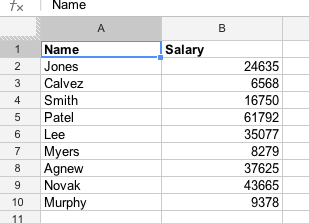
Copying rows from one sheet to another based on some pre-determined criterion is a common spreadsheet task. Given the input in the figure below, the code examples given do the following:
- Insert a new sheet named “Target” into which rows will be copied
- Copy the header row to the new sheet
- Check each of the data rows and if the second column value is less than or equal to 10000 then copy the row to the new sheet.
VBA
 1 ' This VBA code is commented because the
 2 '  VBA approach differs
 3 '   considerably from the Google Apps Script one.
 4 ' Note: the Offset() method of the Range
 5 '  object uses 0-based indexes.
 6 Public Sub copyRowsToNewSheet()
 7     Dim sourceSheet As Worksheet
 8     Dim newSheet As Worksheet
 9     Dim newSheetName As String
10     newSheetName = "Target"
11     Dim sourceRng As Range
12     Dim sourceRows As Variant
13     Dim i As Long
14     Set sourceSheet = _
15         Application.Worksheets("Source")
16     Set newSheet = ActiveWorkbook.Worksheets.Add
17     newSheet.Name = newSheetName
18     ' Use a named range as marker
19     '  for row copying (VBA hack!)
20     newSheet.Range("A1").Name = "nextRow"
21     Set sourceRng = sourceSheet.UsedRange
22     ' Copy the header row
23     sourceRng.Rows(1).Copy Range("nextRow")
24     ' Moved the named range marker down one row
25     Range("nextRow").Offset(1, 0).Name = _
26        "nextRow"
27     'Skip header row by setting i,
28     ' the row counter, = 2
29     ' i starts at 2 to skip header row
30     For i = 2 To sourceRng.Rows.Count
31         If sourceRng.Cells(i, 2).value _
32             <= 10000 Then
33             ' Define the row range to copy
34             ' using the first and
35             '   last cell in the row.
36             Range(sourceRng.Cells(i, 1), _
37                   sourceRng.Cells(i, _
38             sourceRng.Columns.Count)).Copy _
39               Range("nextRow")
40             Range("nextRow").Offset(1, 0).Name _
41              = "nextRow"
42         End If
43     Next i
44 End Sub
Google Apps Script
 1 // Longer example
 2 // Copy rows from one sheet named "Source" to
 3 //  a newly inserted
 4 //   one based on a criterion check of second
 5 //   column.
 6 // Copy the header row to the new sheet.
 7 // If Salary <= 10,000 then copy the entire row
 8 function copyRowsToNewSheet() {
 9   var ss =
10       SpreadsheetApp.getActiveSpreadsheet(),
11       sourceSheet = ss.getSheetByName('Source'),
12       newSheetName = 'Target',
13       newSheet = ss.insertSheet(newSheetName),
14       sourceRng = sourceSheet.getDataRange(),
15       sourceRows = sourceRng.getValues(),
16       i;
17   newSheet.appendRow(sourceRows[0]);
18   for (i = 1; i < sourceRows.length; i += 1) {
19     if (sourceRows[i][1] <= 10000) {
20       newSheet.appendRow(sourceRows[i]);
21     }
22   }
23 }
The output from these code examples is shown below.
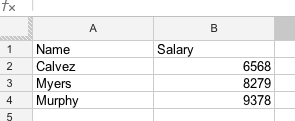
The Google Apps Script Sheet appendRow() is very convenient and significantly simplifies the code when compared to the VBA example. Taking an array of values, it just adds a row to the sheet that contains these values. In VBA the range name “next” is used as a marker for the destination to where the selected row is copied. After each copying operation, it has to be moved down by one row to be ready for the next row to copy.
Print Addresses And Formulas For Range
The code examples below demonstrate how to loop over a range of cells one cell at a time.
VBA
 1 Public Sub test_PrintSheetFormulas()
 2     Dim sheetName As String
 3     sheetName = "Formulas"
 4     Call PrintSheetFormulas(sheetName)
 5 End Sub
 6 Public Sub PrintSheetFormulas(sheetName _
 7                                As String)
 8     Dim sourceSheet As Worksheet
 9     Dim usedRng As Range
10     Dim i As Long
11     Dim j As Long
12     Dim cellAddr As String
13     Dim cellFormula As String
14     Set sourceSheet = _
15        ActiveWorkbook.Worksheets(sheetName)
16     Set usedRng = sourceSheet.UsedRange
17     For i = 1 To usedRng.Rows.Count
18         For j = 1 To usedRng.Columns.Count
19             cellAddr = _
20               usedRng.Cells(i, j).Address
21             cellFormula = _
22               usedRng.Cells(i, j).Formula
23             If Left(cellFormula, 1) = "=" Then
24                 Debug.Print cellAddr & _
25                   ": " & cellFormula
26             End If
27         Next j
28     Next i
29 End Sub
Google Apps Script
 1 function test_printSheetFormulas() {
 2   var sheetName = 'Formulas';
 3   printSheetFormulas(sheetName);
 4 }
 5 function printSheetFormulas(sheetName) {
 6   var ss =
 7       SpreadsheetApp.getActiveSpreadsheet(),
 8       sourceSheet = ss.getSheetByName(sheetName),
 9       usedRng = sourceSheet.getDataRange(),
10       i,
11       j,
12       cell,
13       cellAddr,
14       cellFormula;
15   for (i = 1; i <= usedRng.getLastRow();
16             i += 1) {
17     for (j = 1; j <= usedRng.getLastColumn();
18                  j += 1) {
19       cell = usedRng.getCell(i, j);
20       cellAddr = cell.getA1Notation();
21       cellFormula = cell.getFormula();
22       if (cellFormula) {
23         Logger.log(cellAddr +
24           ': ' + cellFormula);
25       }
26     }
27   }
28 }
The Google Apps Script Range getCell() method is analogous to the VBA Range Cells property. Both expect two integer arguments for the row and column indexes and both are one-based.