Setup For Firefox OS Development
In this chapter we’re going to setup our machines to develop for Firefox OS. This setup is the same regardless if you’re developing business apps or games.
The Gecko Engine
Browsers use different engines for rendering web pages: Google Chrome and Opera use Blink (a fork of WebKit), Internet Explorer uses Trident, while Safari uses WebKit. Mozilla has its own engine, called Gecko which is used in Firefox desktop, Firefox for Android, and Firefox OS. As these products use the same engine, it is possible to develop for Firefox OS using the Firefox desktop browser (but with some caveats1).
What applications do you need?
To develop and test apps made for Firefox OS you will need:
- A recent version of the Firefox Browser.
- The Firefox OS Simulator if you’re running a device with Firefox OS 1.1.
- A text editor for programming2.
Since there are a lot of people running Firefox OS 1.1 and most of the devices sold in the retails market are still 1.1 devices we’ll keep the Firefox OS 1.1 Simulator instructions but we’ll duplicate any section related to that simulator and also present how to do the same tasks in the App Manager. I will present the App Manager content first because thats the current stuff and then present the content for the old simulator.
The App Manager is bundled with Firefox 29 or newer. We’ll describe it in detail on the chapter about App Manager.
App Manager Setup
If you’re running the current version of Firefox (a.k.a. 29 or newer) then you have the App Manager available to you. Having the App Manager is not enough though. You still need to install the simulators on the App Manager itself to be able to test things without hooking a device to your machine. Mozilla has extensive documentation about the App Manager so if you want to dive a bit deeper check it out.
The App Manager is able to manage multiple Firefox OS versions so you can install simulators for version 1.3, 1.4 and 2.0, remember that the higher the version number the earlier it is. And by earlier I mean buggy but since we can have multiple versions then we should just install them all so that we’re able to test our apps with different Firefox OS versions.
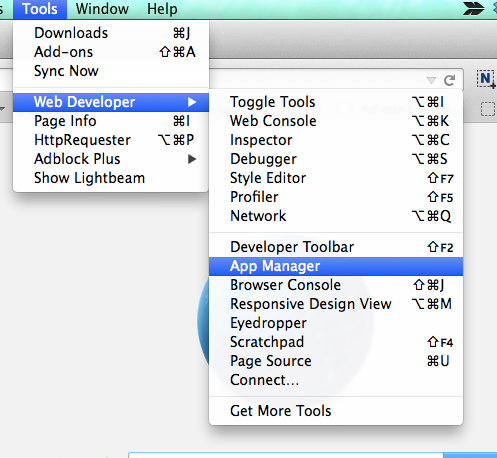
Lets take the new App Manager for a spin and install the stuff we’ll need for later. To launch the App Manager go to the menu Tools -> Web Developer -> App Manager.
After you launch the App Manager you will see a screen like this
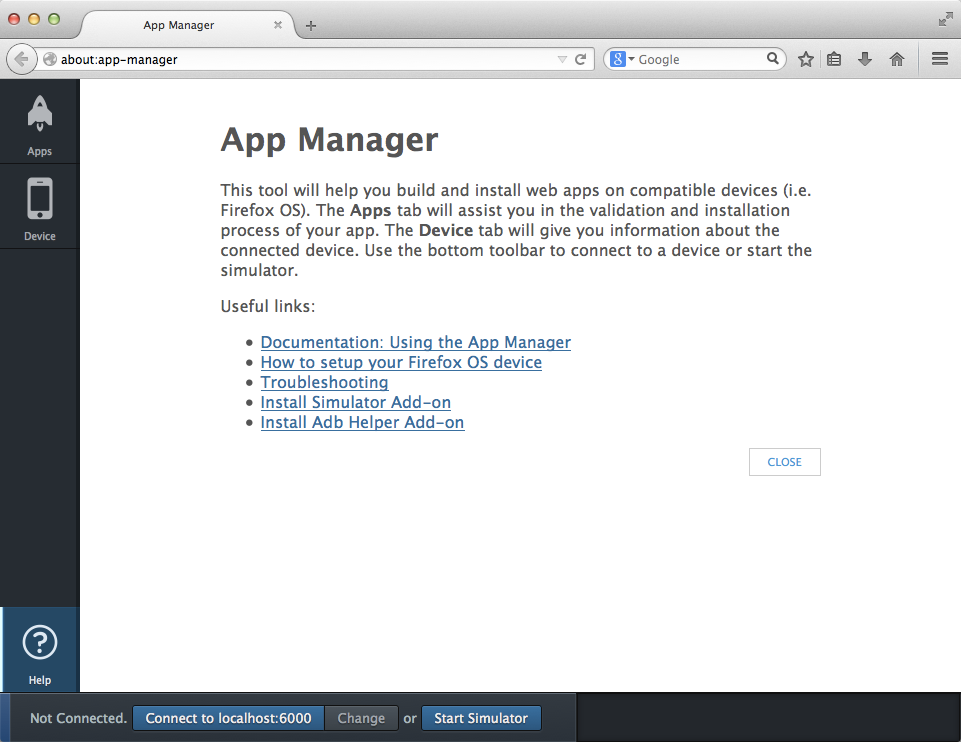
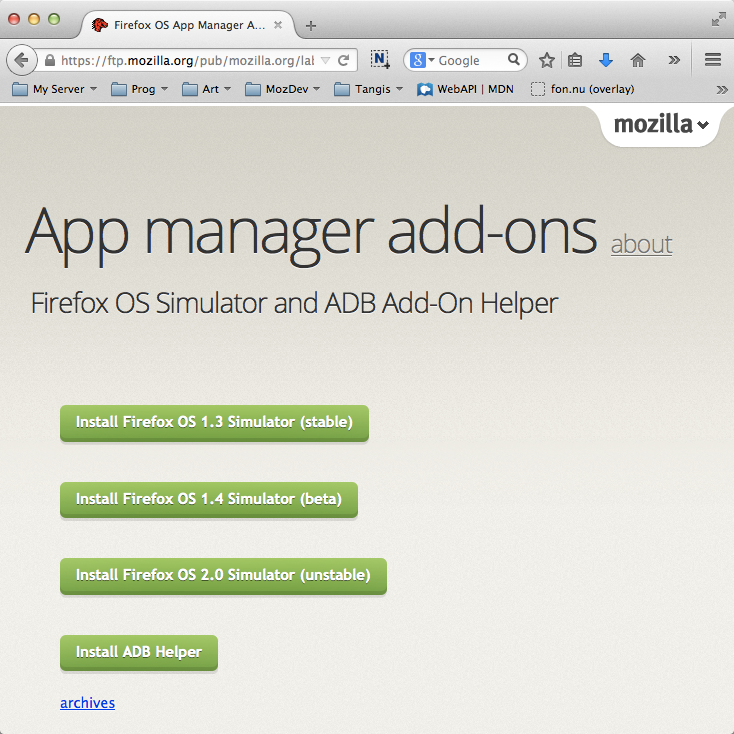
You need to click the Install Simulator button and select the versions you want to install.
The App Manager uses ADB to communicate with connected devices. It is able to handle all the ADB stuff for you if you install the ADB Helper Add-on available at Install the ADB Helper add-on.
My recommendation is to install all available versions of the simulator and the ADB Helper.
Installing the Firefox OS Simulator
If you have a device running Firefox OS 1.1 then you need to install the Firefox OS 1.1 Simulator because your device can’t communicate with the new App Manager.
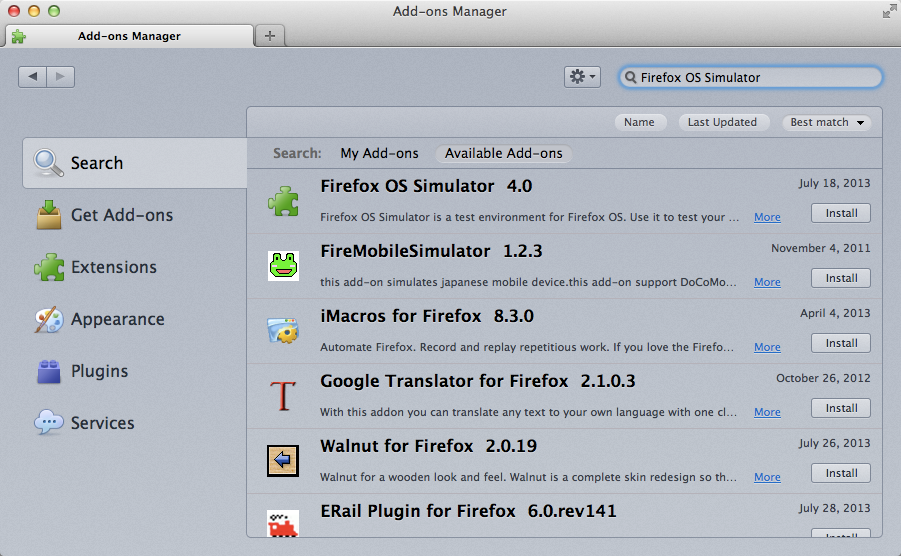
After installing Firefox, the next step is the installation of the Firefox OS Simulator that will be used to test our applications. With Firefox installed and running, go to the Tools menu and select Add-ons.
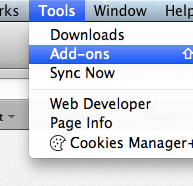
Using the search box on the top right corner, search for Firefox OS Simulator and install the add-on by clicking the install button.
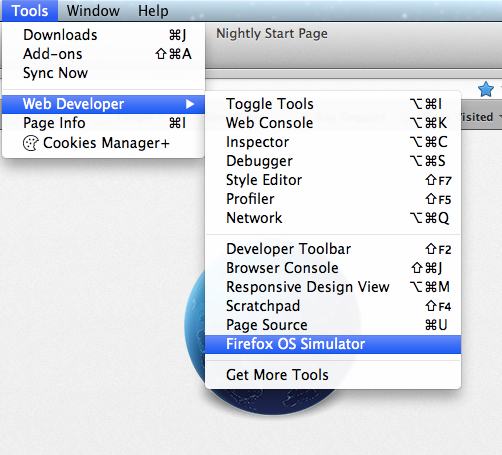
After the installation of the add-on, you will be able to access the simulator by going to the menu Tools -> Web Developer -> Firefox OS Simulator.
Alternatively, you can navigate to the Firefox OS Simulator addon page, and download the simulator from there.
Summary
In this chapter we learned that all we need to develop for Firefox OS is the Firefox browser, the App Manager and Firefox OS Simulators (and a good text editor).
Now that we have setup all the tools we need, its time to dive into the App Manager and learn how it work.