1. Get In, Get Out, Get Comfortable
Okay, you’ve gotten through the introduction. Good for you. I’d like to say that the style will settle down at this point, but I can’t promise that.
Here’s where we get started on the real meat of learning vim. We’re going to start simple: open the editor. For now I’d recommend doing things from the command line, not because I have some big problem with GUI’s, but because the graphical versions of vim tend to make little changes that can get in the way of the things we’re trying to do here. So, open a Terminal 8 and enter the following:
1 $ vim
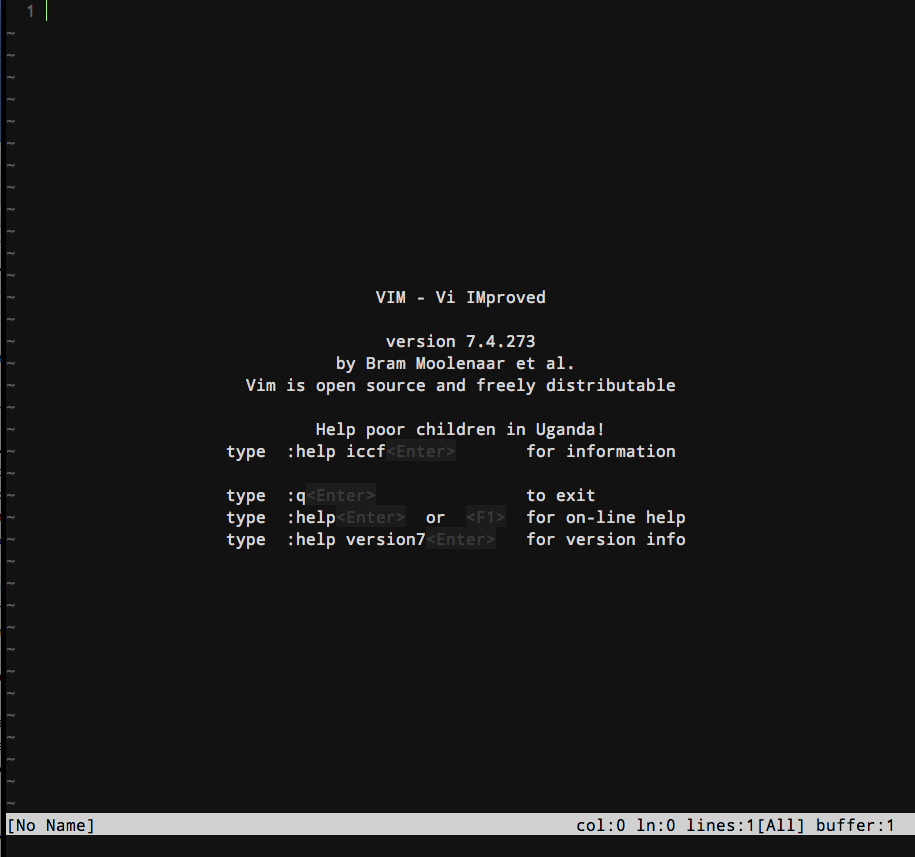
There! That’s not so scary, is it? Just a bunch of tildes and some version information! Not scary at all!
Well, okay, yeah it is. You’re in this editor with no discernible way out. So let’s cut straight to the quick and talk about how to get back out. For now we’re going to use the absolute “oh crap let me out” method. Type :q!<enter>9 and you should be right back to the command prompt, which looks like this:
1 $
Okay, breathe. This time we’re going to go in armed a little better. Before you dive back in, find a file you’ve been working on lately. HTML files work well, but pretty much anything that is structured text or code will work just fine. If you don’t have anything that springs easily to mind you can use sample.html from my sample repository. Switch to the directory where that file is kept:
1 cd /path/to/where/the/file/lives
And do this:
1 vim file1.html
And you should see…a boring representation of your file. But we’re going to fix that right now. Enter the following:
1 :syntax on<enter>
And the file should brighten up a bit. We’ll talk more about colorful files in a bit, but for now let’s get back out of vim, because it’s still scary:
1 :q!<enter>
Okay, you’re safe. Let’s take a minute out here in the real world to formalize what we’ve just learned:
- When you start vim, the keyboard makes things happen instead of making letters appear.
- When you want to send a command to vim, you preface it with a colon (
:). -
:q!<enter>gets you back out of vim without saving any changes.
Cool.
Line numbers and Moving Around
All right, now that we’ve had a breather, let’s dive back into vim. Open your test file again with
1 $ vim file1.html
And you’ll see you’re right back to boring plain ol’ text. You can tell vim to color it again with
1 :syntax on<enter>
But it seems like a bummer to have to do this by hand every time you start vim. You’re right. Don’t worry, we’ll fix that.
But there’s more. We’ve learned that when you send commands to vim that start with a : you have to press <enter> at the end. This is useful information, because I’m going to stop putting <enter> after every command from here on out. Remember that if you start a vim command with a colon it always ends with an <enter>. There are other commands that don’t need an <enter> at the end. We’ll get to them in time. For now let’s look around this file.