5. Recipes
This chapter gives some recipes about how to do common tasks using Lodash.
5.1 Filter an object’s properties
5.1.1 Scenario
Filter a given object by removing certain properties.
5.1.2 Solution
Although _.filter and _.reject can be applied to objects, they cannot be used for this scenario, because _.filter and _.reject return an array of property values after filtering. _.pick, _.pickBy, _.omit and _.omitBy should be used instead.
let fruits = {
  apple: {
    name: 'Apple',
    price: 2.99
  },
  orange: {
    name: 'Orange',
    price: 1.99
  },
  banana: {
    name: 'Banana',
    price: 0.5
  }
};

_.pickBy(fruits, fruit => fruit.price > 2);
// -> { apple: { name: 'Apple', price: 2.99 } }

_.pickBy(fruits, (fruit, key) =>  key != 'apple');
// -> { orange: { name: 'Orange', price: 1.99 },
//      banana: { name: 'Banana', price: 0.5 } }

_.pick(fruits, 'apple');
// -> { apple: { name: 'Apple', price: 2.99 } }
When a predicate function is passed to _.pickBy or _.omitBy, it’s invoked with three arguments: property value, property name and the object itself.
5.2 Push an array of elements into an array
5.2.1 Scenario
Given an array of elements, push those elements into another array.
5.2.2 Solution
If using Array’s push method, the whole array will be pushed as a single element.
Array’s push methodlet array = [1, 2, 3];
array.push([4, 5, 6]);
console.log(array);
// -> [1, 2, 3, [4, 5, 6]]
The first solution is to use _.spread to wrap the push method to accept arrays as arguments.
_.spread to wrap push methodlet array = [1, 2, 3];
let push = _.bind(_.spread(Array.prototype.push), array);
push([4, 5, 6]);
console.log(array);
// -> [1, 2, 3, 4, 5, 6]
The second solution is to push the array first, then use _.flatten to flatten the array.
_.flatten to flatten the arraylet array = [1, 2, 3];
array.push([4, 5, 6]);
_.flatten(array);
// -> [1, 2, 3, 4, 5, 6]
5.3 Process data for C3.js pie chart
5.3.1 Scenario
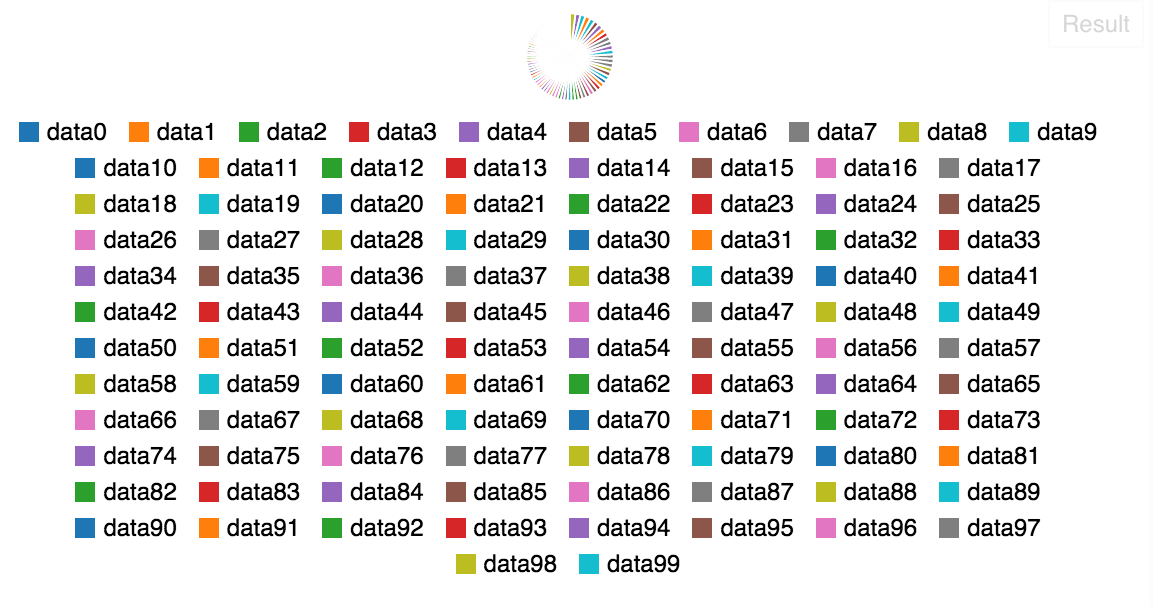
C3.js is a popular chart library based on d3.js. C3.js can create pie chart based on data input. But when there are many items in the data set, the pie chart itself becomes very hard to read.
Listing 11.5 is the basic code to create a pie chart with 100 items.
function generateData(num) {
    var data = [];
    for (var i = 0; i < num; i++) {
        data.push(['data' + i, (i <= 20 ? 1000 : 0) +  Math.random() * 10]);
    }
    return data;
}

let chart = c3.generate({
    bindto: '#chart',
    data: {
      columns: generateData(100),
      type: 'pie'
    }
});
Below is how this chart looks like.
5.3.2 Solution
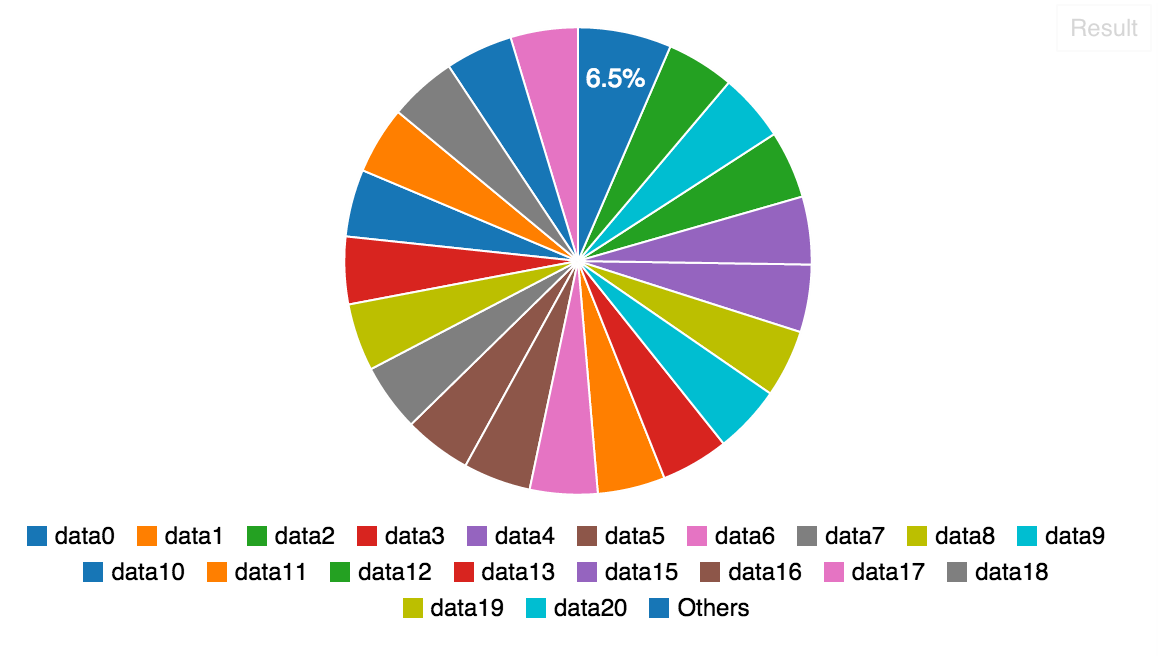
One solution is to process the data set first by limiting the number of items. For example, we can only get top 20 items from the data set and all the rest items are summed into a new item called Others. By doing this, the created chart will be more readable.
In Listing 11.6, use _.sortBy to sort the data array first based on the second element of the item array. Items in the data array are all arrays, [1] can be used to access the second element in the item array. After the data array is sorted, use _.take to find the top 20 items in the sorted array, then use _.last to find the last one. This last item is used as the threshold to partition the data array. Then we use partition to divide the data array into two groups. The first group groups[0] contains items we want to keep, the second group groups[1] contains items we want to merge. For the second group, we use _.sum to calculate the sum of all the items to merge. The merged item is pushed to the result data array with name Others and sum.
function processData(data) {
  var threshold = _(data).sortBy('[1]').take(20).last();
  if (threshold) {
    var groups = _.partition(data, function(item) {
      return item[1] >= threshold[1];
    });
    if (_.size(groups[1]) > 0) {
      groups[0].push(['Others', _.sum(groups[1], '[1]')]);
    }
    return groups[0];
  }
  return data;
}
After using Listing 11.6 code to process the data first, the chart is much easier to read, see below.
5.4 Create a unique array of objects
5.4.1 Scenario
Given an array of objects in Listing 11.7, remove duplicate values from the array.
[
  {
    "name": "Alex",
    "age": 30
  },
  {
    "name": "Bob",
    "age": 28
  },
  {
    "name": "Alex",
    "age": 30
  }
]
5.4.2 Solution
_.uniq and uniqBy functions can be used to remove duplicate values from an array, but it only uses SameAsZero algorithm to compare values. To perform the deep comparison for elements in the array of Listing 11.7, we need to convert each element into a single value. For example, if the property name is the unique key for each element, use _.uniqBy(array, 'name'). If there is no unique key, you can convert the element into a JSON string.
_.uniqBy(array, element => JSON.stringify(element));
JSON serialization may generate different results for objects with the same value due to the undermined property enumeration order. For a more consistent result, we should create our own object serialization format. In Listing 11.9, we concatenate name and age properties as the serialization format to determine uniqueness.
_.uniq(array, element => element.name + element.age);
5.5 Convert an array to an object
5.5.1 Scenario
Given an array of objects with IDs, convert the array to an object with IDs as the keys and array elements as the values.
For example, given an array in Listing 11.10, convert it to an object shown in Listing 11.11.
[
  {
    "id": "user001",
    "name": "Alex"
  },
  {
    "id": "user002",
    "name": "Bob"
  }
]
{
  "user001": {
    "id": "user001",
    "name": "Alex"
  },
  "user002": {
    "id": "user002",
    "name": "Bob"
  }
}
5.5.2 Solution
One solution is to use _.each to iterate the array and set each property in the result object, see Listing 11.12.
_.eachlet result = {};
_.each(array, function(obj) {
result[obj.id] = obj;
});
A better solution is to use _.reduce, see Listing 11.13.
_.reduce_.reduce(array, function(result, obj) {
result[obj.id] = obj;
return result;
}, {});