Learn Bash the Hard Way
This bash course has been written to help bash users to get to a deeper understanding and proficiency in bash. It doesn’t aim to make you an expert immediately, but you will be more confident about using bash for more tasks than just one-off commands.
Introduction
Why Learn Bash?
There are a few reasons to learn bash in a structured way:
- Bash is ubiquitous
- Bash is powerful
You often use bash without realising it, and people often get confused by why it sometimes doesn’t work as you expect it to, or even why bash works after they’re given one-liners to run.
It doesn’t take long to get a better understanding of bash, and once you have the basics, its power and ubiquity mean that you can be useful in all sorts of contexts.
Why Learn Bash The ‘Hard Way’?
The ‘Hard Way’ is a method that emphasises the process required to learn anything. You don’t learn to ride a bike by reading about it, and you don’t learn to cook by reading recipes. Books can help (this one hopefully does) but it’s up to you to do the work.
This book shows you the path in small digestible pieces based on my decades of experience and tells you to actually type out the code. This is as important as riding a bike is to learning to ride a bike. Without the brain and the body working together, the knowledge does not get there.
If you follow this course, you will get an understanding of bash that can form the basis of mastery as you use it in the future.
What You Will Get
This course aims to give students:
- A hands-on, quick and practical understanding of bash
- Enough information to understand what is going on as they go deeper into bash
- A familiarity with advanced bash usage
It does not:
- Give you a mastery of all the tools you might use on the command line, eg sed, awk, perl
- Give a complete theoretical understanding of all the subtleties and underpinning technologies of bash
- Explain everything. Plenty of time to go deeper and get all the nuances later if you need them
You are going to have to think sometimes to understand what is happening. This is the Hard Way, and it’s the only way to really learn. This course will save you time as you scratch your head later wondering what something means, or why that StackOverflow answer worked.
Sometimes the course will go into other areas closely associated with bash, but not directly bash-related, eg specific tools, terminal knowledge. Again, this is always oriented around my decades of experience using bash and other shells.
Assumptions
It assumes some familiarity with very basic shell usage and commands. For those looking to get to that point, I recommend following this set of mini-tutorials:
https://learnpythonthehardway.org/book/appendixa.html
It also assumes you are equipped with a bash shell and a terminal. If you’re unsure whether you’re in bash, type:
echo $BASH_VERSION
into your terminal. If you get a bash version string output like this then you are in bash:
3.2.57(1)-release
How The Course Works
The course demands that you type out all the exercises to follow it.
Frequently, the output will not be shown in the text, or even described.
Any explanatory text will assume you typed it out. Again, this is the Hard Way, and we use it because it works.
This is really important: you must get used to working in bash, and figuring out what’s going on by scratching your head and trying to work it out before I explain it to you. Eventually you will be on our own out there and will need to think for yourself. I’m trying to prepare you for that day.
Each section is self-contained, and must be followed in full. To help show you
where you are, the shell command lines are numbered 1-n and the number is
followed by a $ sign, eg:
1 $ first command
2 $ second command
At the end of each section is a set of ‘cleanup’ commands (where needed) if you want to use them to leave no trace of your work.
What is Bash?
Bash is a shell program.
A shell program is typically an executable binary that takes commands that you type and (once you hit return), translates those commands into (ultimately) system calls to the Operating System API.
If you’re not sure what this means, then don’t worry. You only need to know that a shell program is a program that allows you to tell the computer what to do. In that way, it’s not much different to many other kinds of programming languages.
What makes bash different from some other languages is that it is a language designed to ‘glue’ together other programs.
In this section, you will learn a little about the history of bash and other related shells.
How Important is this Section?
This section is background and scene-setting material. It’s not essential to material in the rest of the book, but contains information it’s useful to be aware of when you read around the subject.
Other Shells
Other shells include:
shashdashkshcshtcshtclsh
These other shells have different rules, conventions, logic, and histories that means they can look similar.
Because other shells are also programs, they can be run from within one another!
Here you run tcsh from within your bash terminal. Note that you get a different prompt (by default):
1 $ tcsh
2 % echo $dirstack
3 % exit
4 $
Typically, a tcsh will give you a prompt with a percent sign, while bash will give you a prompt with a dollar sign. This is configurable, though, so your setup may be different.
The dirstack variable is set by tcsh and will output something meaningful.
It’s not there by default in bash (try typing the echo commmand in when you are
back in the bash shell at the end!)
History of bash
This diagram helps give a picture of the history of bash:
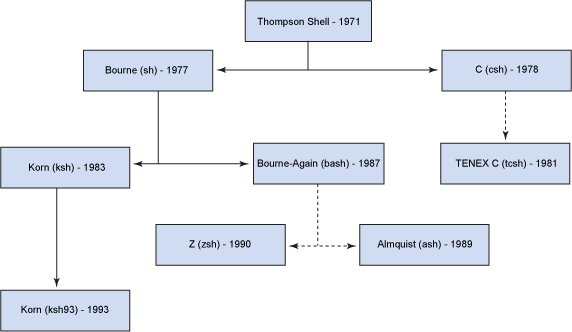
Bash is called the ‘Bourne Again SHell’. It is a descendant of the ‘Thompson Shell’ and then the Bourne ‘sh’ shell. Bash has other ‘siblings’ (eg ksh), ‘cousins’ (eg tcsh), and ‘children’, eg ‘zsh’.
The details aren’t important, but it’s important to know that different shells exist and they can be related and somewhat compatible.
Bash is the most widely seen and used shell as of 2017. However, it is still not unheard of to end up on servers that do not have bash!
What You Learned
- What a shell is
- How to start up a different shell
- The family tree of shells
What Next?
Next you look at two thorny but ever-present subjects in bash: globbing and quoting.
Exercises
1) Run sh from a bash command line. What happens?
2) What commands can you find that work in bash, but do not work in sh?
Unpicking the Shell: Globbing and Quoting
You may have wondered what the * in bash commands really means, and how it is
different from regular expressions. This section will explain all, and introduce
you to the joy of quoting in bash.
In this section you will learn:
- What globbing is
- The special globbing characters
- The difference between single and double quotes
- The difference between globbing and regular expressions
How Important is this Section?
Globbing and quoting are essential topics when using bash. It’s rare to come across a set of commands or a script that doesn’t depend on knowledge of them.
Globbing
Type these commands into your terminal
1 $ mkdir lbthw_glob
2 $ cd lbthw_glob
3 $ touch file1 file2 file3
4 $ ls *
5 $ echo *
- Line 1 above makes a new folder that should not exist already.
- Line 2 moves into that folder.
- Line 3 creates three files (file1,file2,file3).
- Line 4 runs the
lscommand, which lists files, asking to list the files matching* - Line 5 runs the echo command using
*as the argument to echo
What you should have seen was the three files listed in both cases.
The shell has taken your * character and converted it to match all the files
in the current working directory. In other words, it’s converted the *
character into the string file1 file2 file3 and then processed the resulting
command.
Quoting
What do you think will be output happen if we run these commands?
Think about it first, make a prediction, and then type it out!
6 $ ls '*'
7 $ ls "*"
8 $ echo '*'
9 $ echo "*"
- Line 6 lists files matching the
*character in single quotes - Line 7 lists files matching the
*character in double quotes - Line 8 echoes the
*character in single quotes - Line 9 echoes the
*character in double quotes
This is difficult even if you are an expert in bash!
Was the output what you expected? Can you explain it? Ironically it may be harder to explain if you have experience of quoting variables in bash!
Quoting in bash is a very tricky topic. You may want to take from this that quoting globs removes their effect. But in other contexts single and double quotes have different meanings.
Quoting changes the way bash can read the line, making it decide whether to take these characters and transform them into something else, or just leave them be.
What you should take from this is that “quoting in bash is tricky” and be prepared for some head-scratching later!
Other Glob Characters
* is not the only globbing primitive. Other globbing primitives are:
-
?- matches any single character -
[abd]- matches any character from a, b or d -
[a-d]- matches any character from a, b, c or d
Try running these commands and see if the output is what you expect:
10 $ ls *1
11 $ ls file[a-z]
12 $ ls file[0-9]
- Line 10 list all the files that end in ‘1’
- Line 11 list all files that start with ‘file’ and end with a character from a to z
- Line 12 list all files that start with ‘file’ and end with a character from 0 to 9
Dotfiles
Dotfiles are like normal files, except their name begins with a dot. Create some
with touch and mkdir:
13 $ touch .adotfile
14 $ mkdir .adotfolder
15 $ touch .adotfolder/file1 .adotfolder/.adotfile
You’ve now created some dotfiles. If you run ls:
16 $ ls
those files don’t show up. So these files are hidden from us in normal view.
What if we try to use a * as a glob?
17 $ ls *
Same result. Those files are hidden. While this may seem (and sometimes is)
annoying, having files that don’t match even a * glob is very useful. Frequently
you want to have a file that sits alongside other files but that is generally
ignored. For example, you might write some code that reformats a set of text
files in a folder, but you don’t want to reformat a dotfile that contains
information about what’s in those text files.
Unfortunately, it can be annoying when you really do want to see all the files in a folder. To achieve this, type:
18 $ echo .*
This tells bash that you want to see all filenames in the current folder that begin with a .
character. ls .* will give you a different output, but we will get to that in a moment.
You’ll also get a couple of extra ‘special’ files shown that you may not have been
aware of before. These are the single dot folder: ., and the double dot folder: ..
The single dot folder (.) is a special file that represents the folder that you are in. For example,
if you type:
20 $ cd .
You will go nowhere! You’ve changed directory to the same folder that you are in.
The double dot folder (..) is another special folder that represents the parent folder of the one you
are in.
What do you think happens at the root folder (/) if you cd ..? Have a look and find out.
If you re-run the last echo command with ls:
19 $ ls .*
you get a slightly more complicated output, as ls returns richer output
depending on whether the item is a file or a folder. If it’s a folder, it
shows every (non-hidden) file within that folder under a separate heading.
Differences to Regular Expressions
While globs look similar to regular expressions (regexes), they are used in different contexts and are separate things.
The * characters in this command have a different significance depending on
whether it is being treated as a glob or a regular expression.
21 $ rename -n 's/(.*)/new$1/' *
22 'file1' would be renamed to 'newfile1'
23 'file2' would be renamed to 'newfile2'
24 'file3' would be renamed to 'newfile3'
- Line 21 contains the command that renames all filenames to prepend ‘new’ in front. The
-nflag tells rename to just print out the files that would be changed, and not actually carry out the renaming - Lines 22-24 show the files that would be renamed
The first * character is treated as regular expressions, because it is
not interpreted by the shell, but rather by the rename command. The reason
it is not interpreted by the shell is because it is enclosed in single
quotes. The last * is treated as a glob by the shell, and expands to all the
files in the local directory.
Again, the key takeaway here is that context is key.
Note that ‘.’ has no meaning as a glob, and that some shells offer more powerful extended globbing capabilities. Bash is one of the shells that offers extended globbing, which we do not cover here, as it would potentially confuse the reader further. Just be aware that more sophisticated globbing is possible.
Cleanup
Now clean up what you just did:
25 $ cd ..
26 $ rm -rf lbthw_glob
What You Learned
- What a glob is
- What a dotfile is
- Globs and regexes are different
- Single and double quotes around globs can be significant!
What Next?
Next up is another fundamental topic: variables.
Exercises
1) Create a folder with files with very similar names and use globs to list one and not the other.
2) Research regular expressions online.
3) Research the program ‘grep’. If you already know it, read the grep man page. (Type ‘man grep’).
Variables in Bash
As in any programming environment, variables are critical to an understanding of bash. In this section you’ll learn about variables in bash and some of their subtleties.
You will cover:
- Basic variables
- Quoting variables
- Quoting and globs
- The
envandexportcommands - Simple arrays
By the end you will have a good overview of how variables work in bash and some of their pitfalls.
How Important is this Section?
Variables are fundamental to understanding bash commands, much as they are in any programming language.
Basic Variables
Start by creating a variable and echoing it.
1 $ MYSTRING=astring
2 $ echo $MYSTRING
Simple enough: you create a variable by stating its name, immediately adding an equals sign, and then immediately stating the value.
Variables don’t need to be capitalised, but they generally are by convention.
To get the value out of the variable, you have to use the dollar sign to tell bash that you want the variable dereferenced.
Variables and Quoting
Things get more interesting when you start quoting.
Quoting can be used to group different ‘words’ into a single variable value:
3 $ MYSENTENCE=A sentence
4 $ MYSENTENCE="A sentence"
5 $ echo $MYSENTENCE
Since (by default) the shell reads each word in separated by a space, it thinks the word ‘sentence’ is not related to the variable assigment, and treats it as a program. To get the sentence into the variable with the space in it, you can enclose it in the double quotes, as above.
Things get even more interesting when we embed other variables in the quoted string:
6 $ MYSENTENCE="A sentence with $MYSTRING in it"
7 $ echo $MYSENTENCE
8 $ MYSENTENCE='A sentence with $MYSTRING in it'
9 $ echo $MYSENTENCE
If you were expecting similar behaviour to the previous section you may have got a surprise!
This illustrated an important point if you’re reading shell scripts: the bash shell translates the variable into its value if it’s in double quotes, but does not if it’s in single quotes.
Remember from the previous section that this is not true when globbing!
Type this out and see. As ever, make sure you think about the output you expect before you see it:
10 $ MYGLOB=*
11 $ echo $MYGLOB
12 $ MYGLOB="*"
13 $ echo "$MYGLOB"
14 $ MYGLOB='*'
15 $ echo "$MYGLOB"
16 $ echo '$MYGLOB'
17 $ echo $MYGLOB
Globs are not expanded when in either single or double quotes. Confusing isn’t it?
Shell Variables
Some variables are special, and set up when bash starts:
18 $ echo $PPID
19 $ PPID=nonsense
20 $ echo $PPID
- Line 18 -
PPIDis a special variable set by the bash shell. It contains the bash’s parent process id. - Line 19 - Try and set the
PPIDvariable to something else. - Line 20 - Output
PPIDagain.
What happened there?
If you want to make a readonly variable, put readonly in front of it, like this:
21 $ readonly MYVAR=astring
22 $ MYVAR=anotherstring
export
Type in these commands, and try to predict what will happen:
23 $ MYSTRING=astring
24 $ bash
25 $ echo $MYSTRING
26 $ exit
27 $ echo $MYSTRING
28 $ unset MYSTRING
29 $ echo $MYSTRING
30 $ export MYSTRING=anotherstring
31 $ bash
32 $ echo $MYSTRING
33 $ exit
Based on this, what do you think export does?
You’ve already seen that a variable set in a bash terminal can be referenced later by using the dollar sign.
But what happens when you set a variable, and then start up another process?
In this case, you set a variable (MYSTRING) to the value astring,
and then start up a new bash shell process. Within that bash shell process,
MYSTRING does not exist, so an error is thrown. In other words, the variable
was not inherited by the bash process you just started.
After exiting that bash session, and unsetting the MYSTRING variable to ensure
it’s gone, you set it again, but this time export the variable, so that any
processes started by the running shell will have it in their environment. You
show this by starting up another bash shell, and it `echoes’ the new value
‘anotherstring’ to the terminal.
It’s not just shells that have environment variables! All processes have environment variables.
Outputting Exported and Shell Variables
Wherever you are, you can see the exported variables that are set by running env:
34 $ env
35 TERM_PROGRAM=Apple_Terminal
36 TERM=xterm-256color
37 SHELL=/bin/bash
38 HISTSIZE=1000000
39 TMPDIR=/var/folders/mt/mrfvc55j5mg73dxm9jd3n4680000gn/T/
40 PERL5LIB=/home/imiell/perl5/lib/perl5
41 GOBIN=/space/go/bin
42 Apple_PubSub_Socket_Render=/private/tmp/com.apple.launchd.2BE31oXVrF/Render
43 TERM_PROGRAM_VERSION=361.1
44 PERL_MB_OPT=--install_base "/home/imiell/perl5"
45 TERM_SESSION_ID=07101F8B-1F4C-42F4-8EFF-1E8003E8A024
46 HISTFILESIZE=1000000
47 USER=imiell
48 SSH_AUTH_SOCK=/private/tmp/com.apple.launchd.uNwbe2XukJ/Listeners
49 __CF_USER_TEXT_ENCODING=0x1F5:0x0:0x0
50 PATH=/home/imiell/perl5/bin:/opt/local/bin:/opt/local/sbin:/Users/imiell/google-clou\
51 d-sdk/bin:/usr/local/bin:/usr/bin:/bin:/usr/sbin:/sbin:/opt/X11/bin:/space/git/shuti\
52 t:/space/git/work/bin:/space/git/home/bin:~/.dotfiles/bin:/space/go/bin
53 PWD=/space/git/work
54 LANG=en_GB.UTF-8
55 XPC_FLAGS=0x0
56 HISTCONTROL=ignoredups:ignorespace
57 XPC_SERVICE_NAME=0
58 HOME=/Users/imiell
59 SHLVL=2
60 PERL_LOCAL_LIB_ROOT=/home/imiell/perl5
61 LOGNAME=imiell
62 GOPATH=/space/go
63 DISPLAY=/private/tmp/com.apple.launchd.lwUJWwBy9y/org.macosforge.xquartz:0
64 SECURITYSESSIONID=186a7
65 PERL_MM_OPT=INSTALL_BASE=/home/imiell/perl5
66 HISTTIMEFORMAT=%d/%m/%y %T
67 HISTFILE=/home/imiell/.bash_history
68 _=/usr/bin/env
69 OLDPWD=/Users/imiell/Downloads
The output of env will likely be different wherever you run it.
That isn’t all the variables that are set in your shell, though. It’s just the environment variables that are exported to processes that you start in the shell.
If you want to see all the variables that are available to you in your shell, type:
69 $ compgen -v
compgen is a command that generates list of possible ‘word completions’ in
bash when you hit tab repeatedly. The -v flag shows all the variables that
could be completed in the context, which has the side effect here of listing
all variables (exported and local to the shell) set where you are.
Arrays
Worth mentioning here also are arrays. One such built-in, read only array is
BASH_VERSINFO. As in other languages, arrays in bash are zero-indexed.
Type out the following commands, which illustrate how to reference the version information’s major number:
70 $ bash --version
71 $ echo $BASH_VERSINFO
72 $ echo $BASH_VERSINFO[0]
73 $ echo ${BASH_VERSINFO[0]}
74 $ echo ${BASH_VERSINFO}
Arrays can be tricky to deal with, and bash doesn’t give you much help!
The first thing to notice is that if the array will output the item at the first element (0) if no index is given.
The second thing to notice is that simply adding [0] to a normal array
reference does not work. Bash treats the square bracket as a character not
associated with the variable and appends it to the end of the array.
You have to tell bash to treat the whole string BASH_VERSION[0] as the
variable to be dereferenced. You do this by using the curly braces.
These curly braces can be used on simple variables too:
76 $ echo $BASH_VERSION_and_some_string
77 $ echo ${BASH_VERSION}_and_some_string
In fact, ‘simple variables’ can be treated as arrays with one element!
78 $ echo ${BASH_VERSION[0]}
So all bash variables are ‘really’ arrays!
Bash has 6 items (0-5) in its BASH_VERSINFO array:
79 $ echo ${BASH_VERSINFO[0]}
80 $ echo ${BASH_VERSINFO[1]}
81 $ echo ${BASH_VERSINFO[2]}
82 $ echo ${BASH_VERSINFO[3]}
83 $ echo ${BASH_VERSINFO[4]}
84 $ echo ${BASH_VERSINFO[5]}
85 $ echo ${BASH_VERSINFO[6]}
As ever with variables, if the item does not exist then the output will be an empty line.
What You Learned
- Basic variable usage in bash
- Variables and quoting
- Variables set up by bash
-
envandexport - Bash arrays
What Next?
Next you will learn about another core language feature implemented in bash: functions.
Exercises
1) Take the output of env in your shell and work out why each item is there
and what it might be used by. You may want to use man bash, or use google to
figure it out. Or you could try re-setting it and see what happens.
2) Find out what the items in BASH_VERSINFO mean.