Getting Started with React
React is a component-based JavaScript library for efficiently building user interfaces (UI).
No matter how massive or miniature your project may be, React is well-suited to help you develop any web application efficiently.
Developers primarily use React to build independent, reusable components that can be combined with other isolated user interfaces to create highly scalable applications. For instance, the image below illustrates the individual components of YouTube’s video player page.
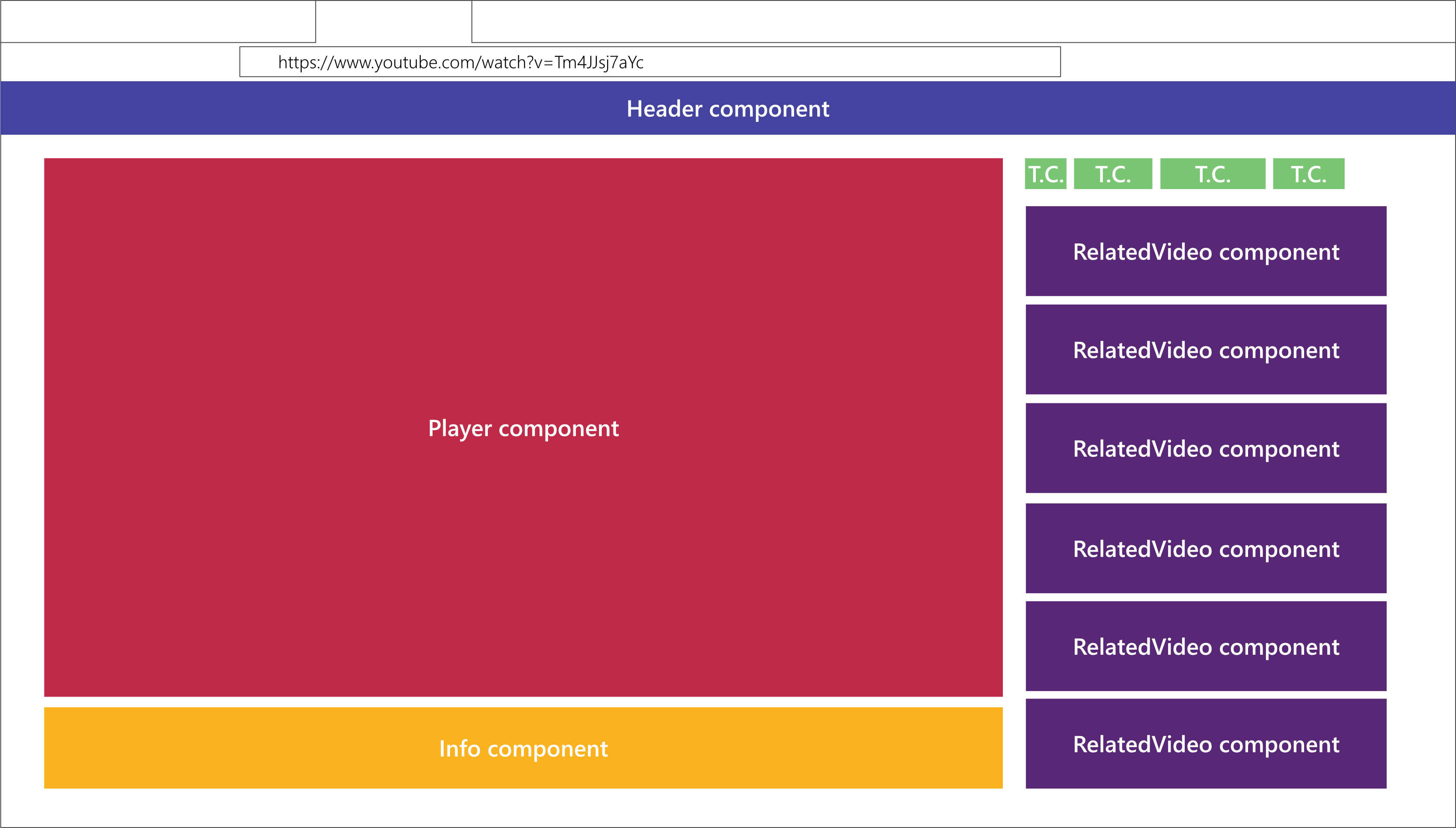
In other words, React helps build complex UIs from small, isolated components that can easily be reused in multiple applications. Each independent component tells React the exact element you want to display on screen.
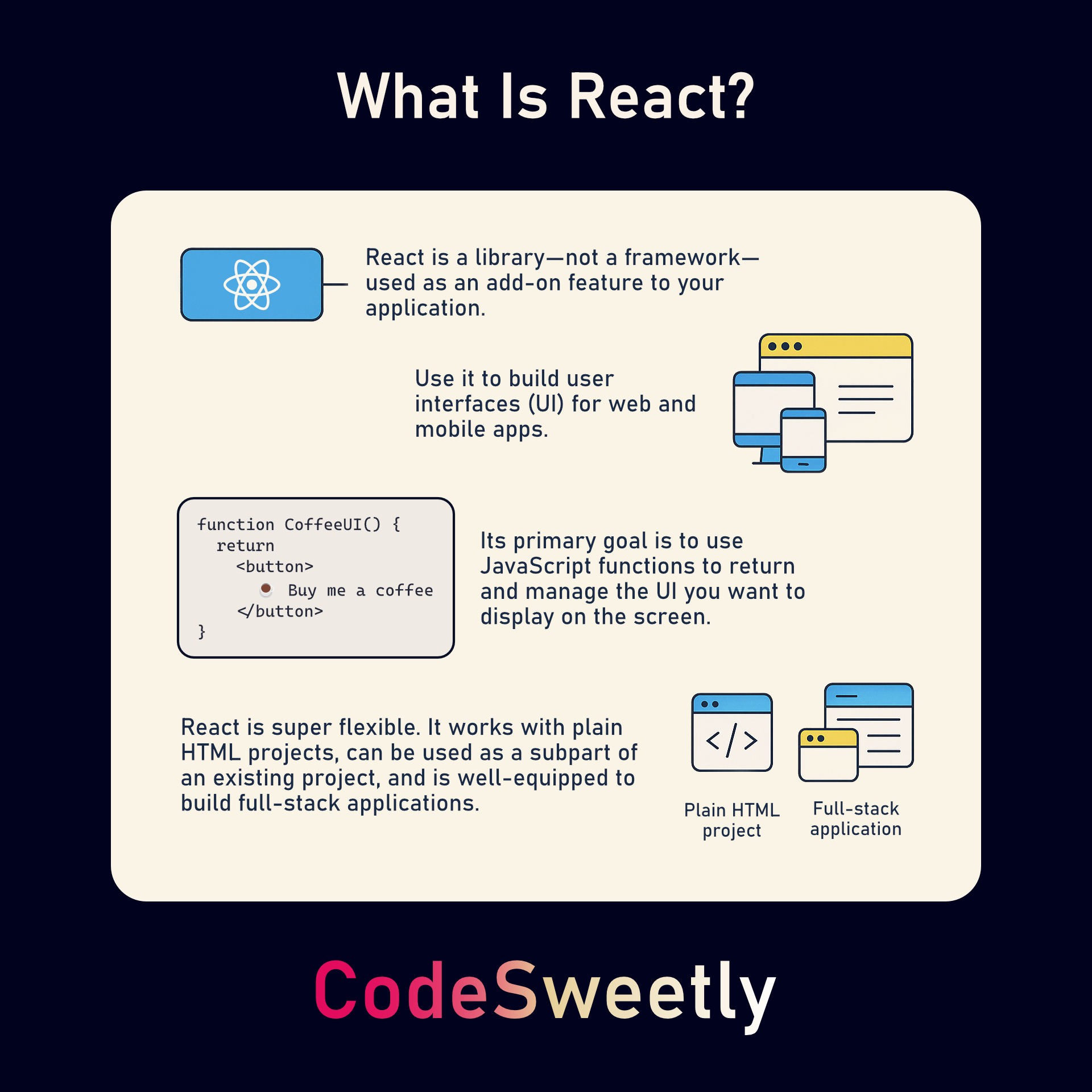
The image above illustrates React as a highly adaptable library that uses JavaScript functions to build user interfaces for both mobile and web-based applications. Let’s discuss the points highlighted in the image.
Why the “React” Name?
The name stems from the idea that React renders your UI and reacts to events in the user interface it has rendered on screen.
Is React a Framework?
No, React is a library—not a framework. React serves only as an add-on feature to your application. It is not designed to be used as an app’s primary support system.
Is React Only for Web Development?
No, you don’t just use React on the web. For instance, ReactDOM helps build web applications, and React Native helps build mobile applications.
Can React be used for full-stack applications?
Absolutely. React is super flexible. You can use it in simple HTML projects, integrate it into existing code, or build complex full-stack applications. Its adaptability makes it suitable for a wide variety of development scenarios.
What’s the Primary Goal of React?
React’s primary goal is for you to use JavaScript functions to return and manage the UI (HTML element) you want to render (display) on the screen. For instance, consider the following:
1 function DonationUserInterface() {
2   return <button>Buy me a coffee</button>;
3 }
The JavaScript function above is a React component that returns the UI (HTML button element) we want to display on screen and manage with React. In fact, let’s implement the DonationUserInterface component on a live website using only HTML and JavaScript – no frameworks.
Adding React Component to a Website
Follow the steps below to add a donation UI component to a live HTML website.
Creating a new project directory
1 mkdir codesweetly-donation-ui-001
 |
You can use any name you prefer. In this guide, we’ll use |
Afterward, navigate to your project directory using the command line.
1 cd path/to/codesweetly-donation-ui-001
Creating a DOM container
To add a React component to a webpage, you first need to specify the section of the page where you want to insert the UI. So, create an HTML page:
1 touch index.html
Afterward, open the new file and add the following code:
 1 <!DOCTYPE html>
 2 <html lang="en-US">
 3   <head>
 4     <meta charset="utf-8" />
 5     <meta name="viewport" content="width=device-width, initial-scale=1" />
 6     <title>CodeSweetly Donation UI</title>
 7   </head>
 8   <body>
 9     <!-- A div container (the DOM node) created for React to manage -->
10     <div id="donation-ui"></div>
11   </body>
12 </html>
The snippet above created a DOM node (<div> element)—inside which we want React to display and manage a donation user interface. In other words, the <div> represents the website’s section you want React to manage.
Importing React, Babel, and your component
Use script tags to load React, Babel, and your component into your project’s HTML page.
 1 <!DOCTYPE html>
 2 <html lang="en-US">
 3   <head>
 4     <meta charset="utf-8" />
 5     <meta name="viewport" content="width=device-width, initial-scale=1" />
 6     <title>CodeSweetly Donation UI</title>
 7     <!-- Load the React Library -->
 8     <script src="https://unpkg.com/react@18/umd/react.development.js"></script>
 9     <!-- Load the ReactDOM API -->
10     <script src="https://unpkg.com/react-dom@18/umd/react-dom.development.js"></script>
11     <!-- Load the Babel Compiler -->
12     <script src="https://unpkg.com/@babel/standalone/babel.min.js"></script>
13   </head>
14   <body>
15     <div id="donation-ui"></div>
16     <!-- Load your React component -->
17     <script type="text/babel" src="DonationUserInterface.js"></script>
18   </body>
19 </html>
The snippet above used the first three script tags to load React, ReactDOM, and Babel from unpkg.com.
At the same time, we used the fourth script tag to import our donation component (which we will create in the following section).
Creating your component
Create a DonationUserInterface.js JavaScript file inside the same folder in which your HTML file is located.
1 touch DonationUserInterface.js
Then, paste the following code inside the JavaScript file you’ve just created:
 1 function DonationUserInterface() {
 2   const [donate, setDonate] = React.useState(false);
 3
 4   function createUserInterface() {
 5     if (donate) {
 6       return (
 7         <p>
 8           <a href="https://www.buymeacoffee.com/codesweetly">Support page</a>.
 9           Thank you so much!
10         </p>
11       );
12     }
13     return <button onClick={() => setDonate(true)}>Buy me a coffee</button>;
14   }
15   return createUserInterface();
16 }
17
18 const root = ReactDOM.createRoot(document.getElementById("donation-ui"));
19 root.render(<DonationUserInterface />);
The snippet above does the following:
- Defines a component named
DonationUserInterface. - Initializes the component’s state (built-in object) with the Boolean value
false. - Programs the component to return a paragraph element if the state’s
donatevariable istrue. Otherwise, it should return a button element. - Creates a
ReactDOMRootobject instance for thedonation-uiHTML element you want React to manage. Afterwards, it assigns the newly created instance to therootvariable. - Uses the object instance’s
render()method to display theDonationUserInterfacecomponent inside the rootdonation-ui.
Configuring a local server
HTML files containing ES modules work only through http:// and https:// URLs, not locally via a file:// URL.
Since we previously used the type="text/babel" attribute to convert the DonationUserInterface.js JavaScript file to an ES module, we need a local server, like Live Server or Servor, to load the HTML document via an http:// scheme. Let’s install Servor so we can use it for this project.
Installing the Servor local server
1 npm i servor@4.0.2 -D
|
|
Running your app
After installing Servor, use it to start your app from your terminal:
1 npx servor --browse --reload
And that’s it! You’ve successfully added a React component to a live website using a JavaScript function to render a donation UI on screen!
 |
You can display components in multiple sections of your HTML page. |
Why Use HTML Inside JavaScript?
Are you asking why we are writing HTML inside JavaScript? Well, that HTML-like code is called JSX. Learn about it in the next chapter.